Ethernet Adapter Compatibility for Fire TV Stick 4K Max

Quick answer
If you want to use a wired Ethernet connection with your Fire TV Stick 4K Max for more stable and faster internet streaming, you need to choose an adapter that is compatible with the device's USB port and chipset requirements. Not all USB Ethernet adapters work out of the box...
Reviewed Against
• Fire TV and Fire OS device capabilities, networking, and storage limits
• Home-network checks such as Wi-Fi strength, Ethernet fallback, DNS changes, congestion, and local storage pressure
Applies To
• Fire TV Stick, Fire TV Cube, and Fire OS playback or networking questions
• Playback problems that change with connection quality, device load, app cache state, or time of day
Does not apply when
• You are troubleshooting a smart-TV app or set-top box with a different hardware and settings path.
• Only one channel, event, or provider-side endpoint is failing while the rest of the service stays stable.
Corroborating Resources
Fire TV device specifications overviewHelpful for checking Fire TV hardware families, platform differences, and device-level constraints.
Fire TV streaming media player specsUseful for codec, storage, Wi-Fi, and Ethernet-adapter expectations on Fire TV sticks and boxes.
Android TV video and game troubleshootingUseful for Wi-Fi, updates, app cache, and playback troubleshooting steps that also mirror IPTV failure paths.
Android TV storage helpHelpful when playback issues point to low storage, cache pressure, or app-data cleanup decisions.
Topic Cluster
Part of the Fire TV Stick 4K Max cluster
Browse practical IPTV articles about Fire TV Stick 4K Max, including setup choices, troubleshooting paths, and follow-on guides. This page sits in setup and decisions for that topic path.
On this page
Ethernet Adapter Compatibility for Fire TV Stick 4K Max
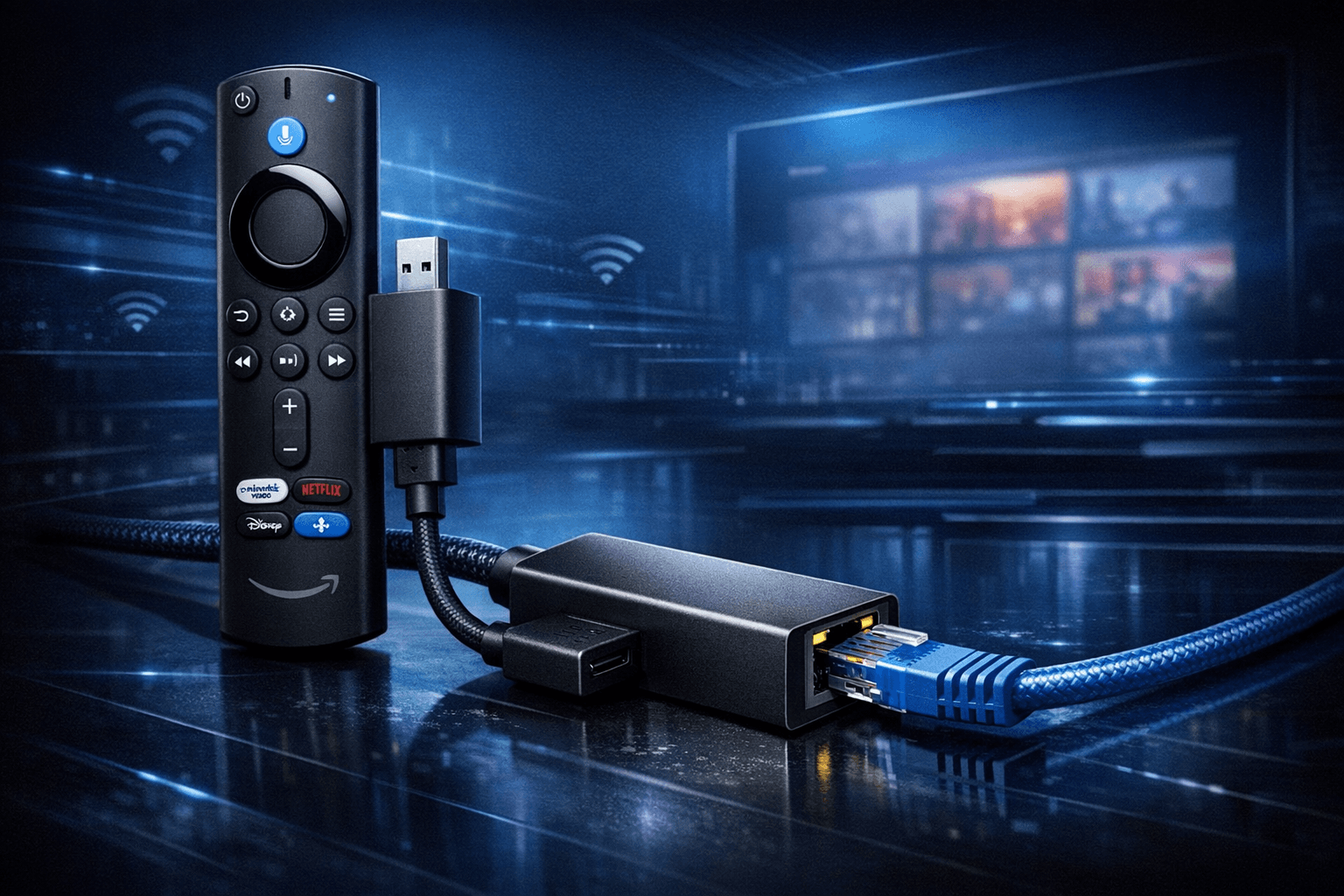
If you want to use a wired Ethernet connection with your Fire TV Stick 4K Max for more stable and faster internet streaming, you need to choose an adapter that is compatible with the device's USB port and chipset requirements. Not all USB Ethernet adapters work out of the box with this device. This article explains which adapters are compatible, how to set them up, and how to troubleshoot common issues.
What you'll learn
- Which Ethernet adapters are compatible with the Fire TV Stick 4K Max
- How to correctly connect and configure an Ethernet adapter
- Common issues and how to troubleshoot them
- When and why to use Ethernet over Wi-Fi on this device
- Which users may need a different guide or device-specific instructions
Understanding Ethernet Adapter Compatibility with Fire TV Stick 4K Max
Why Ethernet?
The Fire TV Stick 4K Max uses a USB-C port primarily for power but can support USB accessories, including Ethernet adapters, through an OTG (On-The-Go) adapter. A wired Ethernet connection can provide more consistent speeds and lower latency compared to Wi-Fi, improving 4K streaming reliability.
Important Compatibility Factors
Compatibility depends mainly on the USB Ethernet adapter’s chipset. The Fire TV Stick 4K Max runs a customized version of Fire OS (based on Android), which includes limited drivers. Supported adapters usually use chipsets like:
- ASIX AX88xxx series (e.g., AX88179)
- Realtek RTL8152/RTL8153
Adapters with these chipsets have confirmed compatibility because Fire OS includes the necessary drivers.
What Doesn’t Work Well?
Adapters using unsupported chipsets or those requiring additional drivers won’t work. Cheap generic adapters or very new chipsets may not have driver support and therefore won’t be recognized.
How to Set Up an Ethernet Adapter on Fire TV Stick 4K Max
Here is the step-by-step process to connect a compatible Ethernet adapter to your Fire TV Stick 4K Max.
Required Items
- Fire TV Stick 4K Max
- Compatible USB Ethernet adapter (with ASIX or Realtek chipset)
- USB-C OTG adapter (USB-C female to USB-A male) to connect Ethernet adapter
- Ethernet cable connected to your router or network switch
Setup Steps
- Verify compatibility: Make sure your Ethernet adapter is compatible with Fire TV Stick 4K Max.
- Power off Fire TV Stick: Unplug power to avoid connection issues during setup.
- Plug in OTG adapter: Insert the USB-C OTG adapter into the Fire TV Stick’s USB-C port.
- Connect Ethernet adapter: Plug the USB Ethernet adapter into the OTG adapter.
- Connect Ethernet cable: Attach your Ethernet cable from your router or switch to the Ethernet adapter.
- Power the Fire TV Stick: Plug in power to turn on the device.
- Disable Wi-Fi (optional): Go to Settings > Network and disable Wi-Fi to force using Ethernet.
- Check network status: Confirm that the Fire TV Stick shows wired Ethernet connection with an IP address.
- Test streaming and performance: Play content and ensure stable connection and good speeds.
Troubleshooting Common Ethernet Adapter Issues
Adapter Not Recognized
If your Ethernet adapter doesn’t appear in the network settings:
- Confirm it uses a compatible chipset (ASIX or Realtek).
- Try a different compatible adapter.
- Use a powered USB hub if you suspect insufficient power.
No Internet Connection
- Verify your Ethernet cable and network are active by testing with another device.
- Restart your router and Fire TV Stick.
- Check Fire TV network settings and reconnect.
Connection Drops or Is Unstable
- Ensure firmware on Fire TV Stick is up to date.
- Check for cable damage or replace cables.
- Avoid long USB extension cables which can cause signal issues.
Who This Guide Applies To and When to Look Elsewhere
This Guide Is for:
- Users with Fire TV Stick 4K Max wanting wired Ethernet for stable streaming.
- Those who have basic knowledge of USB adapters and networking.
- Users willing to buy or use USB Ethernet adapters with compatible chipsets.
When to Look Elsewhere
- If you have older Fire TV Stick models, compatibility and setup are different.
- If your device lacks USB-C or OTG support, this guide won't apply.
- For issues with specific IPTV apps or IPTV Smarters login problems, check device or app-specific troubleshooting.
Refer to guides specific to your Fire TV version or troubleshooting for IPTV app errors if connectivity isn’t the issue.
Comparing Popular Compatible Ethernet Adapters
| Adapter Model | Chipset | USB Interface | Notes |
|---|---|---|---|
| ASIX AX88179 USB 3.0 | ASIX AX88179 | USB 3.0 | Widely compatible, reliable |
| TP-Link UE300 | ASIX AX88179 | USB 3.0 | Compact, popular choice |
| Cable Matters USB 3.0 | Realtek RTL8153 | USB 3.0 | Known to work well |
| AmazonBasics USB 3.0 | ASIX AX88179 | USB 3.0 | Budget-friendly option |
Note: USB 3.0 adapters are backwards compatible with USB 2.0 ports on the Fire TV Stick 4K Max.
FAQs
Can I use a USB-C to Ethernet adapter directly without OTG?
No. The Fire TV Stick 4K Max’s USB-C port is designed for power and data but requires a USB-C OTG adapter to connect standard USB Ethernet adapters.
Is a wired connection always better than Wi-Fi?
Wired connections are usually more stable and less prone to interference, though a strong 5 GHz Wi-Fi signal can perform well for streaming.
Do I have to disable Wi-Fi manually?
To force the device to use Ethernet, disable Wi-Fi in the network settings. Otherwise, it may prioritize Wi-Fi.
Can this setup help with IPTV buffering?
Yes. A stable Ethernet connection can reduce buffering and improve IPTV streaming quality.
Conclusion
Using an Ethernet adapter with the Fire TV Stick 4K Max can significantly improve streaming stability and speeds by providing a wired connection. To ensure success, choose an Ethernet adapter with a compatible chipset such as ASIX AX88179 or Realtek RTL8153. Follow proper setup instructions, including using a USB-C OTG adapter, and troubleshoot common connection issues by verifying compatibility and network status. This guide helps informed beginners and intermediate users make the right decisions to enjoy smooth IPTV and streaming experiences on the Fire TV Stick 4K Max.
For further reading on Fire TV Stick comparisons and IPTV setups, consider these resources:
- Fire TV Cube vs Fire TV Stick 4K Max for IPTV: Performance and Setup
- 4K Streaming topic
- 5 GHz Wi-Fi topic
Checklist for Buying Ethernet Adapter for Fire TV Stick 4K Max
- Uses ASIX AX88xxx or Realtek RTL8152/RTL8153 chipset
- USB 2.0 or USB 3.0 interface
- Comes with or compatible with a USB-C OTG adapter
- Positive compatibility review with Fire TV Stick 4K Max
- Includes a reliable Ethernet cable or plan to buy one
Stay connected and enjoy seamless streaming with the right Ethernet adapter for your Fire TV Stick 4K Max!
Frequently Asked Questions
Can any USB Ethernet adapter work with Fire TV Stick 4K Max?
Not all USB Ethernet adapters are compatible. The adapter must support USB 2.0 or higher and use chipsets known to work well with Fire TV devices, such as ASIX AX88xxx or Realtek RTL8152/8153.
How do I know if my Fire TV Stick is using the Ethernet connection?
When connected and Wi-Fi is off, the Fire TV Stick’s Network settings will show a wired connection with an IP address assigned via Ethernet instead of Wi-Fi.
Why isn’t my Ethernet adapter recognized by the Fire TV Stick?
This usually indicates incompatibility or insufficient power. Try a different adapter that lists Fire TV compatibility or use a powered USB hub if needed.
Can I use a USB-C to Ethernet adapter directly?
The Fire TV Stick 4K Max has a USB-C port but requires a USB-C OTG adapter to connect standard USB Ethernet adapters first.
Does using an Ethernet adapter improve streaming quality?
Wired Ethernet can provide a more stable and faster connection than Wi-Fi, reducing buffering and improving streaming quality, especially on congested networks.
Keep exploring
More explainers that connect naturally to this setup, workflow, or troubleshooting path.
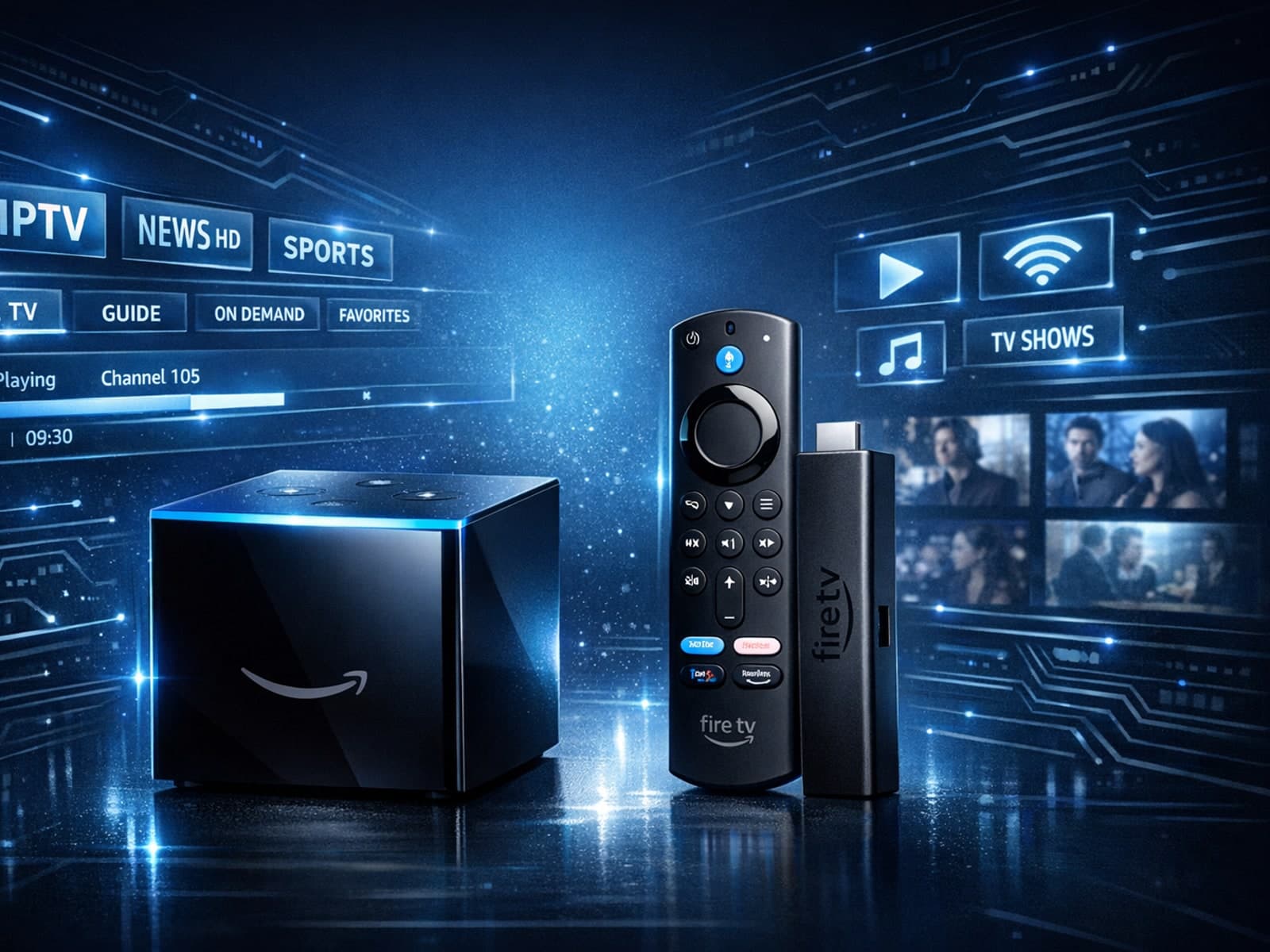
Choosing between the Fire TV Cube and the Fire TV Stick 4K Max for IPTV can come down to your setup preferences, desired features, and streaming performance needs.

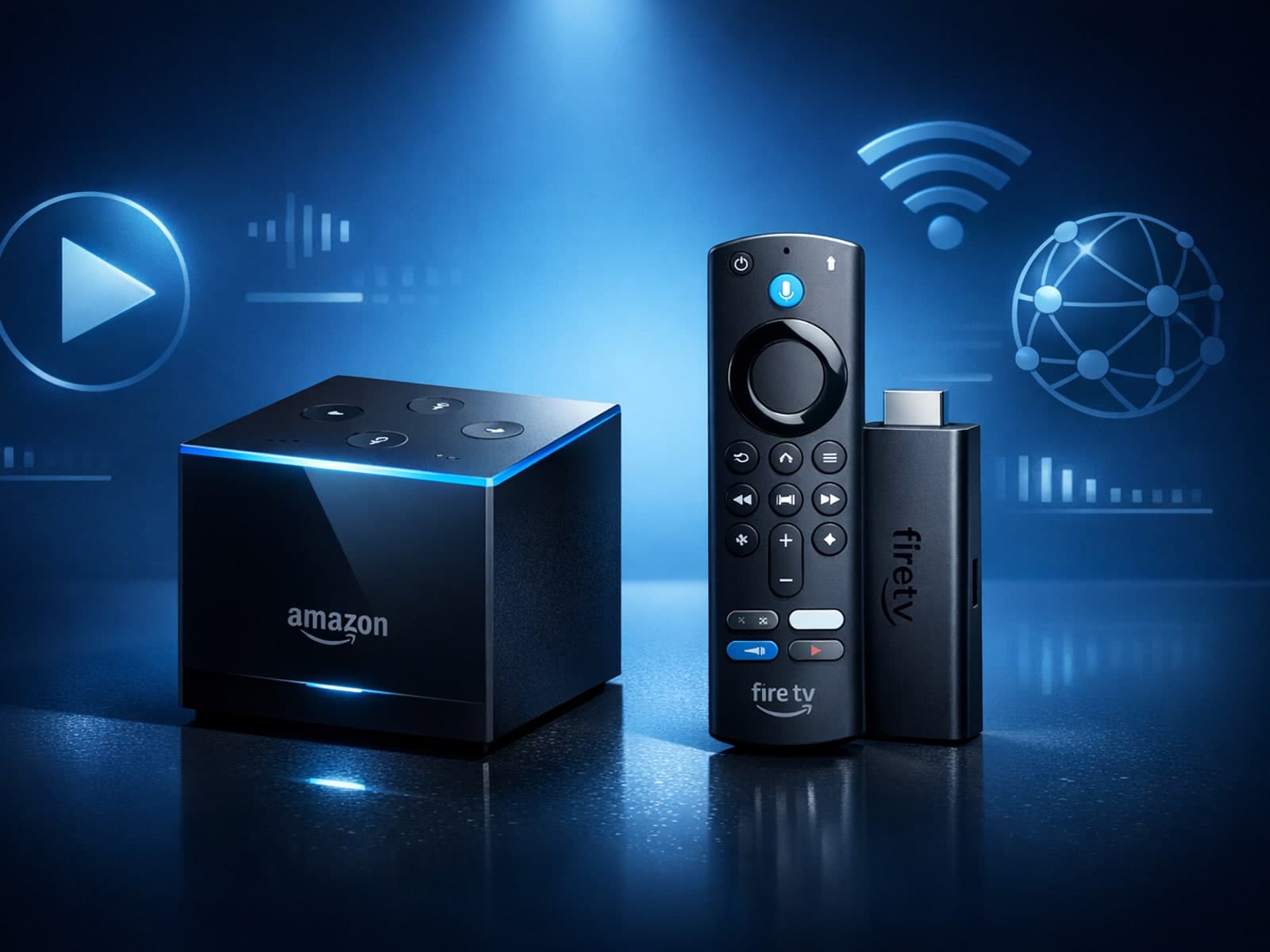
Choosing between the Fire TV Cube and Fire TV Stick 4K Max for IPTV streaming depends on your priorities such as performance, connectivity, and setup ease.
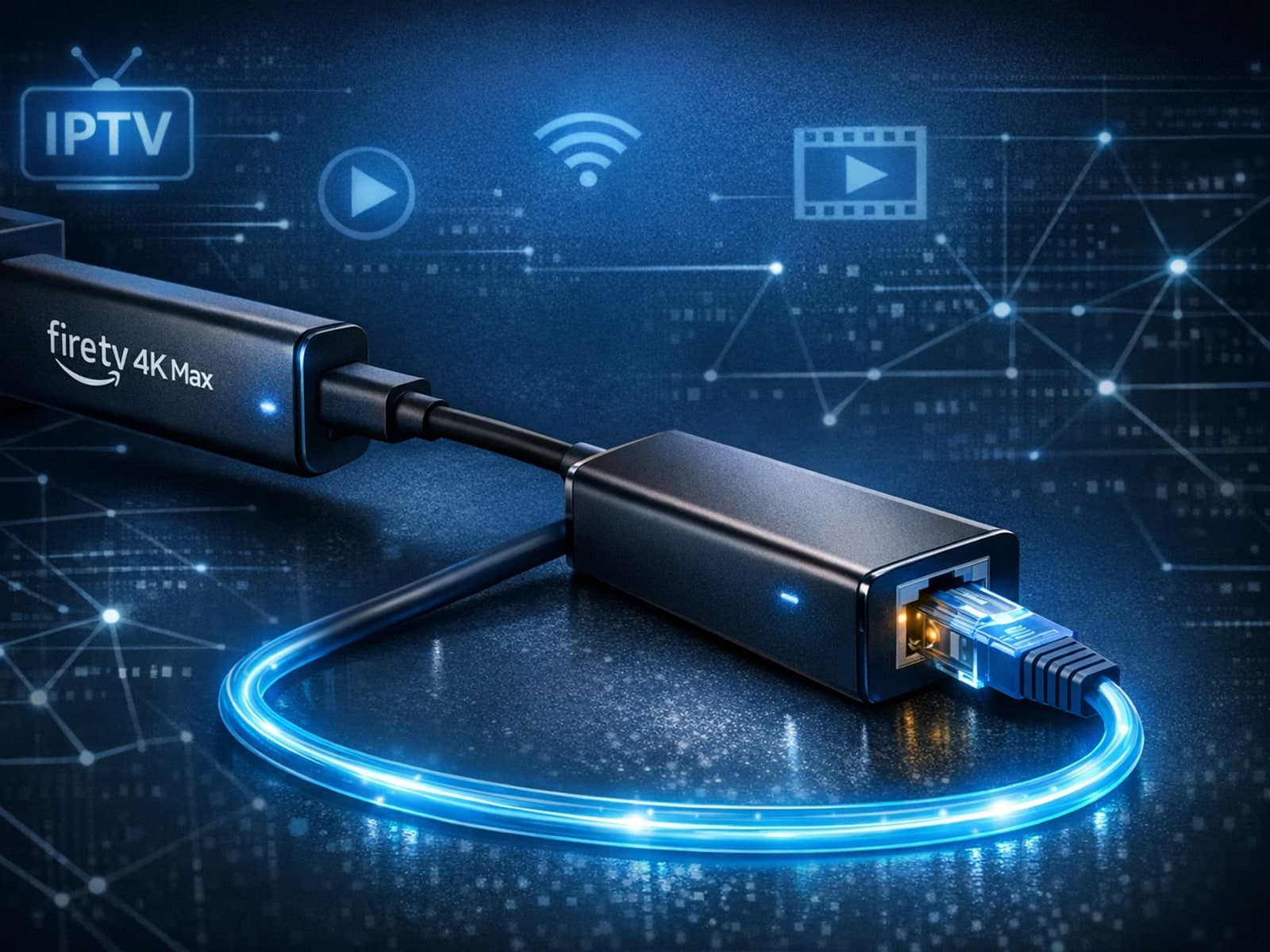
The Fire TV Stick 4K Max supports Ethernet adapters designed to connect through its USB-C port, enabling wired internet access for more reliable streaming.
