
Fire TV Cube vs Fire TV Stick 4K Max for IPTV Streaming

Quick answer
Choosing between the Fire TV Cube and the Fire TV Stick 4K Max for IPTV can come down to your setup preferences, desired features, and streaming performance needs. Both devices fully support IPTV apps and 4K streaming, but differ in processing power, network connectivity optio...
Reviewed Against
• Fire TV and Fire OS device capabilities, networking, and storage limits
Applies To
• Fire TV Stick, Fire TV Cube, and Fire OS playback or networking questions
Does not apply when
• You are troubleshooting a smart-TV app or set-top box with a different hardware and settings path.
Corroborating Resources
Fire TV device specifications overviewHelpful for checking Fire TV hardware families, platform differences, and device-level constraints.
Fire TV streaming media player specsUseful for codec, storage, Wi-Fi, and Ethernet-adapter expectations on Fire TV sticks and boxes.
Topic Cluster
Part of the Amazon Fire TV cluster
Browse practical IPTV articles about Amazon Fire TV, including setup choices, troubleshooting paths, and follow-on guides. This page sits in compare options for that topic path.
On this page
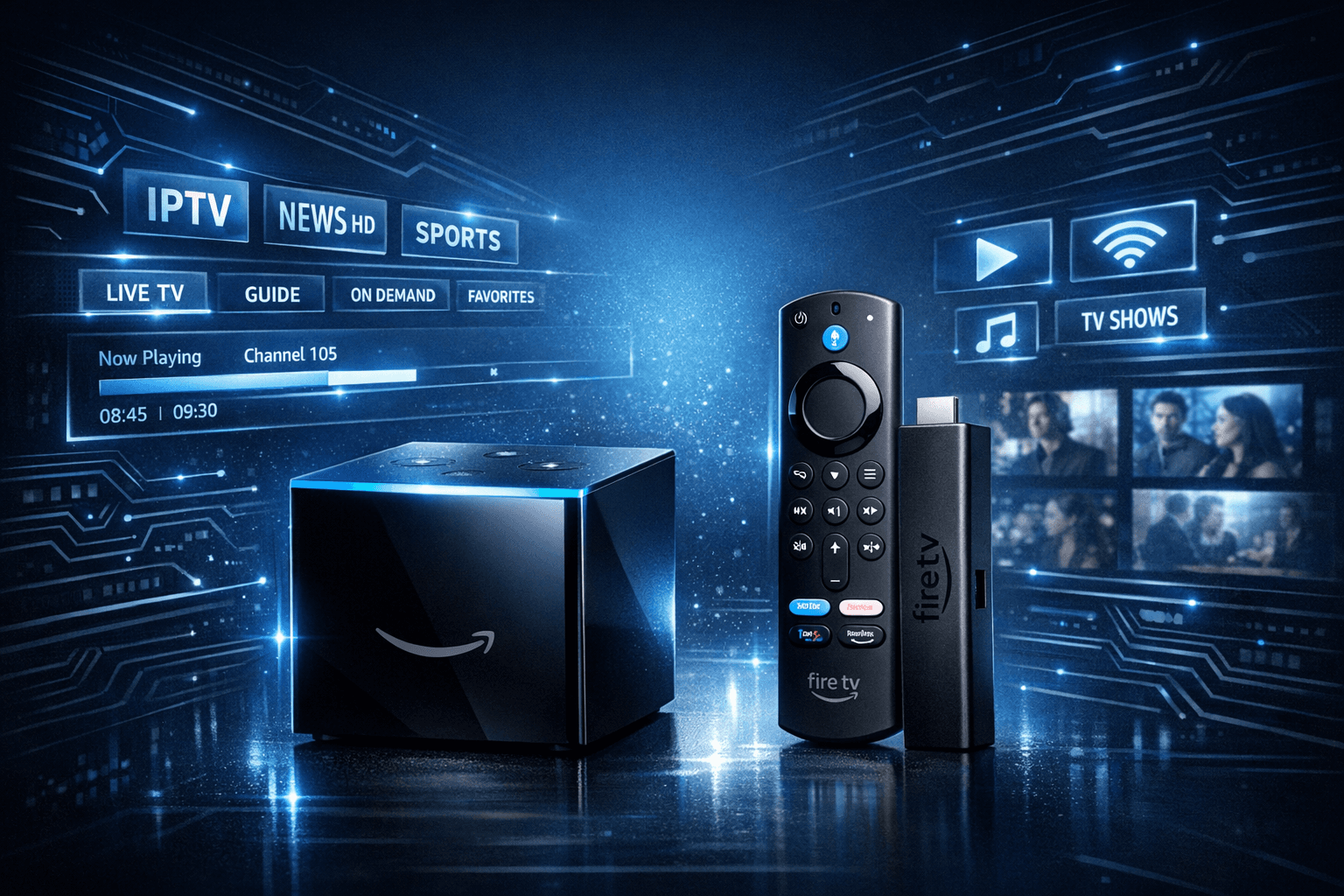
Fire TV Cube vs Fire TV Stick 4K Max for IPTV Streaming
Choosing between the Fire TV Cube and the Fire TV Stick 4K Max for IPTV can come down to your setup preferences, desired features, and streaming performance needs. Both devices fully support IPTV apps and 4K streaming, but differ in processing power, network connectivity options, and voice control experience. This article compares these two Fire TV devices specifically for IPTV users to clarify which device fits different use cases best.
What you'll learn
- Key hardware and software differences impacting IPTV streaming
- How setup and network options vary and affect IPTV experience
- Voice control and remote features relevant to IPTV navigation
- Performance considerations for popular IPTV apps
- When to prefer Fire TV Cube or Stick 4K Max based on your environment
Understanding IPTV Requirements on Fire TV Devices
What is IPTV?
IPTV stands for Internet Protocol Television, a system where TV content is delivered via internet protocols over broadband connections rather than traditional terrestrial, satellite, or cable formats. IPTV apps on Fire TV devices require solid processing power, reliable internet connections, and responsive input methods for optimal experience.
Minimum performance needs for IPTV on Fire TV
Playing IPTV smoothly depends on:
- A fast enough processor and adequate RAM to decode streams
- Network connectivity capable of stable bandwidth, preferably 5 GHz Wi-Fi or Ethernet
- Responsive remote control or voice commands for channel navigation
Both the Fire TV Cube and Fire TV Stick 4K Max meet or exceed these minimums, but their differences influence real-world usability.
Hardware and Processing Power Comparison
| Feature | Fire TV Cube | Fire TV Stick 4K Max |
|---|---|---|
| Processor | Hexa-core (4x2.2 GHz + 2x1.9 GHz) | Quad-core (1.8 GHz) |
| RAM | 2 GB | 2 GB |
| Storage | 16 GB | 8 GB |
| Ethernet Port | Built-in (on 2nd Gen model) | Requires adapter |
| Voice Microphones | Far-field microphones (hands-free Alexa) | Microphone in remote (push-to-talk) |
How processing affects IPTV
Higher processing power in the Fire TV Cube results in faster app loading, smoother navigation, and better handling of multiple streams or high bitrates common in IPTV. The Fire TV Stick 4K Max is capable but may show slightly longer load times or buffering under heavy use.
Storage considerations
More storage in the Cube allows for more IPTV apps and caching, though most IPTV apps store data in the cloud or device memory dynamically.
Network Setup and Reliability
Stable network connectivity is crucial for uninterrupted IPTV streaming.
Fire TV Cube
- Offers an optional built-in Ethernet port on newer models which supports wired internet
- Dual-band Wi-Fi (2.4 GHz and 5 GHz) with MU-MIMO support
- Hardwired connection minimizes buffering and improves latency
Fire TV Stick 4K Max
- Dual-band Wi-Fi (2.4 GHz and 5 GHz) with WPA3 security
- No Ethernet port, but compatible with Amazon’s Ethernet adapter (sold separately)
Which network option is better for IPTV?
If you have wired Ethernet available, the Fire TV Cube’s built-in port or the Stick with an adapter can offer better streaming stability than Wi-Fi. Over Wi-Fi, the 5 GHz band reduces interference and improves bandwidth, both devices support it.
Voice Control and Remote for IPTV Navigation
Fire TV Cube
- Hands-free Alexa enabled via built-in microphones
- Allows voice commands without pressing buttons, useful for changing channels, searching IPTV content, and controlling playback
Fire TV Stick 4K Max
- Alexa voice remote requires push-to-talk button for commands
- No hands-free capability
Why this matters for IPTV
IPTV apps often rely on extensive navigation. Hands-free voice control in the Cube lets you switch channels or open apps without interrupting viewing or reaching for the remote, enhancing ease of use.
IPTV App Performance and Compatibility
Popular IPTV apps like TiviMate, IPTV Smarters, and Lazy IPTV work on both Fire TV devices.
Performance notes
- Fire TV Cube’s enhanced processor leads to quicker app launches and less app crashes during streaming.
- Fire TV Stick 4K Max can handle IPTV well but may struggle under multiple parallel streams or heavy metadata loads like EPG (Electronic Program Guide).
Storage impacts
Apps requiring offline caching or local storage benefit from the Cube’s larger capacity.
Troubleshooting Common IPTV Issues by Device
Common Mistakes
- Using 2.4 GHz Wi-Fi instead of 5 GHz can cause buffering
- Not clearing app cache when updated IPTV apps lag
- Overloading device with multiple streaming apps simultaneously
Device-Specific Tips
For Fire TV Cube
- Ensure far-field microphones are unobstructed for voice commands
- Use built-in Ethernet if available for best stability
For Fire TV Stick 4K Max
- Use compatible Ethernet adapter if Wi-Fi is unreliable
- Keep remote batteries fresh to avoid response delays
When to choose other resources
- If using older Fire TV devices or Fire TV Edition TVs, seek device-specific troubleshooting
- For IPTV apps outside Amazon Appstore, consider sideloading guides
Decision Checklist for IPTV Users
| Factor | Fire TV Cube | Fire TV Stick 4K Max |
|---|---|---|
| Budget | Higher price | More affordable |
| Voice control | Hands-free Alexa for seamless commands | Push-to-talk Alexa remote |
| Network connection | Built-in Ethernet (stable for IPTV) | Ethernet adapter required, otherwise Wi-Fi only |
| Processing power | Stronger for multitasking and high bitrate streams | Adequate for typical use |
| Storage | 16 GB for apps and caching | 8 GB |
| Setup complexity | Plug and play, best for users wanting integrated solution | Slightly simpler but may need adapter and manual setup |
Conclusion
Both the Fire TV Cube and Fire TV Stick 4K Max provide excellent support for IPTV, including 4K streaming and popular IPTV apps. The Cube excels in processing power, storage, and hands-free voice control, making it ideal for users wanting a smoother, more integrated IPTV experience and those preferring Ethernet connectivity built-in. The Fire TV Stick 4K Max offers a more budget-friendly option with solid 4K performance and good app compatibility but relies on Wi-Fi or add-on adapters for wired networking.
Choosing between them depends on your priorities: prefer the Fire TV Cube for premium performance and features or the Stick 4K Max for value and solid IPTV streaming capability.
FAQ
Is the Fire TV Cube better for IPTV than the Fire TV Stick 4K Max?
The Cube has higher processing power and hands-free Alexa, offering smoother IPTV navigation, but the Stick 4K Max delivers strong performance for most users.
Can both devices stream 4K IPTV content?
Yes, both Fire TV Cube and Stick 4K Max support 4K streams.
Do I need Ethernet for stable IPTV?
Ethernet generally offers a more stable connection; the Cube includes Ethernet on some models, while the Stick requires an adapter.
Are IPTV apps exclusive to one device?
Most IPTV apps run equally on both devices, with no major exclusivity.
Which device offers better voice control for IPTV?
The Fire TV Cube supports hands-free Alexa, while the Stick requires pressing a button on the remote.
See Also
- Fire TV Cube vs Fire TV Stick 4K Max for IPTV: Performance and Setup
- Ethernet Adapter Compatibility for Fire TV Stick 4K Max
- How to Fix Missing Channel Logos in TiviMate
- How to Organize Favorites and Groups in TiviMate
How to Set Up Your Fire TV Device for IPTV
- Connect your Fire TV Cube or Stick 4K Max to your TV and power supply.
- Connect to your home network: via Ethernet (Cube or Stick adapter) or 5 GHz Wi-Fi.
- Sign in to your Amazon account and install your preferred IPTV app from the Amazon Appstore.
- Open the IPTV app and enter your IPTV subscription details carefully.
- Configure app settings: video quality, EPG, favorites, and parental controls as needed.
- Test streams to ensure smooth playback.
Frequently Asked Questions
Is the Fire TV Cube better for IPTV than the Fire TV Stick 4K Max?
The Fire TV Cube provides more processing power and hands-free Alexa control, which can offer smoother IPTV streaming and easier voice commands, but the Stick is very capable and more affordable.
Can both devices stream 4K IPTV content?
Yes, both the Fire TV Cube and Fire TV Stick 4K Max support 4K resolution, making them suitable for high-quality IPTV streaming.
Do I need Ethernet for stable IPTV on these devices?
While both support Wi-Fi, Ethernet connections generally provide more stability for IPTV. The Fire TV Cube has a built-in Ethernet port on some models, whereas the Stick requires an adapter.
Are there any IPTV apps exclusive to one device?
Most IPTV apps available in the Amazon Appstore run on both devices; there's no major exclusivity affecting IPTV access.
Which device has better voice control for IPTV navigation?
The Fire TV Cube has built-in far-field microphones for hands-free Alexa control, offering a more seamless voice experience than the Stick 4K Max which requires using the remote's voice button.
Keep exploring
More explainers that connect naturally to this setup, workflow, or troubleshooting path.
If your TiviMate playlist does not update even after pressing the refresh button, it’s usually due to issues like an unstable internet connection, outdated or broken playlist URLs, or app cache conflicts.

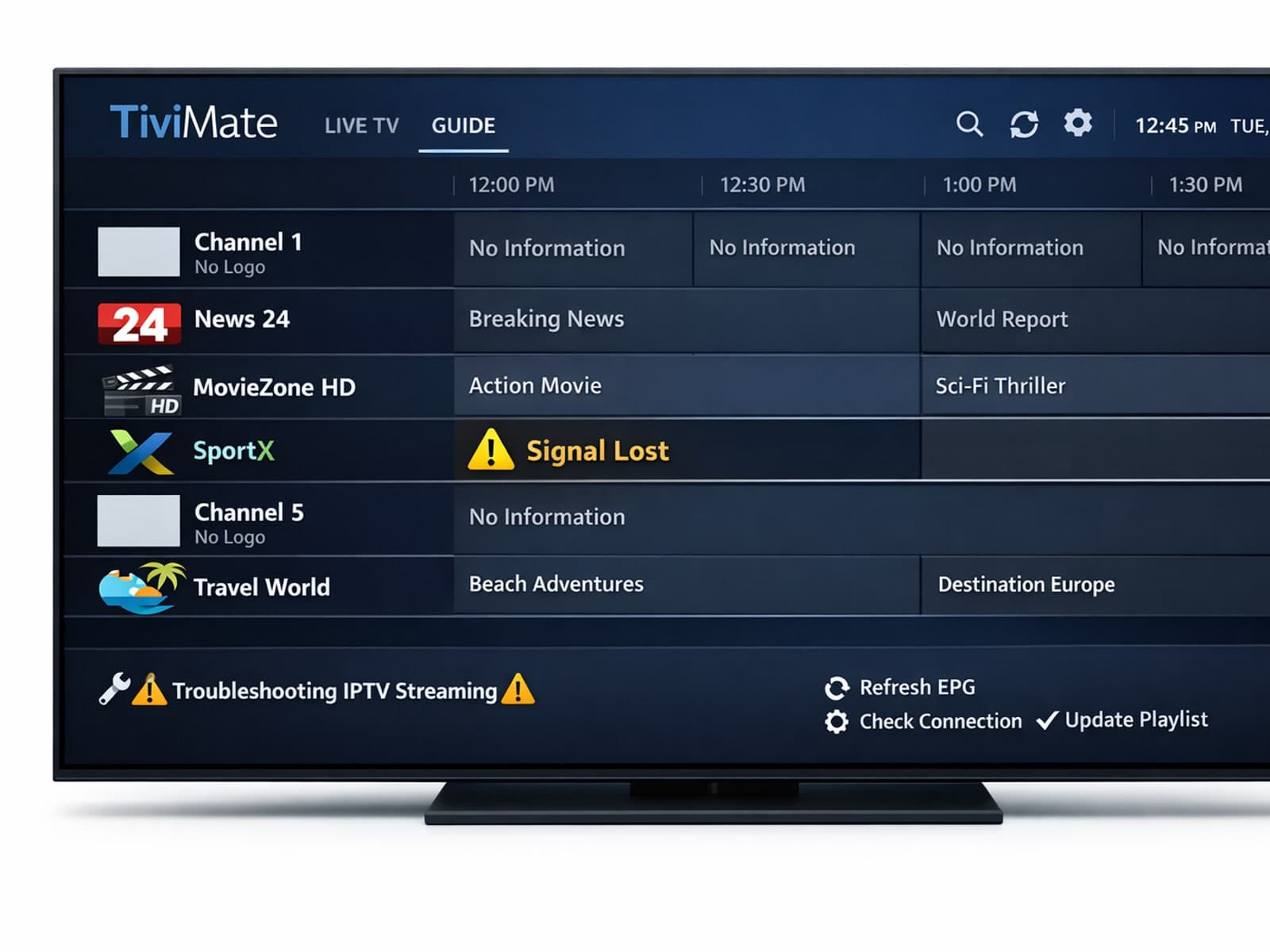
Missing channel logos can detract from your IPTV experience with TiviMate. These logos typically appear next to channel names in the guide and help you visually identify the channels quickly.

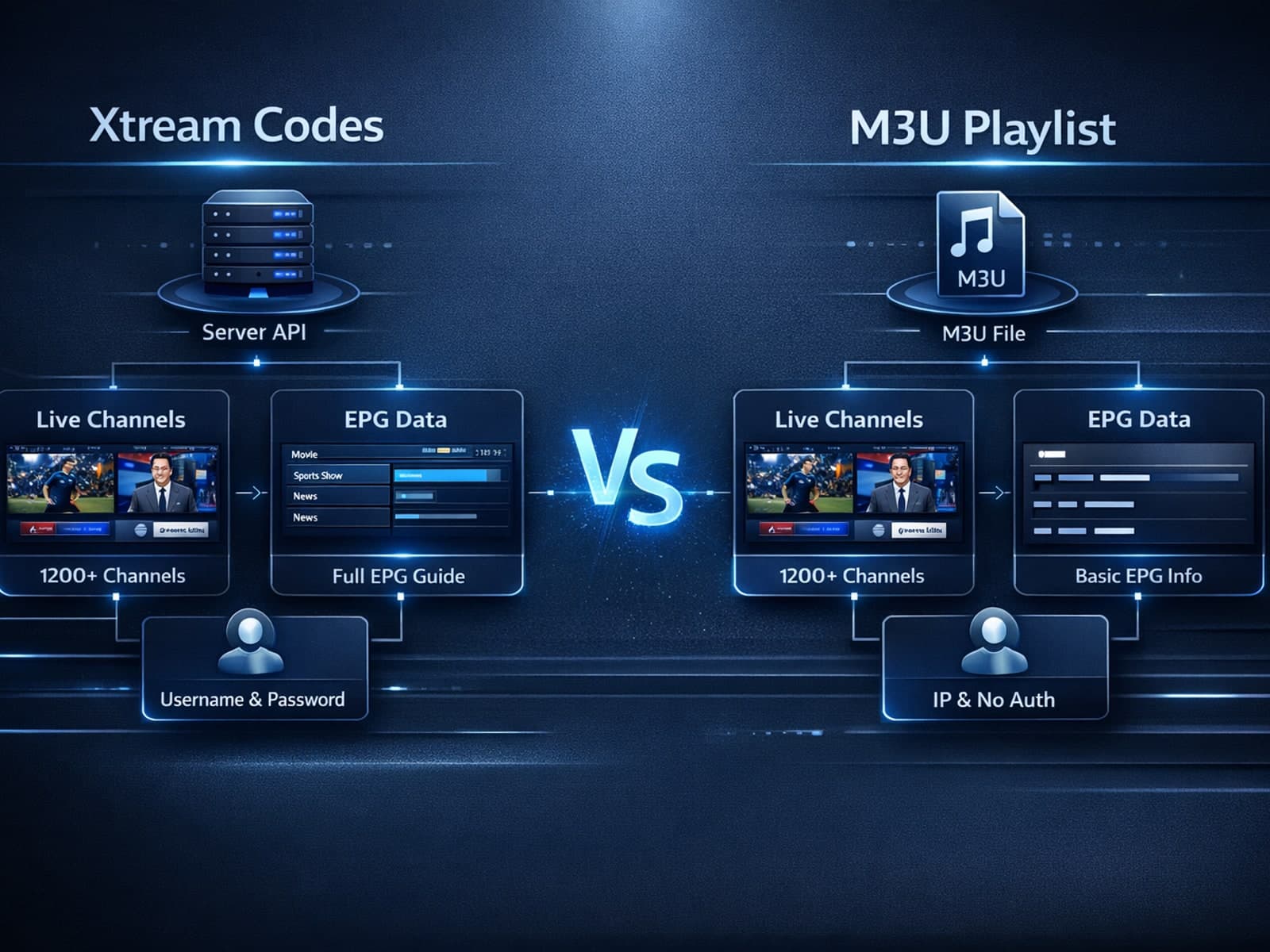
If you're streaming IPTV, you might wonder when using Xtream Codes is better than relying on an M3U playlist. In plain terms, Xtream Codes offers enhanced stream management, integrated electronic program guide (EPG) support, and user.