
How to Fix Missing Channel Logos in TiviMate

Quick answer
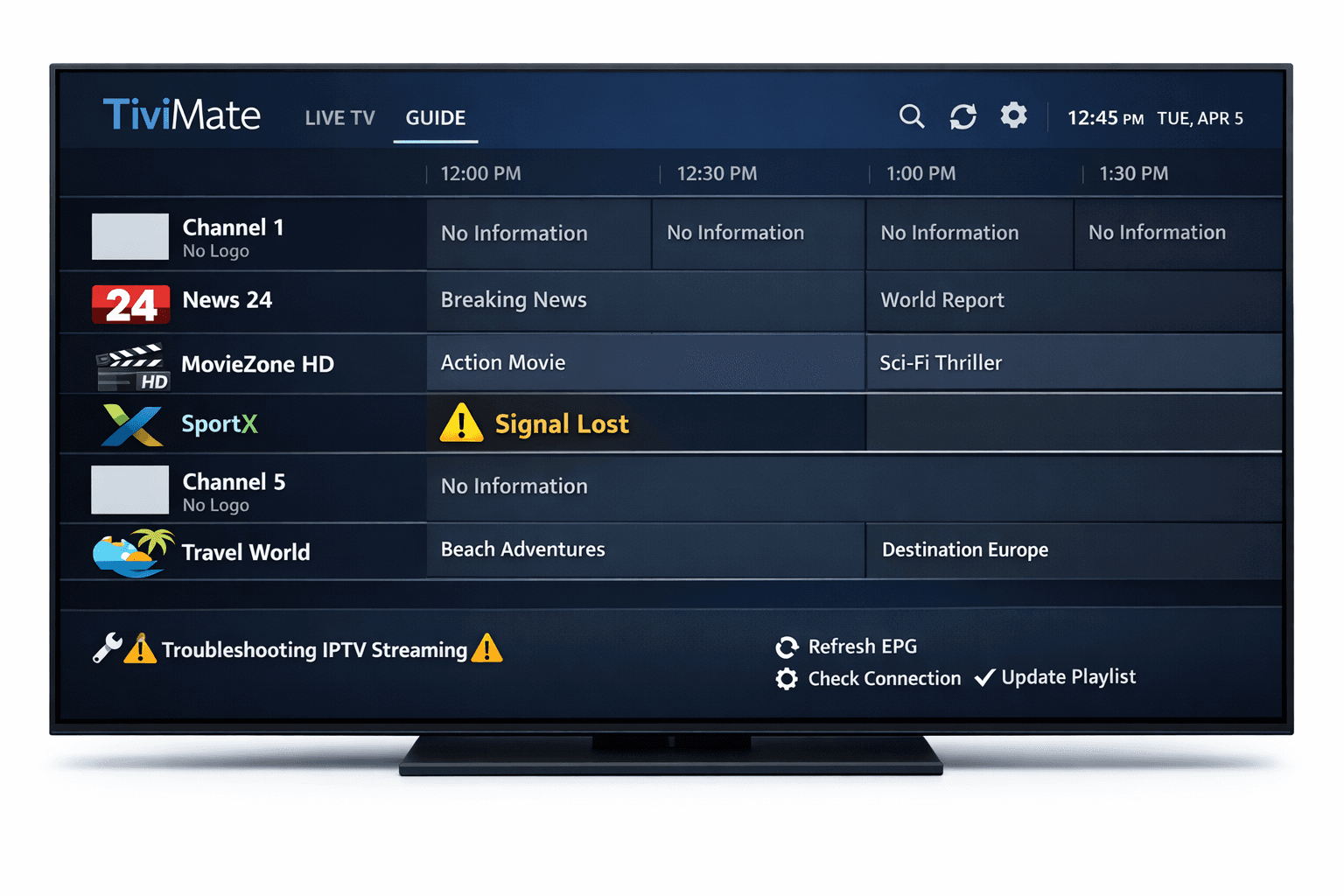
Missing channel logos can detract from your IPTV experience with TiviMate. These logos typically appear next to channel names in the guide and help you visually identify the channels quickly. If some or all logos are missing, this article explains why it happens and how to fix...
Reviewed Against
• TiviMate playlist, EPG, and player-setting workflows
Applies To
• TiviMate setups on Android TV, Google TV, or Fire OS style streaming devices
Does not apply when
• Your app uses a different menu layout or naming scheme than TiviMate.
Topic Cluster
Part of the IPTV cluster
Browse practical IPTV articles about IPTV, including setup choices, troubleshooting paths, and follow-on guides. This page sits in troubleshoot and fix for that topic path.
On this page
How to Fix Missing Channel Logos in TiviMate
Missing channel logos can detract from your IPTV experience with TiviMate. These logos typically appear next to channel names in the guide and help you visually identify the channels quickly. If some or all logos are missing, this article explains why it happens and how to fix it step-by-step.
What you'll learn
- Common causes of missing channel logos in TiviMate
- How playlist metadata affects logos availability
- The role of TiviMate settings and cache in logo display
- Manual methods to add or restore channel logos
- When to seek specialized support or use a different troubleshooting path
Why Are Channel Logos Missing in TiviMate?
TiviMate relies primarily on the playlist you import to organize your IPTV channels. The playlist usually contains URLs to channel logos as part of its metadata or loads logos from provider sources online. Common causes for missing logos include:
- Playlist lacks logo URLs: Some playlists do not include logo image links.
- Outdated or incorrect metadata: The URLs may be broken or point to unavailable images.
- TiviMate cache or settings issues: Temporary glitches or disabled logo display.
- Network issues: Logos may not load correctly without an active internet connection.
Understanding these causes helps target your troubleshooting efficiently.
How to Check Your Playlist for Channel Logos
Your playlist is the primary source of logos. To verify if it supports logos:
1. Open your playlist file
If your playlist is an M3U file, open it with a text editor. Look for lines containing tvg-logo attributes, for example:
#EXTINF:-1 tvg-id="channel.id" tvg-logo="http://example.com/logo.png", Channel Name
http://stream.url
If no tvg-logo URLs exist, your playlist does not contain logos.
2. Check the URLs
If tvg-logo entries exist, verify the URLs by copying them into a browser to see if the images load.
- If images load: TiviMate should be able to display them unless there is a local app issue.
- If images don’t load: The logo links are broken or the source is down.
Refreshing and Re-importing the Playlist in TiviMate
Sometimes, TiviMate caches old playlist data that may not include logos. To refresh:
- Open the TiviMate app.
- Navigate to Settings > Playlists.
- Select your active playlist.
- Choose Update Playlist or remove and re-add the playlist.
Refreshing forces TiviMate to fetch the latest metadata, which may restore missing logos.
Manual Addition or Correction of Channel Logos
If your playlist lacks logos or they are incorrect, you can add or fix them manually:
Step-by-step:
-
Open your M3U playlist file in a text editor.
-
For each channel missing a logo, obtain a proper logo image URL.
-
Add or correct the
tvg-logoattribute for that channel entry:#EXTINF:-1 tvg-id="channel.id" tvg-logo="http://correct-logo-url/logo.png", Channel Name http://channel-stream-url -
Save the playlist.
-
Re-import the updated playlist into TiviMate.
Free online resources or official IPTV provider sites sometimes host channel logos you can link.
Adjusting TiviMate Settings to Enable Logos
Sometimes logos may not display due to settings in TiviMate:
- Go to Settings > Player > Guide Settings or similar sections.
- Verify that an option like Show Channel Logos or Enable Logos is turned on.
- Adjust the size or layout options that affect logo visibility.
Restart the app after changing settings to apply them.
Clearing TiviMate Cache and Ensuring Stable Internet
Temporary glitches or stale cache may prevent logos from loading:
- On your device, go to Settings > Applications > TiviMate.
- Choose Clear Cache (avoid clearing data unless necessary).
- Reopen TiviMate.
Also, confirm your device has a stable internet connection, as logos are often fetched from the web.
When This Guide Applies and When to Use Different Paths
Applies to:
- Users importing IPTV playlists into TiviMate on Android TV devices, Fire TV, or similar platforms.
- Beginners and intermediate users comfortable editing M3U files.
Use other guides if:
- You’re using a different IPTV app where steps differ.
- Your playlist is managed via Xtream Codes or other proprietary systems (see internal guides on authorization errors).
- Your device has firmware or compatibility issues (check device-specific troubleshooting).
Common Mistakes to Avoid
- Not backing up your playlist before editing.
- Using invalid URLs for logos.
- Forgetting to refresh or re-import the playlist after changes.
- Disabling logos in TiviMate settings without realizing it.
FAQ
Why are some channel logos missing in TiviMate?
Missing logos often result from incomplete or outdated playlist metadata, unsupported logo formats, or app cache issues.
Can I add channel logos manually in TiviMate?
Yes, you can manually edit your playlist file to include logo URLs or use TiviMate’s logo import features where supported.
Does refreshing the playlist fix missing logos?
Refreshing or re-importing the playlist frequently updates the metadata, which can restore missing logos if they are available from the source.
Is an internet connection required for channel logos?
Yes, TiviMate fetches logos from online sources or uses embedded URLs, so a stable internet connection is needed.
Conclusion
Missing channel logos in TiviMate are usually a matter of playlist metadata or caching issues. By verifying your playlist’s tvg-logo tags, refreshing or re-importing playlists, adjusting app settings, and clearing cache, you can restore channel logos for a better viewing experience. Manual editing offers a more advanced option if logos remain missing after basic fixes. Remember to maintain an active internet connection and update TiviMate regularly to avoid glitches.
For related issues like catch-up functionality or organizing channel groups, refer to our dedicated TiviMate guides.
| Step | Action | Purpose |
|---|---|---|
| 1 | Check playlist for tvg-logo URLs | Ensure logos are included in source |
| 2 | Refresh or re-import playlist | Update metadata in TiviMate |
| 3 | Manually edit playlist if needed | Add or fix missing logo URLs |
| 4 | Adjust TiviMate settings | Enable logo display |
| 5 | Clear cache and restart app | Fix temporary glitches |
| 6 | Confirm internet connection | Allow downloading logos |
| 7 | Update TiviMate app if available | Access latest bug fixes and features |
Enhance your TiviMate viewing by ensuring channel logos display correctly with these focused steps.
Related guides on IPTV Explained
Keep exploring
More explainers that connect naturally to this setup, workflow, or troubleshooting path.
If your TiviMate playlist does not update even after pressing the refresh button, it’s usually due to issues like an unstable internet connection, outdated or broken playlist URLs, or app cache conflicts.

Choosing between the Fire TV Cube and the Fire TV Stick 4K Max for IPTV can come down to your setup preferences, desired features, and streaming performance needs.

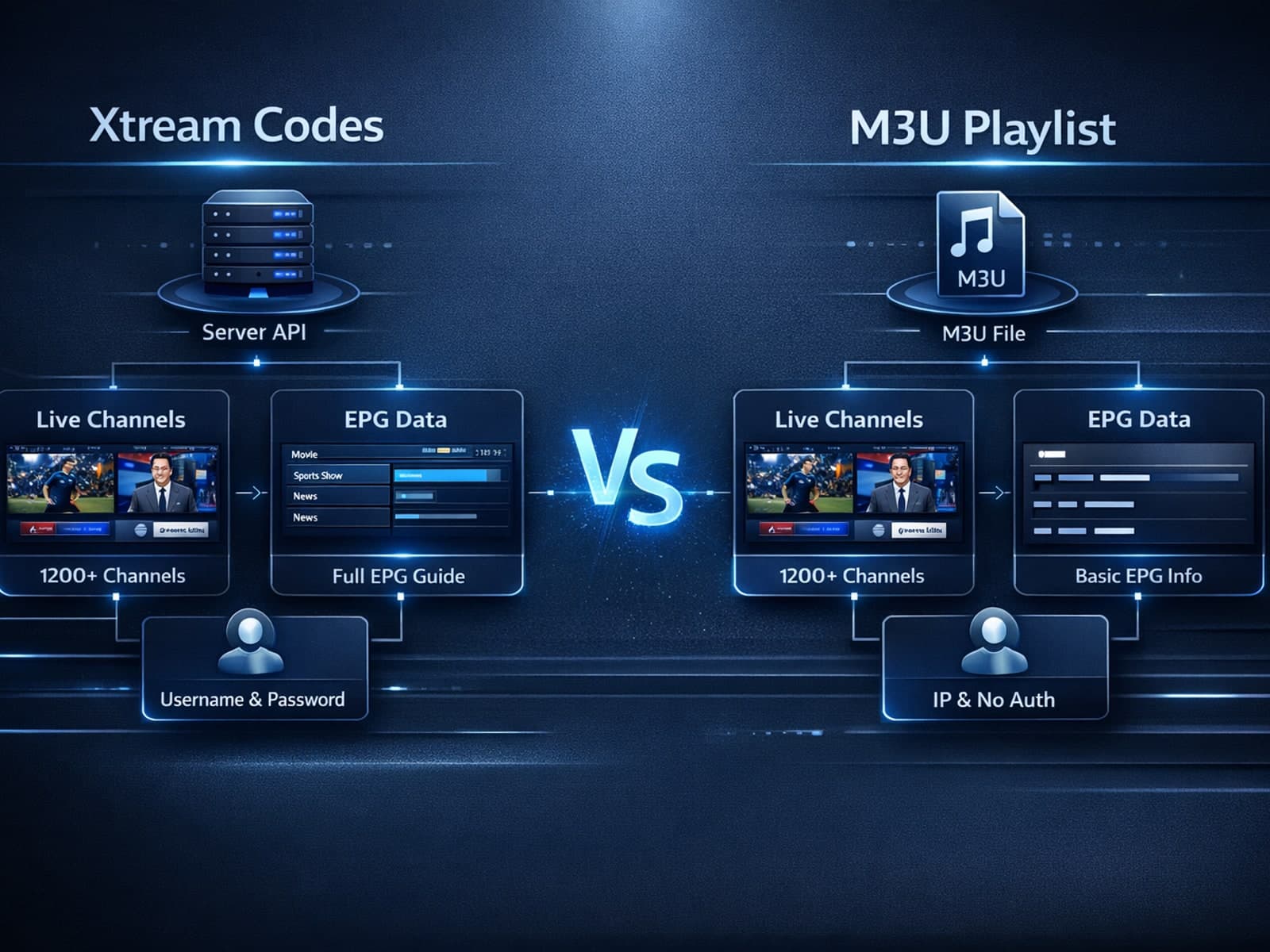
If you're streaming IPTV, you might wonder when using Xtream Codes is better than relying on an M3U playlist. In plain terms, Xtream Codes offers enhanced stream management, integrated electronic program guide (EPG) support, and user.