
TiviMate Playlist Not Updating After Refresh: Causes and Fixes

Quick answer
If your TiviMate playlist does not update even after pressing the refresh button, it’s usually due to issues like an unstable internet connection, outdated or broken playlist URLs, or app cache conflicts. This article explains why this problem happens and how you can fix it to...
Reviewed Against
• TiviMate playlist, EPG, and player-setting workflows
Applies To
• TiviMate setups on Android TV, Google TV, or Fire OS style streaming devices
Does not apply when
• Your app uses a different menu layout or naming scheme than TiviMate.
Topic Cluster
Part of the IPTV cluster
Browse practical IPTV articles about IPTV, including setup choices, troubleshooting paths, and follow-on guides. This page sits in more in this topic for that topic path.
On this page
TiviMate Playlist Not Updating After Refresh: Causes and Fixes
If your TiviMate playlist does not update even after pressing the refresh button, it’s usually due to issues like an unstable internet connection, outdated or broken playlist URLs, or app cache conflicts. This article explains why this problem happens and how you can fix it to restore smooth streaming.
What you'll learn
- Common reasons TiviMate playlists fail to update after refresh
- How to verify connectivity and playlist URL status
- How app cache can interfere with playlist updates and how to clear it
- Step-by-step practical fixes to resolve the issue
- When to seek different troubleshooting suited to other setups or devices
Understanding the Playlist Refresh Process in TiviMate
TiviMate is an Android IPTV player that uses playlist files (often M3U, but also Xtream Codes or similar URLs) provided by IPTV services to load channel lineups. When you tap 'refresh' in TiviMate, it attempts to fetch the latest version of the playlist from the internet URL you provided.
If this request fails or if the app uses a cached version instead of the fresh download, your displayed playlist won't change — leading to the "playlist not updating" issue.
This problem is distinct from authorization errors or missing channel logos, so fixing it requires focusing on connectivity, the playlist feed, and app cache.
Check Internet Connectivity and Streaming Stability
A poor or unstable internet connection is the most common cause of playlist refresh failures. Specifically, if the device running TiviMate cannot reach the playlist server, refresh attempts will silently fail or timeout.
How to verify connection
- Use your device’s browser or a dedicated speed test app to ensure consistent online connectivity.
- Check for intermittent Wi-Fi dropouts or weak signal strength.
- If possible, switch to a wired Ethernet connection or a stronger Wi-Fi band (like 5 GHz) for better stability.
When connectivity problems cause playlist refresh failure
If you suspect your internet is the issue, prioritize fixing network problems before troubleshooting TiviMate itself. Restart your router or connect to a different network to test.
Verify Your Playlist URL and Source Status
Playlist URLs can expire, be taken down, or change without notice from the IPTV provider. If your playlist source is invalid or temporarily offline, refreshing won't update the list.
Steps to verify playlist validity
- Open the playlist URL in a web browser or an M3U parser app to see if it loads correctly.
- Contact your IPTV provider or check their documentation to confirm the playlist link is current.
- If you use Xtream Codes or similar API URLs, ensure your username, password, and server info are correct.
What to do if the URL is broken or outdated
- Obtain the updated playlist link from your IPTV provider.
- Remove the old playlist from TiviMate and add the new one afresh.
Clear TiviMate App Cache to Remove Stuck Data
TiviMate, like many apps, stores temporary data as cache to speed up load times. Sometimes this cache conflicts with fetching new playlist data, causing stale or incomplete updates after refresh.
How to clear app cache on Android devices
- Open Settings on your Android device.
- Navigate to Apps & notifications (or just Apps).
- Find and select TiviMate from the list.
- Tap Storage & cache.
- Press Clear cache (do not clear data unless you want to reset all settings).
After clearing cache, restart TiviMate and try refreshing your playlist again.
Restart Devices and TiviMate for a Clean State
Sometimes system-level glitches affect network or app behavior. Restarting your streaming device and the TiviMate app can clear transient issues blocking playlist updates.
Recommended restart sequence
- Close TiviMate completely (force stop if necessary).
- Turn off the device (smart TV, Fire TV Stick, Android box).
- Wait 30 seconds and power the device back on.
- Open TiviMate and refresh your playlist.
This reset can resolve memory leaks or hung network sockets.
Re-Add the Playlist for a Complete Refresh
If all else fails, removing and then re-adding the playlist is often the most reliable way to get fresh channel data.
Steps to re-add a playlist in TiviMate
- Open TiviMate.
- Go to Settings > Playlists and EPG.
- Select the problematic playlist.
- Choose Delete Playlist and confirm.
- Return to the main menu and tap Add Playlist.
- Enter the latest playlist URL and credentials as needed.
- Allow TiviMate to download and parse the new playlist.
This removes any corrupted local files and forces TiviMate to start fresh.
Common Mistakes Leading to Refresh Failures
- Using an expired or incorrect playlist URL without verifying.
- Relying on poor or unstable Wi-Fi networks.
- Expecting automatic playlist updates without manual refresh.
- Forgetting to clear cache when persistent stale data issues arise.
- Not restarting the app or device after playlist changes.
Who Should Use This Guide and When to Try Something Else
This troubleshooting is tailored for users running TiviMate on Android-based streaming platforms like Fire TV, Android boxes, or Android TVs, using standard M3U or Xtream Codes playlists.
If you use TiviMate on non-Android devices, or if the issue is an error message related to authorization (like the common "Authorization Failed"), network login problems, or EPG mismatches, refer to guides specialized for those errors (e.g., Xtream Codes Authorization Failed in TiviMate).
Additionally, playlist refresh failures caused by IPTV provider side changes or heavy server load may require contacting your IPTV service.
Summary Checklist for Fixing TiviMate Playlist Refresh Issues
| Step | Action | Purpose |
|---|---|---|
| 1. Internet Check | Test Wi-Fi or wired connection | Ensure reachability to playlist server |
| 2. Playlist URL Verification | Open URL in browser or verify with provider | Confirm playlist availability |
| 3. Clear Cache | Clear TiviMate app cache | Remove outdated temporary data |
| 4. Restart Devices | Restart TiviMate app and device | Clear transient software glitches |
| 5. Re-Add Playlist | Delete then add playlist again | Force complete data refresh |
FAQ
Why doesn’t my TiviMate playlist update after pressing refresh?
Temporary internet issues, an invalid or outdated playlist URL, or cached app data can cause refreshes to fail silently.
How often should I refresh my TiviMate playlist?
Only refresh when you need updated channels, usually after your IPTV provider updates the playlist or if you experience missing content.
Can TiviMate update playlists automatically?
No, TiviMate requires manual refresh. Some IPTV providers push updates via their service if you use Xtream Codes.
Will clearing app cache delete my playlists or settings?
No, clearing cache removes temporary data but keeps your playlists and preferences intact.
What if refreshing the playlist still doesn’t work?
Try removing and re-adding the playlist with a fresh URL, or check if your IPTV provider changed or disabled your playlist link.
Conclusion
When the TiviMate playlist is not updating after refresh, focus on connectivity, playlist URL validity, and app caching as primary causes. This step-by-step approach helps you reliably restore playlist updates without frustration. For persistent issues tied to errors beyond basic refresh failures, explore device or provider-specific guides.
For related issues like missing logos or catch-up features, see our guides How to Fix Missing Channel Logos in TiviMate and How to Fix Catch-Up Not Working in TiviMate. To learn about organizing your playlists effectively, read How to Organize Favorites and Groups in TiviMate.
Frequently Asked Questions
Why doesn’t my TiviMate playlist update after pressing refresh?
It can be caused by a temporary internet issue, an outdated or invalid playlist URL, or cached data preventing the app from retrieving the latest version.
How often should I refresh my TiviMate playlist?
Refresh only when needed, such as after your IPTV provider updates the playlist or you notice missing or outdated channels.
Can TiviMate update playlists automatically?
TiviMate does not automatically refresh playlists; you need to refresh manually or set your IPTV provider to push updates if supported.
Will clearing app cache delete my playlists or settings?
Clearing cache removes temporary files but keeps your playlists and app settings intact.
What if refreshing the playlist still doesn’t work?
Try re-adding the playlist with a fresh URL or check with your IPTV provider if the playlist link has changed or been deactivated.
Keep exploring
More explainers that connect naturally to this setup, workflow, or troubleshooting path.
Choosing between the Fire TV Cube and the Fire TV Stick 4K Max for IPTV can come down to your setup preferences, desired features, and streaming performance needs.

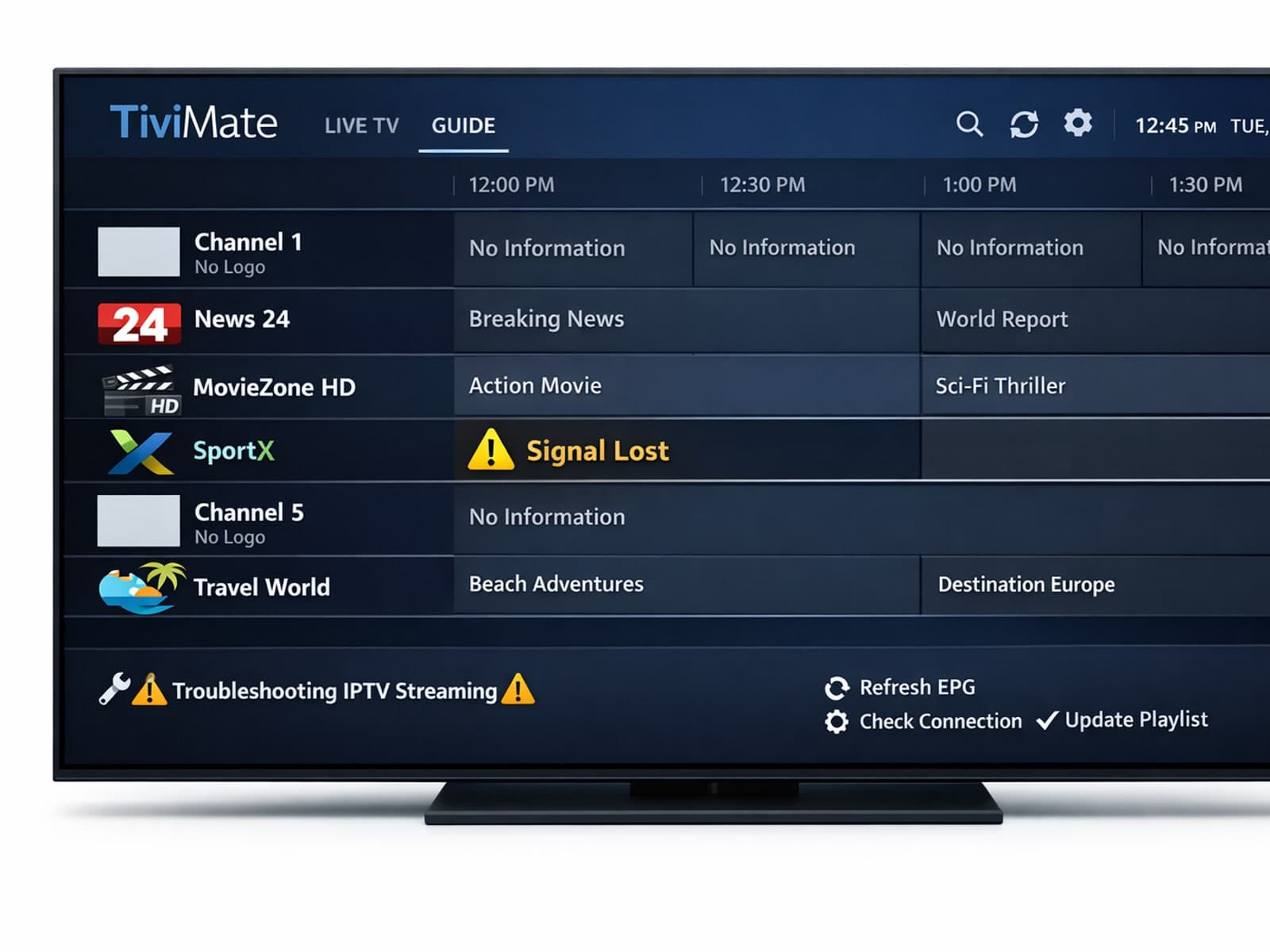
Missing channel logos can detract from your IPTV experience with TiviMate. These logos typically appear next to channel names in the guide and help you visually identify the channels quickly.

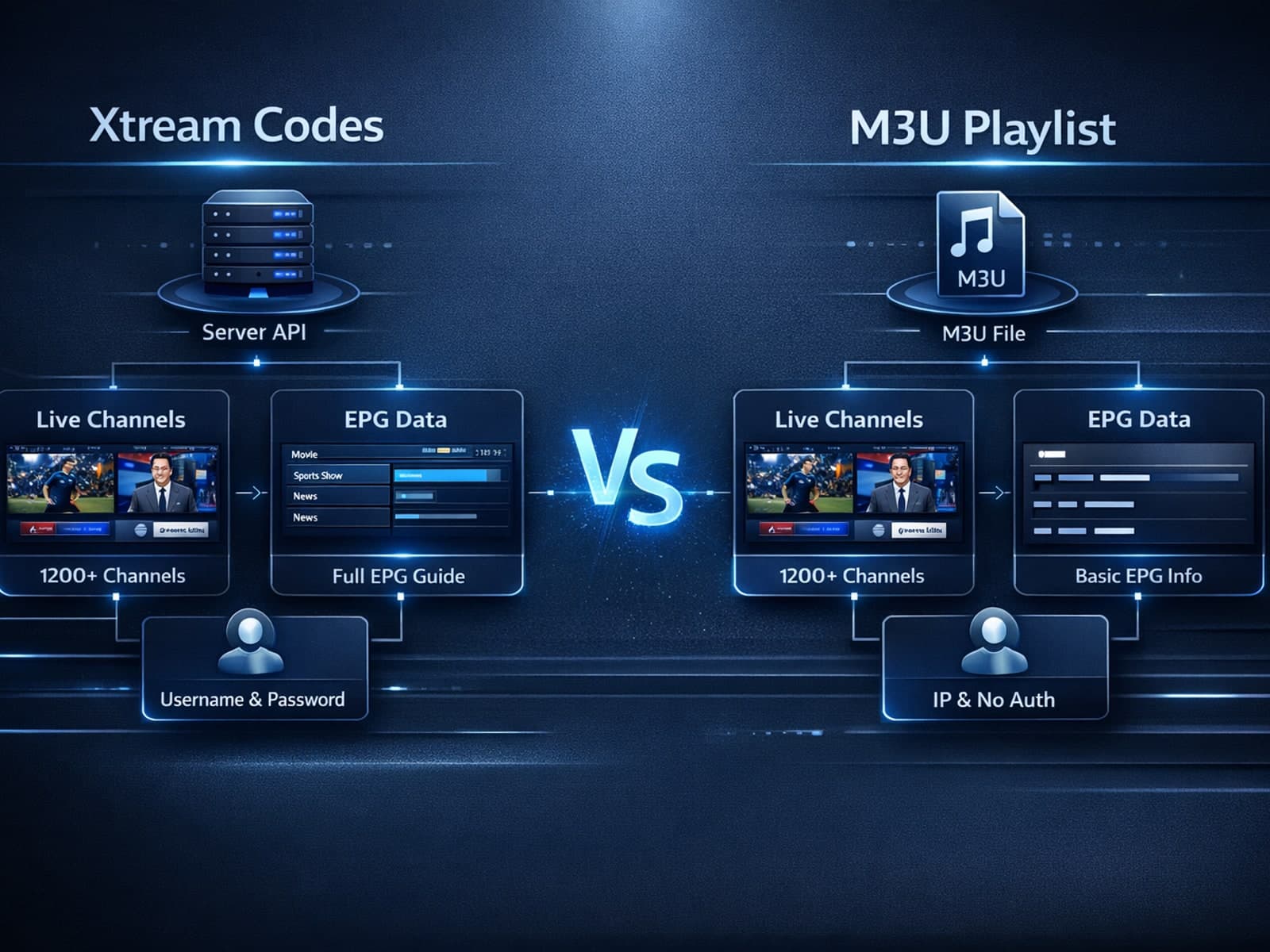
If you're streaming IPTV, you might wonder when using Xtream Codes is better than relying on an M3U playlist. In plain terms, Xtream Codes offers enhanced stream management, integrated electronic program guide (EPG) support, and user.
