
Ethernet Adapter Compatibility for Fire TV Stick 4K Max

Quick answer
The Fire TV Stick 4K Max supports wired Ethernet connections only through specific USB-C Ethernet adapters. Unlike typical devices with USB-A ports, the 4K Max uses a USB-C port designed primarily for power but also compatible with certain Ethernet adapters. This means not eve...
Reviewed Against
• Fire TV and Fire OS device capabilities, networking, and storage limits
• Home-network checks such as Wi-Fi strength, Ethernet fallback, DNS changes, congestion, and local storage pressure
Applies To
• Fire TV Stick, Fire TV Cube, and Fire OS playback or networking questions
• Playback problems that change with connection quality, device load, app cache state, or time of day
Does not apply when
• You are troubleshooting a smart-TV app or set-top box with a different hardware and settings path.
• Only one channel, event, or provider-side endpoint is failing while the rest of the service stays stable.
Corroborating Resources
Fire TV device specifications overviewHelpful for checking Fire TV hardware families, platform differences, and device-level constraints.
Fire TV streaming media player specsUseful for codec, storage, Wi-Fi, and Ethernet-adapter expectations on Fire TV sticks and boxes.
Android TV video and game troubleshootingUseful for Wi-Fi, updates, app cache, and playback troubleshooting steps that also mirror IPTV failure paths.
Android TV storage helpHelpful when playback issues point to low storage, cache pressure, or app-data cleanup decisions.
Topic Cluster
Part of the Amazon Fire Tv cluster
Browse practical IPTV articles about amazon fire tv, including setup choices, troubleshooting paths, and follow-on guides. This page sits in setup and decisions for that topic path.
On this page
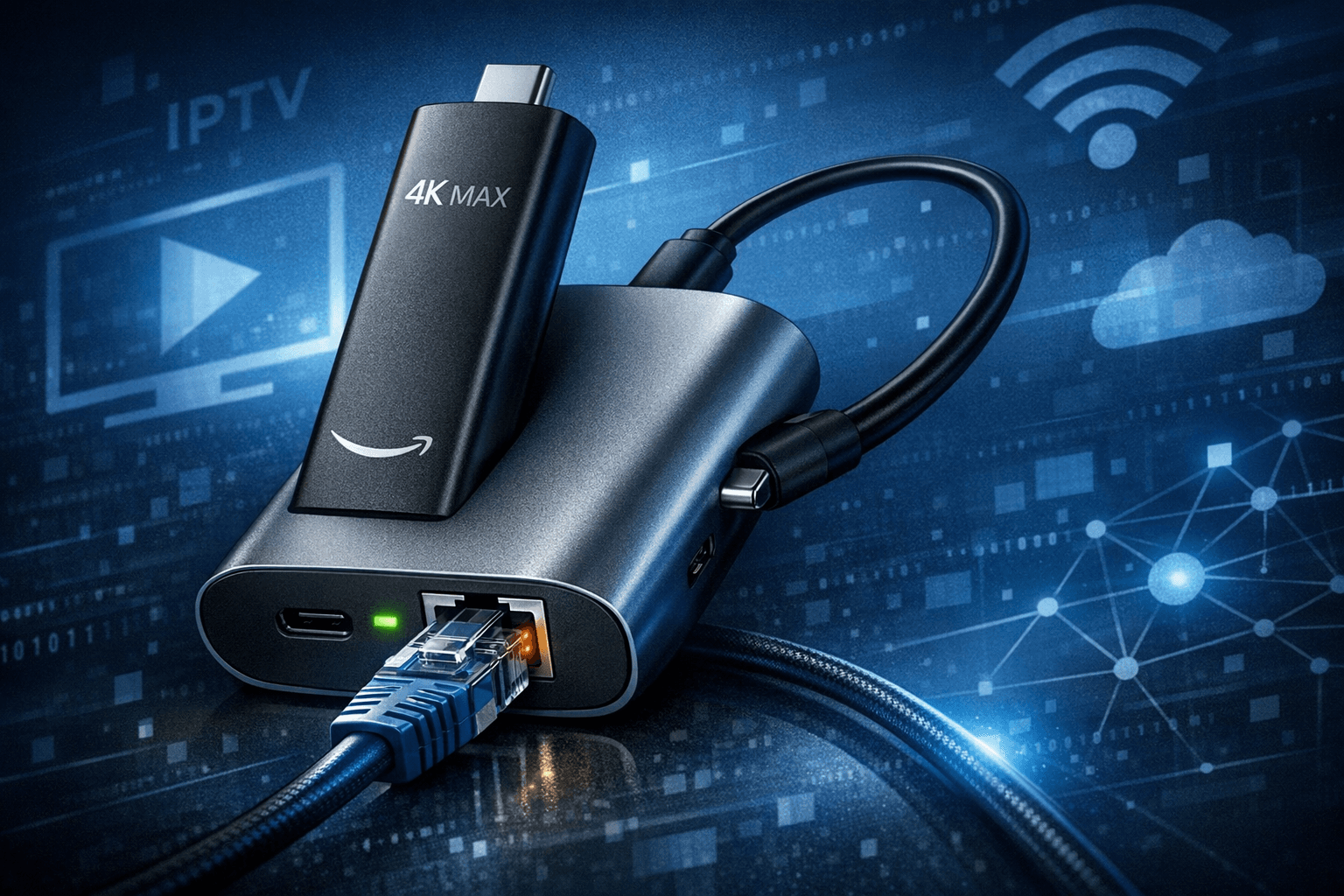
Ethernet Adapter Compatibility for Fire TV Stick 4K Max
The Fire TV Stick 4K Max supports wired Ethernet connections only through specific USB-C Ethernet adapters. Unlike typical devices with USB-A ports, the 4K Max uses a USB-C port designed primarily for power but also compatible with certain Ethernet adapters. This means not every adapter will work, and understanding compatibility factors is essential to establishing a stable wired connection beneficial for IPTV streaming.
What you'll learn
- How the Fire TV Stick 4K Max handles Ethernet connectivity through USB-C
- Criteria for choosing a compatible Ethernet adapter
- Step-by-step setup for a wired connection on the Fire TV Stick 4K Max
- Troubleshooting common Ethernet adapter issues
- When and why you might consider alternative connection methods or devices
Understanding the Fire TV Stick 4K Max's Ethernet Connectivity
USB-C Port Role
The Fire TV Stick 4K Max uses a USB-C port mainly for power input. However, it supports USB Ethernet adapters that comply with USB Audio Class Device protocols over USB 2.0 or higher. This functionality is limited compared to devices with dedicated Ethernet ports or full USB-A host capabilities.
Why Ethernet?
Ethernet connections provide a more consistent and lower latency internet connection than Wi-Fi, which is valuable for IPTV streaming to reduce buffering and increase picture quality.
Choosing a Compatible Ethernet Adapter
Key Compatibility Factors
- USB-C Connector: The adapter must have a USB-C plug to connect directly to the Fire TV Stick 4K Max.
- USB 2.0 or 3.0 Compliance: The device should support USB 2.0 or 3.0 standards to ensure proper data transfer.
- No External Power Required: The adapter must function without an external power source since the Fire TV Stick’s USB-C port provides minimal power.
- Driver Support: The adapter must use chipset drivers supported by the Fire TV OS. Common compatible chipsets include ASIX AX88179 and similar.
Popular Adapter Types
Most adapters marketed as "USB-C to Ethernet" or "USB-C to RJ45" adapters from reputable brands typically work if they meet the above criteria. Devices designed for smartphones and tablets running Android or similar OS are usually a good choice.
What Not to Use
- USB-A to Ethernet adapters with USB-C adapters or dongles that do not support OTG (On-The-Go) or network functions.
- USB hubs or adapters needing external power or those designed solely for data charging.
Setting Up a Wired Ethernet Connection on Fire TV Stick 4K Max
Follow these steps to connect your Fire TV Stick 4K Max to Ethernet via a compatible adapter:
- Purchase a USB-C to Ethernet adapter meeting compatibility criteria.
- Connect the adapter directly into the Fire TV Stick 4K Max’s USB-C port. Avoid intermediate USB hubs.
- Plug your Ethernet cable into the adapter and the other end into your router or modem.
- Power on the Fire TV Stick. The device should detect the wired connection automatically.
- Navigate to Settings > Network on the Fire TV interface. Check for a wired network icon and connection status.
- If connected, proceed with IPTV apps and streaming with better network stability.
Troubleshooting Common Issues with Ethernet Adapters
Wired Connection Not Detected
- Check Adapter Compatibility: Confirm the adapter matches criteria and is known to work with Fire TV devices.
- Try Resetting the Fire TV Stick: Restarting can sometimes enable detection.
- Use a Different Ethernet Cable: Faulty cables can prevent connection.
- Update Fire TV Software: Ensure you use the latest Fire OS version.
Power Limitations
If the adapter requires more power than the Stick provides, it might not function correctly. Avoid external power adapters for the USB-C port.
Using USB Hubs
Most users find that USB hubs interfere with the Ethernet adapter's operation, as the Fire TV Stick 4K Max is not optimized for multiple USB devices simultaneously.
When This Guide Applies and When to Use Alternative Solutions
Who This Guide Applies To
- Owners of the Fire TV Stick 4K Max wanting a more reliable Ethernet connection.
- Those who prefer wired IPTV streaming with better consistency and less buffering.
When to Consider Different Paths
- If you have a Fire TV Cube or other Fire TV devices with Ethernet adapters or ports, reference tailored guides.
- If you require multiple USB peripheral connections, consider streaming devices with dedicated USB-A ports and more USB host support.
- For troubleshooting IPTV app-specific network errors, consult guides focused on app or playlist issues.
Summary Checklist: What to Verify in an Ethernet Adapter
| Feature | Requirement |
|---|---|
| Connector Type | USB-C (direct plug into Fire TV Stick 4K Max) |
| USB Standard | USB 2.0 or 3.0 compliant |
| Power | No external power required |
| Supported Chipsets | Common Fire OS compatible chipsets like ASIX AX88179 |
| Intended Use | Designed for USB Ethernet networking (not just charging) |
FAQ
Can I use any USB Ethernet adapter with Fire TV Stick 4K Max?
No. Only ones supporting the USB-C connector and compatible with the Fire TV OS drivers work reliably.
Is a USB-A Ethernet adapter with a USB-C converter an option?
This usually does not work reliably because the device expects native USB-C Ethernet support.
Can I improve IPTV streaming by switching from Wi-Fi to Ethernet?
Yes, Ethernet connections reduce interference and provide lower latency, improving IPTV quality.
What if the Fire TV Stick doesn’t recognize the adapter?
Try powering off and on, check the adapter compatibility, and ensure cable integrity. Firmware updates can also help.
Are powered USB hubs supported?
No, the Fire TV Stick 4K Max doesn’t support external USB hubs for Ethernet and might not provide enough power.
Conclusion
Using a wired Ethernet connection on the Fire TV Stick 4K Max can significantly improve streaming stability and IPTV performance. However, this requires choosing a compatible USB-C Ethernet adapter that functions within Fire TV’s power and driver limitations. By selecting a USB-C adapter designed for Android or similar devices with proper chipset support, connecting it directly to the Fire TV Stick’s USB-C port, and following setup steps, users can enjoy reliable wired internet. When issues occur, verifying adapter compatibility and cabling, updating firmware, and avoiding powered hubs are essential troubleshooting steps. For users seeking alternative connectivity options or advanced USB peripheral setups, considering other Fire TV devices with broader USB support is advised.
Related guides on IPTV Explained
Keep exploring
More explainers that connect naturally to this setup, workflow, or troubleshooting path.
When choosing a device specifically for IPTV streaming, the Amazon Fire TV Cube and Fire TV Stick 4K Max are two popular options. Both devices support 4K streaming and run Amazon’s Fire OS with access to IPTV apps like TiviMate and IPTV.

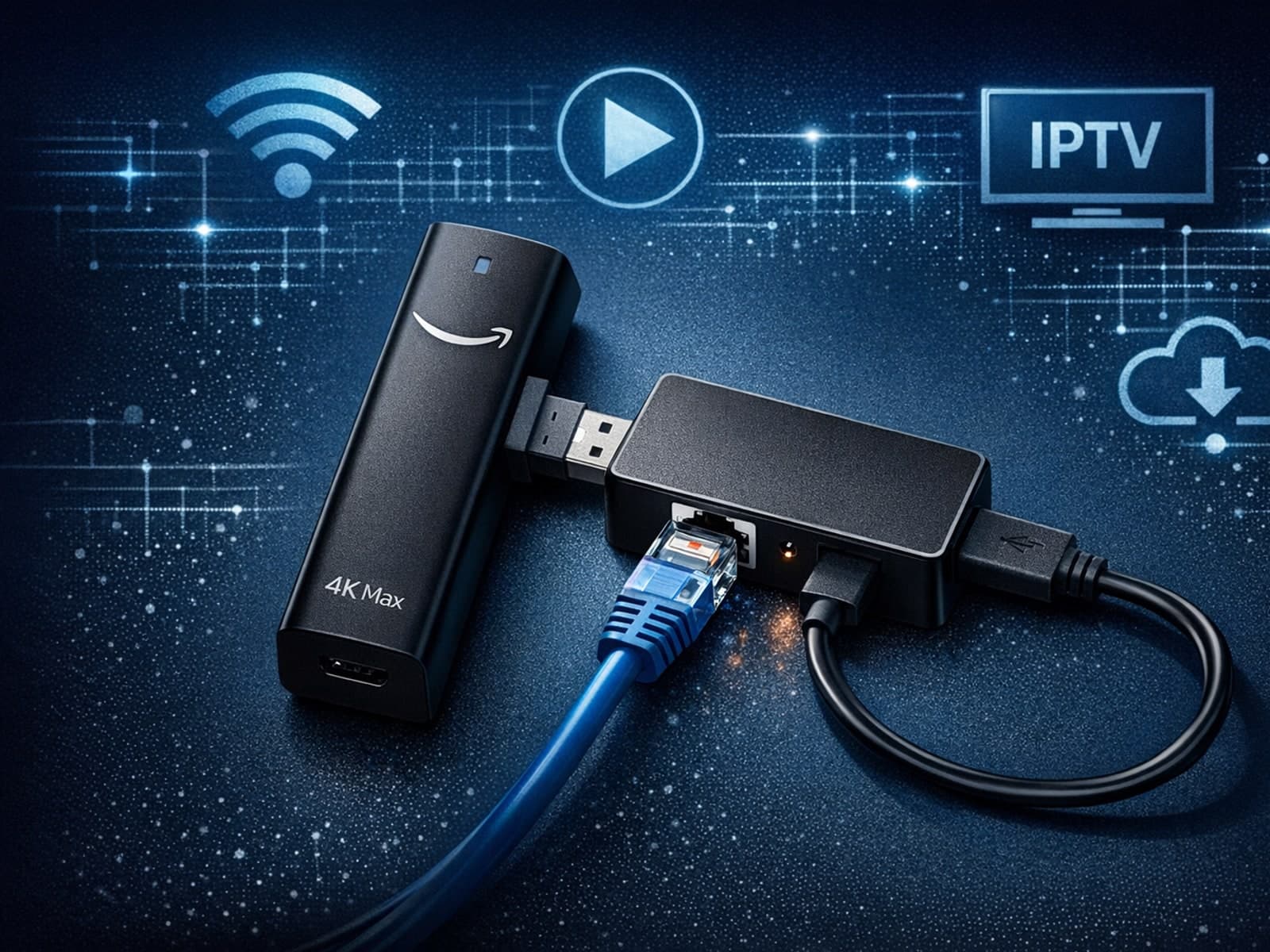
The Fire TV Stick 4K Max, Amazon’s popular streaming media player, supports Ethernet adapters to enable wired internet connections instead of relying on Wi-Fi.

If you're deciding between the Fire TV Cube and the Fire TV Stick 4K Max for watching IPTV (Internet Protocol Television), this comparison breaks down how each device matches IPTV demands.