
Fire TV Cube vs Fire TV Stick 4K Max for IPTV: Key Differences and Use

Quick answer
When choosing a device specifically for IPTV streaming, the Amazon Fire TV Cube and Fire TV Stick 4K Max are two popular options. Both devices support 4K streaming and run Amazon’s Fire OS with access to IPTV apps like TiviMate and IPTV Smarters. However, they have key differe...
Reviewed Against
• TiviMate playlist, EPG, and player-setting workflows
• Fire TV and Fire OS device capabilities, networking, and storage limits
Applies To
• TiviMate setups on Android TV, Google TV, or Fire OS style streaming devices
• Fire TV Stick, Fire TV Cube, and Fire OS playback or networking questions
Does not apply when
• Your app uses a different menu layout or naming scheme than TiviMate.
• You are troubleshooting a smart-TV app or set-top box with a different hardware and settings path.
Corroborating Resources
Fire TV device specifications overviewHelpful for checking Fire TV hardware families, platform differences, and device-level constraints.
Fire TV streaming media player specsUseful for codec, storage, Wi-Fi, and Ethernet-adapter expectations on Fire TV sticks and boxes.
On this page
Fire TV Cube vs Fire TV Stick 4K Max for IPTV: Key Differences and Use
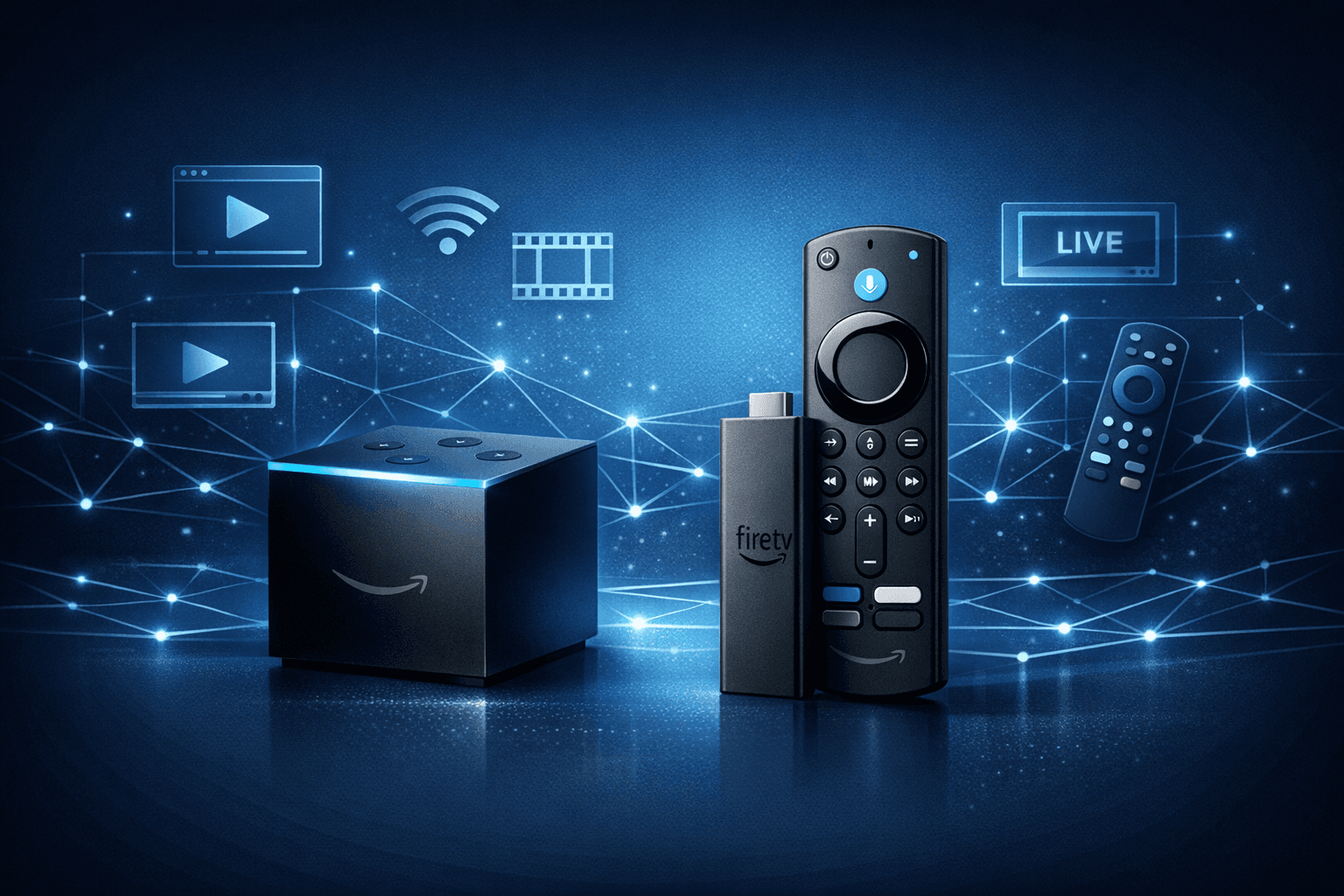
When choosing a device specifically for IPTV streaming, the Amazon Fire TV Cube and Fire TV Stick 4K Max are two popular options. Both devices support 4K streaming and run Amazon’s Fire OS with access to IPTV apps like TiviMate and IPTV Smarters. However, they have key differences in processing power, control features, and setup options that can affect your IPTV experience.
In simple terms: The Fire TV Cube offers more processing power, hands-free Alexa voice control, and a built-in Ethernet port, providing a smoother and more flexible IPTV experience. The Fire TV Stick 4K Max has comparable 4K playback capabilities but is smaller, more affordable, and relies primarily on Wi-Fi unless you add an Ethernet adapter.
What you'll learn
- Core hardware differences affecting IPTV streaming
- Setup inputs and connectivity options for IPTV
- Performance impact on live IPTV channel switching and buffering
- Choosing between voice control modes and device size
- Common IPTV streaming issues specific to each device and how to troubleshoot
Hardware and Connectivity Differences Relevant to IPTV
Processing Power and Network Connectivity
The Fire TV Cube uses a Hexa-core processor, delivering faster and more responsive navigation within IPTV apps, especially useful for larger playlists or multitasking features. It also includes a built-in Ethernet port, allowing wired internet connection which is more stable than Wi-Fi and reduces IPTV buffering.
The Fire TV Stick 4K Max sports a Quad-core processor, slightly less powerful but still capable of 4K HDR streaming. It connects via Wi-Fi 6 (802.11ax) at both 2.4 GHz and 5 GHz bands, which supports good wireless speeds. However, it lacks a built-in Ethernet port, so a separate Ethernet adapter is needed for wired connectivity.
Device Form Factor and Ports
- Fire TV Cube: Box form factor approximately 3.4 x 3.4 x 3.0 inches, with HDMI pass-through (supports controlling your TV via HDMI-CEC), Ethernet port, and more USB options.
- Fire TV Stick 4K Max: Compact dongle about 3.5 inches long, plugs directly into an HDMI port, no Ethernet port onboard, fewer physical inputs.
These differences influence placement options and might matter if your setup has limited HDMI ports or unstable Wi-Fi.
IPTV App Compatibility and User Experience
Both devices run Fire OS and support all major IPTV apps available via the Amazon Appstore, including:
- TiviMate
- IPTV Smarters
- Perfect Player
In IPTV streaming, these apps rely on playlist formats like M3U or Xtream Codes, which work identically across devices. The Cube's faster processor can reduce app load times and improve navigation fluidity for large IPTV playlists.
Voice Control and Remote Navigation
Fire TV Cube’s Hands-Free Alexa
One standout feature of the Fire TV Cube is its built-in far-field microphones allowing hands-free Alexa voice commands. This is convenient during IPTV use for channel switching, searches, and volume control without picking up the remote.
Fire TV Stick 4K Max Remote
The Stick 4K Max includes a standard Alexa Voice Remote requiring button press to issue commands. While functional, it trades some convenience for smaller size and cost savings.
Which Control Method Fits IPTV Best?
- If you prefer voice-controlled navigation while watching IPTV, the Cube may offer a smoother experience.
- If you usually navigate with remote or use mobile control apps, the Stick 4K Max works equally well.
IPTV Streaming Performance and Common Issues
Buffering and Freezing
Both devices can experience IPTV buffering or freezing under poor network conditions. The Fire TV Cube's Ethernet port gives it an advantage in maintaining steady streams. However, the Stick 4K Max can mitigate this by using a compatible Ethernet adapter.
Channel Switching Speed
Fire TV Cube's stronger CPU often enables quicker channel switching in IPTV apps, especially with large channel lists or EPG (electronic program guide) data.
Heat and Throttling
Fire TV Stick 4K Max can get warm during heavy IPTV streaming but generally manages heat well. The Cube's larger size helps dissipate heat better, reducing chances of thermal throttling.
Setup Steps for IPTV Streaming on Fire TV Devices
Setting up IPTV on either device follows similar steps with minor adjustments for wired or wireless internet:
- Connect your Fire TV device to your TV HDMI port and power supply.
- Connect to Wi-Fi, or Ethernet in the Cube’s case (or Ethernet adapter for Stick 4K Max if available).
- Sign in to your Amazon account and navigate to the App Store.
- Download and install your preferred IPTV app (e.g., TiviMate).
- Add your IPTV playlist or login credentials following your IPTV provider’s instructions.
- Adjust app settings for EPG, buffering, and favorites as needed.
- Test streaming quality and channel switching performance.
Troubleshooting and Common IPTV Streaming Mistakes
When IPTV Streams Buffer or Freeze
- Check your network connection: Wi-Fi signal strength or cable Ethernet.
- Restart your Fire TV device to clear app cache.
- Reduce the IPTV playlist size if performance lags.
- Use an Ethernet connection with Cube or adapter on Stick 4K Max.
Troubleshooting Voice Control
- For Fire TV Cube, ensure microphones are enabled in settings.
- For Stick 4K Max, replace remote batteries or pair again if voice commands fail.
Who This Guidance Applies To
- Users streaming IPTV in 4K or higher resolutions.
- IPTV viewers preferring Amazon Fire OS devices.
- Those comparing compact vs. more feature-rich hardware options.
When to Consider Different Guides
- If using Android TV devices, seek guides specific to Android OS.
- IPTV setups with non-Fire OS apps or devices need device-specific advice.
Comparison Table: Fire TV Cube vs Fire TV Stick 4K Max for IPTV
| Feature | Fire TV Cube | Fire TV Stick 4K Max |
|---|---|---|
| Processor | Hexa-core (faster) | Quad-core |
| Video Output | 4K UHD, HDR10+, Dolby Vision | 4K UHD, HDR10+, Dolby Vision |
| Ethernet Port | Yes, built-in | No (supports external adapter) |
| Wi-Fi | 802.11ac dual-band | Wi-Fi 6 dual-band (better future-proofing) |
| Voice Control | Hands-free Alexa (built-in mic) | Alexa voice remote (press-to-talk) |
| Size/Form Factor | Small cube box | Compact HDMI stick |
| Ideal for IPTV Setup | Stable wired connection, hands-free control, faster navigation | |
| Ideal for IPTV Setup | Portable, more affordable, good wireless streaming |
Conclusion
For IPTV users deciding between Amazon Fire TV Cube and Fire TV Stick 4K Max, the choice hinges on your priorities. The Cube offers enhanced processing power, built-in Ethernet, and hands-free Alexa, which can improve IPTV app navigation and streaming stability. In contrast, the Stick 4K Max delivers excellent 4K streaming with Wi-Fi 6 in a more compact and affordable package but may need an Ethernet adapter for optimal IPTV buffering performance.
Ultimately, if you want the smoothest IPTV experience with robust voice control in a home theater setup, Fire TV Cube is the better fit. If you prefer cost efficiency, portability, and are comfortable with Wi-Fi streaming, the Fire TV Stick 4K Max is a highly capable alternative.
Frequently Asked Questions
Is Fire TV Cube better than Fire TV Stick 4K Max for IPTV?
Fire TV Cube offers more processing power and hands-free Alexa voice control, along with a built-in Ethernet port, which can improve IPTV streaming stability. However, Fire TV Stick 4K Max supports the same 4K streaming capabilities and is more compact and affordable.
Can both devices stream IPTV apps like TiviMate and IPTV Smarters?
Yes, both devices run Fire OS and support popular IPTV apps such as TiviMate and IPTV Smarters.
Does the Fire TV Cube’s Ethernet port improve IPTV streaming?
Yes, the EtherNet port allows for a wired internet connection, which tends to be more stable and less prone to buffering compared to Wi-Fi. The Stick 4K Max requires a separate adapter for this.
Are there size or design differences impacting IPTV setup?
Fire TV Cube is a box-style device larger than the compact Fire TV Stick 4K Max dongle. Space constraints or the number of available HDMI ports may affect your choice.
Which device is easier to control during IPTV playback?
The Fire TV Cube supports hands-free Alexa voice control with built-in microphones, allowing easier navigation without using the remote. The Stick 4K Max relies on the remote for voice commands.
Suggested Internal Resources
- Ethernet Adapter Compatibility for Fire TV Stick 4K Max
- Why IPTV Freezes During Channel Switching and How to Fix It
- How to Organize Favorites and Groups in TiviMate for IPTV Playlists
- IPTV Smarters Invalid Details Error: Causes and Fixes
Note: This article focuses exclusively on IPTV streaming considerations for these two Amazon Fire TV devices and does not cover general Fire TV usage or non-IPTV streaming scenarios.
Keep exploring
More explainers that connect naturally to this setup, workflow, or troubleshooting path.
Missing channel logos in TiviMate is a common issue that often stems from problems with your IPTV playlist or Electronic Program Guide (EPG) data.

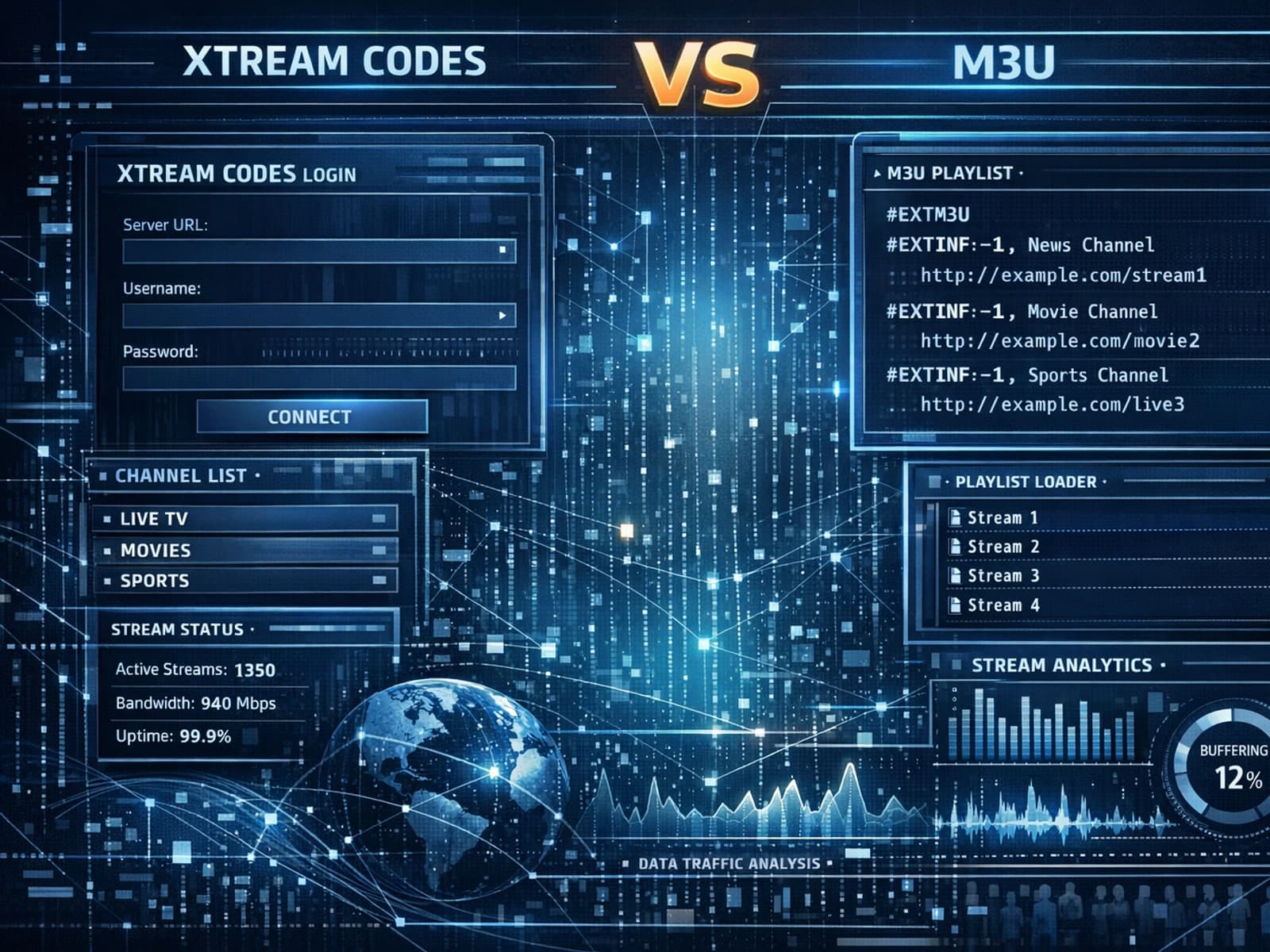
Xtream Codes often works better than M3U for IPTV users who need dynamic playlist management, faster channel updates, richer metadata integration, and controlled access to streaming content.

Organizing favorites and groups in TiviMate enables faster access to your preferred IPTV channels and a more streamlined navigation experience.
