
How to Organize Favorites and Groups in TiviMate for IPTV Playlists

Quick answer
Organizing favorites and groups in TiviMate enables faster access to your preferred IPTV channels and a more streamlined navigation experience. TiviMate, a popular IPTV player for Android TV and related devices, allows you to create custom channel groups and mark favorites wit...
Reviewed Against
• TiviMate playlist, EPG, and player-setting workflows
Applies To
• TiviMate setups on Android TV, Google TV, or Fire OS style streaming devices
Does not apply when
• Your app uses a different menu layout or naming scheme than TiviMate.
Topic Cluster
Part of the TiviMate cluster
TiviMate troubleshooting paths for guide loading, playlist sync issues, login failures, and setup decisions. This page sits in more in this topic for that topic path.
Start here in this topic
On this page
How to Organize Favorites and Groups in TiviMate for IPTV Playlists
Organizing favorites and groups in TiviMate enables faster access to your preferred IPTV channels and a more streamlined navigation experience. TiviMate, a popular IPTV player for Android TV and related devices, allows you to create custom channel groups and mark favorites within those groups. This improves channel management especially when handling large playlists.
What you'll learn:
- How to access and edit the group list in TiviMate
- Creating new channel groups for better organization
- Assigning channels to custom groups
- Marking channels as favorites
- Tips on maintaining your groups efficiently
Understanding Channel Groups and Favorites in TiviMate
Before diving into organizing, it's helpful to know what channel groups and favorites mean in TiviMate:
- Channel Groups: Collections of channels clustered under a common label (e.g., "Sports," "News," "Kids"). Groups help categorize channels for easier browsing.
- Favorites: Channels marked for quick access regardless of their group.
TiviMate uses your IPTV playlist's built-in groups or lets you create custom groups by editing how channels are assigned.
Accessing and Editing Channel Groups
To organize your favorites and groups, you first need to access the group settings:
- Launch TiviMate and ensure your IPTV playlist is loaded.
- From the main screen, open the side menu by pressing the appropriate controller or remote button.
- Select Settings or Playlist settings, depending on your version.
- Click Edit group list to see existing groups.
Here you can add new groups or edit existing ones.
Creating and Managing Custom Channel Groups
Creating groups tailored to your viewing habits lets you categorize channels meaningfully.
Steps to add a new group:
- In the Edit group list screen, select Add group.
- Enter a descriptive name (e.g., "My Favorites," "Documentaries").
- Save the group.
After creating a new group, you can assign channels to it.
Assigning channels to groups:
- Return to the playlist or channel list.
- Long-press a channel to open options.
- Select Edit channel (or a similar option).
- Change the group assignment to your new group.
Repeat this for all channels you want to organize.
Marking Channels as Favorites
Favorites are individual channels you want to access quickly from any group.
How to mark a channel as a favorite:
- Navigate to a channel in any group.
- Long-press the channel.
- Choose Add to favorites.
Favorites appear in a dedicated list accessible from the main menu or a shortcut, allowing fast channel selection.
Tips for Efficient Group and Favorites Management
- Use logical group names: Group channels with similar content or usage patterns.
- Limit the number of groups: Avoid creating too many groups which can complicate navigation.
- Regularly update your groups: Remove unused channels and adjust groupings as your preferences change.
- Sync edits carefully: Note that TiviMate doesn’t sync favorites/groups across devices automatically.
Troubleshooting Common Issues
Mistake: Channels not appearing in expected groups
- Cause: Channels may be assigned to the default group or playlist provider groups instead of your custom groups.
- Fix: Ensure you’ve edited and saved group assignments correctly. Restart the app to refresh.
Mistake: Favorites not saving after app restart
- Cause: TiviMate requires playlist updates to be saved properly.
- Fix: Always save changes before exiting, and periodically backup your playlist settings.
Mistake: Groups appear duplicated
- Cause: Your playlist might include redundant or similar group names.
- Fix: Clean your IPTV playlist source to avoid duplicate groups or merge them manually in TiviMate.
Who Should Use This Guide?
This guide is designed for users of TiviMate IPTV Player on devices such as Android TV boxes, Fire TV devices, or Android TV smart TVs who want a clearer channel navigation setup.
If you use different IPTV apps without group support, or your IPTV provider delivers streams without standard group metadata, this guide applies only partially.
Device-specific guides may be needed for remote control quirks or interface differences, such as Amazon Fire TV remotes.
FAQ
Can I assign one channel to multiple groups?
No, TiviMate allows a channel to be in only one group at a time to maintain clear navigation.
Will organizing favorites/groups change channel stream quality?
No, grouping affects only the interface, not the actual IPTV streams.
Can I export my groups and favorites?
You can backup your entire playlist and settings, but exporting groups/favorites as standalone lists isn’t supported.
What if my IPTV playlist doesn’t show groups?
Some playlists don’t include group metadata; you’ll need to manually create groups inside TiviMate following the steps here.
Conclusion
Organizing favorites and groups in TiviMate significantly improves channel navigation and enhances your IPTV experience. By creating clear, logical groups and marking preferred channels as favorites, you streamline your viewing and find content faster. Regularly maintaining your groups and favorites ensures the app stays efficient as your viewing habits evolve. This focused organization method leverages TiviMate's built-in features without complex external tools, suitable for informed beginners and intermediate users seeking better playlist management.
| Step | Action | Purpose |
|---|---|---|
| 1 | Open TiviMate playlist settings | Access setting for groups |
| 2 | Edit group list | View and manage channel groups |
| 3 | Add a new group | Create custom category |
| 4 | Assign channels to groups | Organize channels logically |
| 5 | Mark favorites | Highlight frequently used channels |
| 6 | Save and review | Confirm changes and check navigation |
For more advanced TiviMate tips and troubleshooting, check these articles:
- How to Fix Catch-Up Not Working in TiviMate
- Xtream Codes Authorization Failed in TiviMate: Causes and Fixes
- How to Fix Channel Logos Missing in TiviMate
- See device-specific tips for Android TV devices.
Frequently Asked Questions
Can I organize channels into multiple groups in TiviMate?
No, each channel in TiviMate can be assigned to only one group at a time due to how the app manages playlist grouping.
Will organizing favorites and groups affect my IPTV stream quality?
No, organizing favorites and groups only changes how channels are displayed and accessed, not the streaming quality.
How do I remove a channel from a favorite group?
Long-press the channel in your favorites list and select 'Remove from favorites' to unmark it.
Is it possible to sync favorites and groups across devices?
TiviMate currently does not sync custom favorites or groups across devices automatically; setups must be configured on each device.
Keep exploring
More explainers that connect naturally to this setup, workflow, or troubleshooting path.
When choosing a device specifically for IPTV streaming, the Amazon Fire TV Cube and Fire TV Stick 4K Max are two popular options. Both devices support 4K streaming and run Amazon’s Fire OS with access to IPTV apps like TiviMate and IPTV.

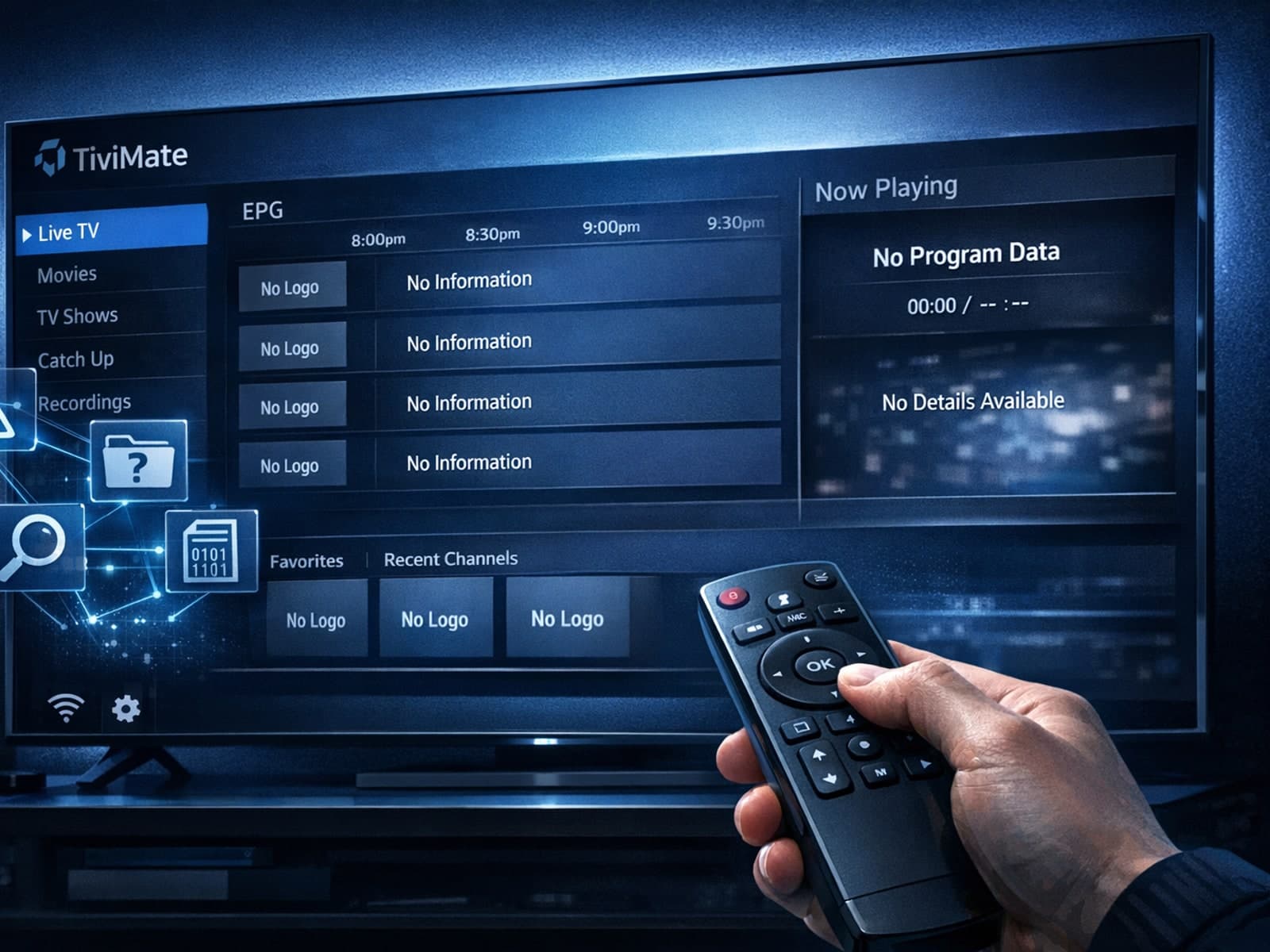
Missing channel logos in TiviMate is a common issue that often stems from problems with your IPTV playlist or Electronic Program Guide (EPG) data.
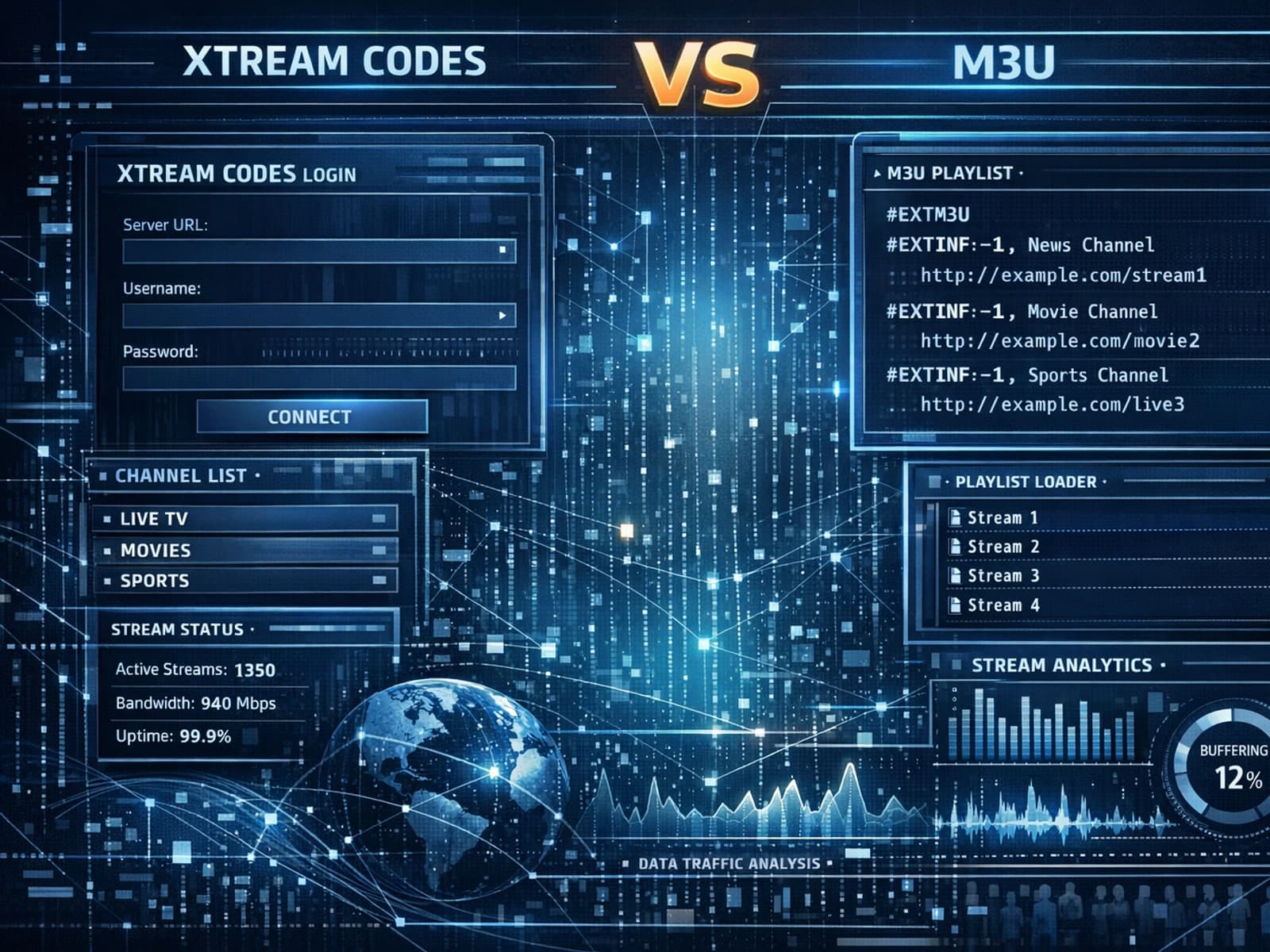
Xtream Codes often works better than M3U for IPTV users who need dynamic playlist management, faster channel updates, richer metadata integration, and controlled access to streaming content.
