
EPG Not Loading in TiviMate: Causes and Fixes

Quick answer
When the Electronic Program Guide (EPG) fails to load in the TiviMate app, it means that the schedule and program information for your IPTV channels are not appearing. This can be frustrating because the EPG is essential for navigating channels and knowing what's on now or nex...
Reviewed Against
• TiviMate playlist, EPG, and player-setting workflows
• XMLTV guide imports, refresh timing, and channel-guide matching
• Home-network checks such as Wi-Fi strength, Ethernet fallback, DNS changes, congestion, and local storage pressure
Applies To
• TiviMate setups on Android TV, Google TV, or Fire OS style streaming devices
• Guide data issues such as missing listings, stale guide refreshes, or wrong time offsets
• Playback problems that change with connection quality, device load, app cache state, or time of day
Does not apply when
• Your app uses a different menu layout or naming scheme than TiviMate.
• The stream itself will not play at all and you still need to verify login or playlist access.
• Only one channel, event, or provider-side endpoint is failing while the rest of the service stays stable.
Corroborating Resources
XMLTV file format referenceUseful when the issue comes from guide-source formatting, channel mapping, or XMLTV data freshness.
Android TV video and game troubleshootingUseful for Wi-Fi, updates, app cache, and playback troubleshooting steps that also mirror IPTV failure paths.
Android TV storage helpHelpful when playback issues point to low storage, cache pressure, or app-data cleanup decisions.
Topic Cluster
Part of the EPG cluster
Guide data problems, XMLTV and playlist matching, time-offset fixes, and TiviMate EPG recovery paths. This page sits in start here for that topic path.
Start here in this topic
On this page
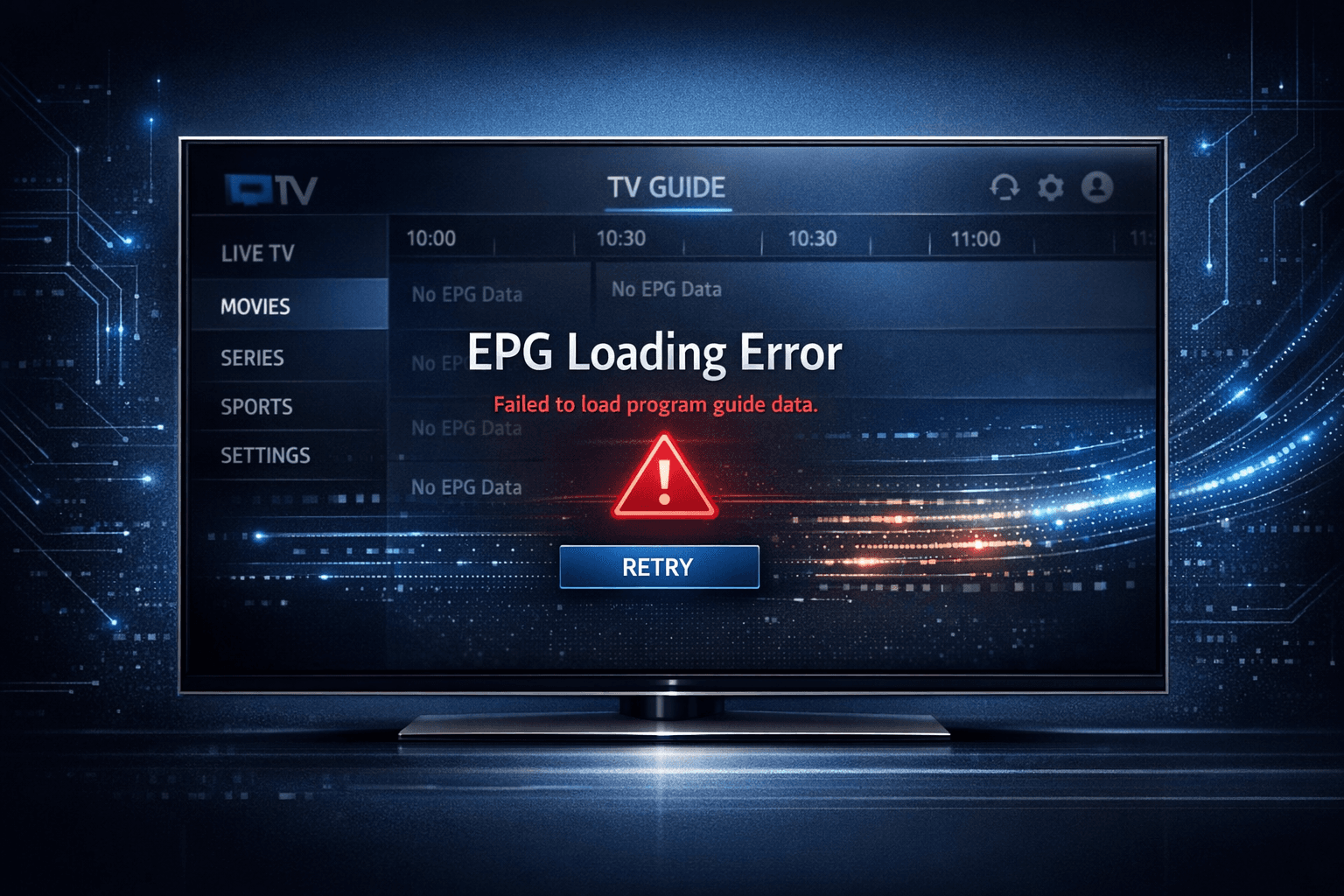
EPG Not Loading in TiviMate: Troubleshooting and Fixes for IPTV Users
When the Electronic Program Guide (EPG) fails to load in the TiviMate app, it means that the schedule and program information for your IPTV channels are not appearing. This can be frustrating because the EPG is essential for navigating channels and knowing what's on now or next. Fortunately, this issue is commonly caused by identifiable problems such as network interruptions, invalid EPG source links, or app data corruption, and can usually be resolved with straightforward troubleshooting steps.
What you'll learn
- What the EPG is and its role in TiviMate
- Common reasons why the EPG does not load
- How to quickly refresh and reload the EPG
- How to verify and update your EPG source
- Clearing app data and updating TiviMate for fixes
- Additional tips to prevent EPG loading problems
Understanding EPG in TiviMate
What is EPG?
EPG stands for Electronic Program Guide. In IPTV apps like TiviMate, it's a digital schedule that provides viewers with information about TV programs, including start times, durations, and descriptions. Without a functioning EPG, users may only see channel streams without knowing what's playing or upcoming.
Why EPG Might Not Load
Several factors can cause the EPG not to load in TiviMate:
- Internet connection issues: Because the guide requires data from external sources, unstable or limited internet connectivity can prevent EPG retrieval.
- Incorrect or expired EPG URL: The EPG data is fetched from a specific URL or playlist. If this URL is wrong or the source is down, no guide will load.
- App cache corruption: Over time, cached data can become corrupted, causing display or loading issues.
- App version bugs: Old or outdated versions of TiviMate may have unresolved bugs impacting EPG loading.
Quick Refresh: Reloading the EPG Data
How to Refresh EPG in TiviMate
Refreshing the EPG forces TiviMate to fetch fresh guide data from your IPTV source.
- Open TiviMate and navigate to the main schedule or channel list.
- Access the menu by pressing the menu button or clicking the three dots.
- Select "Refresh" or "Reload EPG."
- Wait a few moments as the guide updates.
Often, this simple step fixes temporary sync issues between the app and the guide source.
Verifying and Updating the EPG Source URL
Check Your EPG Playlist URL
Your IPTV provider or playlist includes a URL or M3U file that contains your channel list and often a separate XML or JSON file URL for the EPG.
To check:
- Go to TiviMate’s settings menu.
- Find the section labeled "EPG Settings" or "Source URLs."
- Note the URL used for EPG data.
- Test this URL by opening it in a browser or another IPTV player to verify it returns valid guide data.
If the URL is unreachable, returns errors, or seems outdated, contact your IPTV source provider or try alternative EPG URLs.
Updating Your EPG Source
If your EPG source URL has changed or expired:
- Enter the new, correct URL in the EPG settings.
- Save changes and refresh the EPG within the app.
This step is critical when IPTV providers update their infrastructure or if you switch providers/playlists.
Clearing Cache and Updating TiviMate
Clearing App Cache
Cache files can occasionally corrupt and prevent EPG from loading correctly.
How to clear cache on Android TV/Firestick:
- Go to your device's Settings.
- Navigate to Apps -> TiviMate.
- Select "Clear Cache."
If problems persist, you may also try "Clear Data," but be aware this will erase your app configuration (channels and login).
Updating the App
Make sure you run the latest version of TiviMate:
- Visit the Google Play Store or official app source.
- Check for updates.
- Install any available updates, which often contain bug fixes related to EPG handling.
Restarting Your Device and Preventing EPG Loading Issues
Restart Your Device
Sometimes system-level issues with memory or network can cause problems:
- Power off your smart TV, Firestick, or Android TV box.
- Unplug it for about 30 seconds.
- Power back on and launch TiviMate.
Restarting refreshes network settings and clears temporary glitches.
Preventative Measures
- Use a reliable and stable internet connection.
- Regularly update TiviMate to the latest version.
- Avoid using unsupported or expired IPTV sources.
- Periodically refresh EPG manually, especially if switching playlists.
Troubleshooting Common Mistakes
| Common Mistake | Effect on EPG | How to Fix |
|---|---|---|
| Wrong or expired EPG URL | No or incomplete guide | Verify and update the URL in app settings. |
| Unstable Internet connection | Slow or no loading | Test and improve connection quality. |
| Ignoring app updates | Possible bugs persist | Update app via official source. |
| Not refreshing EPG | Outdated guide data | Manually refresh EPG regularly. |
| Clearing app data without backup | Lose settings | Backup playlist and settings before clearing. |
FAQ
What does EPG stand for and why is it important in TiviMate?
EPG means Electronic Program Guide. It provides the program schedule for IPTV channels, making navigation and viewing planning easier.
Why does the EPG sometimes fail to load in TiviMate?
Common reasons include internet issues, incorrect or expired EPG URLs, corrupted app cache, or outdated app versions.
Can I manually refresh the EPG in TiviMate?
Yes, there is an option within TiviMate to refresh or reload the EPG data.
How do I know if my EPG source URL is correct?
You can test the URL in a web browser or another IPTV player. Valid EPG URLs return structured program data.
Is restarting my device helpful for EPG problems in TiviMate?
Restarting can help clear temporary glitches affecting app performance, including EPG loading.
Conclusion
When the EPG is not loading in TiviMate, the issue most likely stems from network problems, invalid or outdated EPG sources, or app data glitches. Starting with quick checks like refreshing the guide and verifying the EPG URL can often resolve the problem. More involved steps such as clearing cache, updating the app, and restarting your device can fix deeper issues. Keeping your IPTV sources current and maintaining stable network conditions will help prevent EPG loading failures in the future.
For additional troubleshooting on related IPTV playback and device issues, see our articles on IPTV Buffering on Firestick, IPTV Hardware Considerations, and Choosing an IPTV Player. Understanding your Network environment can also help maintain reliable playback and guide updates.
{Note to editors: This article is rooted specifically in TiviMate app usage and assumes an IPTV playlist source that includes an EPG URL. It avoids general IPTV app advice to focus on the precise issue of EPG loading failure in TiviMate.}
Keep exploring
More explainers that connect naturally to this setup, workflow, or troubleshooting path.
If you watch IPTV on your Fire TV Stick, having the right Wi-Fi settings can significantly improve your streaming experience by minimizing buffering and lag.


When it comes to updating IPTV playlists, two common methods are M3U Plus and the Xtream Codes API. Both serve to refresh the channel lists and program information delivered to IPTV apps, but they do so in different ways.

If your TiviMate electronic program guide (EPG) is showing program times that do not align with the actual broadcast schedules, you are encountering an "EPG time offset" issue.