
Choosing an IPTV Player for Android TV and Firestick

Quick answer
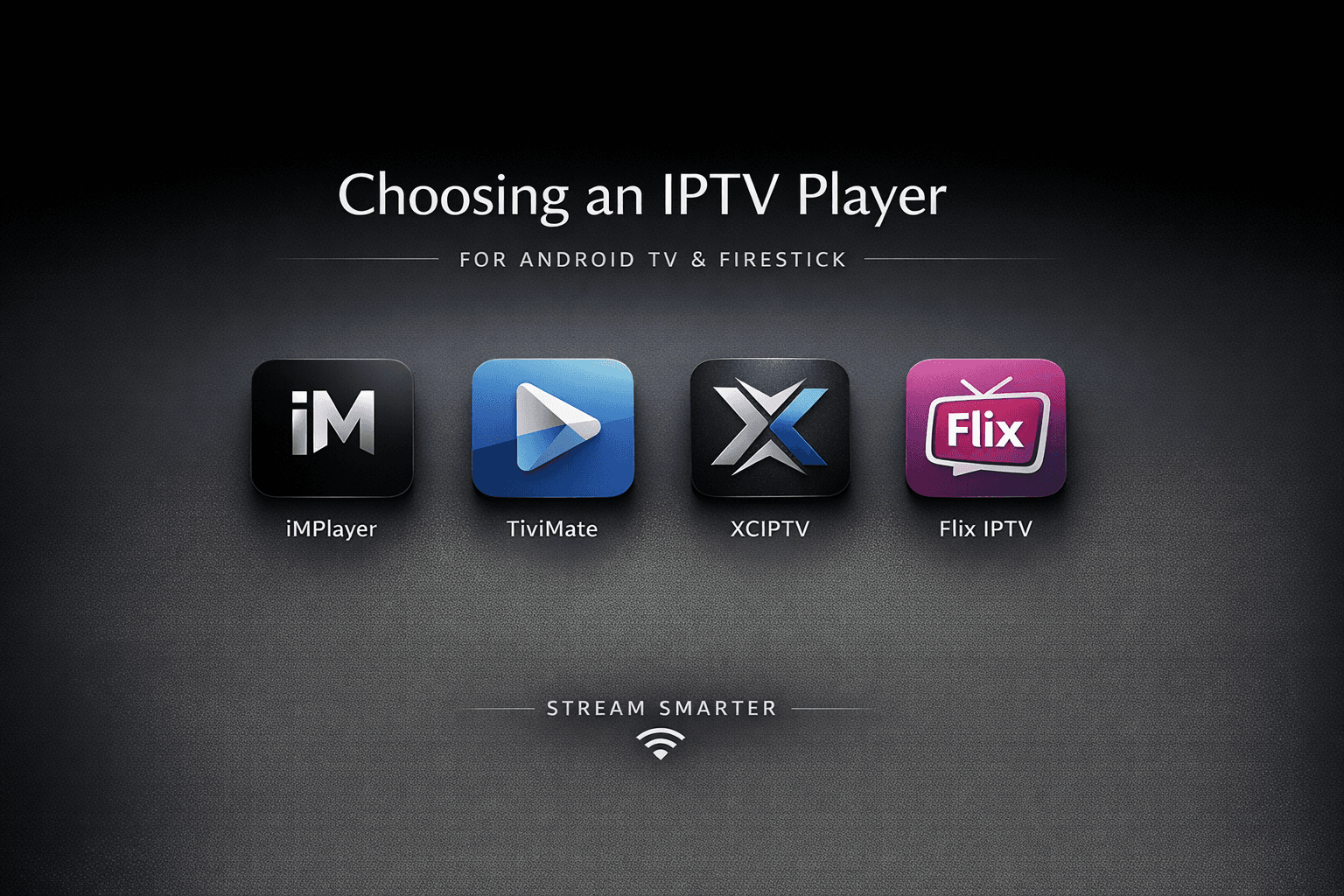
Selecting an appropriate IPTV player for your Android TV or Firestick device is essential for seamless streaming of IPTV content. IPTV players are specialized applications designed to receive and decode IPTV streams, allowing you to watch live TV, on-demand videos, and other i...
Reviewed Against
• Fire TV and Fire OS device capabilities, networking, and storage limits
• Android TV and Google TV troubleshooting paths and settings flows
Applies To
• Fire TV Stick, Fire TV Cube, and Fire OS playback or networking questions
• Android TV and Google TV devices where app storage, system updates, and playback settings affect IPTV behavior
Does not apply when
• You are troubleshooting a smart-TV app or set-top box with a different hardware and settings path.
• The device is not Android TV based and the settings menus do not match these steps.
Corroborating Resources
Fire TV device specifications overviewHelpful for checking Fire TV hardware families, platform differences, and device-level constraints.
Fire TV streaming media player specsUseful for codec, storage, Wi-Fi, and Ethernet-adapter expectations on Fire TV sticks and boxes.
Android TV overviewA good reference for how Android TV is structured and where TV-specific app behavior comes from.
Google TV troubleshooting helpUseful for device-level playback, Wi-Fi, and settings checks when video behavior looks platform-wide.
Topic Cluster
Part of the Android TV cluster
Browse practical IPTV articles about Android TV, including setup choices, troubleshooting paths, and follow-on guides. This page sits in setup and decisions for that topic path.
On this page
Introduction
Selecting an appropriate IPTV player for your Android TV or Firestick device is essential for seamless streaming of IPTV content. IPTV players are specialized applications designed to receive and decode IPTV streams, allowing you to watch live TV, on-demand videos, and other internet-based media through your device. Choosing the right player ensures better compatibility, user experience, and reliability.
What you'll learn
- What an IPTV player is and how it works
- Essential criteria to consider when choosing a player
- Comparison of popular IPTV players compatible with Android TV and Firestick
- Common installation and configuration challenges
- Tips for troubleshooting frequent issues
Understanding IPTV Players
What is an IPTV Player?
An IPTV player is software designed to access and display Internet Protocol Television (IPTV) streams. These streams provide television content over the internet, rather than via traditional terrestrial, satellite, or cable formats.
Why Android TV and Firestick?
Android TV and Amazon Firestick are popular platforms for smart TVs and media streaming due to their affordability and app ecosystem. Both support various IPTV players, but compatibility and interface can vary slightly.
Key Features to Look For
Format and Protocol Support
Ensure the player supports common streaming protocols such as HLS (HTTP Live Streaming), MPEG-DASH, and RTSP. Additionally, compatibility with media formats like .m3u or .m3u8 playlist files is crucial.
User Interface and Experience
A well-designed user interface that works with remote controls simplifies navigation and playback control. Look for clear menus, EPG (Electronic Program Guide) integration, and support for subtitles.
Stability and Performance
The player should handle buffering efficiently and support caching to reduce playback interruptions, especially on devices with limited processing power.
Compatibility
Check that the IPTV player is fully compatible with your specific Android TV model or Firestick version.
Customization and Features
Some players offer extras such as parental controls, favorite channels management, or screen recording.
Popular IPTV Players for Android TV and Firestick
| Player Name | Key Features | Compatibility | Notes |
|---|---|---|---|
| TiviMate | Clean UI, EPG support, playlists | Android TV-only | Paid version unlocks features |
| Perfect Player | Transparent OSD, multi-playlists | Android TV & Firestick | Free, but less frequent updates |
| IPTV Smarters | Parental controls, multiple users | Android TV & Firestick | No built-in player, needs external decoder |
| XCIPTV Player | EPG, VOD support, catch-up TV | Android TV & Firestick | Requires user credentials |
Installation and Configuration Tips
Sideloading on Firestick
Since Firestick's app store may lack certain IPTV players, sideloading using 'Downloader' or 'Apps2Fire' is common. Enable 'Unknown Sources' in settings before proceeding.
Playlist Setup
Obtain an IPTV playlist (usually .m3u or URL) from your service provider and load it through the player's playlist management interface.
EPG Setup
If available, import EPG XML or URL files to view channel schedules.
Common Mistakes and Troubleshooting
Frequent Buffering or Playback Lag
- Check your internet connection speed; IPTV requires stable, high-speed bandwidth.
- Reduce video quality in player settings if buffering persists.
Unsupported File or Protocol
- Confirm playlist compatibility; some players reject certain formats.
- Use a different player if needed.
Failure to Install on Firestick
- Make sure 'Apps from Unknown Sources' is enabled.
- Use updated sideloading methods.
Missing EPG Information
- Verify EPG URL correctness.
- Update player to latest version.
FAQ
Q: Is it legal to use any IPTV player on Android TV or Firestick? A: IPTV players themselves are legal software. However, legality depends on the content source you use. Always ensure you have rights to the streams you access.
Q: Can I use multiple IPTV playlists on one player? A: Many IPTV players support multiple playlists, allowing you to manage various channel lists.
Q: Do IPTV players consume a lot of data? A: Streaming video is data-intensive. Use Wi-Fi or unlimited data plans to avoid extra charges.
Q: Are free IPTV players less secure? A: Free players are not inherently insecure, but it's critical to download from trusted sources to avoid malware.
Conclusion
Choosing the right IPTV player for your Android TV or Firestick depends on your streaming needs, device compatibility, and desired features. Prioritize a user-friendly interface, stability, and protocol support to enjoy a smooth IPTV experience. Always verify playlist sources and keep your apps updated to maintain security and performance.
Tags
iptv, android-tv, firestick, streaming, media-player, troubleshooting
Image Prompt
A sleek, high-tech editorial illustration featuring a modern Android TV and Amazon Firestick device displaying IPTV streaming interfaces, set against a dark blue futuristic background with subtle glowing IPTV icons and network motifs, conveying cutting-edge technology and connectivity.
Frequently Asked Questions
Is it legal to use any IPTV player on Android TV or Firestick?
IPTV players themselves are legal applications. However, the legality depends on the content you stream. Always ensure you access IPTV streams through authorized and licensed sources.
Can I use multiple IPTV playlists on one player?
Yes, many IPTV players support loading and managing multiple playlists, enabling you to organize various channel lists within a single application.
Do IPTV players consume a lot of data?
Streaming IPTV can use significant data, especially when watching high-definition channels. It's recommended to use Wi-Fi or unlimited data plans to avoid additional charges.
Are free IPTV players less secure?
Free IPTV players are not inherently insecure, but it's important to download them from trusted sources to minimize risks of malware or security issues.
Step-by-step process
- Identify your device model (Android TV or Firestick) and confirm its compatibility requirements.
- Research IPTV players that support your device and desired streaming protocols like HLS, MPEG-DASH, and .m3u playlists.
- Download or sideload the IPTV player app from trusted sources or app stores.
- Obtain your IPTV playlist URL or file from your service provider.
- Load the playlist into the IPTV player using its interface and configure optional features like EPG and subtitles.
- Test playback to confirm smooth streaming and adjust settings such as video quality or cache size to reduce buffering.
- Regularly update the IPTV player app to access the latest features and maintain security.
- If issues arise, troubleshoot by checking network stability, playlist compatibility, and app permissions.
Next articles worth reading
After picking a player, these guides cover the setup and troubleshooting paths that usually come next:
Keep exploring
More explainers that connect naturally to this setup, workflow, or troubleshooting path.
TiviMate is a popular IPTV player app for Android TV and similar devices, known for its advanced channel management options. Organizing favorites and groups in TiviMate lets you customize your IPTV watching experience by categorizing.

When you switch channels on your IPTV service and the screen freezes or lags, it’s frustrating and disrupts your viewing experience. IPTV freezing during channel switching is most often caused by network delays, buffering, or the IPTV.

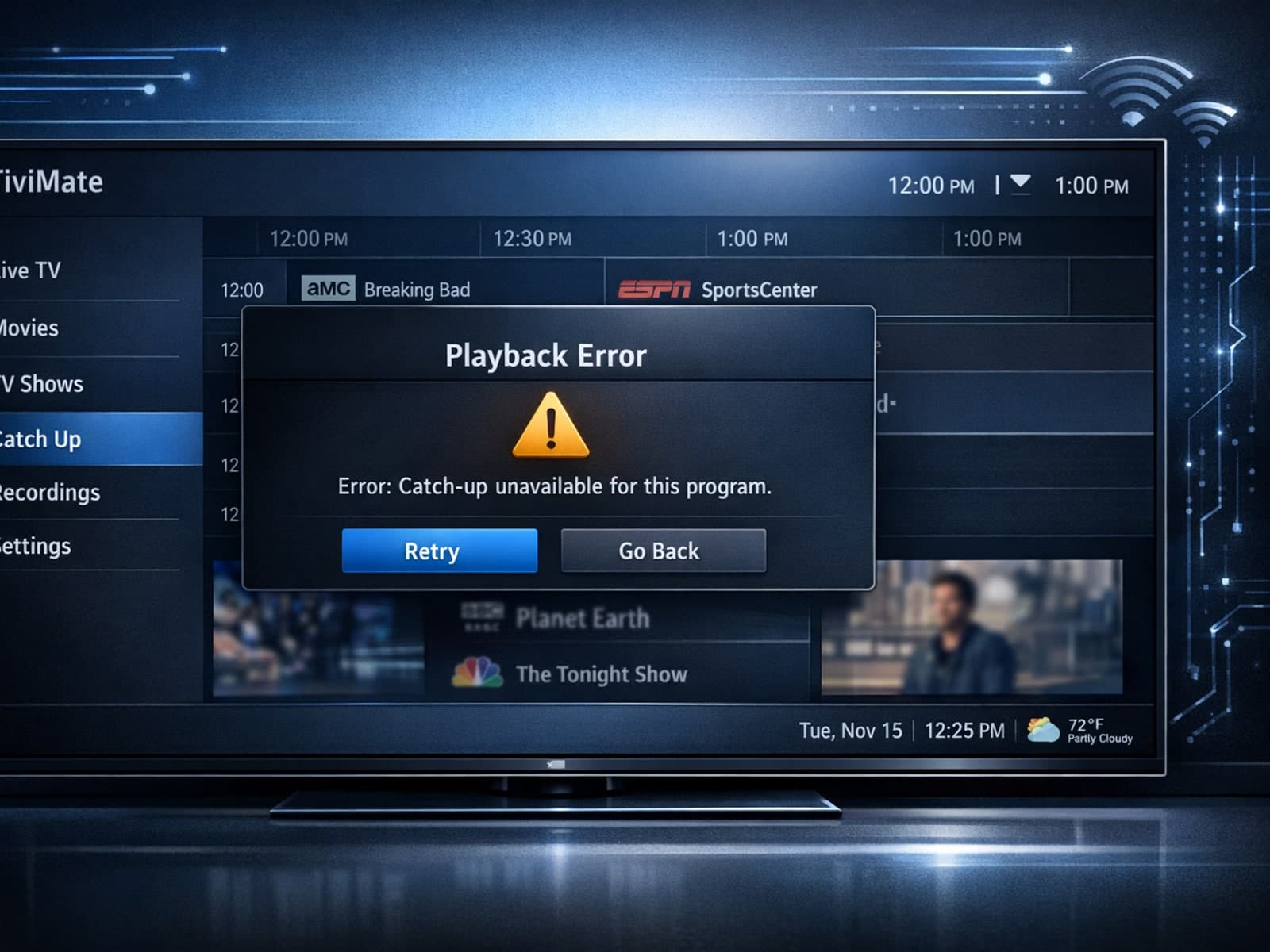
If your catch-up feature in TiviMate isn’t working, the fundamental reasons often lie in your IPTV playlist source or server configuration rather than the app itself.
