
Fire TV Stick Storage Issues Causing IPTV Lag

Quick answer
When experiencing IPTV lag on your Fire TV Stick, one common but often overlooked reason is limited device storage. The Fire TV Stick uses onboard flash memory that, when nearly full or cluttered with cached data, can cause IPTV apps to perform poorly, leading to buffering, fr...
Reviewed Against
• Fire TV and Fire OS device capabilities, networking, and storage limits
• Home-network checks such as Wi-Fi strength, Ethernet fallback, DNS changes, congestion, and local storage pressure
Applies To
• Fire TV Stick, Fire TV Cube, and Fire OS playback or networking questions
• Playback problems that change with connection quality, device load, app cache state, or time of day
Does not apply when
• You are troubleshooting a smart-TV app or set-top box with a different hardware and settings path.
• Only one channel, event, or provider-side endpoint is failing while the rest of the service stays stable.
Corroborating Resources
Fire TV device specifications overviewHelpful for checking Fire TV hardware families, platform differences, and device-level constraints.
Fire TV streaming media player specsUseful for codec, storage, Wi-Fi, and Ethernet-adapter expectations on Fire TV sticks and boxes.
Android TV video and game troubleshootingUseful for Wi-Fi, updates, app cache, and playback troubleshooting steps that also mirror IPTV failure paths.
Android TV storage helpHelpful when playback issues point to low storage, cache pressure, or app-data cleanup decisions.
Topic Cluster
Part of the Fire TV Stick cluster
Fire TV Stick setup choices, network accessories, storage limits, and playback tuning for IPTV use. This page sits in troubleshoot and fix for that topic path.
Start here in this topic
On this page
Fire TV Stick Storage Issues Causing IPTV Lag
When experiencing IPTV lag on your Fire TV Stick, one common but often overlooked reason is limited device storage. The Fire TV Stick uses onboard flash memory that, when nearly full or cluttered with cached data, can cause IPTV apps to perform poorly, leading to buffering, freezes, or slow channel changes. This article explains how storage affects IPTV playback on the Fire TV Stick and walks you through practical steps to check, clear, and manage your storage to reduce lag.
What you'll learn
- Why Fire TV Stick storage impacts IPTV streaming smoothly
- How to check your available storage
- Clearing cache and app data to free space
- Removing unused apps to prevent storage overload
- When to consider external storage or device upgrades
Understanding the Fire TV Stick Storage and IPTV Performance
The Fire TV Stick typically comes with limited internal storage (often 8 to 16GB), which holds the operating system, installed apps, cached data, and temporary files. IPTV apps stream video data from the internet, but smooth playback relies heavily on the device quickly processing data without throttling.
Why does storage matter for IPTV?
- Cached data buildup: IPTV apps store chunks of streaming data and metadata temporarily. Larger caches can speed playback, but if storage is tight, cache writes slow down or cause incomplete buffering.
- App updates and operations: Streaming apps need room to update or handle user data. Lack of space can cause errors or slowdowns.
- System performance: Fire OS and background processes slow down when storage is nearly full, negatively impacting IPTV app responsiveness.
How to Check Storage on Your Fire TV Stick
Knowing exactly how much space you have left is the first troubleshooting step.
- From the Fire TV home screen, navigate to Settings.
- Select My Fire TV (or Device on older versions).
- Choose About.
- Select Storage.
Here, you'll see storage used and available. If your free space is below 1 GB, lag is likely related to storage.
Clearing Cache and App Data to Reduce Lag
Cached files can accumulate without your awareness, consuming valuable storage and degrading IPTV playback.
Clearing Cache
- Go to Settings > Applications > Manage Installed Applications.
- Select your IPTV app (e.g., TiviMate, IPTV Smarters).
- Choose Clear cache.
Clearing Data (Use cautiously)
If clearing cache does not help, you may try clearing app data, which resets the app but may erase login info and settings:
- Follow the same path as clearing cache.
- Select Clear data or Clear storage.
- Re-log in to the IPTV app.
Clearing cache often provides immediate improvement without resetting app preferences.
Removing Unused Apps to Free Space
Many users install various apps and forget about them, causing unnecessary storage pressure.
- Navigate to Settings > Applications > Manage Installed Applications.
- Review the list and select apps you rarely use.
- Choose Uninstall to remove the app and reclaim space.
Even removing one or two heavy apps can free up hundreds of megabytes.
Restarting Your Fire TV Stick
A simple reboot can help the system recognize freed storage and clear temporary slowdowns.
- Hold down the Select and Play/Pause buttons simultaneously for about 5 seconds, or
- Go to Settings > My Fire TV > Restart.
Restarting complements storage management by refreshing system processes.
Considering External Storage or Upgrading Your Device
External Storage Options
Some Fire TV Stick models support USB OTG (On-The-Go) adapters to connect external flash drives for extra storage, though this is less common and not officially supported on all models.
If your model supports it:
- Use a USB OTG cable
- Connect a compatible USB flash drive
- Format and configure it as internal or external storage in Fire OS
Note: Performance varies, and external storage mainly aids app installation and cache, not raw streaming speed.
Upgrading Your Fire TV Stick
If storage issues continue despite cleaning and managing storage, consider upgrading:
| Model | Storage Size | Processor Speed | IPTV Experience |
|---|---|---|---|
| Fire TV Stick Lite | 8 GB | Basic quad-core | Entry-level, prone to lag |
| Fire TV Stick 4K Max | 16 GB | Faster quad-core | Better for IPTV streaming |
| Fire TV Cube | 16-32 GB | Fast hexa-core | Top tier for IPTV performance |
Devices with more storage and speed handle IPTV buffering and multitasking more effectively.
Common Mistakes and Troubleshooting Tips
- Ignoring low storage warnings: Fire TV often does not notify about low storage clearly.
- Skipping app cache clearing: Cache grows continuously and can be cleared every few weeks.
- Assuming lag is Internet-related: While important, internal storage limitations often cause lag independent of network quality.
- Not restarting after cleanup: Restarting applies changes effectively.
Who This Guidance Applies To
- Users of standard Fire TV Stick models (Lite, 2nd Gen, 3rd Gen, Fire TV Stick 4K).
- IPTV apps installed directly on Fire OS (e.g., TiviMate, IPTV Smarters).
When to Seek Different Advice
- If you use other streaming devices (Roku, Chromecast), storage management differs.
- IPTV delivered via Android TV boxes or specialized hardware may require device-specific troubleshooting.
- If lag is tightly correlated with VPN use, consult VPN-related IPTV buffering fixes.
FAQ
Why does my IPTV lag when using Fire TV Stick?
Limited available storage can slow app performance and cause buffering disruptions in IPTV apps.
How do I check storage on my Fire TV Stick?
Go to Settings > My Fire TV > About > Storage to view used and free space.
Does clearing cache really help IPTV lag on Fire TV Stick?
Yes. Cache removal clears temporary data that may clog system resources and improve playback smoothness.
Can I add external storage to Fire TV Stick to fix lag?
Some models support USB OTG storage, allowing extra space but with varying effectiveness.
When should I consider upgrading my Fire TV Stick to fix IPTV lag?
When storage clearing and managing do not resolve lag, a model with more storage and faster processing can enhance IPTV performance.
Conclusion
Fire TV Stick storage limitations are a frequent and fixable cause of IPTV lag. Checking available space, clearing cache, removing unused apps, restarting your device, and considering external storage or hardware upgrades are practical steps to improve streaming smoothness. Managing storage proactively keeps your IPTV experience responsive and buffer-free.
For more detailed details on optimizing your Fire TV Stick for IPTV, explore our related guides on cache clearing, WiFi settings, and Fire TV model comparisons.
Frequently Asked Questions
Why does my IPTV lag when using Fire TV Stick?
IPTV lag on Fire TV Stick often results from low available storage, causing slow app performance and buffering during streaming.
How do I check storage on my Fire TV Stick?
Navigate to Settings > My Fire TV > About > Storage to see how much space is used and available.
Does clearing cache really help IPTV lag on Fire TV Stick?
Yes, clearing cache removes temporary files that can slow down app performance and reduce lag during IPTV playback.
Can I add external storage to Fire TV Stick to fix lag?
Some Fire TV Stick models support USB OTG storage, which can help increase storage space and improve performance.
When should I consider upgrading my Fire TV Stick to fix IPTV lag?
If storage issues persist despite clearing cache and removing apps, upgrading to a model with more memory and faster processor may reduce IPTV lag.
Keep exploring
More explainers that connect naturally to this setup, workflow, or troubleshooting path.
If you're choosing between the Fire TV Cube and the Fire TV Stick 4K Max for your IPTV setup, it's important to understand their differences beyond just their names.

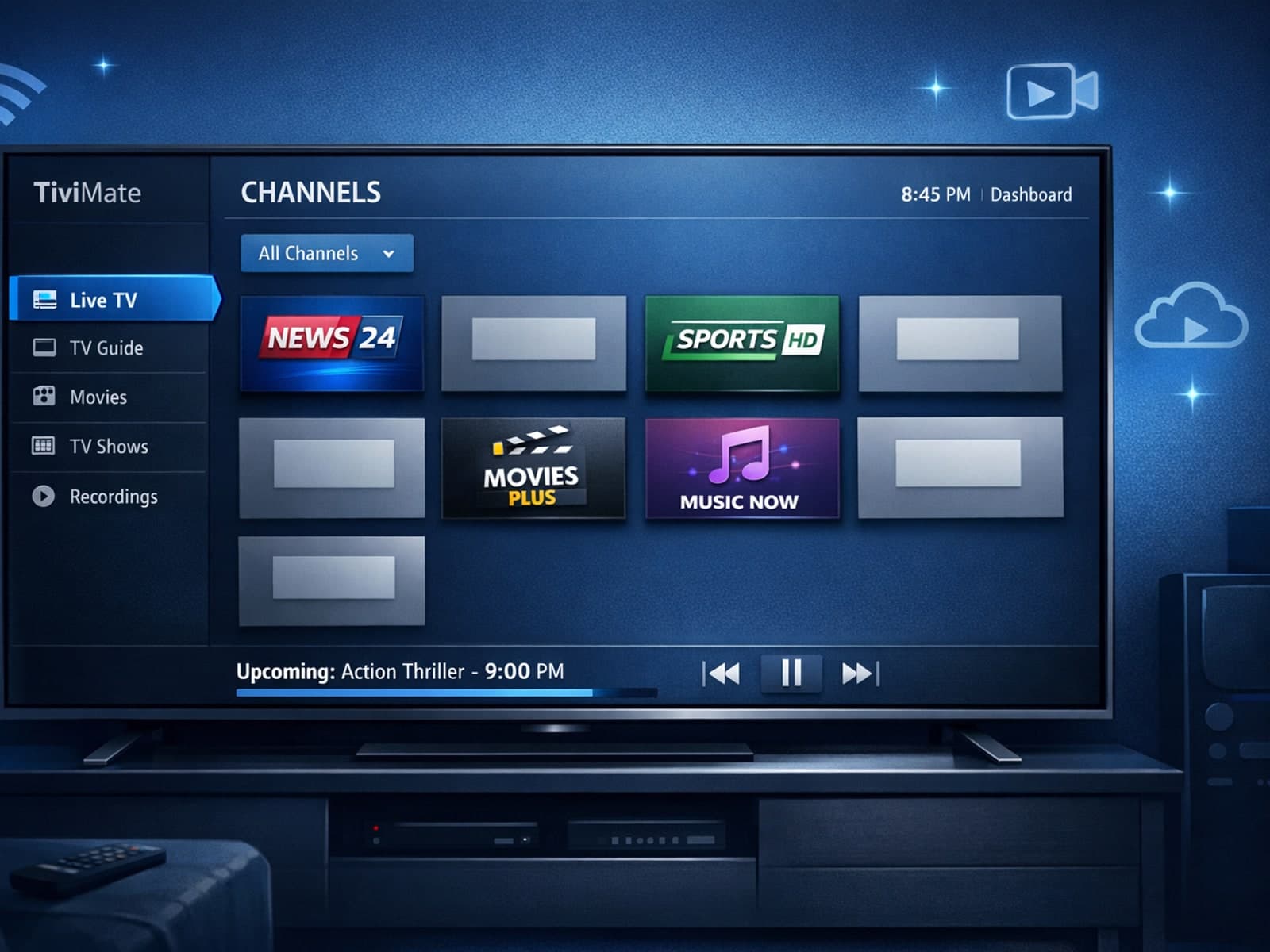
Missing channel logos in TiviMate can be frustrating because they make channel navigation less intuitive and reduce the overall viewing experience.
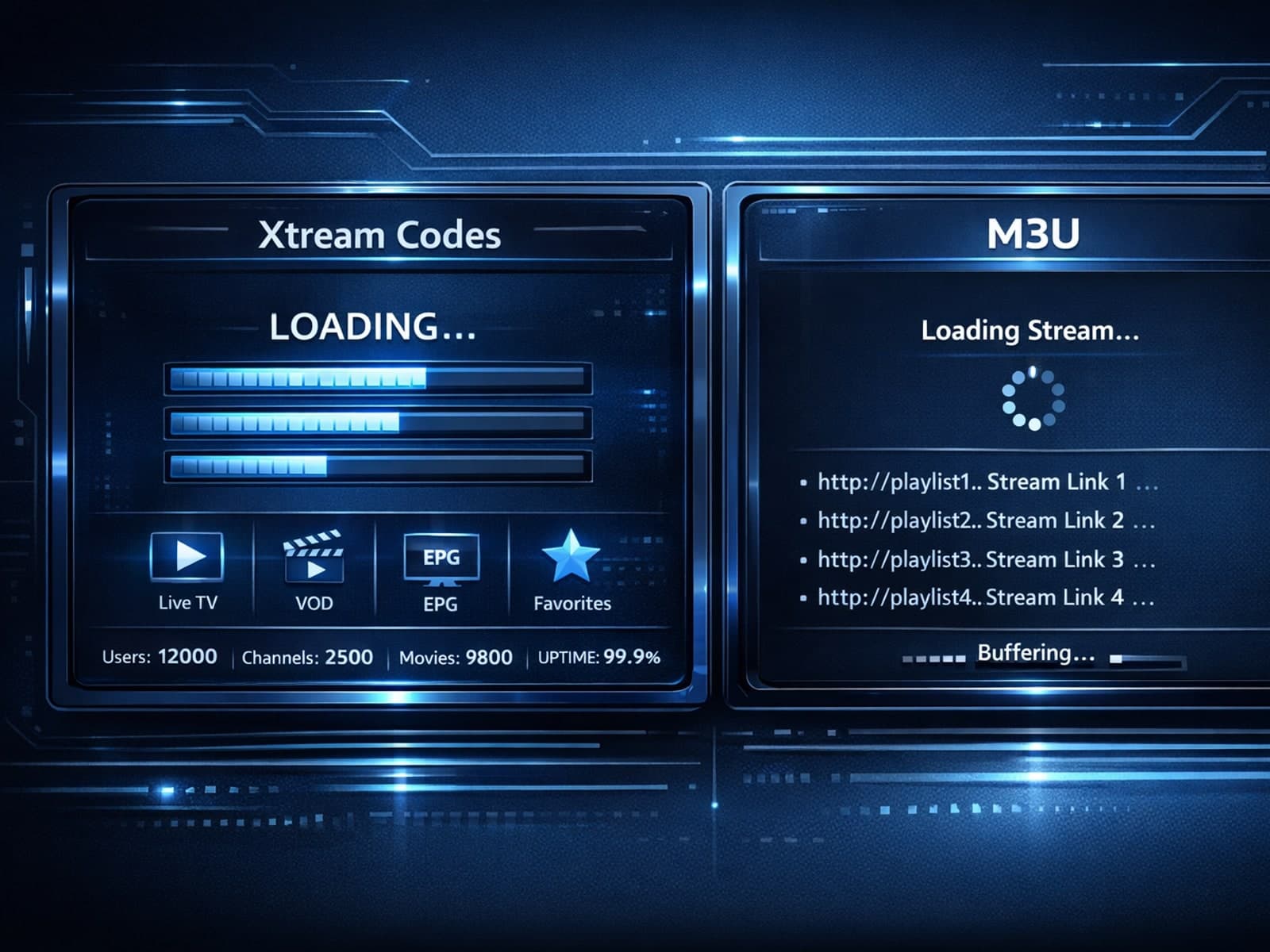
Xtream Codes login can outperform M3U playlists by providing faster channel loading, better playlist management, and improved metadata support in IPTV apps.
