
Fire TV Cube vs Fire TV Stick 4K Max for IPTV: Performance and Setup Comparison

Quick answer
When deciding between the Fire TV Cube and the Fire TV Stick 4K Max for IPTV streaming, your choice should focus on your specific setup needs, desired features, and network environment. Both devices support 4K streaming and popular IPTV apps, but differ in input options, hardw...
Reviewed Against
• Fire TV and Fire OS device capabilities, networking, and storage limits
• Home-network checks such as Wi-Fi strength, Ethernet fallback, DNS changes, congestion, and local storage pressure
Applies To
• Fire TV Stick, Fire TV Cube, and Fire OS playback or networking questions
• Playback problems that change with connection quality, device load, app cache state, or time of day
Does not apply when
• You are troubleshooting a smart-TV app or set-top box with a different hardware and settings path.
• Only one channel, event, or provider-side endpoint is failing while the rest of the service stays stable.
Corroborating Resources
Fire TV device specifications overviewHelpful for checking Fire TV hardware families, platform differences, and device-level constraints.
Fire TV streaming media player specsUseful for codec, storage, Wi-Fi, and Ethernet-adapter expectations on Fire TV sticks and boxes.
Android TV video and game troubleshootingUseful for Wi-Fi, updates, app cache, and playback troubleshooting steps that also mirror IPTV failure paths.
Android TV storage helpHelpful when playback issues point to low storage, cache pressure, or app-data cleanup decisions.
Topic Cluster
Part of the Amazon Fire TV cluster
Browse practical IPTV articles about Amazon Fire TV, including setup choices, troubleshooting paths, and follow-on guides. This page sits in compare options for that topic path.
On this page
Fire TV Cube vs Fire TV Stick 4K Max for IPTV: Performance and Setup Comparison
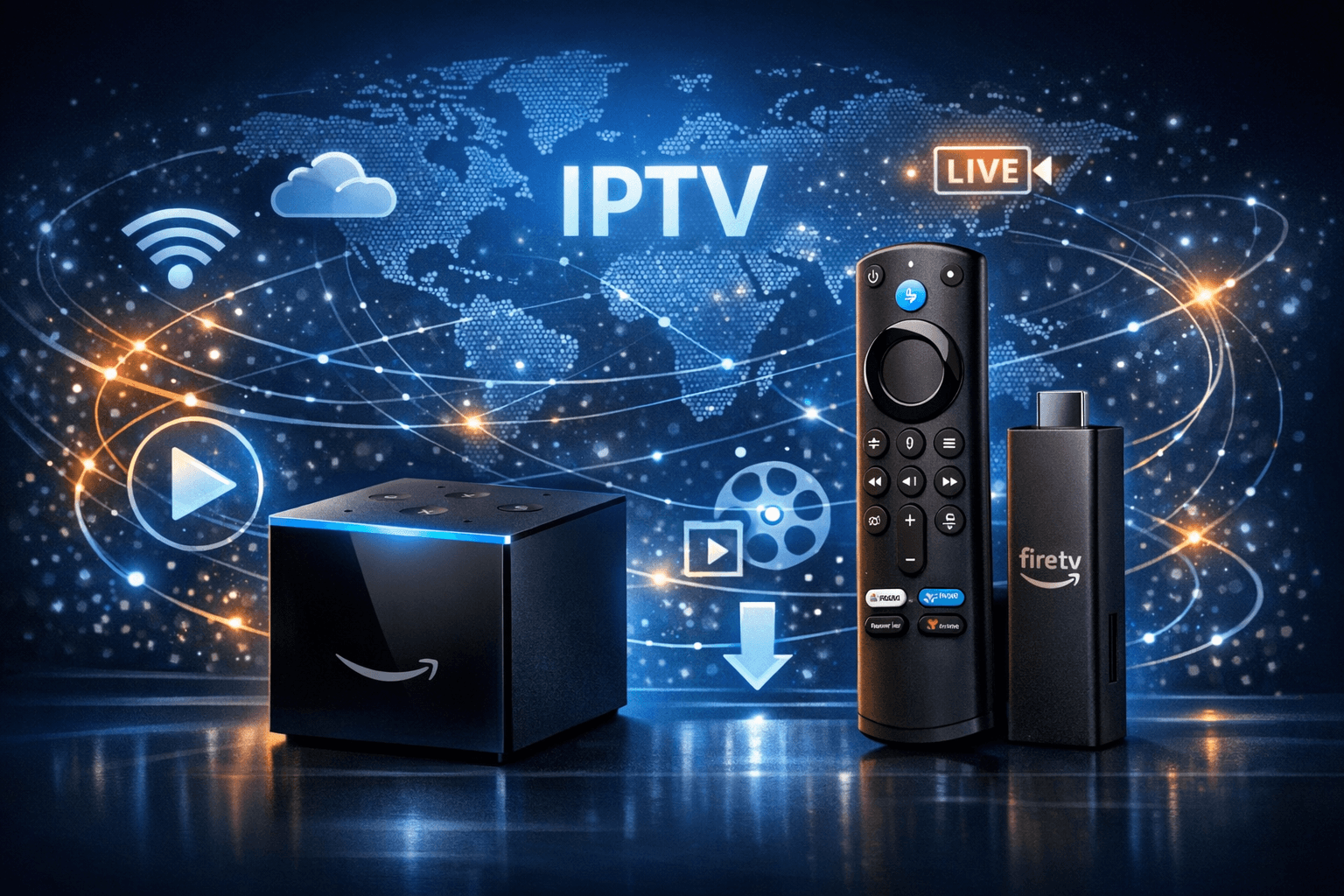
When deciding between the Fire TV Cube and the Fire TV Stick 4K Max for IPTV streaming, your choice should focus on your specific setup needs, desired features, and network environment. Both devices support 4K streaming and popular IPTV apps, but differ in input options, hardware, connectivity, and added functionalities. This guide breaks down these differences clearly to help you pick the right device for IPTV.
What you'll learn
- Key hardware differences affecting IPTV performance
- How connectivity options impact IPTV streaming quality
- Setup steps for both devices for optimal IPTV use
- Common troubleshooting tips for IPTV on Fire TV devices
- When to choose one device over the other based on IPTV usage
Understanding Hardware Differences and IPTV Impact
Processor and Performance
The Fire TV Stick 4K Max is powered by a 1.8 GHz quad-core processor with 2 GB of RAM, offering improved speed and smoother interface interactions over its predecessors, benefiting IPTV apps that require frequent channel switching and buffering.
The Fire TV Cube features a Hexa-core processor (quad-core 1.9GHz + dual-core 1.7GHz) with 2GB RAM, focusing on more robust multitasking and hands-free voice control performance.
For IPTV, both devices provide sufficient processing power for smooth 4K playback, but the Cube’s stronger CPU can better support background tasks like simultaneous voice assistant usage.
Storage Considerations
Both have approximately 8GB internal storage, where system take a significant portion. IPTV apps like TiviMate and IPTV Smarters can require additional cache space. Regular cache clearing or app management is necessary to avoid lag.
Connectivity and Input Options for IPTV
Network Connectivity
-
Fire TV Cube: Includes a built-in Gigabit Ethernet port, which enables a stable wired internet connection crucial for IPTV streaming without buffering.
-
Fire TV Stick 4K Max: Lacks an Ethernet port. It relies mainly on WiFi (supports dual-band 2.4GHz and 5GHz, including 802.11ax WiFi 6) for internet connectivity. Ethernet is possible via an optional USB-C to Ethernet adapter.
USB/External Storage
Neither device supports direct USB storage for IPTV content, given their limited ports. Clearing app cache helps. The Cube has a USB-C port for accessories, including Ethernet adapters.
HDMI and AV Outputs
Both connect via HDMI to your TV. Ensure your TV supports HDCP 2.2 and HDMI 2.0 or above for optimal 4K IPTV playback.
Setting Up IPTV on Fire TV Cube and Stick 4K Max
Step-by-Step IPTV Setup
- Connect Device: Plug the Fire TV Cube or Stick 4K Max into your TV’s HDMI port.
- Network Connection: For the Cube, connect Ethernet cable or WiFi. For Stick, connect WiFi (consider Ethernet adapter if preferred).
- Power On and Follow Setup: Use the remote to connect to your Amazon/Wifi.
- Install IPTV App: Navigate to the Amazon App Store, download IPTV apps such as TiviMate or IPTV Smarters.
- Login and Configure: Enter IPTV service credentials or load your M3U playlist within the app.
- Adjust Settings: Set buffering, EPG, and video quality preferences for steady playback.
Optimizing Network Settings
- Use 5 GHz WiFi band for better IPTV streaming where Ethernet is unavailable.
- Position your router closer if using WiFi to avoid dropout.
See our Best WiFi Settings for IPTV on Fire TV Stick to Reduce Buffering for detailed network optimization tips.
Troubleshooting Common IPTV Issues on Fire TV Devices
Buffering and Lag
- Verify network speed and stability.
- Clear IPTV app cache from Settings > Applications.
- Restart Fire TV device and router.
- Prefer Ethernet connection on Cube or use quality WiFi router with 5 GHz band.
App Crashes or Freezes
- Update IPTV app and Fire TV OS regularly.
- Uninstall and reinstall problematic IPTV apps.
- Free up storage space by deleting unused apps.
Remote Control Unresponsiveness
- Replace batteries.
- Pair remote again.
- Use Alexa voice control on Cube for hands-free commands.
When troubleshooting these issues does not help, consult device-specific guides or IPTV app support sites.
Choosing the Best Device for Your IPTV Needs
| Feature | Fire TV Cube | Fire TV Stick 4K Max |
|---|---|---|
| Processor | Powerful Hexa-core for multitasking | Fast Quad-core, efficient for streaming |
| Network Connectivity | Built-in Ethernet + WiFi 5 GHz dual-band | WiFi 6 dual-band; Ethernet via adapter |
| Storage | ~8GB internal; same for both | ~8GB internal; same for both |
| Voice Control | Hands-free Alexa with built-in microphone | Alexa Voice Remote included |
| Remote Input | Options for IR and HDMI CEC control | Standard Alexa Voice Remote |
| Ideal Use Case | IPTV with wired Ethernet; smart home integration | IPTV streaming on WiFi; budget conscious |
Who should choose the Fire TV Cube?
- Users prioritizing stable Ethernet connections for buffer-free IPTV.
- Those wanting hands-free Alexa voice control.
- Users with smart home ecosystems seeking a central control hub.
Who should prefer the Fire TV Stick 4K Max?
- Users comfortable with WiFi-only IPTV connections.
- Those looking for a budget-friendly 4K IPTV solution.
- Users wanting the latest WiFi 6 support for future-proofing.
Common Mistakes with IPTV on Fire TV Cube and Stick 4K Max
- Overlooking network connection quality; WiFi alone may cause intermittent buffering.
- Ignoring app cache growth leading to reduced performance.
- Expecting unlimited storage capacity for IPTV apps on limited internal storage devices.
- Using incompatible IPTV apps or outdated versions.
FAQs
Q: Can I use IPTV apps like TiviMate on both devices?
A: Yes, both support popular IPTV apps. Performance may vary with your network and device.
Q: Is Ethernet connection essential for smooth IPTV on Fire TV devices?
A: Ethernet ensures a stable connection, beneficial especially for IPTV where buffering impacts viewing experience. The Cube's built-in Ethernet port provides this advantage.
Q: Can I control my IPTV apps with Alexa voice commands?
A: The Fire TV Cube supports hands-free Alexa control for basic navigation. Stick 4K Max supports voice via the remote.
Q: How do I update IPTV apps on these devices?
A: Go to the Amazon App Store, check for updates under "Your Apps & Games," and update your IPTV app.
Q: What do I do if IPTV video keeps freezing?
A: Restart your device, check your internet speed, clear app cache, or switch to Ethernet if possible.
Conclusion
Both the Fire TV Cube and Fire TV Stick 4K Max are competent devices for IPTV streaming, but your choice depends on network setup and feature preference. The Cube excels for users needing wired Ethernet and hands-free Alexa, while the Stick 4K Max offers newer WiFi 6 support and a lower price point, making it a versatile choice for most IPTV setups. Proper network configuration, app management, and recognizing device strengths will lead to the best IPTV experience.
For detailed IPTV app setup and troubleshooting, see our guides on Firestick VPN Buffering, Storage Issues, and EPG Source Fixes.
Frequently Asked Questions
Which device is better for streaming IPTV in 4K?
Both support 4K streaming, but the Fire TV Stick 4K Max offers newer hardware optimized for 4K HDR content, while the Fire TV Cube adds hands-free controls and an Ethernet port for stable connections.
Can I use an Ethernet connection on both devices?
The Fire TV Cube includes a built-in Ethernet port, providing a reliable wired connection. The Fire TV Stick 4K Max requires a separate USB Ethernet adapter to connect via Ethernet.
Is Alexa voice control available on both devices?
Yes, both have Alexa voice control. The Fire TV Cube has a built-in far-field microphone array for hands-free voice commands, while the Stick 4K Max uses the included Alexa Voice Remote.
Do these devices have enough storage for IPTV apps?
Both devices have limited internal storage (~8GB). For IPTV apps and caches, clearing cache regularly or using external storage options is recommended to avoid lag.
Keep exploring
More explainers that connect naturally to this setup, workflow, or troubleshooting path.
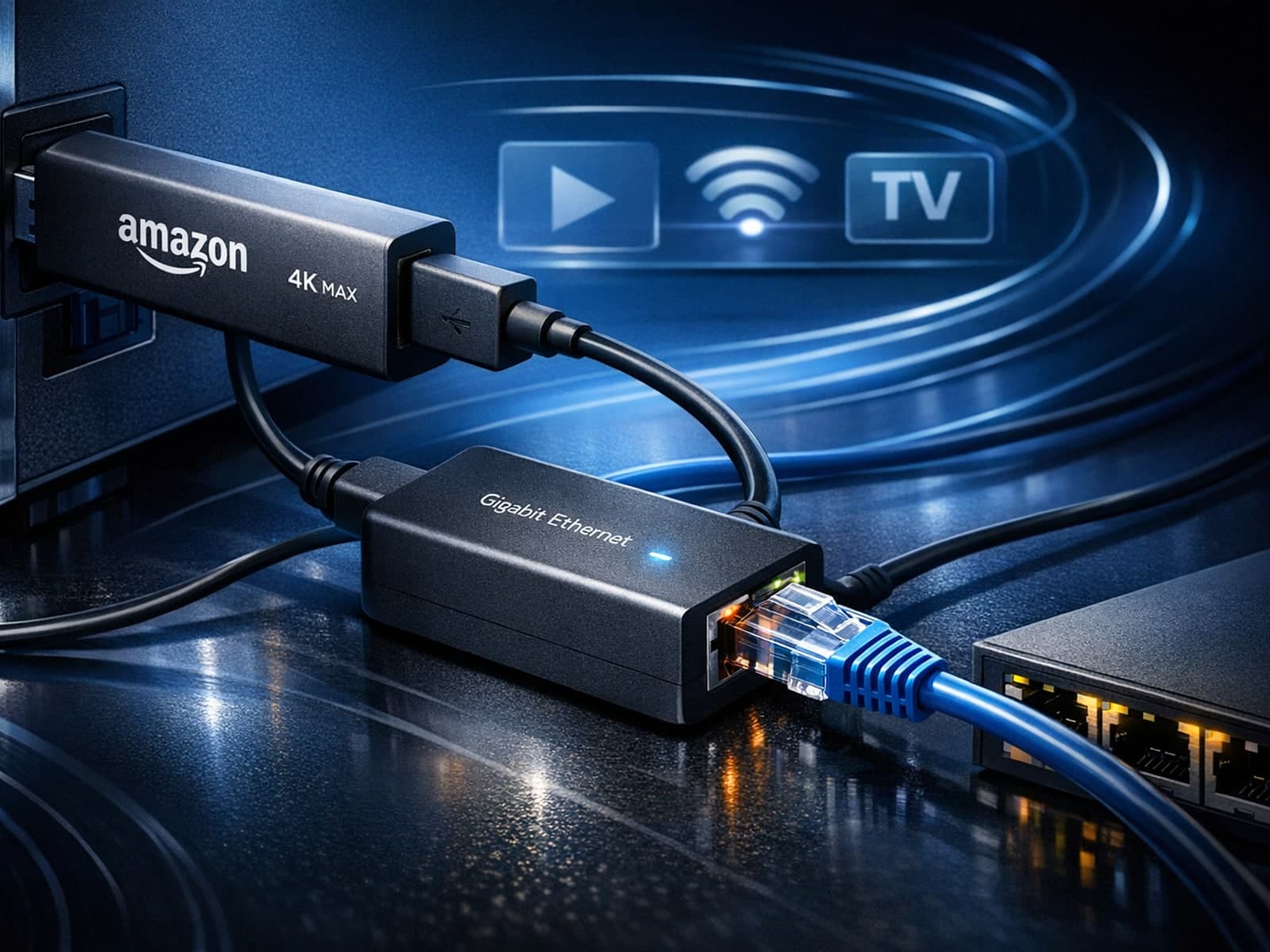
Using a wired Ethernet connection with your Fire TV Stick 4K Max can improve streaming stability and speed, reducing buffering and lag. However, not all Ethernet adapters are compatible with this device.

If the catch-up feature in your TiviMate IPTV player is not working, the cause usually lies in playlist compatibility, EPG (Electronic Program Guide) data issues, or app configuration problems.

When you see "Xtream Codes authorization failed" in TiviMate, it means the IPTV app cannot verify your login credentials with the IPTV server. This blocks access to your channels and streams, stopping playback.
