
Best WiFi Settings for IPTV on Fire TV Stick

Quick answer
To get the best IPTV streaming experience on your Fire TV Stick, optimizing your WiFi settings is essential. The Fire TV Stick relies on your home wireless network to stream content smoothly. Poor settings can cause buffering, lag, freezing, or poor picture quality.
Reviewed Against
• Fire TV and Fire OS device capabilities, networking, and storage limits
• Home-network checks such as Wi-Fi strength, Ethernet fallback, DNS changes, congestion, and local storage pressure
Applies To
• Fire TV Stick, Fire TV Cube, and Fire OS playback or networking questions
• Playback problems that change with connection quality, device load, app cache state, or time of day
Does not apply when
• You are troubleshooting a smart-TV app or set-top box with a different hardware and settings path.
• Only one channel, event, or provider-side endpoint is failing while the rest of the service stays stable.
Corroborating Resources
Fire TV device specifications overviewHelpful for checking Fire TV hardware families, platform differences, and device-level constraints.
Fire TV streaming media player specsUseful for codec, storage, Wi-Fi, and Ethernet-adapter expectations on Fire TV sticks and boxes.
Android TV video and game troubleshootingUseful for Wi-Fi, updates, app cache, and playback troubleshooting steps that also mirror IPTV failure paths.
Android TV storage helpHelpful when playback issues point to low storage, cache pressure, or app-data cleanup decisions.
Topic Cluster
Part of the Fire TV Stick cluster
Fire TV Stick setup choices, network accessories, storage limits, and playback tuning for IPTV use. This page sits in devices and network gear for that topic path.
Start here in this topic
On this page
Introduction
To get the best IPTV streaming experience on your Fire TV Stick, optimizing your WiFi settings is essential. The Fire TV Stick relies on your home wireless network to stream content smoothly. Poor settings can cause buffering, lag, freezing, or poor picture quality.
This article details specific WiFi configuration tips to maximize IPTV performance on the Fire TV Stick, focusing on reducing interference, increasing stability, and prioritizing IPTV traffic.
What you'll learn
- Why 5 GHz WiFi band is better for IPTV on Fire TV Stick
- How to assign a static IP address for stability
- Router channel selection and interference reduction
- Using Quality of Service (QoS) to prioritize IPTV traffic
- Optimal physical placement for signal strength
Why Choose 5 GHz WiFi Band for IPTV on Fire TV Stick
The Fire TV Stick supports both 2.4 GHz and 5 GHz WiFi bands. Choosing the right band impacts streaming quality:
-
2.4 GHz Band: Longer range but more prone to interference due to many household devices using this frequency, such as microwaves and Bluetooth devices.
-
5 GHz Band: Shorter range but faster speeds and less interference, ideal for high-bandwidth tasks like IPTV streaming.
How to Connect Your Fire TV Stick to 5 GHz WiFi
- On your Fire TV Stick home screen, navigate to Settings > Network.
- Select your 5 GHz WiFi network (commonly includes “5G” in the SSID).
- Enter your WiFi password.
If your 5 GHz network doesn’t appear, verify your router broadcasts it and is compatible with 5 GHz devices like the Fire TV Stick.
Assign a Static IP Address to Your Fire TV Stick
Dynamic IP addresses assigned by your router through DHCP can change, potentially causing connectivity interruptions or requiring re-authorization with IPTV services.
Assigning a static IP address to your Fire TV Stick improves:
- Consistent network connectivity
- Easier port forwarding if required
- Fewer DHCP conflicts
Steps to Set a Static IP
- Access your router's admin panel (commonly by typing 192.168.0.1 or 192.168.1.1 into a browser).
- Navigate to the DHCP or LAN settings.
- Find the section for address reservation or static IP assignment.
- Locate your Fire TV Stick's MAC address (Settings > My Fire TV > About > Network).
- Assign a fixed IP to this MAC.
- Save and reboot both router and Fire TV Stick.
Optimize Router Channel to Minimize Interference
WiFi routers operate on various channels within their frequency bands. Congested channels cause interference that leads to slower speeds and connection drops.
How to Find the Best Channel
- Use WiFi analyzer apps (available for smartphones/computers) to scan your environment.
- Identify the least crowded channels, especially within the 5 GHz band. Common recommended 5 GHz channels are 36-48 and 149-165.
- Log in to your router’s admin panel and select the optimal channel manually instead of leaving it on auto.
Enable Quality of Service (QoS) to Prioritize IPTV Traffic
Quality of Service (QoS) on your router allows prioritization of certain types of traffic to reduce buffering and lag during IPTV streaming.
Configuring QoS
- Access your router's settings.
- Locate QoS settings (may be under Advanced or Traffic Manager).
- Add your Fire TV Stick’s IP address or MAC address to the priority list.
- Some routers allow prioritizing IPTV streaming protocols; enable those if available.
- Save and reboot.
Not all routers support QoS with granular control; check your model’s documentation.
Positioning Your Router and Fire TV Stick for Strong Signal
Poor signal strength causes buffering and video quality drops. To optimize:
- Place the router in the same room or as close as possible to your Fire TV Stick.
- Avoid physical obstructions like walls, metal objects, and appliances.
- Elevate the router on a shelf to improve coverage.
- Minimize interference from cordless phones, microwave ovens, and Bluetooth devices.
For Fire TV Stick devices connected via HDMI ports behind TVs, consider using a USB extension cable to adjust the device placement for clearer signals.
Troubleshooting Common WiFi Issues With IPTV on Fire TV Stick
- Frequent buffering despite good WiFi: Double-check channel congestion and switch router channels.
- Dropped WiFi connection during streaming: Set static IP and update your Fire TV Stick software.
- Poor WiFi signal strength: Reposition router or use WiFi extenders/mesh systems.
- IPTV app streams stop working only during peak hours: Network saturation by other devices may require enabling QoS or increasing internet bandwidth.
Who Should Use This Guide and When to Choose Different Help
- This guide is for users streaming IPTV apps on Amazon Fire TV Stick devices (1st gen and later).
- If you use Ethernet with a Fire TV Ethernet adapter, many WiFi tips here won’t apply.
- For other streaming devices such as Roku or Android TV boxes, check device-specific guides.
- If IPTV buffering persists after WiFi optimization, consult with your IPTV provider or consider upgrading your internet plan.
FAQ
Why is 5 GHz WiFi band recommended for IPTV on Fire TV Stick?
5 GHz offers faster speeds and less interference than 2.4 GHz, resulting in smoother IPTV streaming.
Can I use Ethernet instead of WiFi for IPTV on Fire TV Stick?
Yes, using a wired Ethernet connection via an adapter provides the most stable streaming experience by avoiding WiFi interference.
What causes IPTV buffering on Fire TV Stick even with good WiFi?
Buffering can be due to network congestion, poor router placement, interference from other devices, or ISP limitations.
Should I disable VPN when watching IPTV on Fire TV Stick?
VPNs may slow down your connection, causing buffering. Disabling it might improve speed, but consider your privacy needs.
Conclusion
Optimizing your WiFi settings for IPTV on the Fire TV Stick can effectively reduce buffering and improve stream quality. Use the 5 GHz network band, assign a static IP, pick clean WiFi channels, prioritize traffic with QoS, and position hardware to maximize signal strength. These steps create a stable environment tailored for smooth IPTV streaming on your Fire TV Stick.
| Setting | Recommendation | Notes |
|---|---|---|
| WiFi Band | 5 GHz | Faster speeds, less interference |
| Static IP | Set via router | Prevents IP conflicts |
| Channel Selection | Least congested 5 GHz band | Use WiFi analyzer tools |
| QoS | Enable and prioritize Fire TV Stick | Reduces buffering |
| Device Placement | Close, unobstructed setup | Stronger WiFi signal |
For additional Fire TV Stick and IPTV performance insights, explore our articles on Firestick VPN issues, storage lag fixes, and device comparisons.
Optimized WiFi ensures you get the most from your IPTV services on Fire TV Stick with fewer interruptions and smoother streams.
Keep exploring
More explainers that connect naturally to this setup, workflow, or troubleshooting path.
If you're choosing between the Fire TV Cube and the Fire TV Stick 4K Max for your IPTV setup, it's important to understand their differences beyond just their names.

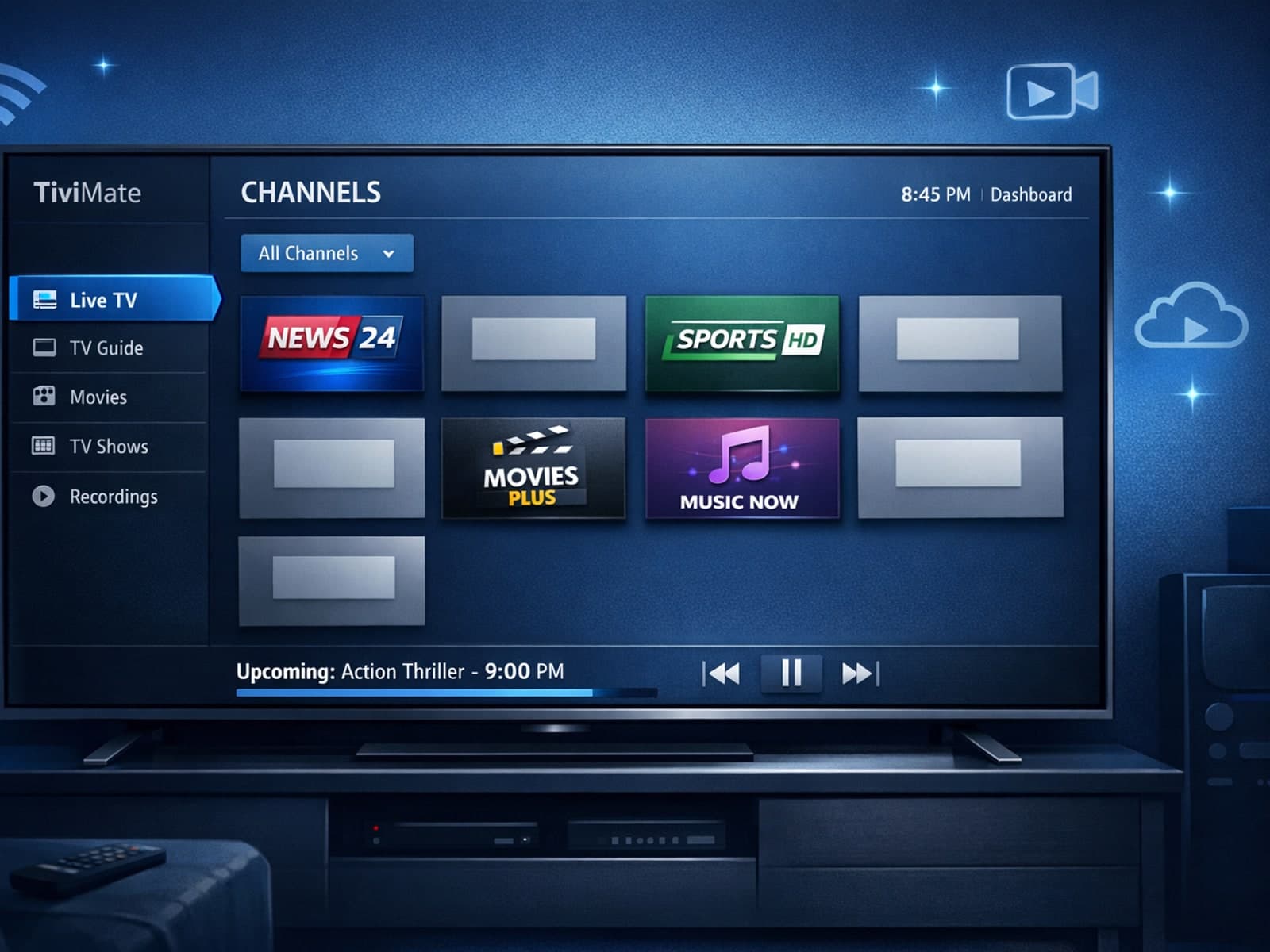
Missing channel logos in TiviMate can be frustrating because they make channel navigation less intuitive and reduce the overall viewing experience.
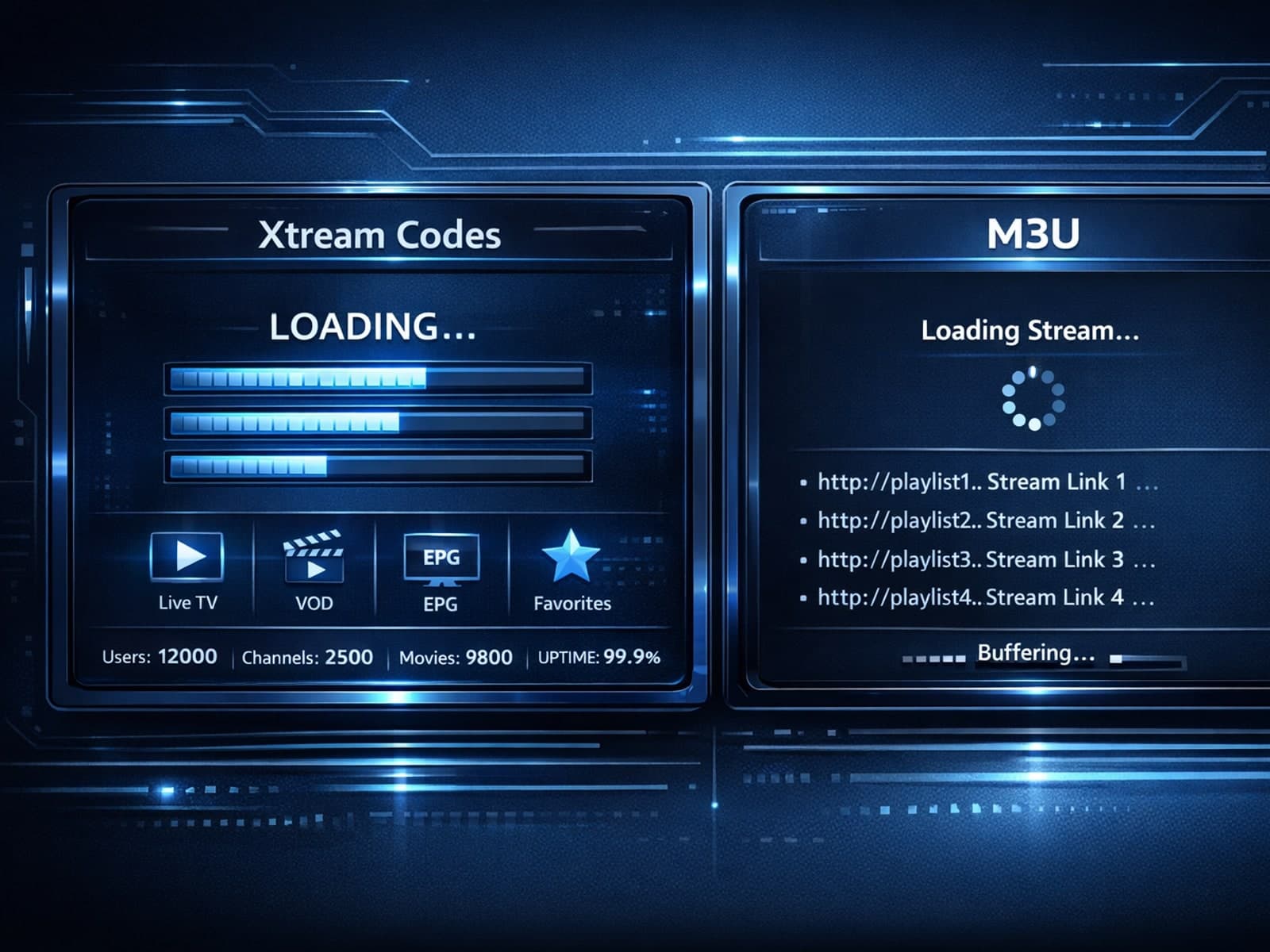
Xtream Codes login can outperform M3U playlists by providing faster channel loading, better playlist management, and improved metadata support in IPTV apps.
