
Ethernet Adapter Compatibility for Fire TV Stick 4K Max

Quick answer
Using a wired Ethernet connection with your Fire TV Stick 4K Max can improve streaming stability and speed, reducing buffering and lag. However, not all Ethernet adapters are compatible with this device. This article focuses on which Ethernet adapters work with the Fire TV Sti...
Reviewed Against
• Fire TV and Fire OS device capabilities, networking, and storage limits
• Home-network checks such as Wi-Fi strength, Ethernet fallback, DNS changes, congestion, and local storage pressure
Applies To
• Fire TV Stick, Fire TV Cube, and Fire OS playback or networking questions
• Playback problems that change with connection quality, device load, app cache state, or time of day
Does not apply when
• You are troubleshooting a smart-TV app or set-top box with a different hardware and settings path.
• Only one channel, event, or provider-side endpoint is failing while the rest of the service stays stable.
Corroborating Resources
Fire TV device specifications overviewHelpful for checking Fire TV hardware families, platform differences, and device-level constraints.
Fire TV streaming media player specsUseful for codec, storage, Wi-Fi, and Ethernet-adapter expectations on Fire TV sticks and boxes.
Android TV video and game troubleshootingUseful for Wi-Fi, updates, app cache, and playback troubleshooting steps that also mirror IPTV failure paths.
Android TV storage helpHelpful when playback issues point to low storage, cache pressure, or app-data cleanup decisions.
On this page
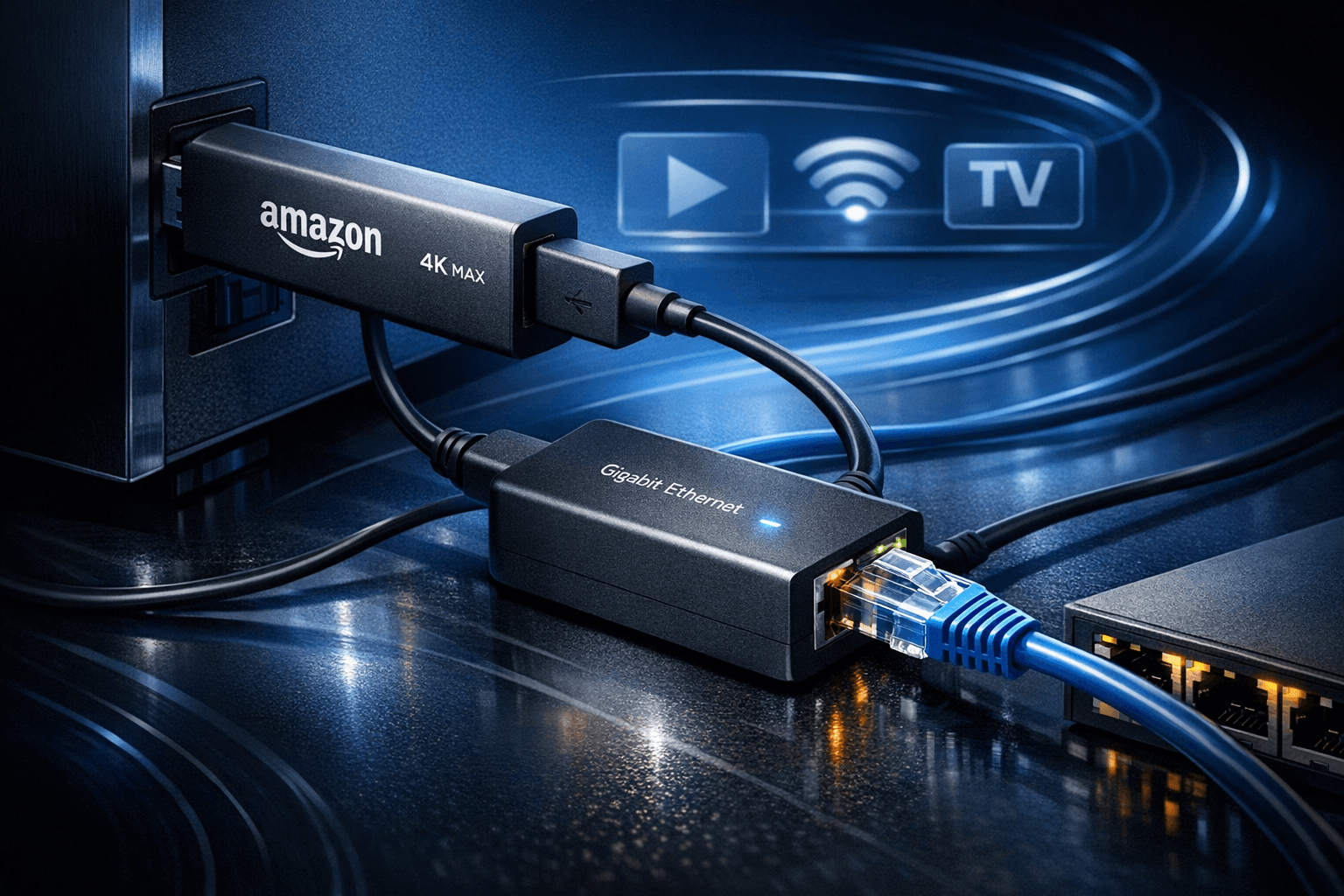
Ethernet Adapter Compatibility for Fire TV Stick 4K Max
Using a wired Ethernet connection with your Fire TV Stick 4K Max can improve streaming stability and speed, reducing buffering and lag. However, not all Ethernet adapters are compatible with this device. This article focuses on which Ethernet adapters work with the Fire TV Stick 4K Max, how to connect them properly, and solutions to common issues.
What you'll learn
- Which USB Ethernet adapters are compatible with Fire TV Stick 4K Max
- How to set up a wired connection using an Ethernet adapter
- Troubleshooting tips if the Ethernet connection fails
- Important considerations for adapter power and port types
- When to seek device-specific help for network issues
Understanding Fire TV Stick 4K Max Ethernet Adapter Compatibility
The Fire TV Stick 4K Max uses a USB-C port for power and peripherals. Unlike some larger streaming devices that have built-in Ethernet ports or official adapters, the Fire TV Stick supports a limited range of USB Ethernet adapters.
Why not any USB Ethernet adapter?
Compatibility depends largely on the USB Ethernet adapter's chipset, which must be supported by Fire OS — the operating system powering Fire TV devices. Commonly supported chipsets include ASIX AX88772 and AX88178.
Adapters using unsupported chipsets may not be recognized or may cause unstable connections. This limitation is due to the lack of driver support in the Fire TV OS kernel.
Official adapter vs third-party options
Amazon does not officially sell a dedicated Ethernet adapter for the Fire TV Stick 4K Max as it did for prior Fire TV Stick models. However, some third-party USB Ethernet adapters, especially those designed for similar Android-based devices, work reliably.
Best practice is to choose adapters that specifically mention Fire TV compatibility or use the ASIX chipsets.
How to Connect an Ethernet Adapter to Fire TV Stick 4K Max
Connecting an Ethernet adapter requires a few components because the Fire TV Stick 4K Max only has a single USB-C port primarily meant for power.
Materials needed
- A compatible USB Ethernet adapter (with ASIX AX88772 / AX88178 chipset)
- USB-C to USB-A adapter cable (often included with Fire TV Stick)
- Ethernet cable connected to your router or modem
Step-by-step setup
- Plug your USB Ethernet adapter into the USB-A female end of a USB-C to USB-A adapter cable.
- Connect the USB-C end of the cable into the Fire TV Stick 4K Max’s USB-C port.
- Connect one end of your Ethernet cable to the adapter and the other end to your router or modem.
- Power on the Fire TV Stick as usual via the USB-C power adapter.
- Navigate to Settings > Network on the Fire TV interface to verify the wired connection is active.
If wired Ethernet is connected successfully, Wi-Fi will usually be disabled automatically.
Troubleshooting Ethernet Adapter Issues on Fire TV Stick 4K Max
Even with compatible adapters, you might face issues. Here are common problems and fixes:
Fire TV Stick does not recognize Ethernet adapter
- Confirm the adapter chip is supported (ASIX AX88772 or AX88178).
- Try a different USB-C to USB-A adapter cable to rule out cable issues.
- Restart the Fire TV Stick with the adapter connected.
- Ensure you use the power adapter that came with the Fire TV Stick or a high-quality equivalent.
Ethernet connected but no internet access
- Check your Ethernet cable and router connection.
- Restart your router and Fire TV Stick.
- Verify DHCP is enabled on your router to assign IP addresses automatically.
- Test Ethernet cable with another device to confirm functionality.
Connection drops or slow speeds
- Swap out the Ethernet cable for a Cat5e or better cable.
- Avoid long cable runs over 100 meters.
- Confirm no power-saving settings on your router are limiting wired devices.
Power and Port Limitations
The Fire TV Stick 4K Max is powered via a USB-C port that supplies limited power (usually up to 15 W).
Some Ethernet adapters require more power than the Fire TV Stick can provide, which causes them not to function or disconnect.
Solutions
- Use only low-power USB Ethernet adapters designed for mobile or streaming devices.
- Avoid unpowered USB hubs; if you must use a hub, choose a powered one with external power supply.
- If encountering power issues, switch to an adapter known to work with Fire TV devices.
When to Use a Different Approach or Seek Device-Specific Help
This guidance applies specifically to the Fire TV Stick 4K Max and compatible USB Ethernet adapters.
When to look elsewhere
- If you have an older Fire TV Stick (not 4K Max) or another Amazon Fire TV box model, check compatibility separately.
- For Fire TV Cube models, which may have their own official Ethernet adapter, use the device-specific setup guides.
- Wireless connection issues, VPN problems, or IPTV app issues require different troubleshooting paths.
For advanced or persistent issues, refer to Amazon's support or trusted IPTV Explained articles like Firestick VPN Causing IPTV Buffering: Causes and Fixes.
Compatibility Checklist for Ethernet Adapters on Fire TV Stick 4K Max
| Criteria | Recommended | Not Recommended |
|---|---|---|
| USB Type | USB 2.0 or USB 3.0 USB-A with adapter | USB-C adapters without Fire TV support |
| Chipset | ASIX AX88772, ASIX AX88178 | Realtek without Fire TV driver |
| Power Requirement | Low power (<5V/500mA) | High power devices without external power |
| Manufacturer Claims | Fire TV compatibility mentioned | Generic no-brand adapters |
| User Experience Reports | Confirmed working on Fire TV Stick 4K Max | Reports of connection failure |
FAQ
Can I use a USB-C Ethernet adapter directly without a USB-A adapter?
The Fire TV Stick 4K Max includes a USB-C power port; most Ethernet adapters are USB-A. Using a USB-C to USB-A adapter cable is necessary unless you find a USB-C Ethernet adapter officially supporting Fire TV protocols.
Does Ethernet adapter usage affect my Fire TV warranty?
Using third-party accessories generally does not void the Fire TV Stick warranty. Avoid devices that may cause hardware damage, and consult Amazon’s terms if unsure.
What if I want to improve Wi-Fi instead of wired connection?
Check out guides on 5 GHz Wi-Fi for better wireless streaming performance.
Is Ethernet always better than Wi-Fi for Fire TV?
Wired Ethernet usually reduces latency and buffering but depends on your home network and router quality.
Conclusion
For stable and reliable wired internet on the Fire TV Stick 4K Max, choosing a compatible USB Ethernet adapter with the right chipset and power requirements is essential. Use low-power adapters with ASIX chipsets connected via a USB-C to USB-A adapter cable and verify proper network setup. When set up correctly, Ethernet provides a solid streaming experience superior to Wi-Fi in many conditions.
If problems occur despite using compatible hardware, consult device-specific network troubleshooting or your network provider for assistance.
Harnessing a wired connection can significantly improve your Fire TV Stick 4K Max performance for IPTV and other streaming services.
Keep exploring
More explainers that connect naturally to this setup, workflow, or troubleshooting path.
If your IPTV streams on a Fire TV Stick frequently buffer, stutter, or lag, one common but often overlooked cause is insufficient device storage. The Fire TV Stick uses its internal storage to cache streaming data and run apps smoothly.

To get the best IPTV experience on your Fire TV Stick, careful Wi-Fi setup is key. IPTV streams rely heavily on a steady internet connection, and Wi-Fi settings influence stability, buffering, and image quality.

If your IPTV streams frequently lag or buffer on a Fire TV Stick, one common cause is the device's limited storage. Fire TV Sticks have modest internal storage primarily designed for the operating system and apps.
