
Ethernet vs Wi-Fi for IPTV on Fire TV Stick

Quick answer
When streaming IPTV on a Fire TV Stick, the question of whether to use an Ethernet or WiFi connection frequently arises. Ethernet offers a wired connection using a physical cable, while WiFi is a wireless network connection. For IPTV, Ethernet usually provides a more stable an...
Reviewed Against
• Fire TV and Fire OS device capabilities, networking, and storage limits
• Home-network checks such as Wi-Fi strength, Ethernet fallback, DNS changes, congestion, and local storage pressure
Applies To
• Fire TV Stick, Fire TV Cube, and Fire OS playback or networking questions
• Playback problems that change with connection quality, device load, app cache state, or time of day
Does not apply when
• You are troubleshooting a smart-TV app or set-top box with a different hardware and settings path.
• Only one channel, event, or provider-side endpoint is failing while the rest of the service stays stable.
Corroborating Resources
Fire TV device specifications overviewHelpful for checking Fire TV hardware families, platform differences, and device-level constraints.
Fire TV streaming media player specsUseful for codec, storage, Wi-Fi, and Ethernet-adapter expectations on Fire TV sticks and boxes.
Android TV video and game troubleshootingUseful for Wi-Fi, updates, app cache, and playback troubleshooting steps that also mirror IPTV failure paths.
Android TV storage helpHelpful when playback issues point to low storage, cache pressure, or app-data cleanup decisions.
On this page
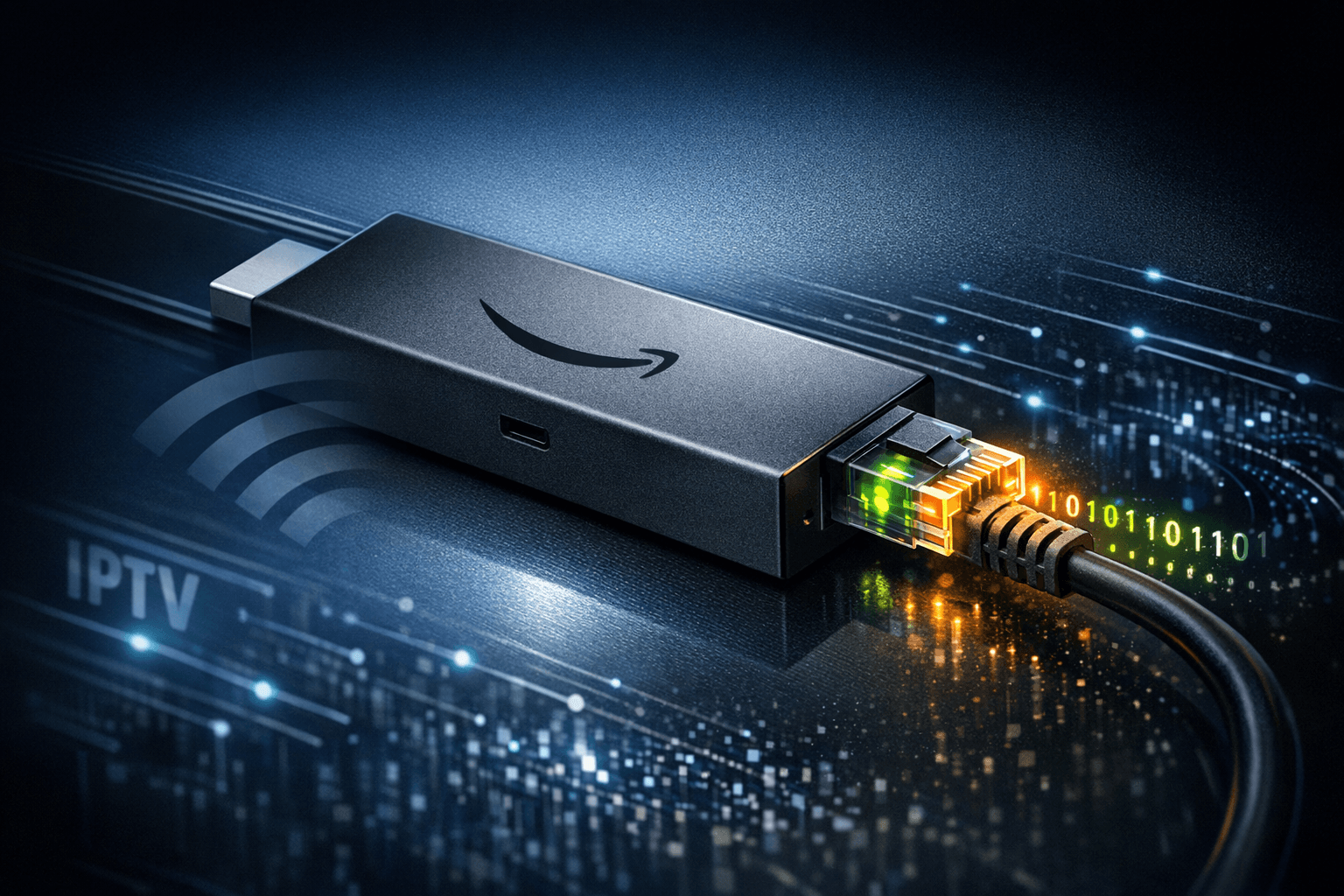
Ethernet vs WiFi for IPTV on Fire TV Stick
When streaming IPTV on a Fire TV Stick, the question of whether to use an Ethernet or WiFi connection frequently arises. Ethernet offers a wired connection using a physical cable, while WiFi is a wireless network connection. For IPTV, Ethernet usually provides a more stable and lower latency connection than WiFi, resulting in smoother streams with fewer interruptions. However, WiFi can be more convenient and sufficiently fast depending on your home setup. This article breaks down the differences between Ethernet and WiFi specifically for IPTV on Fire TV Stick devices, helping you understand which option suits your needs.
What you'll learn
- The fundamental differences between Ethernet and WiFi connections
- How Ethernet and WiFi impact IPTV streaming performance on Fire TV Stick
- Setup considerations for using Ethernet with Fire TV Stick
- Troubleshooting common network issues affecting IPTV
- When Ethernet or WiFi makes better sense for IPTV streaming
Understanding Ethernet and WiFi Networks
What is Ethernet?
Ethernet is a method of connecting devices in a local area network (LAN) using physical cables, typically Cat5e or Cat6 network cables. It provides a direct, wired connection from your Fire TV Stick (through an adapter) to your router or modem. Because data travels through a cable, Ethernet typically has lower latency and less interference than wireless connections.
What is WiFi?
WiFi uses radio waves to create a wireless local area network, allowing your Fire TV Stick to connect to the internet without cables. Although highly convenient, WiFi’s performance depends on signal strength, network congestion, and interference from other devices or physical obstructions like walls.
Performance Comparison: Ethernet vs WiFi for IPTV on Fire TV Stick
| Feature | Ethernet | WiFi |
|---|---|---|
| Connection Type | Wired (physical cable) | Wireless (radio signals) |
| Latency | Generally lower (better for streaming) | Higher latency, may cause delays |
| Stability | More stable, less interference | Susceptible to drops and interference |
| Speed Consistency | Consistent, not affected by distance within home | Variable, strength decreases with distance and obstacles |
| Setup Complexity | Requires Ethernet adapter and cable | Simple, built-in wireless support |
| Mobility & Convenience | Limited by cable length | Freely movable within WiFi range |
| Ideal Cases | IPTV requiring stable, uninterrupted streams, congested WiFi environments | IPTV in strong WiFi coverage with moderate usage |
Real-world IPTV Impact
For IPTV streaming on Fire TV Stick, even slight network interruptions or buffering can degrade the viewing experience. Ethernet minimizes the chance of buffering caused by network instability, making it preferable for high-quality live TV and HD content. WiFi works well in many cases, especially when connections use modern standards like WiFi 5 (802.11ac) or WiFi 6 (802.11ax) and signal strength is strong.
How to Set Up Ethernet on Fire TV Stick
Not all Fire TV Stick models support direct Ethernet connections. Many require a compatible USB Ethernet adapter. Here's how to set up Ethernet for IPTV streaming:
- Check your Fire TV Stick model — Fire TV Stick 4K and later support Ethernet through adapters; Fire TV Stick Lite lacks USB ports.
- Buy a compatible Ethernet adapter — usually a USB to Ethernet adapter designed for Fire TV Stick.
- Connect the Ethernet adapter — plug the USB adapter into your Fire TV Stick’s micro-USB or USB-C port.
- Plug in Ethernet cable — from the adapter to your router or Ethernet switch.
- Configure network settings — generally, Fire TV Stick auto-switches to Ethernet. If not, go to Settings > Network and select the wired connection.
- Test IPTV performance — open your IPTV app and monitor buffering or stream quality.
If you encounter delays, restarting your Fire TV Stick and router can help apply changes.
Troubleshooting Common IPTV Network Issues on Fire TV Stick
Even with Ethernet, IPTV streaming can face issues. If you experience buffering or disconnections, consider the following:
Check IPTV App and Service
- Verify that your IPTV provider’s servers are not overloaded.
- Update the IPTV app to the latest version.
- Confirm that your IPTV subscription is valid and active.
Router and Network Health
- Restart your router to clear temporary issues.
- Ensure firmware is up to date.
- For WiFi, check signal strength near your Fire TV Stick.
- Avoid congested WiFi channels or disable other devices consuming heavy bandwidth during streaming.
Cabling and Hardware
- Use quality Ethernet cables; damaged cables can degrade performance.
- Test the Ethernet port and cables with other devices, if possible.
Fire TV Stick Maintenance
- Restart the device periodically.
- Clear cache of IPTV apps to prevent glitches.
When to Choose Ethernet or WiFi for IPTV on Fire TV Stick
| Scenario | Recommended Connection |
|---|---|
| Heavy IPTV usage with HD/4K streams | Ethernet for uninterrupted playback |
| Poor or unstable WiFi coverage | Ethernet to avoid buffering |
| Temporary or portable setup | WiFi for convenience |
| Router far from TV with complex walls | Ethernet via long cable to bypass obstructions |
| Strong, modern WiFi network with minor streaming | WiFi is adequate |
Conclusion
For IPTV on Fire TV Stick, Ethernet typically delivers better stability, lower latency, and fewer buffering interruptions than WiFi. While WiFi offers ease of use and mobility, Ethernet’s reliability can make a significant difference, especially for heavy IPTV streaming or in WiFi-congested environments. Setting up Ethernet requires a compatible adapter and cables but usually pays off in smoother, higher-quality IPTV playback. Evaluate your home network and usage needs to choose the best option for your Fire TV Stick IPTV experience.
FAQ
Can I use Ethernet on all Fire TV Stick models?
Most models support Ethernet via an adapter except Fire TV Stick Lite, which lacks USB ports.
Will Ethernet always provide better IPTV streaming than WiFi?
Ethernet generally offers more stable and consistent performance, but strong WiFi networks may suffice.
Why does IPTV buffering happen even on Ethernet?
Buffering can result from ISP issues, IPTV server load, or device problems beyond network type.
Is it difficult to switch my Fire TV Stick from WiFi to Ethernet?
Switching is usually automatic once Ethernet is connected; manual selection is available in settings if needed.
For further insights on optimizing your Fire TV Stick for IPTV streaming, consider reading these guides:
- Best Ethernet Adapter for Fire TV Stick: What to Check Before You Buy
- IPTV Buffering on Firestick: Causes and Fixes
- IPTV Hardware Considerations for Stable Playback
- Choosing an IPTV Player for Android TV and Firestick
Frequently Asked Questions
Can I use Ethernet on all Fire TV Stick models?
Not all Fire TV Stick models have native Ethernet ports, but you can use a compatible USB Ethernet adapter with most models except the Fire TV Stick Lite, which lacks USB ports. Check your device model compatibility before buying an adapter.
Will Ethernet always provide better IPTV streaming than WiFi?
Ethernet generally offers a more stable and consistently faster connection relevant for IPTV streaming. However, if your WiFi network is strong and uses modern standards, and Ethernet setup is inconvenient, WiFi may still perform well.
Why does IPTV buffering happen even on Ethernet?
Buffering on Ethernet can occur due to ISP issues, IPTV server load, router settings, cable quality, or device processing limitations, not just the network interface type. Troubleshooting these factors can help improve playback.
Is it difficult to switch my Fire TV Stick from WiFi to Ethernet?
Switching is typically straightforward — after physically connecting the Ethernet adapter and cable, Fire TV Stick usually prioritizes the wired connection automatically. If not, you can manually select the Ethernet network in settings.
Keep exploring
More explainers that connect naturally to this setup, workflow, or troubleshooting path.
If you watch IPTV on your Fire TV Stick, having the right Wi-Fi settings can significantly improve your streaming experience by minimizing buffering and lag.

When it comes to updating IPTV playlists, two common methods are M3U Plus and the Xtream Codes API. Both serve to refresh the channel lists and program information delivered to IPTV apps, but they do so in different ways.

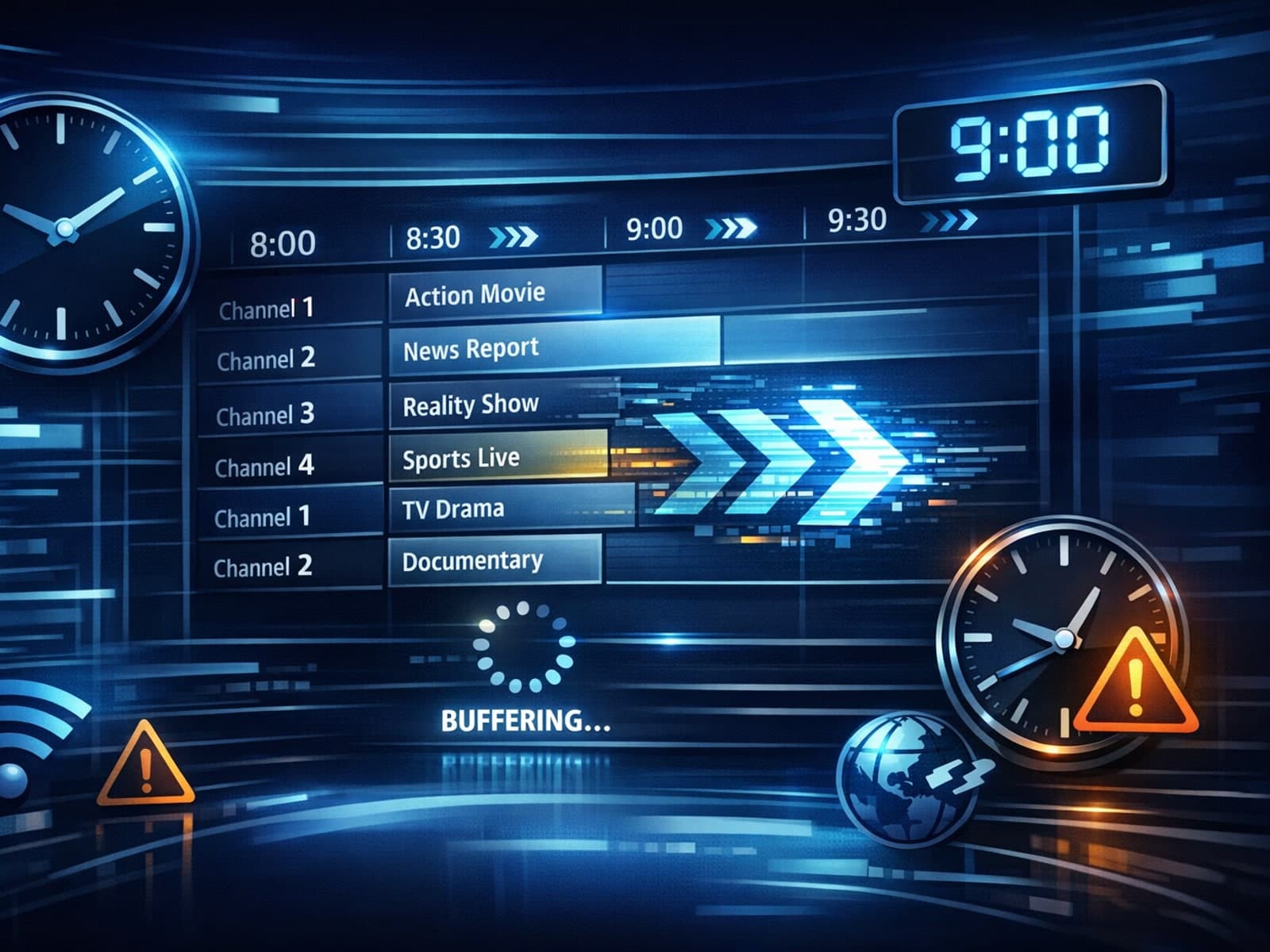
If your TiviMate electronic program guide (EPG) is showing program times that do not align with the actual broadcast schedules, you are encountering an "EPG time offset" issue.