
Best Ethernet Adapter for Fire TV Stick: What to Check Before You Buy

Quick answer
Using an Ethernet adapter with your Fire TV Stick is the most reliable way to ensure a stable, wired internet connection for streaming. This avoids common issues associated with Wi-Fi, such as interference and signal drops, leading to smoother playback with less buffering. In...
Reviewed Against
• Fire TV and Fire OS device capabilities, networking, and storage limits
• Home-network checks such as Wi-Fi strength, Ethernet fallback, DNS changes, congestion, and local storage pressure
Applies To
• Fire TV Stick, Fire TV Cube, and Fire OS playback or networking questions
• Playback problems that change with connection quality, device load, app cache state, or time of day
Does not apply when
• You are troubleshooting a smart-TV app or set-top box with a different hardware and settings path.
• Only one channel, event, or provider-side endpoint is failing while the rest of the service stays stable.
Corroborating Resources
Fire TV device specifications overviewHelpful for checking Fire TV hardware families, platform differences, and device-level constraints.
Fire TV streaming media player specsUseful for codec, storage, Wi-Fi, and Ethernet-adapter expectations on Fire TV sticks and boxes.
Android TV video and game troubleshootingUseful for Wi-Fi, updates, app cache, and playback troubleshooting steps that also mirror IPTV failure paths.
Android TV storage helpHelpful when playback issues point to low storage, cache pressure, or app-data cleanup decisions.
Topic Cluster
Part of the Network Optimization cluster
Practical network changes that improve IPTV stability, from Ethernet choices to Wi-Fi tradeoffs and local congestion fixes. This page sits in start here for that topic path.
Start here in this topic
On this page
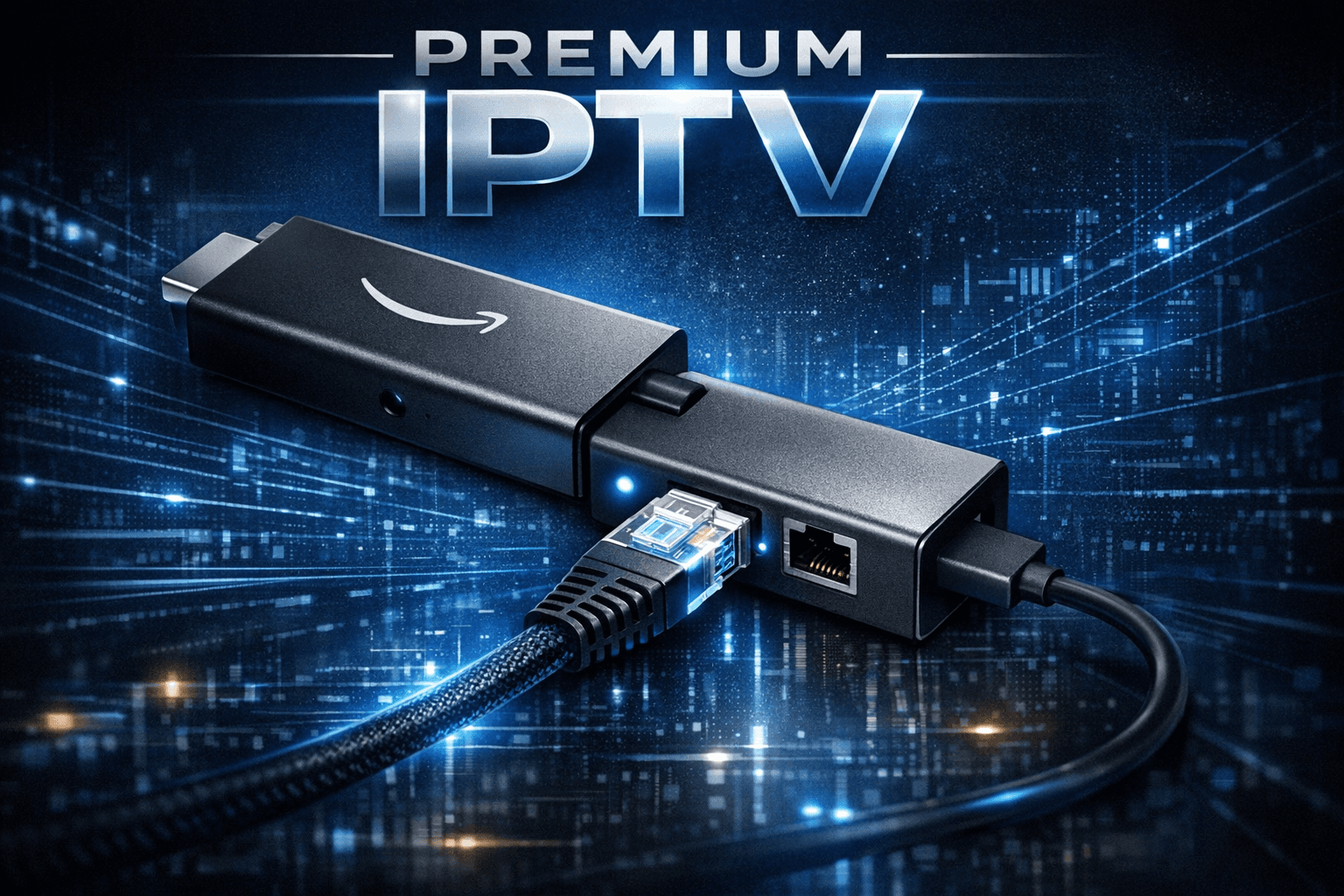
Best Ethernet Adapter for Fire TV Stick: Compatibility, Features, and Setup Guide
Using an Ethernet adapter with your Fire TV Stick is the most reliable way to ensure a stable, wired internet connection for streaming. This avoids common issues associated with Wi-Fi, such as interference and signal drops, leading to smoother playback with less buffering. In this article, you’ll learn how to choose the best Ethernet adapter compatible with your Fire TV Stick, understand the key features that matter, and how to set it up correctly.
What you'll learn
- Why Ethernet adapters improve Fire TV Stick streaming quality
- How to determine which Ethernet adapter fits your Fire TV Stick model
- Essential features like power requirements and USB compatibility
- Step-by-step setup instructions for installing an Ethernet adapter
- Common troubleshooting tips if the adapter isn’t detected or working
Why Use an Ethernet Adapter with Fire TV Stick?
Wi-Fi is convenient but can suffer from interference, weak signals, or network congestion, which impairs video streaming quality on devices like the Fire TV Stick. An Ethernet adapter connects the Fire TV Stick directly to your router via a wired connection using an Ethernet cable. This:
- Offers a consistent network speed
- Reduces latency and buffering
- Improves overall streaming stability and quality
Especially in crowded Wi-Fi environments or homes with multiple devices, Ethernet eliminates wireless issues that can cause streaming interruptions.
Determining Compatibility: Which Ethernet Adapter Works with Your Fire TV Stick?
Fire TV Sticks come in different generations, with slight variations in USB port type and power output. Compatibility with Ethernet adapters depends largely on these factors.
Fire TV Stick Models and USB Interfaces
- Fire TV Stick (1st and 2nd Gen): These have a full-sized USB-A port accessible via a power adapter or OTG cable.
- Fire TV Stick 4K and later: These often have a microUSB port for power, limiting direct USB accessory use.
Many Ethernet adapters are USB-to-Ethernet adapters designed for USB-A interfaces. For newer Fire TV Sticks, you'll need an Ethernet adapter that uses the microUSB port or a special power and Ethernet combo adapter.
Key Compatibility Points
- Verify your Fire TV Stick model and the type of USB port it has.
- Check if the Ethernet adapter supports your Fire TV Stick's USB interface (microUSB or USB-A).
- Ensure the adapter supports the Fire OS version installed on your Fire TV Stick.
Some official and third-party adapters are marketed specifically for Fire TV devices, simplifying compatibility concerns.
Essential Features to Consider in an Ethernet Adapter
Not all USB-to-Ethernet adapters are equal, especially when paired with media streaming devices like the Fire TV Stick.
Power Requirements
Many Ethernet adapters require external power through a USB port to operate properly, especially if they include features like a built-in network switch or LEDs. The Fire TV Stick’s USB port may not supply enough power.
Tip: Choose a powered adapter that includes its own USB power cable or a combined Ethernet and power adapter designed for Fire TV Stick.
Speed and Standards
Look for adapters that support at least 100 Mbps (Fast Ethernet) though many support Gigabit Ethernet (1000 Mbps). For streaming HD or 4K content, Fast Ethernet is often sufficient, but Gigabit adapters offer future-proofing.
Plug-and-Play Support
The adapter should be recognized natively by Fire OS without requiring extra drivers or complex configuration.
Build Quality and Cable Length
Since streaming sticks are often placed behind TVs, a sturdy adapter with a short but flexible cable may help with installation convenience.
How to Set Up an Ethernet Adapter with Your Fire TV Stick
Step-by-step setup
- Identify your Fire TV Stick model to confirm Ethernet adapter compatibility.
- Choose a powered Ethernet adapter that matches your device's USB port and Fire OS version.
- Connect the Ethernet adapter to the Fire TV Stick and plug in the network cable to your router or switch.
- Power the adapter using a USB power source if required for stable connection.
- Navigate to the Fire TV Stick Settings > Network.
- Verify the Fire TV Stick shows the wired Ethernet connection as active.
- Test streaming performance to confirm stable playback without buffering.
Troubleshooting Ethernet Adapter Issues on Fire TV Stick
If your Fire TV Stick does not recognize the Ethernet adapter or connection fails:
- Confirm the Ethernet cable and router port are working – test with another device.
- Check that the adapter is receiving adequate power; try connecting the USB power cable separately.
- Restart the Fire TV Stick with the adapter connected.
- Verify that your Fire TV Stick firmware is up to date.
- Some adapters may not be compatible despite appearing similar; consult manufacturer documentation.
Common Mistakes When Choosing Ethernet Adapters for Fire TV Stick
- Assuming any USB Ethernet adapter works without verifying Fire TV Stick compatibility.
- Ignoring the need for external power on certain adapters, leading to unreliable connection.
- Overlooking the USB port type on the Fire TV Stick (microUSB vs USB-A).
- Using Ethernet cables that are damaged or of poor quality.
Ethernet Adapter Comparison Checklist for Fire TV Stick
| Feature | Important Consideration | Notes |
|---|---|---|
| USB Interface Type | Should match your Fire TV Stick’s USB port | microUSB or USB-A |
| Power Requirement | Does the adapter need external USB power? | Often yes for reliable operation |
| Ethernet Speed | Supports at least 100 Mbps recommended | Gigabit adapters offer better future-proofing |
| Plug-and-Play Support | Compatible with Fire OS without drivers | Ensures easy setup |
| Cable Length/Build | Flexible and sturdy, suitable for behind TV setups | Convenience and durability |
FAQ
Q: Can I use any Ethernet adapter with my Fire TV Stick?
A: No, Ethernet adapters must be compatible with your Fire TV Stick model and require an appropriate USB interface and sometimes external power.
Q: Why is Ethernet preferred over Wi-Fi for Fire TV Stick streaming?
A: Ethernet provides a stable, wired connection that reduces buffering and latency, improving streaming quality.
Q: Do I need an external power source for the Ethernet adapter?
A: Some adapters require external USB power to operate reliably, especially with Fire TV Sticks that have limited USB power output.
Q: How do I verify if my Fire TV Stick recognizes the Ethernet adapter?
A: Check the Network settings; if Ethernet is detected and connected, your Fire TV Stick recognizes the adapter.
Conclusion
Selecting the best Ethernet adapter for your Fire TV Stick hinges on compatibility with your specific model, ensuring proper power supply, and meeting your speed requirements. Using a wired Ethernet connection significantly enhances streaming stability and reduces interruptions compared to Wi-Fi. By checking key features and following the setup steps outlined here, you can enjoy high-quality, buffering-free streaming on your Fire TV Stick.
For further optimization, consider reviewing articles on IPTV Buffering on Firestick and Network Optimization for IPTV streaming.
Tags: [Firestick, Hardware, Network Optimization, IPTV]
Frequently Asked Questions
Can I use any Ethernet adapter with my Fire TV Stick?
No, Ethernet adapters must be compatible with your Fire TV Stick model and require the appropriate USB interface and sometimes external power to function properly.
Why is Ethernet preferred over Wi-Fi for Fire TV Stick streaming?
Ethernet provides a stable and consistent wired internet connection that reduces buffering and latency, ensuring smoother streaming, especially for high-quality content.
Do I need an external power source for the Ethernet adapter?
Some Ethernet adapters require external USB power to operate reliably, particularly for Fire TV Stick models with limited power output on their USB ports.
How do I verify if my Fire TV Stick recognizes the Ethernet adapter?
After connecting and powering the adapter, go to the Fire TV Stick's Network settings; if Ethernet is listed and connected, the adapter is recognized.
Related reading
Keep exploring
More explainers that connect naturally to this setup, workflow, or troubleshooting path.
If you watch IPTV on your Fire TV Stick, having the right Wi-Fi settings can significantly improve your streaming experience by minimizing buffering and lag.

When it comes to updating IPTV playlists, two common methods are M3U Plus and the Xtream Codes API. Both serve to refresh the channel lists and program information delivered to IPTV apps, but they do so in different ways.

If your TiviMate electronic program guide (EPG) is showing program times that do not align with the actual broadcast schedules, you are encountering an "EPG time offset" issue.