
Best WiFi Settings for IPTV on Fire TV Stick

Quick answer
When streaming IPTV (Internet Protocol Television) on a Fire TV Stick, having optimal WiFi settings is crucial to minimize buffering, latency, and improve video quality. The Fire TV Stick relies entirely on your local network connection to deliver live streams and on-demand vi...
Reviewed Against
• Fire TV and Fire OS device capabilities, networking, and storage limits
• Home-network checks such as Wi-Fi strength, Ethernet fallback, DNS changes, congestion, and local storage pressure
Applies To
• Fire TV Stick, Fire TV Cube, and Fire OS playback or networking questions
• Playback problems that change with connection quality, device load, app cache state, or time of day
Does not apply when
• You are troubleshooting a smart-TV app or set-top box with a different hardware and settings path.
• Only one channel, event, or provider-side endpoint is failing while the rest of the service stays stable.
Corroborating Resources
Fire TV device specifications overviewHelpful for checking Fire TV hardware families, platform differences, and device-level constraints.
Fire TV streaming media player specsUseful for codec, storage, Wi-Fi, and Ethernet-adapter expectations on Fire TV sticks and boxes.
Android TV video and game troubleshootingUseful for Wi-Fi, updates, app cache, and playback troubleshooting steps that also mirror IPTV failure paths.
Android TV storage helpHelpful when playback issues point to low storage, cache pressure, or app-data cleanup decisions.
Topic Cluster
Part of the Network Optimization cluster
Practical network changes that improve IPTV stability, from Ethernet choices to Wi-Fi tradeoffs and local congestion fixes. This page sits in devices and network gear for that topic path.
Start here in this topic
On this page
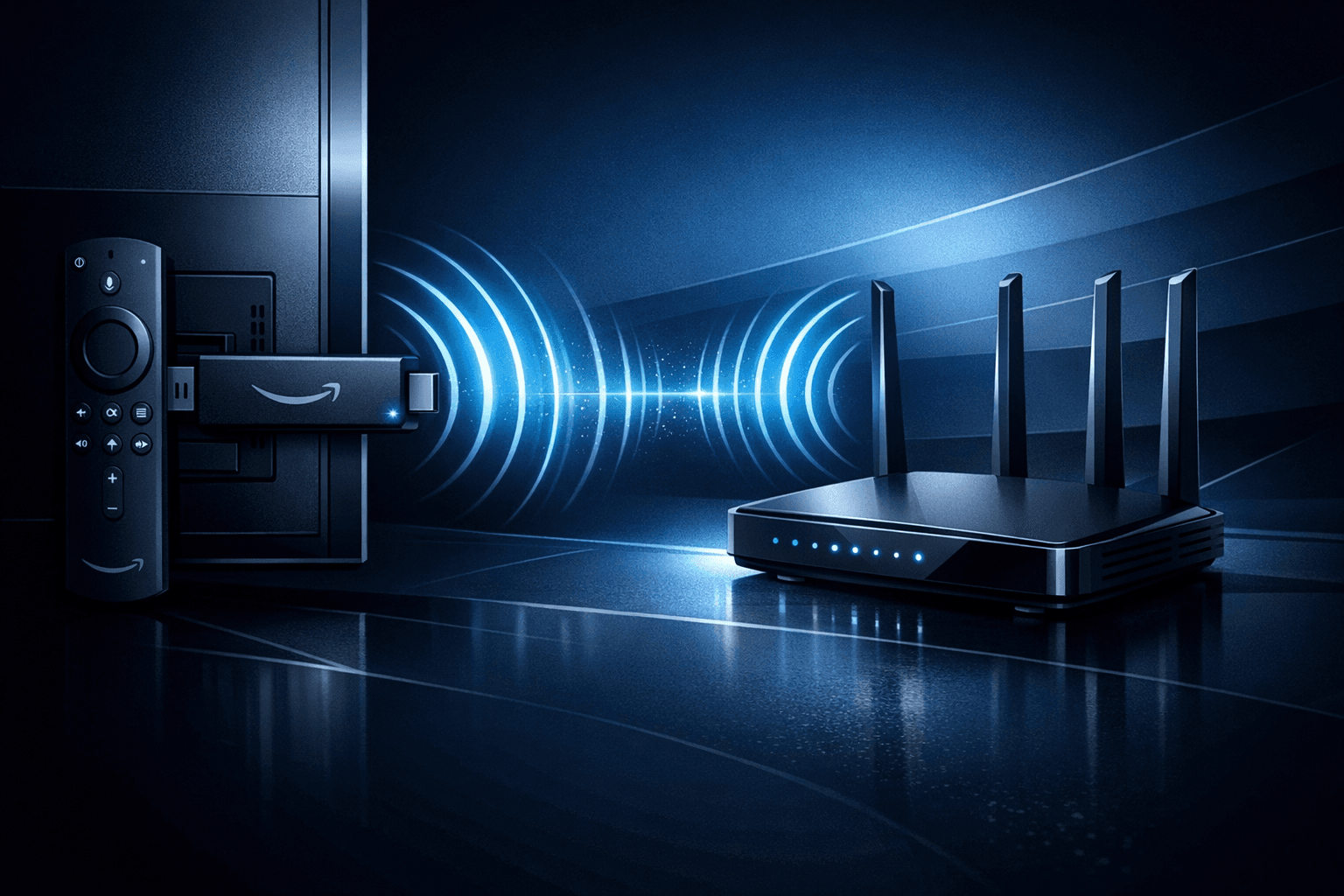
Best WiFi Settings for IPTV on Fire TV Stick
When streaming IPTV (Internet Protocol Television) on a Fire TV Stick, having optimal WiFi settings is crucial to minimize buffering, latency, and improve video quality. The Fire TV Stick relies entirely on your local network connection to deliver live streams and on-demand video smoothly. Using the correct WiFi band, router configuration, and placement can significantly enhance your IPTV experience.
This article provides practical guidance for configuring your WiFi environment specifically for IPTV streaming on Fire TV Stick, targeting informed beginners and intermediate users.
What you'll learn
- Why the 5 GHz WiFi band is preferable to 2.4 GHz for Fire TV Stick IPTV
- How to adjust router settings for IPTV priority
- Best physical placement and interference reduction tips
- Configuring static IP and firmware considerations
- When to switch to wired Ethernet for IPTV
Understanding WiFi Bands for IPTV on Fire TV Stick
The first step in optimizing IPTV on a Fire TV Stick is selecting the right WiFi band.
2.4 GHz vs 5 GHz WiFi
Your router typically broadcasts on two frequency bands: 2.4 GHz and 5 GHz.
- 2.4 GHz: Longer range but slower speeds and more prone to interference from devices like microwaves, Bluetooth, and nearby networks.
- 5 GHz: Higher speed and less interference, but shorter range.
For IPTV streaming, the 5 GHz band is preferred because it provides higher bandwidth and lower latency, reducing buffering and artifacts in video playback.
How to select 5 GHz on Fire TV Stick
On your Fire TV Stick:
- Go to Settings > Network.
- Find your 5 GHz network SSID (often the same name with _5G suffix) and select it.
- Enter the WiFi password.
If your router uses band steering, it might automatically assign your device to the optimal band.
Router Placement and Network Interference Minimization
Even with the right band, physical factors affect IPTV streaming quality.
Optimal router placement
- Place your WiFi router as close as possible to your Fire TV Stick (usually plugged into your TV).
- Avoid placing the router behind large furniture, inside metal cabinets, or near thick walls.
- Height matters: elevation is better than floor level.
Reducing interference
- Keep the router away from microwaves, cordless phones, Bluetooth devices, and baby monitors.
- Limit the number of devices connected simultaneously if possible.
Router Settings for Improving IPTV Streaming
Some routers allow configuring settings to prioritize or stabilize IPTV traffic.
Quality of Service (QoS)
QoS lets you prioritize your Fire TV Stick's traffic over other devices.
Steps to enable QoS for IPTV:
- Log in to your router’s admin panel (usually via a web browser at 192.168.1.1 or 192.168.0.1).
- Locate the QoS settings section.
- Add your Fire TV Stick’s MAC or IP address.
- Assign high priority or guaranteed bandwidth.
- Save and reboot the router if required.
Static IP Address
Assigning a fixed IP address to your Fire TV Stick helps maintain consistent QoS prioritization and reduces DHCP-related connection drops.
How to assign static IP:
- Either reserve an IP for your Fire TV Stick in the router's DHCP settings.
- Or configure a manual IP on the Fire TV Stick if supported.
WiFi Standards Compatibility
Check if your Fire TV Stick supports WiFi 6 (802.11ax). Most models currently support WiFi 5 (802.11ac). If your router defaults to WiFi 6 only, consider enabling compatibility modes for WiFi 5/4 to avoid connection issues.
Firmware Updates and Compatibility Checks
Keeping your Fire TV Stick and router firmware up to date ensures bug fixes, security patches, and network performance improvements.
-
On Fire TV Stick:
- Go to Settings > My Fire TV > About > Check for Updates.
-
On your router:
- Check the manufacturer’s support site or router admin panel for firmware updates.
Updating firmware can fix unknown connectivity glitches that affect IPTV streams.
Switching to Wired Ethernet for IPTV
If WiFi continues to cause problems, a wired Ethernet connection offers the most reliable IPTV streaming.
Using an Ethernet adapter
Fire TV Stick supports Ethernet through an official or third-party USB dongle.
Benefits:
- More consistent speed and lower latency.
- No interference from other wireless networks or devices.
Setup steps:
- Purchase a compatible Fire TV Ethernet adapter.
- Connect the Ethernet cable from your router to the adapter.
- Plug the adapter into the Fire TV Stick's USB power port.
- Fire TV Stick will automatically detect the wired connection.
Troubleshooting Common Issues
Buffering or low video quality despite optimal settings?
- Internet speed: Verify your internet plan supports IPTV throughput (typically at least 15-25 Mbps per stream).
- IPTV service: Sometimes stream sources are unstable.
- Firewall or parental controls: Ensure no restrictions block IPTV data.
Connection drops or no network?
- Restart router and Fire TV Stick.
- Verify WiFi password and signal strength.
- Change WiFi channel on router to avoid congestion.
Who Should Use This Guide
This advice targets Fire TV Stick users streaming IPTV apps (like IPTV Smarters, TiviMate, or native IPTV apps) over WiFi.
When to consider a different guide:
- If you use Fire TV Cube or other Android TV boxes, reference specific device optimizations.
- For issues solely related to IPTV service login or playlist errors, see IPTV Smarters troubleshooting resources.
Summary Comparison Table: WiFi Band Benefits
| Feature | 2.4 GHz Band | 5 GHz Band |
|---|---|---|
| Range | Longer, penetrates walls | Shorter, less penetration |
| Interference | Higher (many devices use it) | Lower (less crowded) |
| Speed | Up to ~450 Mbps | Up to ~1300 Mbps (WiFi 5) |
| IPTV Streaming Suitability | Moderate, can buffer | High, smoother playback |
Frequently Asked Questions
Can I use 2.4 GHz WiFi band for IPTV on Fire TV Stick?
Yes, but the experience may suffer due to interference and slower speeds. 5 GHz is generally better for IPTV.
Does WiFi 6 improve IPTV streaming on Fire TV Stick?
Only if your Fire TV Stick and router both support it fully. Otherwise, WiFi 5 remains the stable choice.
How do I prioritize IPTV traffic on my router?
Enable Quality of Service (QoS) and assign high priority to your Fire TV Stick’s IP or MAC address.
Is a wired Ethernet connection better than WiFi for IPTV on Fire TV Stick?
Yes, Ethernet offers the most stable and consistent streaming experience.
What if my IPTV keeps buffering despite optimal WiFi settings?
Check your internet speed, IPTV source quality, and firmware updates. Wired Ethernet may help.
Conclusion
Optimizing your WiFi settings for IPTV on Fire TV Stick significantly improves your streaming experience. Choosing the 5 GHz band, arranging router placement carefully, enabling router QoS, assigning a static IP, and keeping firmware updated are essential steps. If WiFi limitations persist, switching to a wired Ethernet connection provides the most reliable IPTV playback.
Following these targeted adjustments helps reduce buffering and latency, enabling smooth IPTV viewing on your Fire TV Stick.
For further refinements, see our articles on Fire TV Cube vs Fire TV Stick 4K Max for IPTV, IPTV Smarters Invalid Details Error Causes and Fixes, and TiviMate Playlist Not Updating After Refresh. Understanding DNS nuances can also help in IPTV connectivity (DNS topic).
This article targets Fire TV Stick users aiming to optimize IPTV streaming via WiFi configuration, not network-wide IPTV server setup or unrelated hardware.
Frequently Asked Questions
Can I use 2.4 GHz WiFi band for IPTV on Fire TV Stick?
While 2.4 GHz WiFi is compatible, it’s more prone to interference and typically slower, making 5 GHz the preferred choice for smoother IPTV streaming on Fire TV Stick.
Does WiFi 6 improve IPTV streaming on Fire TV Stick?
WiFi 6 offers better performance but many Fire TV Sticks currently support WiFi 5 or older standards; enabling WiFi 6 on your router without device support can cause issues.
How do I prioritize IPTV traffic on my router?
Use your router’s Quality of Service (QoS) settings to assign higher bandwidth priority to your Fire TV Stick’s IP or MAC address, reducing buffering during IPTV streaming.
Is a wired Ethernet connection better than WiFi for IPTV on Fire TV Stick?
Yes. A wired Ethernet connection provides a more stable, lower-latency link ideal for IPTV, especially if WiFi signals are weak or inconsistent.
What if my IPTV keeps buffering despite optimal WiFi settings?
Check your internet speed, IPTV service quality, and Fire TV Stick firmware. Consider using wired Ethernet or contacting your IPTV provider for support.
Keep exploring
More explainers that connect naturally to this setup, workflow, or troubleshooting path.
If your IPTV streams frequently lag or buffer on a Fire TV Stick, one common cause is the device's limited storage. Fire TV Sticks have modest internal storage primarily designed for the operating system and apps.

For streaming IPTV smoothly on your Fire TV Stick, fine-tuning your WiFi settings can drastically improve playback quality, reduce buffering, and prevent connection drops.

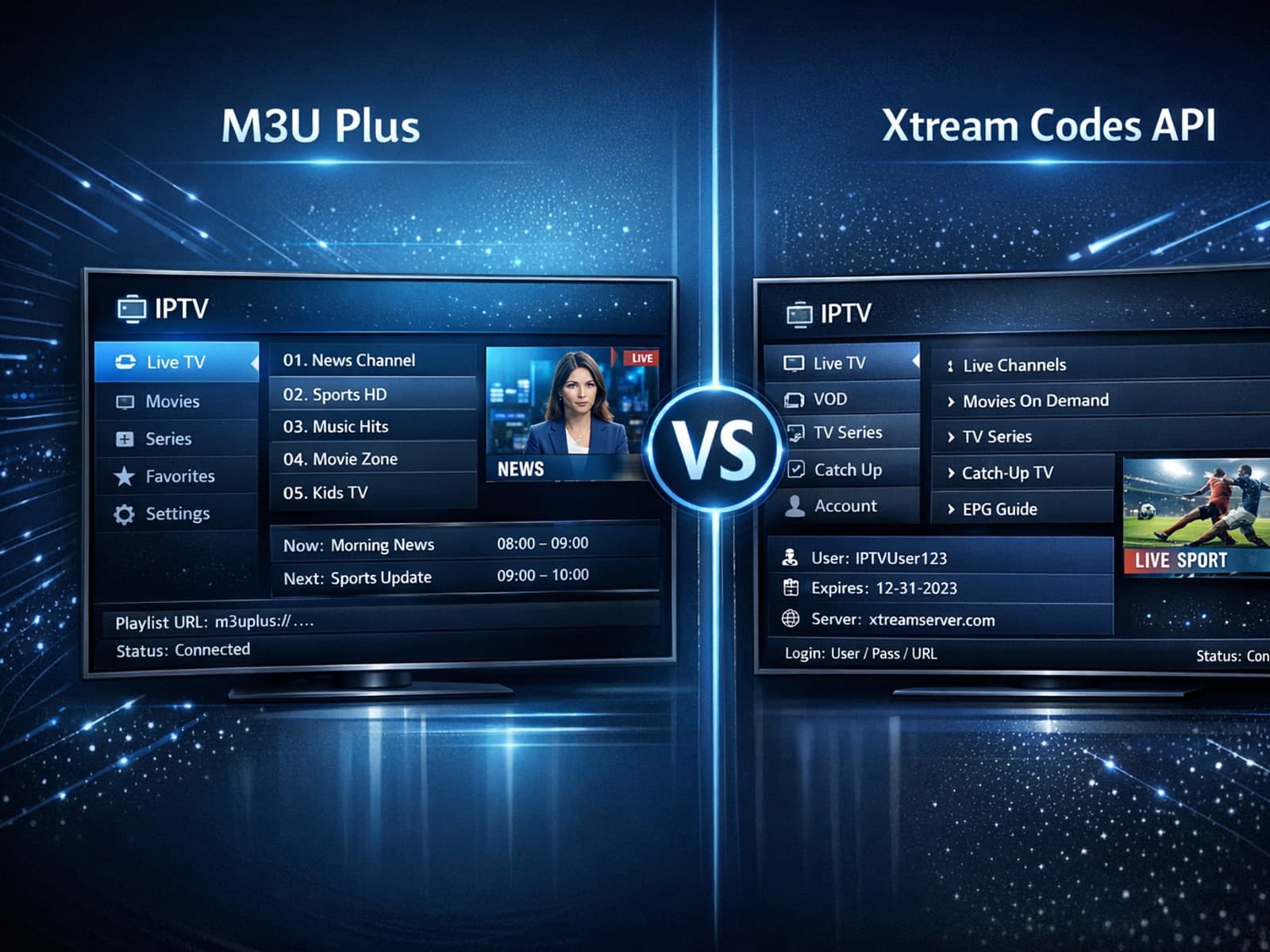
When managing IPTV playlists, users often face two popular methods for obtaining and refreshing their channels: M3U Plus URLs and the Xtream Codes API.