
TiviMate Playlist Not Updating After Refresh: Precise Fixes and Checks

Quick answer
If your TiviMate IPTV app isn't showing updated content after you refresh your playlist, the issue is often tied to the playlist source, the app's cached data, or network connectivity. TiviMate refreshes content by reloading the playlist URL you provided, so if the source does...
Reviewed Against
• TiviMate playlist, EPG, and player-setting workflows
• Home-network checks such as Wi-Fi strength, Ethernet fallback, DNS changes, congestion, and local storage pressure
Applies To
• TiviMate setups on Android TV, Google TV, or Fire OS style streaming devices
• Playback problems that change with connection quality, device load, app cache state, or time of day
Does not apply when
• Your app uses a different menu layout or naming scheme than TiviMate.
• Only one channel, event, or provider-side endpoint is failing while the rest of the service stays stable.
Corroborating Resources
Android TV video and game troubleshootingUseful for Wi-Fi, updates, app cache, and playback troubleshooting steps that also mirror IPTV failure paths.
Android TV storage helpHelpful when playback issues point to low storage, cache pressure, or app-data cleanup decisions.
Topic Cluster
Part of the IPTV cluster
Browse practical IPTV articles about IPTV, including setup choices, troubleshooting paths, and follow-on guides. This page sits in more in this topic for that topic path.
On this page
TiviMate Playlist Not Updating After Refresh
If your TiviMate IPTV app isn't showing updated content after you refresh your playlist, the issue is often tied to the playlist source, the app's cached data, or network connectivity. TiviMate refreshes content by reloading the playlist URL you provided, so if the source doesn't serve updated content or if the app fails to fetch it correctly, you'll see stale or missing updates.
This article focuses specifically on diagnosing and resolving the most common causes of TiviMate playlists failing to update after a manual refresh action within the app.
What you'll learn
- Why TiviMate playlists sometimes don’t update after refresh
- How to verify your playlist source and URL activity
- Steps to clear app cache and fix data loading errors
- When network issues impact playlist updates
- How to confirm IPTV provider server status and content freshness
Understanding Why TiviMate Playlist Won't Update
TiviMate uses playlist URLs—often M3U files or Xtream Codes API links—to fetch your channel lineup and program guide. Refreshing tells TiviMate to reload these URLs and update your channel list and EPG (Electronic Program Guide) data. If updates don’t appear, it means the new data wasn’t retrieved or processed correctly.
Some common root causes include:
- Playlist URL is outdated or incorrect: The URL may no longer point to a valid or refreshed playlist.
- Provider server issues: The IPTV server hosting your playlist might be down or failing to update content.
- App caching problems: TiviMate caches playlist data, which can sometimes block new data from loading.
- Network connectivity issues: The device might have poor or blocked internet access, preventing data fetch.
Knowing exactly where the update process breaks down will help select the correct remedy.
How to Verify Your Playlist URL Is Active and Current
Before troubleshooting the app, ensure your playlist URL itself is correct and serving fresh content. This directly impacts what TiviMate can load.
Simple URL Testing
You can test your playlist URL by:
- Copy your playlist URL from TiviMate settings.
- Paste it into a desktop or mobile web browser.
- If it downloads a file or shows readable text (M3U), the URL is likely valid.
- Check the modification date or playlist content timestamps if available.
If the URL fails to load, times out, or returns an error, the playlist source is the issue, not TiviMate.
Using Online Playlist Checkers
Some websites and tools specialize in validating IPTV playlist URLs, verifying if:
- The URL is reachable.
- The playlist is well-structured.
- The content appears fresh.
Using these tools can confirm whether the problem is on your provider’s side.
Clearing TiviMate App Cache to Fix Update Failures
TiviMate stores parts of playlist data locally for performance. Sometimes, this cache becomes corrupted or stale, blocking new refreshes.
How to Clear Cache on Android Devices (common for TiviMate users)
- Go to Settings on your Fire TV, Android TV, or mobile device.
- Navigate to Apps or Applications.
- Find TiviMate in the list and select it.
- Choose Storage & cache.
- Tap Clear cache.
After clearing cache, restart TiviMate and refresh the playlist again.
Within TiviMate App
Some versions allow clearing playlist cache inside the app settings:
- Go to the Settings > Advanced > Clear playlist cache.
If this option exists, use it as a first step before clearing full app cache.
Checking Network and Device Status Affecting Playlist Refresh
An unstable or restricted network connection can prevent TiviMate from downloading updated playlist content. Check these points:
- Ensure your device is connected to the internet.
- Test streaming other apps or websites to confirm connectivity.
- Disable VPNs or proxies temporarily, as they might block IPTV traffic.
- Restart your router and streaming device.
- Confirm your firewall or ISP is not blocking IPTV URLs or ports.
If you find network instability or connectivity blocks, work on those before repeating the playlist refresh.
Confirming IPTV Provider Server Status and Content Freshness
Even if your playlist URL loads, your IPTV provider might not be updating their playlist files regularly.
Signs Your Provider Server Might Be the Issue
- No recent changes in channel lineup or EPG data.
- Playlist URL loads but content looks outdated.
- Forums or service status pages report outages or maintenance.
What to Do
- Contact or check messages from your IPTV provider about outages or schedule.
- Try loading the playlist URL on a different device or app (like VLC) to compare.
If issues persist, it means the source playlist isn’t refreshing — TiviMate can't override this.
Troubleshooting and Common Mistakes
- Mistake: Using expired or incorrect playlist URLs. Always get the correct and latest URL from your provider.
- Mistake: Assuming refresh instantly updates content. Playlist updates can take a few seconds; wait a full 10-20 seconds after refresh.
- Mistake: Overlooking network speed. Slow connections might time out before playlist fully downloads.
- Mistake: Mixing playlist types without proper config. Xtream Codes API URLs and M3U URLs require different login methods; check you’re loading correctly.
When This Guide Applies and When to Seek Device-Specific Help
This guidance suits users running TiviMate app on Android-based devices including Fire TV, Android TVs, and Android phones or tablets with IPTV playlists via URL or API.
If you use custom IPTV hardware boxes, non-Android platforms, or proprietary IPTV app versions, some steps (especially app cache clearing) may differ.
For device-specific troubleshooting (like Fire TV-specific network issues), refer to platform guides such as Best WiFi Settings for IPTV on Fire TV Stick to Improve Streaming.
Summary Checklist for Fixing TiviMate Playlist Not Updating After Refresh
| Step | Purpose | Quick Tip |
|---|---|---|
| Verify playlist URL | Confirm the source is active | Use browser or URL checker tools |
| Clear TiviMate app cache | Remove stale local data | Use system app settings |
| Restart device | Resolve transient glitches | Restart network equipment too |
| Check network connection | Ensure open internet access | Disable VPN/proxies temporarily |
| Confirm IPTV provider status | Ensure updates are available | Contact provider if needed |
| Refresh playlist in app | Attempt new data download | Wait 15-20 seconds before checking |
FAQ
Why does TiviMate playlist not update even after refreshing?
Usually because the playlist URL is no longer serving updated content, the provider's server is down, app cache is corrupted, or internet issues prevent updates.
Can clearing TiviMate cache fix playlist update problems?
Yes, clearing the cache eliminates saved data that might block fresh downloads.
How do I check if my IPTV playlist URL is still active?
Open the URL in a browser or use online IPTV playlist validation tools to ensure the source responds and content is current.
Is restarting the device necessary for playlist refresh issues?
Restarting helps by clearing temporary glitches in TiviMate or network connections that may block downloads.
Conclusion
If your TiviMate playlist does not update after refresh, the issue likely stems from the source playlist URL, the app’s cached data, or your network state. By verifying your playlist URL, clearing cache, ensuring your network is stable, and confirming with your IPTV provider, you can isolate and fix the problem efficiently. Regular maintenance and cautious update checks prevent long-term stale content and keep your IPTV experience smooth.
For device-specific advice or troubleshooting, consult platform-specific guides linked above.
Internal links you may find helpful:
- M3U Plus vs Xtream Codes API for IPTV Playlist Updates
- How to Fix Channel Logos Missing in TiviMate
- How to Organize Favorites and Groups in TiviMate
- Authorization Error topic
Thank you for reading. Proper diagnosis and methodical fixes help ensure your TiviMate playlists refresh properly every time.
Keep exploring
More explainers that connect naturally to this setup, workflow, or troubleshooting path.
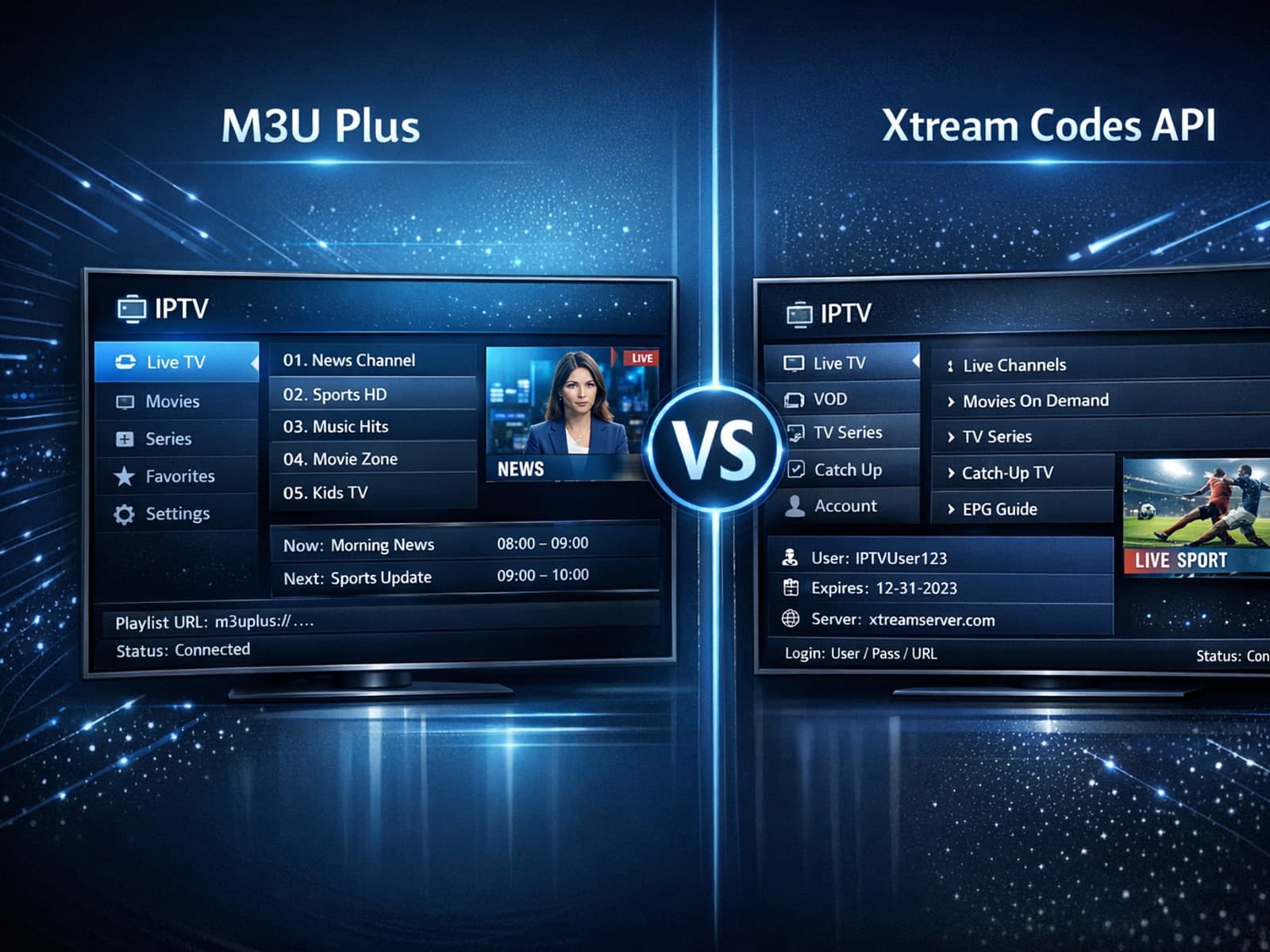
When managing IPTV playlists, users often face two popular methods for obtaining and refreshing their channels: M3U Plus URLs and the Xtream Codes API.

If your TiviMate app is showing program guide times that are off by one or more hours, the root cause is usually an incorrect EPG (Electronic Program Guide) time offset setting.

If your TiviMate playlist does not update after hitting refresh, the issue is usually related to either the playlist source itself, your network connection, or the way the app handles refreshing.
