
How to Fix Channel Logos Missing in TiviMate

Quick answer
If your channel logos are missing in TiviMate, the issue usually stems from your IPTV playlist, app cache problems, or connectivity issues. Logos are typically loaded using URLs provided inside your playlist or via external sources, so if the app cannot access these resources...
Reviewed Against
• TiviMate playlist, EPG, and player-setting workflows
Applies To
• TiviMate setups on Android TV, Google TV, or Fire OS style streaming devices
Does not apply when
• Your app uses a different menu layout or naming scheme than TiviMate.
Topic Cluster
Part of the Channel Logos cluster
Browse practical IPTV articles about Channel Logos, including setup choices, troubleshooting paths, and follow-on guides. This page sits in troubleshoot and fix for that topic path.
On this page
How to Fix Channel Logos Missing in TiviMate
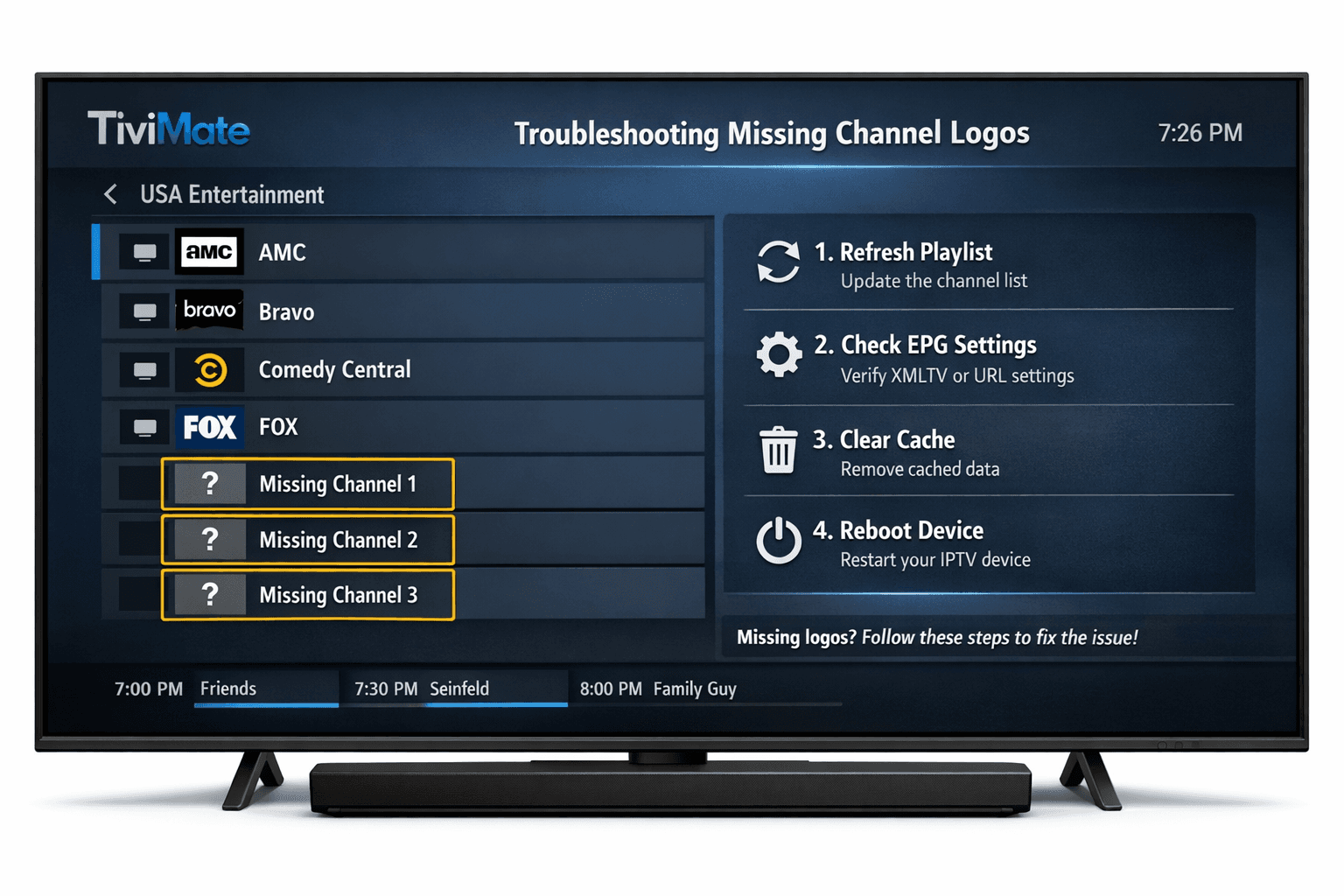
If your channel logos are missing in TiviMate, the issue usually stems from your IPTV playlist, app cache problems, or connectivity issues. Logos are typically loaded using URLs provided inside your playlist or via external sources, so if the app cannot access these resources or the playlist data is outdated, logos won’t display correctly. This guide walks you through step-by-step methods to restore channel logos, from refreshing your playlist to manual logo assignment.
What you'll learn
- How to refresh and update playlists to reload logos
- How to check and fix playlist and logo URL issues
- How to clear app cache that may block logo display
- When to update TiviMate and how it helps
- How to manually add missing logos
- Common mistakes causing missing logos and their fixes
Why Channel Logos Are Missing in TiviMate
In TiviMate IPTV player, channel logos are images linked through URLs specified in your IPTV playlist (often in M3U format). The player fetches these logos online to visually enhance your channel list. When logos don’t show up, it usually means:
- The playlist's logo URLs are broken, missing, or unreachable.
- Cached data in the app is corrupt or outdated.
- The app or device is offline or has DNS issues blocking logo servers.
- The current version of TiviMate has bugs affecting logo loading.
Understanding the root cause helps select the proper fix.
Refreshing Your Playlist to Reload Channel Logos
Your first and simplest step is to refresh your loaded playlist in TiviMate:
- Open TiviMate and go to Settings.
- Select Playlists and then your active playlist.
- Tap Refresh Playlist or Update if available.
This process re-downloads the playlist data and logo URLs, often restoring missing images if the source playlist has been recently fixed or updated.
Checking Playlist Source and Logo URLs
Channel logo URLs embedded in the playlist file must be accurate and accessible:
- Download the M3U playlist file and open it in a text editor.
- Search for entries starting with "#EXTINF" followed by "tvg-logo=" or similar attributes specifying logo URLs.
- Confirm these URLs point to valid images (copy the URL into a web browser to test).
If URLs are broken or missing, contact your IPTV provider for a corrected playlist or edit the M3U file yourself to add working logo links.
When Playlist Logo URLs Are Missing
Some playlists don’t include logo URLs. In such cases, TiviMate may show placeholder icons only. You can add logos manually (explained later).
Clearing TiviMate App Cache
Corrupted or outdated cache can cause logos and other metadata to fail loading properly. Clearing cache forces the app to fetch fresh data.
To clear cache on Android devices:
- Go to Settings > Apps > TiviMate.
- Select Storage & Cache.
- Tap Clear Cache (do NOT clear data unless you want to reset app preferences).
Restart TiviMate after clearing the cache and check if logos return.
Updating TiviMate to the Latest Version
Bugs in older TiviMate versions can impact logo display:
- Open your device’s app store (Google Play Store or Amazon Appstore).
- Check for updates for TiviMate and install the latest version.
Updates often bring fixes for compatibility with current IPTV playlist standards and logo URL handling.
Manually Assigning Missing Channel Logos
If some channels lack logos even after playlist refresh and cache clear, manual assignment can help:
- In TiviMate, navigate to the channel list.
- Select the channel missing the logo.
- Open Channel Info or Edit Channel.
- Choose Change Logo or Set Logo.
- Provide a URL of a logo image or upload one from local storage.
Manual logos remain linked on your device and improve the browsing experience.
Troubleshooting and Common Mistakes
- Incorrect playlist URLs or formats: Ensure your playlist URL is correct and uses supported formats.
- Incomplete playlist refresh attempts: Fully refresh rather than partial reload to update logos.
- Mixing Xtream Codes API and M3U playlists: Each uses different logo methods; verify your playlist type.
- Internet or DNS issues: If logos fail to load, verify your network or try switching DNS servers.
- Clearing app data instead of cache: Clearing data resets app settings; prefer cache clearing first.
Who This Guide Applies To
This article targets users running TiviMate on Android-based devices such as Android TV boxes, Fire TV, or smartphones. It assumes you use IPTV playlists with M3U or Xtream Codes formats.
If you use other IPTV apps or hardware, troubleshooting logos may require different approaches. For example, if your issue is with IPTV Smarters app or Fire TV specific DNS fixes, refer to guides tailored for those scenarios.
Quick Checklist: Fixing Missing Logos in TiviMate
| Step | Purpose | Notes |
|---|---|---|
| 1. Refresh Playlist | Reload channel info and logos | Fast and often effective |
| 2. Verify Logo URLs | Confirm playlist includes valid URLs | Requires editing or provider update |
| 3. Clear App Cache | Remove corrupted cached images | Avoid clearing app data unless needed |
| 4. Update TiviMate | Fix bugs and improve support | Keep app current |
| 5. Assign Logos Manually | Add logos for missing channels | Use if automatic logos fail |
| 6. Check Network & DNS | Ensure logo servers are reachable | Switch DNS if necessary |
| 7. Restart Device | Clear temporary glitches | Helps finalize changes |
Frequently Asked Questions
Why are channel logos missing in TiviMate?
Missing logos often occur due to playlist issues, broken logo URLs, outdated app cache, or connectivity problems preventing logos from loading.
Can I add logos manually in TiviMate?
Yes, TiviMate allows manual assignment of logos to channels through its channel info editor for cases when automatic logos are missing.
Does updating TiviMate fix logo display problems?
Often, yes. Updates can resolve bugs affecting logo loading and improve compatibility with playlist formats and logo URL formats.
What should I do if logos appear for some channels but not others?
Check if the playlist’s logo URLs for those channels are correct and accessible, and consider assigning logos manually if they remain missing.
Conclusion
Missing channel logos in TiviMate mainly arise from playlist source problems, corrupted cache, or connectivity issues. Start by refreshing your playlist and checking logo URLs. Clear the app cache and keep TiviMate updated to ensure smooth logo loading. If these steps fail, manually assign logos to enhance your viewing experience. By following this straightforward process, you can restore missing channel logos and enjoy clearer navigation in TiviMate IPTV player.
For further help, consult related topics on playlist updates and EPG time fixes to optimize your IPTV setup.
See also:
- TiviMate Playlist Not Updating After Refresh
- Fix EPG Time Offset Wrong in TiviMate
- How to Organize Favorites and Groups in TiviMate
- EPG URL topic
This article focuses on TiviMate IPTV player using standard playlists on Android devices. Users with different apps or devices may need alternate solutions.
Keep exploring
More explainers that connect naturally to this setup, workflow, or troubleshooting path.

When choosing an Amazon Fire TV device for IPTV streaming, two popular options are the Fire TV Cube and the Fire TV Stick 4K Max. Both devices support IPTV apps and 4K streaming, but they differ in hardware, features, and user experience.

Using a VPN (Virtual Private Network) on your Amazon Firestick can sometimes slow down IPTV streaming, resulting in frustrating buffering issues.

If your TiviMate EPG (Electronic Program Guide) source URL is not working, it means TiviMate cannot retrieve the program guide data from the specified web address. This usually results in missing or empty channel grids inside the app.