
How to Fix Channel Logos Missing in TiviMate

Quick answer
If you notice that channel logos are missing in your TiviMate app, the problem usually stems from the playlist you use or the app’s data handling. TiviMate relies on playlist-provided metadata URLs for logos, so missing images generally mean the URLs are absent, incorrect, or...
Reviewed Against
• TiviMate playlist, EPG, and player-setting workflows
Applies To
• TiviMate setups on Android TV, Google TV, or Fire OS style streaming devices
Does not apply when
• Your app uses a different menu layout or naming scheme than TiviMate.
Topic Cluster
Part of the IPTV cluster
Browse practical IPTV articles about IPTV, including setup choices, troubleshooting paths, and follow-on guides. This page sits in troubleshoot and fix for that topic path.
On this page
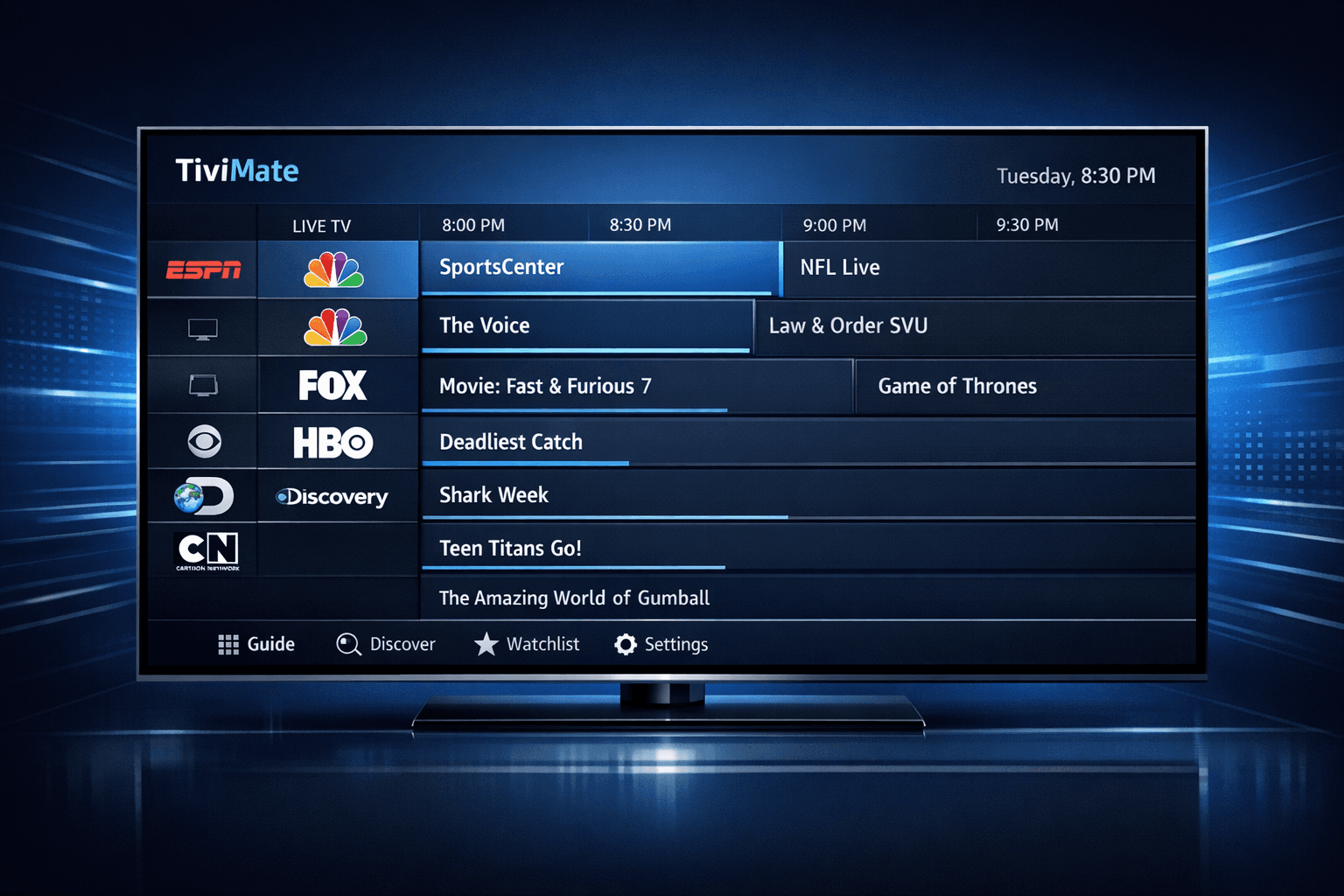
How to Fix Channel Logos Missing in TiviMate
If you notice that channel logos are missing in your TiviMate app, the problem usually stems from the playlist you use or the app’s data handling. TiviMate relies on playlist-provided metadata URLs for logos, so missing images generally mean the URLs are absent, incorrect, or the app needs refreshing. By checking your playlist data, refreshing your playlist, clearing cache, and verifying app settings, you can often restore missing channel logos.
What you'll learn
- Why channel logos might be missing in TiviMate
- How to verify your playlist's logo links
- Steps to refresh and clear cached data
- TiviMate’s settings related to logos
- When manual fixes or playlist changes are necessary
Understanding Why Channel Logos May Be Missing
TiviMate uses playlist metadata — typically M3U or Xtream Codes API playlists — to display channel logos. These logos are images linked via URLs included in the playlist file. Missing logos often result from:
- Playlists lacking logo URLs for some or all channels
- Broken or incorrect URL paths in the playlist
- Caching of outdated or corrupted logo data within the app
- Disabled logo display settings within TiviMate
Because TiviMate itself does not fetch logos independently or generate them, the quality and completeness of your playlist highly affect logo visibility.
Playlist Types and Logo Support
- M3U Playlists: Usually provide logo URLs as
tvg-logoattributes for each channel. - Xtream Codes API Playlists: May include logo links embedded in the provider’s metadata response.
Checking if your playlist supports logos is the first step.
How to Check and Refresh Your Playlist for Logos
Sometimes a simple refresh is all it takes. Here is how you verify and refresh your playlist effectively:
1. Confirm Logo URLs in Your Playlist
- Export or download your M3U playlist on a PC or use a text editor app.
- Look for
tvg-logo="URL"lines for each channel. - Verify these URLs are valid (can be opened in a browser).
If the URLs are missing or invalid, logos won’t show.
2. Refresh Playlist in TiviMate
To force TiviMate to re-import your playlist and update metadata:
- Open TiviMate and go to "Settings".
- Select your playlist.
- Choose "Refresh playlist" or "Update playlist".
3. Clear TiviMate Cache
Old or corrupted cached data can prevent logos from showing after playlist changes:
- Exit TiviMate.
- On your device, go to Settings > Apps or Applications.
- Find TiviMate and select "Clear Cache" (avoid clearing data unless necessary).
- Reopen TiviMate and refresh your playlist again.
Adjusting TiviMate Settings for Logo Display
TiviMate allows you to customize the look of your channel list and guide. Check these settings to ensure logos are enabled:
- Navigate to Settings > Appearance > Channel List > Channel Logo.
- Confirm "Show channel logos" is turned on.
- You can also adjust logo size or visibility in guide listings here.
Incorrect settings may hide logos even if they are properly included.
Common Mistakes and Troubleshooting
- Using playlists without logos: Not all providers embed or supply logos.
- Using outdated playlists: Static playlists lose valid URLs over time or due to provider changes.
- Network issues: Slow or blocked connections may fail to load logo images.
If none of the above fixes work, try these troubleshooting tips:
- Test the playlist on another IPTV app to confirm if logos load there.
- Try a different playlist known to include channel logos.
- Update TiviMate to the latest version for fixes and improvements.
- Restart your device to clear potential system-level cache.
Who This Guide Is For and When To Use Other Solutions
This guide applies primarily to users of TiviMate on Android TV, Fire TV, or similar devices using IPTV playlists like M3U or Xtream Codes. If you use another IPTV app or a completely different streaming method (e.g., native cable apps or hardware boxes), troubleshooting steps will differ.
If your problem is limited to the Electronic Program Guide (EPG) or playback issues rather than logos, consult guides specific to EPG syncing or buffering instead.
Summary Checklist: Fixing Missing Channel Logos in TiviMate
| Step | Action | Notes |
|---|---|---|
| 1. Verify playlist logo URLs | Check tvg-logo attributes | Use text editor or playlist viewer |
| 2. Refresh playlist | Use TiviMate’s refresh functionality | Updates metadata and images |
| 3. Clear app cache | From device settings | Removes corrupted cached files |
| 4. Check logo settings | Confirm channel logos enabled | App UI customization |
| 5. Restart device/app | Restart or reinstall if needed | Fixes temporary glitches |
| 6. Confirm provider support | Ensure playlist source includes logos | Contact provider or try new playlist |
Frequently Asked Questions
Why do some channels show logos and others don’t?
Your playlist may only include logos for certain channels or have incomplete metadata. This is normal if your provider or playlist creator has partial coverage.
Can I manually add or upload logos in TiviMate?
TiviMate does not allow manual logo additions. Logos must come from the playlist or be embedded in the EPG supplied.
Will updating or reinstalling TiviMate fix logo issues?
Updating can resolve bugs affecting logo display. Reinstalling may clear deeper app data issues.
Do network restrictions affect logo loading?
Yes, poor network conditions or firewalls blocking image servers can prevent logos from loading.
Are logos always included in IPTV playlists?
No. Some playlists prioritize channel streams without including logos. Confirm your playlist’s capabilities.
Conclusion
Fixing missing channel logos in TiviMate typically involves verifying your playlist’s logo URLs, refreshing your playlist and app data, and ensuring display settings are correct. Most logo problems trace back to playlist metadata, so checking your playlist provider and updating to a logo-inclusive source is crucial. By following the step-by-step instructions above, you can confidently restore channel logos and enhance your TiviMate viewing experience.
For more on related issues, consider these guides:
Keep exploring
More explainers that connect naturally to this setup, workflow, or troubleshooting path.
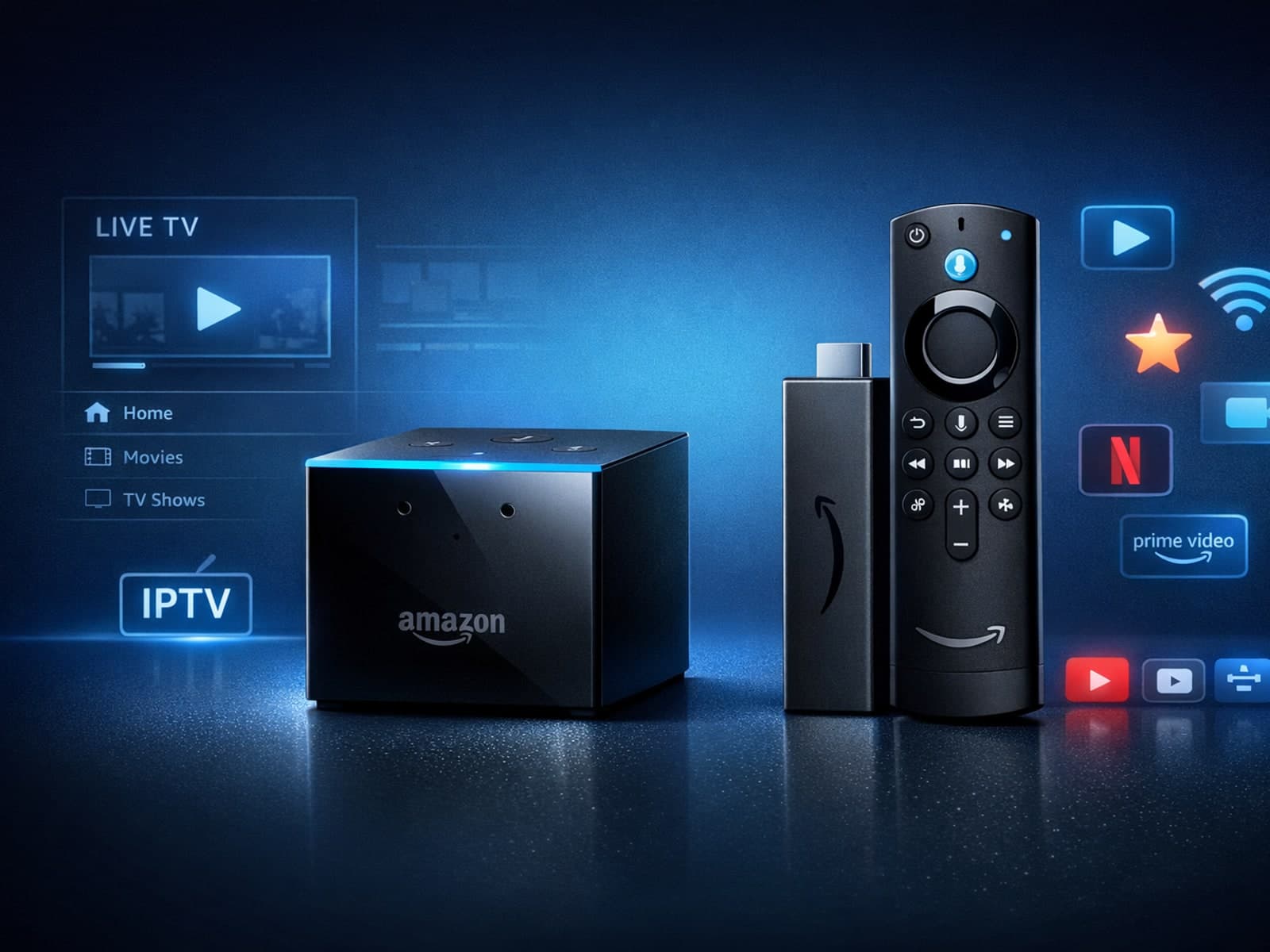
If you're deciding between the Fire TV Cube and the Fire TV Stick 4K Max for watching IPTV (Internet Protocol Television), this comparison breaks down how each device matches IPTV demands.

If you notice that channel logos are missing in TiviMate, the most common causes include outdated or incompatible playlists, cached data corruption, or insufficient metadata from your IPTV provider.
For IPTV users deciding between Xtream Codes format and M3U playlists, understanding when Xtream Codes works better is key. Simply put, Xtream Codes works better than M3U playlists when your IPTV service offers secure login credentials.
