
TiviMate Playlist Not Updating After Refresh: Causes and Fixes

Quick answer
If your TiviMate playlist does not update after you hit refresh, it usually indicates an issue with the playlist source, a caching problem in the app, or network connectivity troubles. This article focuses on solving the precise problem of TiviMate not updating playlists after...
Reviewed Against
• TiviMate playlist, EPG, and player-setting workflows
• Home-network checks such as Wi-Fi strength, Ethernet fallback, DNS changes, congestion, and local storage pressure
Applies To
• TiviMate setups on Android TV, Google TV, or Fire OS style streaming devices
• Playback problems that change with connection quality, device load, app cache state, or time of day
Does not apply when
• Your app uses a different menu layout or naming scheme than TiviMate.
• Only one channel, event, or provider-side endpoint is failing while the rest of the service stays stable.
Corroborating Resources
Android TV video and game troubleshootingUseful for Wi-Fi, updates, app cache, and playback troubleshooting steps that also mirror IPTV failure paths.
Android TV storage helpHelpful when playback issues point to low storage, cache pressure, or app-data cleanup decisions.
Topic Cluster
Part of the IPTV cluster
Browse practical IPTV articles about IPTV, including setup choices, troubleshooting paths, and follow-on guides. This page sits in more in this topic for that topic path.
On this page
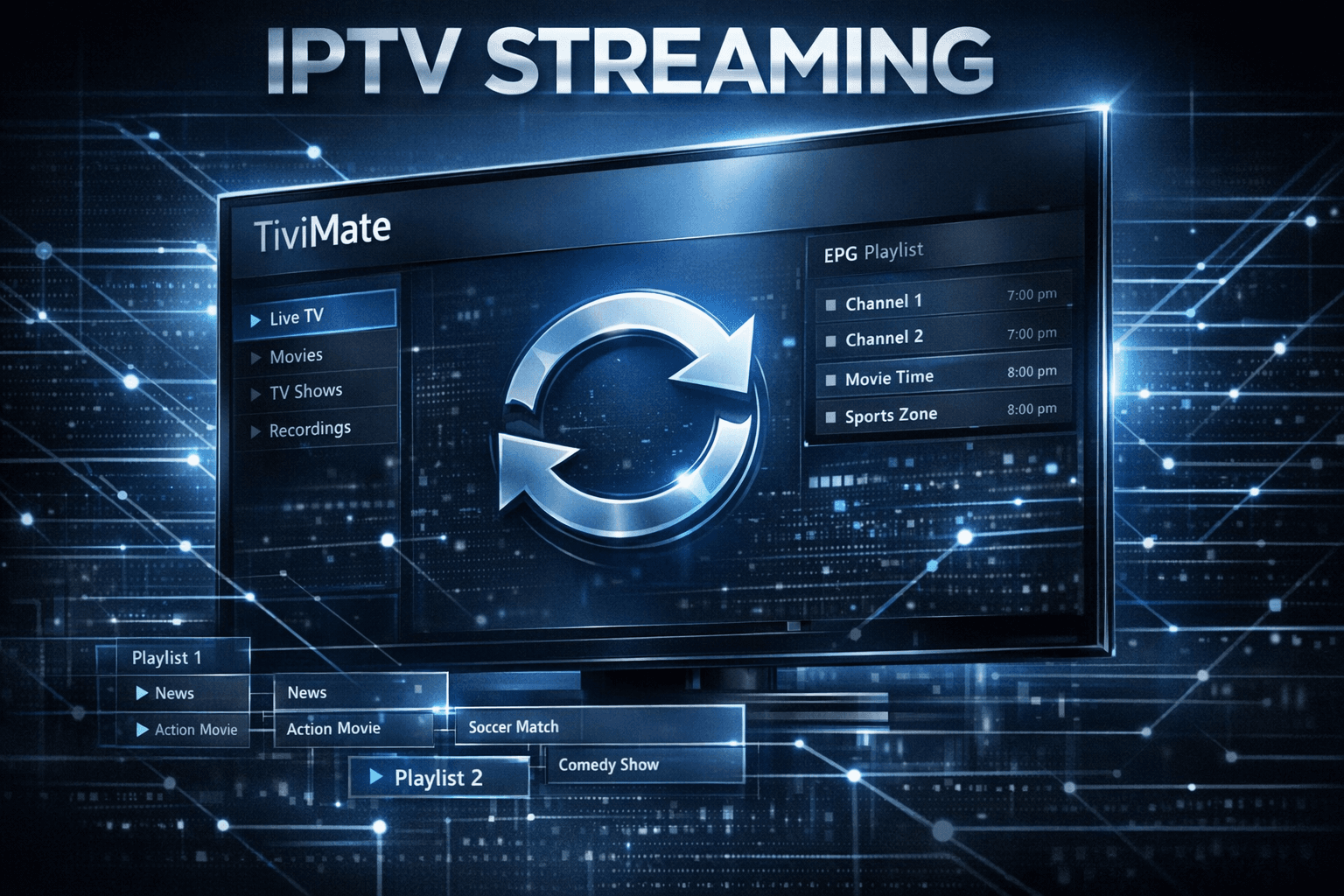
TiviMate Playlist Not Updating After Refresh: Causes and Fixes
If your TiviMate playlist does not update after you hit refresh, it usually indicates an issue with the playlist source, a caching problem in the app, or network connectivity troubles. This article focuses on solving the precise problem of TiviMate not updating playlists after a refresh attempt, offering clear, practical steps for users with beginner to intermediate IPTV experience.
What you'll learn
- Why TiviMate playlists sometimes fail to update after refresh
- How to verify and fix playlist URL errors
- Clearing app cache and data in TiviMate to resolve update issues
- Checking your network for IPTV restrictions or instability
- When to consider device or app reinstallation
Understanding Why TiviMate Playlists Fail to Update After Refresh
TiviMate is an IPTV player that relies on external playlist files, often in M3U or API formats, to provide streaming channel lineups. When you refresh a playlist in TiviMate, the app attempts to fetch and reload the latest playlist data from the internet source.
Several factors can cause the update not to reflect:
- Playlist URL issues: If the URL is incorrect, expired, or the server hosting it is down, the refresh won't retrieve new data.
- Cache problems: TiviMate caches playlist data locally to improve performance. Sometimes corrupted or outdated cache blocks proper refreshing.
- Network connectivity issues: If your internet connection is unstable, or the network blocks IPTV content, the playlist fetch may fail.
- App glitches: Bugs or corrupted app files sometimes prevent refresh actions from completing.
Identifying which cause applies is the first step to fixing the problem effectively.
How to Check and Correct Playlist Source Problems
An invalid or expired playlist URL is the most common root cause for playlist update failures in TiviMate.
Step 1: Verify Your Playlist URL
- Obtain the playlist URL used in TiviMate (usually provided by your IPTV service).
- Open the URL in a web browser or a dedicated IPTV URL checker tool.
- Confirm the playlist file loads and displays - if it doesn't, the URL might be broken, expired, or require reauthorization.
Step 2: Update or Replace the Playlist URL
- Contact your IPTV service to ensure the URL is still active.
- Replace the playlist URL in TiviMate if you receive a new one.
- Ensure the URL format matches TiviMate's supported playlist types (e.g., M3U, Xtream Codes API).
Step 3: Check Playlist Format Compatibility
- TiviMate supports standard playlist formats but errors can occur if the playlist is truncated or poorly structured.
- Verify playlist syntax if you have custom playlists.
Clearing TiviMate Cache and Data to Fix Stuck Playlists
Because TiviMate stores playlist data locally to speed up access, outdated or corrupted cached files can prevent new data from loading after a refresh.
How to Clear Cache and Data on Android Devices
- Open Settings on your Android device.
- Go to Apps or Application Manager.
- Find and select TiviMate.
- Tap Storage.
- Select Clear Cache, then Clear Data.
Caution: Clearing data resets your playlists, so be prepared to re-add your playlist URLs.
Refresh After Clearing
After clearing cache and data, launch TiviMate again and add your playlist URL fresh. Try the refresh function and monitor if the playlist updates now.
Confirming Network and Connectivity Obstacles
Internet issues can silently block IPTV playlist refreshing.
Signs Your Network May Be the Problem
- Other apps stream fine but TiviMate fails.
- Playing streams drops or buffers extensively.
- Error messages during playlist updates referencing connectivity.
Steps to Diagnose and Fix Network Issues
- Test your connection speed to ensure IPTV streaming viability.
- Restart your router/modem to refresh connections.
- Verify your ISP does not block IPTV or uses traffic shaping.
- Switch from Wi-Fi to wired Ethernet if possible to test stability.
- Use a VPN if you suspect your ISP is blocking IPTV traffic.
When to Restart or Reinstall TiviMate
If playlists still don't update after URL verification, cache clearing, and network checks, the app itself might be malfunctioning.
Restart TiviMate and Device
- Close the app completely and relaunch.
- Reboot your streaming device (Fire TV, Android TV box, etc.) to clear background errors.
Reinstall TiviMate
- Uninstall TiviMate.
- Download and install the latest official version.
- Re-enter your playlist URL and test refresh again.
This often resolves corrupted app files or permission issues.
Troubleshooting Common Mistakes
- Using expired or incorrect playlist URLs: Always verify with your IPTV provider.
- Ignoring app cache issues: Cache buildup can interfere with updates.
- Overlooking network constraints: Some Wi-Fi settings or ISPs may block IPTV content.
- Not restarting after changes: Some changes only take effect after app/device restart.
Applicability and When to Seek Device-Specific Guidance
This guide applies primarily to users running TiviMate on common Android-based devices (Android TV boxes, Amazon Fire TV, Nvidia Shield).
- If you use TiviMate on non-Android platforms or via unusual workarounds, playlist update issues might need device-specific approaches.
- For network router configurations or advanced IPTV network setup, consult specialized resources.
If you encounter related issues like missing channel logos or authorization errors, check our related articles linked below.
FAQ
Why does my TiviMate playlist not update after refreshing? It usually results from invalid playlist URLs, app cache problems, or network connectivity issues.
How can I clear cache in TiviMate? Use your device’s app settings to clear TiviMate’s cache and data, then re-add the playlist.
Can my internet provider block IPTV playlists from updating? Yes, some ISPs restrict IPTV streams; testing with VPN or another network can identify this.
Conclusion
TiviMate playlists not updating after refresh most often link back to playlist URL errors, app cache corruption, or network problems. By verifying the playlist source, clearing app cache, checking network connectivity, and restarting or reinstalling TiviMate, you can restore playlist refresh functionality. Keep your playlist links up to date and maintain stable internet access for the best IPTV experience.
| Step | Action | Purpose |
|---|---|---|
| 1 | Verify playlist URL in browser | Ensures source is valid |
| 2 | Clear TiviMate cache and data | Fixes caching blockages |
| 3 | Check and improve network connection | Avoid network-related failures |
| 4 | Restart app and device | Resolve temporary glitches |
| 5 | Reinstall TiviMate if needed | Fix app corruption |
For more details on related issues, refer to our articles on How to Fix Channel Logos Missing in TiviMate and M3U Plus vs Xtream Codes API for Playlist Updates.
Frequently Asked Questions
Why does my TiviMate playlist not update after refreshing?
This often happens due to incorrect or expired playlist URLs, caching issues within the app, or network connectivity problems preventing the update.
How can I clear cache in TiviMate?
Go to your device's Settings > Apps > TiviMate > Storage and select 'Clear Cache' and 'Clear Data' to reset stored app information.
Can my internet provider block IPTV playlists from updating?
Yes, some networks may restrict IPTV streams or specific URLs, so ensuring your connection allows IPTV traffic is important.
Keep exploring
More explainers that connect naturally to this setup, workflow, or troubleshooting path.
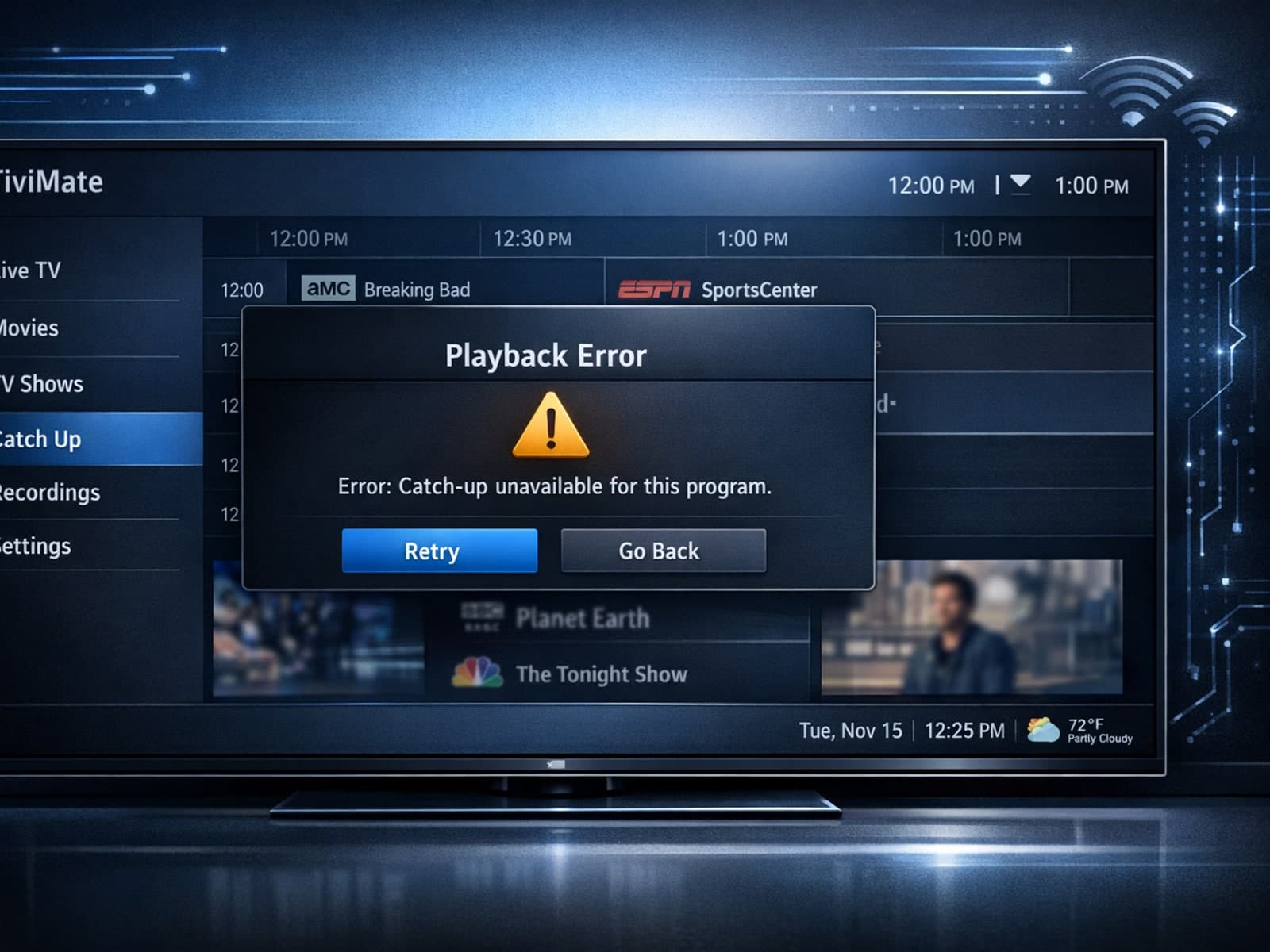
If your catch-up feature in TiviMate isn’t working, the fundamental reasons often lie in your IPTV playlist source or server configuration rather than the app itself.

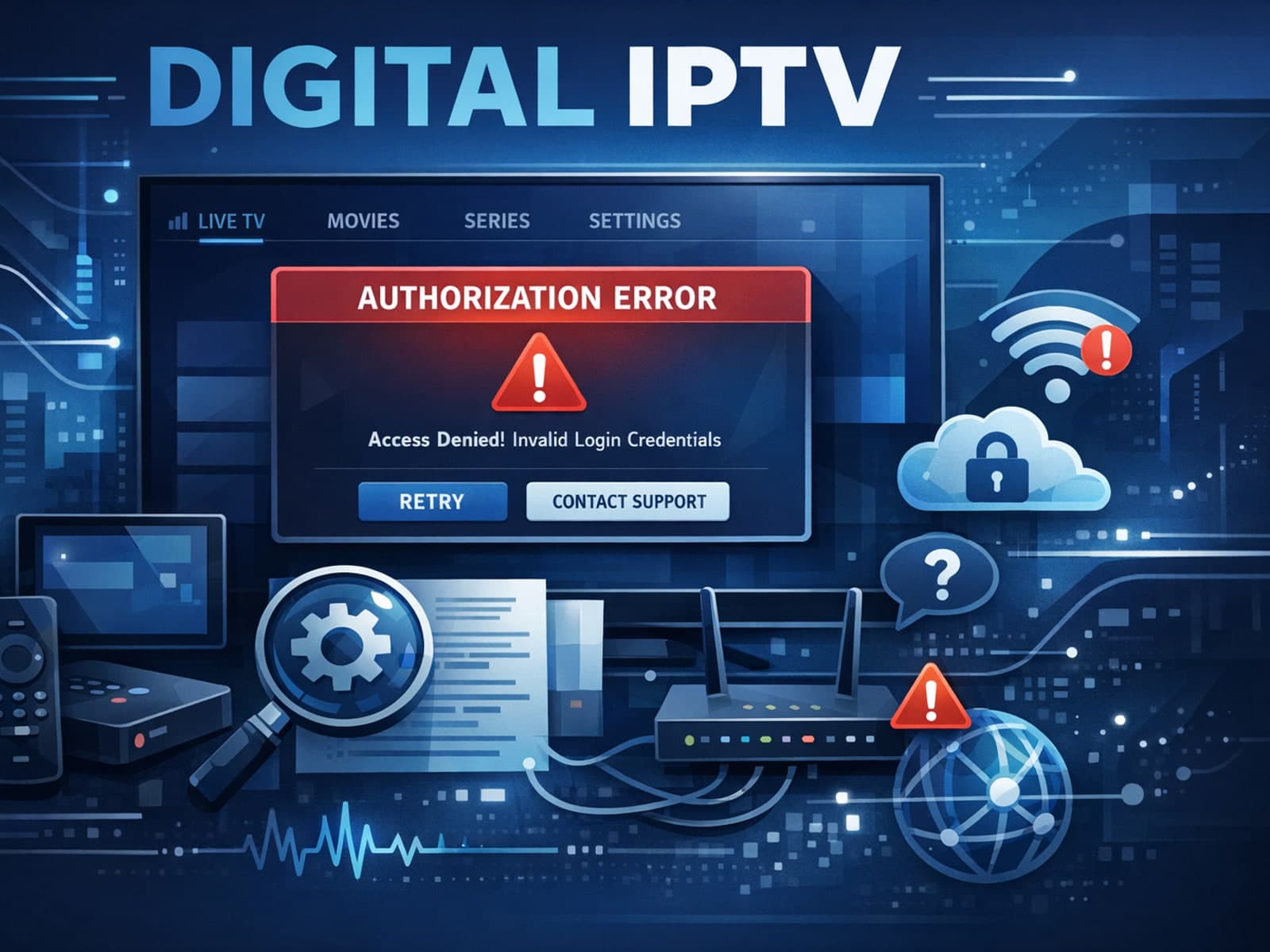
When you see the "Xtream Codes authorization failed" message on TiviMate, it means the app currently cannot verify your IPTV login credentials with the IPTV provider’s server. This prevents access to the channel list or streaming content.
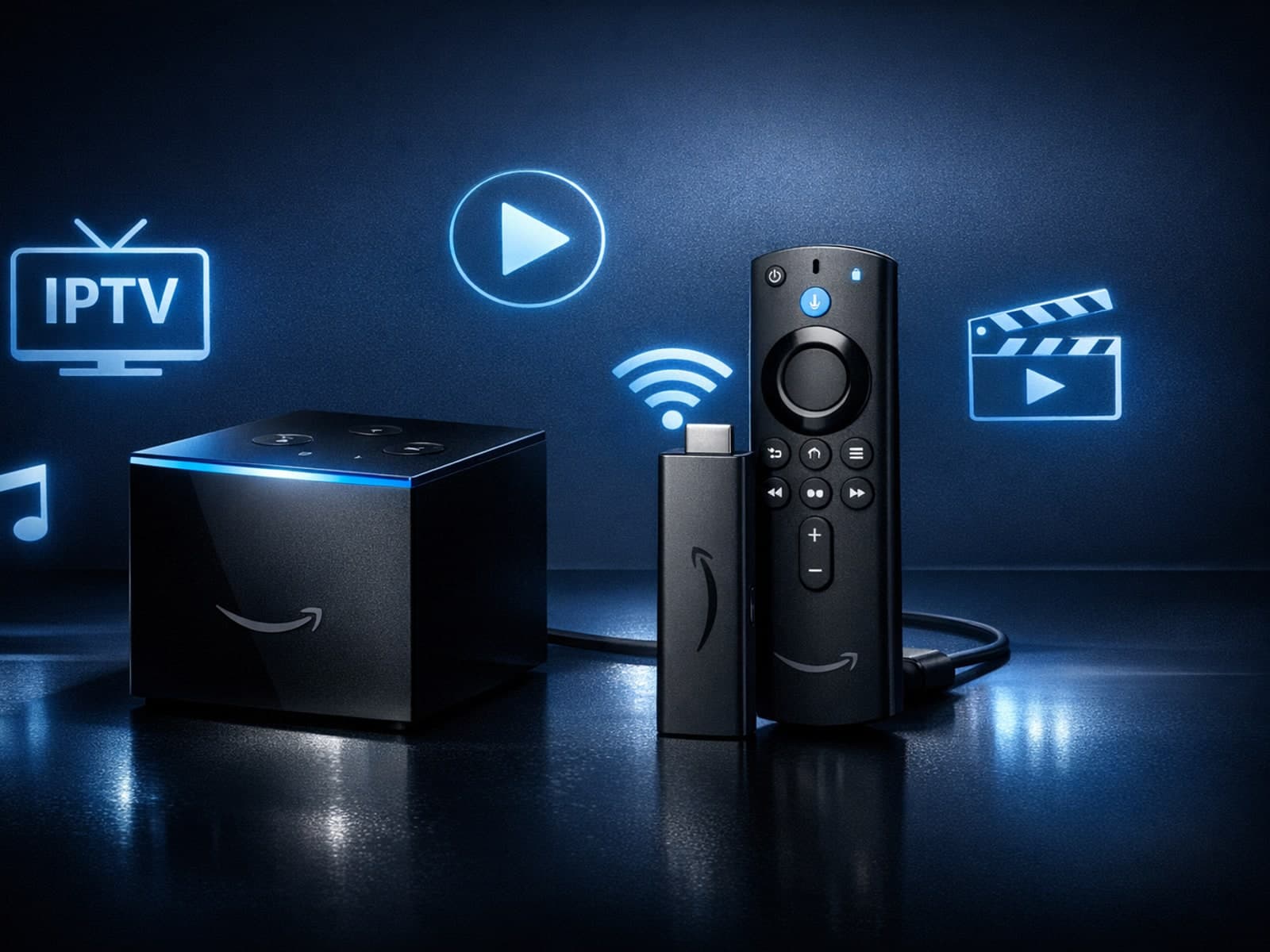
If you're choosing between the Fire TV Cube and the Fire TV Stick 4K Max for your IPTV setup, it's important to understand their differences beyond just their names.