
How to Fix Channel Logos Missing in TiviMate

Quick answer
If you're noticing that channel logos are missing while using TiviMate, it's usually due to outdated or incompatible logo sources, playlist formatting issues, or caching problems. This article explains how to diagnose and fix missing channel logos in TiviMate through practical...
Reviewed Against
• TiviMate playlist, EPG, and player-setting workflows
Applies To
• TiviMate setups on Android TV, Google TV, or Fire OS style streaming devices
Does not apply when
• Your app uses a different menu layout or naming scheme than TiviMate.
Topic Cluster
Part of the Channel Logos cluster
Browse practical IPTV articles about Channel Logos, including setup choices, troubleshooting paths, and follow-on guides. This page sits in troubleshoot and fix for that topic path.
On this page
How to Fix Channel Logos Missing in TiviMate
If you're noticing that channel logos are missing while using TiviMate, it's usually due to outdated or incompatible logo sources, playlist formatting issues, or caching problems. This article explains how to diagnose and fix missing channel logos in TiviMate through practical, step-by-step methods.
What you'll learn
- Common reasons for missing channel logos in TiviMate
- How to verify if your IPTV playlist includes logos
- Steps to clear cache and refresh the app to restore logos
- How to change or update channel logo sources within TiviMate
- Troubleshooting tips and when to seek different solutions
Understanding Why Channel Logos Might Be Missing
Channel logos in TiviMate depend on the IPTV playlist and associated metadata. Many IPTV providers embed logo URLs in their playlist (usually M3U format) or rely on separate logo sources. Common causes for missing logos include:
- The playlist does not include logo links or they are broken
- The playlist or EPG has outdated information
- TiviMate cache has corrupt or stale data
- App version incompatibility with logo display features
Knowing these helps focus your troubleshooting efforts.
Playlist and Logo Sources
Most IPTV playlists list stream URLs and optionally include "tvg-logo" attributes that point to channel logo images. If these URLs are missing or unreachable, the app cannot display logos. Sometimes playlists link to external logo hosts which may go down or block access.
Step 1: Verify Your Playlist Includes Channel Logos
Before troubleshooting TiviMate settings, confirm your IPTV playlist actually contains logo information:
- Check the playlist file: Open your M3U file in a text editor and look for lines containing
tvg-logo="URL". These URLs should point to image files (usually .png or .jpg). - Test logo URLs: Copy a few logo URLs into a browser to ensure they load properly.
- Ask your IPTV provider: If you don’t have access to the raw playlist, contact your provider to confirm if logos are included or available.
If logos are absent in your playlist, channel icons won’t appear regardless of your TiviMate settings.
Step 2: Clear Cache and Refresh TiviMate
Stale or corrupted cache data can cause channel logos not to show. Clearing the cache instructs TiviMate to re-fetch all data:
- Close TiviMate completely.
- Go to your device's Settings > Apps > TiviMate.
- Select Storage & cache.
- Tap Clear cache (avoid Clear data unless necessary, since that resets the app).
- Reopen TiviMate and refresh your playlist.
This often resolves missing logos caused by temporary glitches or outdated data.
Step 3: Update or Change Channel Logo Source in TiviMate Settings
TiviMate supports customizing channel logo sources beyond those in your playlist:
- Open TiviMate and go to Settings > Channels > Channel Logos.
- Here, you can adjust your Logo source options. Some common sources include your playlist, an external URL, or custom folder.
- If your IPTV provider offers a separate logo URL or repository, enter it here.
- You can also disable or enable Cache logos locally to control storage.
Changing or updating the logo source can restore missing icons especially if the default source became unavailable.
Adding Local Logos
For advanced users, TiviMate allows adding logos stored locally or on a network share by following your playlist's naming conventions. This is useful if your playlist lacks logos but you have separate channel images.
Step 4: Ensure Your Playlist and EPG Are Properly Linked and Updated
Channel logos can also depend on the Electronic Program Guide (EPG) data:
- Verify that your playlist's channel IDs match those in your EPG source.
- Use Settings > Playlists > Edit Playlist > EPG in TiviMate to configure or refresh your guide.
- Some missing logos occur if the channel mapping is incorrect or EPG URLs are outdated.
Regularly updating your playlist and EPG keeps channel information, including logos, accurate.
Common Mistakes and Troubleshooting
- Clearing app data unnecessarily: This removes all playlists and settings, requiring complete reconfiguration.
- Using unsupported playlist formats: Some IPTV providers use proprietary formats missing logo data.
- Ignoring app updates: Older TiviMate versions might have bugs affecting logos.
- Not refreshing playlists after updates: Always refresh your playlists after provider changes.
If you continue experiencing missing logos despite following these steps, consider testing with another playlist known to include logos to isolate the problem.
Who Should Use This Guide and When to Seek Device-Specific Help
This troubleshooting applies specifically to TiviMate app on Android-based devices (Fire TV, Android TV, smartphones). It assumes you have access to your playlist and some familiarity with IPTV terms.
If you:
- Use a different IPTV app,
- Experience issues with hardware-specific overlays,
- Or your IPTV provider manages logos separately,
then consult guides tailored to those scenarios.
Summary Checklist for Fixing Missing Channel Logos in TiviMate
| Step | Actions |
|---|---|
| 1. Verify playlist logos | Check tvg-logo URLs in playlist file and test links |
| 2. Clear cache | Clear TiviMate cache via device settings |
| 3. Update logo source | Adjust logo source in TiviMate settings |
| 4. Sync playlist and EPG | Ensure channel IDs match and refresh EPG data |
| 5. Update app | Install the latest TiviMate version |
| 6. Test alternative playlist | Try another known-good playlist including logos |
FAQ
Why are channel logos missing in my TiviMate app?
Channel logos may be missing due to outdated logo sources, incomplete or corrupted playlists, cached data issues, or mismatched playlist and EPG info.
Can I add my own channel logos in TiviMate?
Yes, if your playlist supports local logos, you can manually add them by storing images locally following naming conventions or by specifying a custom logo folder.
Does clearing cache delete my playlists or settings?
Clearing cache only removes temporary files and will not delete your playlists or settings. However, clearing app data will reset all your settings.
How often should I update TiviMate and playlist files?
Regular updates to both the app and your IPTV playlists ensure you have the latest bug fixes and fresh metadata, reducing issues like missing logos.
What if my IPTV playlist doesn’t include channel logos?
You can try adding logos manually if supported, request an updated playlist from your IPTV provider, or switch to a playlist that includes logos.
Conclusion
Missing channel logos in TiviMate are most often caused by playlist or cache issues, but can be resolved by verifying playlist logo data, clearing app cache, updating logo sources, and ensuring correct playlist-EPG linkage. Following the step-by-step process in this article should restore channel logos and improve your TiviMate viewing experience.
For more advanced TiviMate troubleshooting, consider our TiviMate Playlist Not Updating After Refresh guide and check out our resources on Channel Logos and EPG Time Offset Correction.
Keep exploring
More explainers that connect naturally to this setup, workflow, or troubleshooting path.
If you're choosing between the Fire TV Cube and the Fire TV Stick 4K Max for your IPTV setup, it's important to understand their differences beyond just their names.

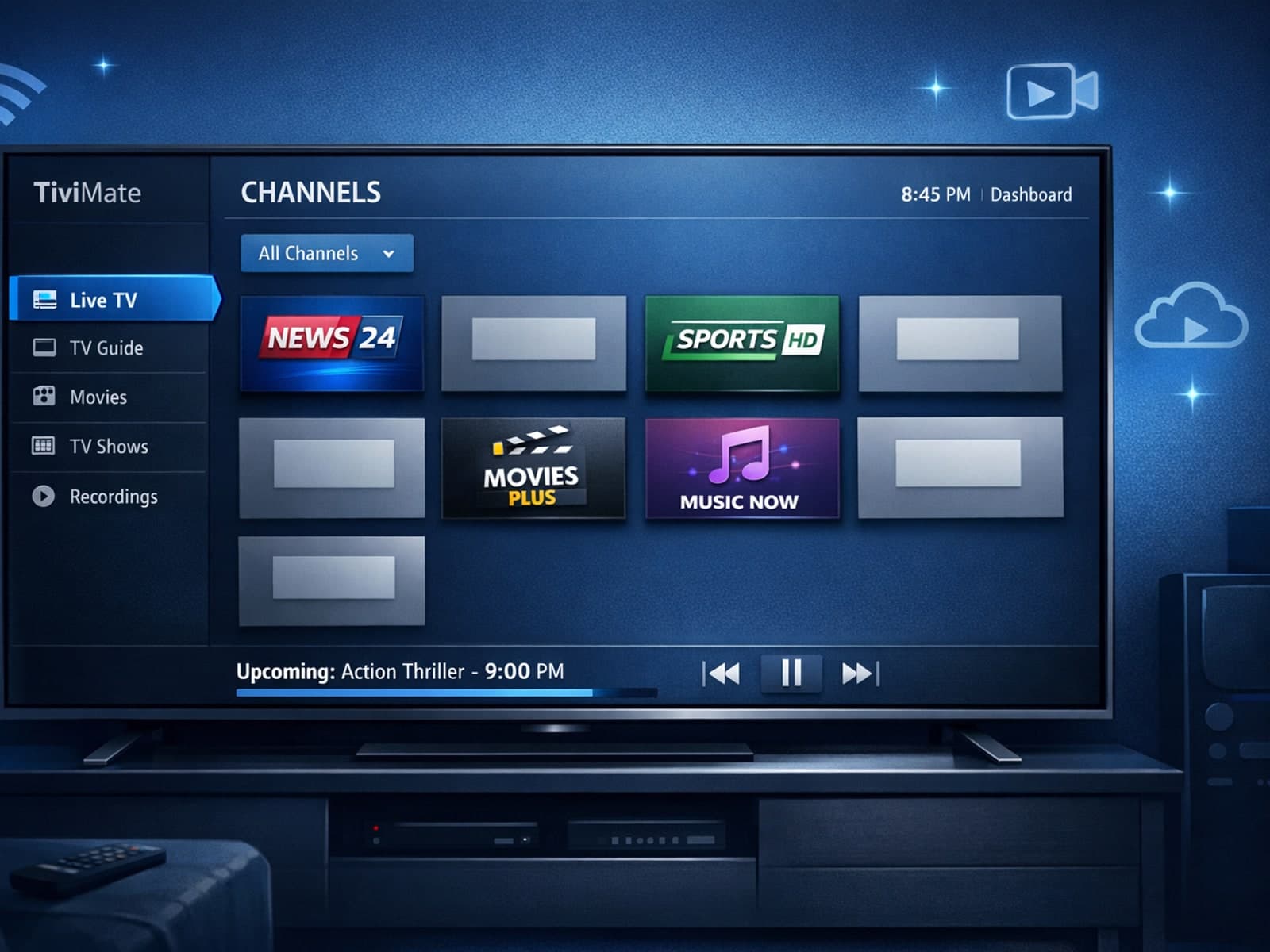
Missing channel logos in TiviMate can be frustrating because they make channel navigation less intuitive and reduce the overall viewing experience.
Xtream Codes login can outperform M3U playlists by providing faster channel loading, better playlist management, and improved metadata support in IPTV apps.
