
TiviMate Playlist Not Updating After Refresh: Fixes and Troubleshoot

Quick answer
If you use TiviMate, a popular IPTV player for Android TV and related devices, you may sometimes find that your playlist doesn't update even after you hit the refresh button. This behavior can be frustrating if new channels or updates are not appearing as expected.
Reviewed Against
• TiviMate playlist, EPG, and player-setting workflows
• Android TV and Google TV troubleshooting paths and settings flows
Applies To
• TiviMate setups on Android TV, Google TV, or Fire OS style streaming devices
• Android TV and Google TV devices where app storage, system updates, and playback settings affect IPTV behavior
Does not apply when
• Your app uses a different menu layout or naming scheme than TiviMate.
• The device is not Android TV based and the settings menus do not match these steps.
Corroborating Resources
Android TV overviewA good reference for how Android TV is structured and where TV-specific app behavior comes from.
Google TV troubleshooting helpUseful for device-level playback, Wi-Fi, and settings checks when video behavior looks platform-wide.
Topic Cluster
Part of the IPTV cluster
Browse practical IPTV articles about IPTV, including setup choices, troubleshooting paths, and follow-on guides. This page sits in more in this topic for that topic path.
On this page
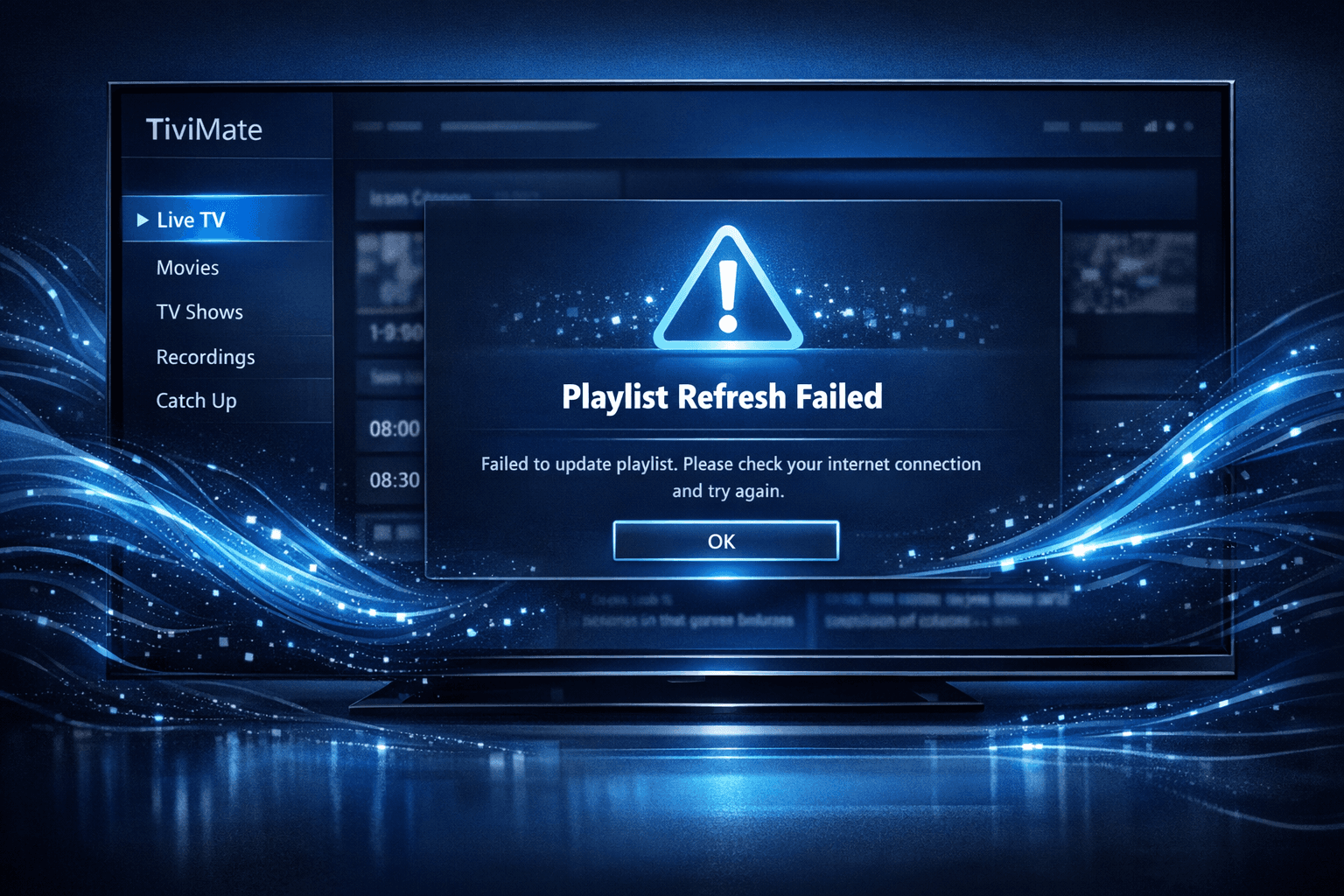
Why TiviMate Playlist May Not Update After Refresh
If you use TiviMate, a popular IPTV player for Android TV and related devices, you may sometimes find that your playlist doesn't update even after you hit the refresh button. This behavior can be frustrating if new channels or updates are not appearing as expected.
The core causes usually revolve around playlist URL issues, caching mechanisms within the app, temporary connection instabilities, or glitches with the app itself. Understanding these common triggers can help you quickly restore regular playlist updates.
What you'll learn
- How TiviMate fetches and caches playlist data
- Common reasons why playlists don't update after refresh
- Practical troubleshooting steps to fix playlist refresh problems
- When to clear caches or replace playlist URLs
- Tips to ensure your playlist stays current over time
How TiviMate Updates Playlists
TiviMate loads your IPTV playlist from a web URL (usually an M3U or Xtream Codes type) which lists the channels and streams. When you refresh the playlist, TiviMate sends a new request to the URL to download the latest playlist file.
However, to speed up performance, TiviMate may cache the playlist data locally. If caching is active or corrupted, the app might keep showing an outdated list even when you refresh.
Additionally, if the playlist URL is invalid or no longer provides updated content, refreshing will fail to update anything.
Common Reasons Why the Playlist Doesn't Update
1. Expired or Changed Playlist URLs
Your playlist source must be active and current. Sometimes IPTV providers rotate URLs or expire old ones for security or maintenance, causing the old URL to return cached data or errors.
2. Cached Playlist Data Blocking Updates
TiviMate's caching can prevent fetching new data from the server, especially if the app believes the cached playlist is still fresh.
3. Network Connectivity Issues
Limited or unstable internet connectivity can lead to failed or partial downloads of the updated playlist.
4. Outdated TiviMate Version
Older app versions may have bugs that interfere with proper playlist refresh or URL handling.
5. Corrupted App Data or Temporary Glitches
Sometimes internal app data corruption or temporary issues cause refresh failures.
Step-by-Step Checklist to Fix Playlist Not Updating After Refresh
- Verify Your Playlist URL: Confirm the URL is correct, active, and accessible through a browser or VLC player.
- Restart TiviMate and Your Device: Clear temporary glitches by fully closing the app and rebooting the streaming device.
- Clear or Disable Playlist Cache: In TiviMate, disable playlist caching if enabled or go to device settings to clear TiviMate’s app cache.
- Check Your Internet Connection: Use speed tests or streaming other apps to confirm your connection is stable and fast enough.
- Re-add Your Playlist URL: Remove and re-import the playlist in TiviMate to force fetching a fresh copy.
- Update TiviMate to the Latest Version: Check the app store for updates that might fix known bugs.
Following these steps methodically usually resolves the problem.
How to Clear or Disable Caching in TiviMate
TiviMate offers an option to cache playlists locally to improve load times but this can reduce update accuracy.
To disable cache:
- Open TiviMate app.
- Navigate to Settings → Playlist settings (or a similarly named menu).
- Find the option related to caching or playlist refresh.
- Disable or reduce the cache duration.
If there is no explicit toggle, you can clear the cache via your device:
- Go to Android Settings → Apps → TiviMate → Storage.
- Click Clear Cache (not Clear Data, unless you want to reset completely).
When This Guidance Applies and When to Try Alternatives
This troubleshooting applies specifically to TiviMate on Android TV devices or Fire TV, using web URL playlists (M3U or Xtream Code).
If you are using TiviMate on unsupported platforms or with non-web-based playlist imports (like local files), some steps may differ.
Also, if your issue relates to EPG (Electronic Program Guide) refreshes rather than channel lists, consult guidance specific to TiviMate EPG issues.
For device-specific issues affecting refresh like Fire TV storage problems or Fire TV Stick WiFi settings, follow device-specific troubleshooting guides.
Common Mistakes and Troubleshooting Tips
- Not testing the playlist URL externally: Use VLC or web tools to confirm the playlist updates outside TiviMate.
- Confusing channel logo refreshes with playlist updates: These are separate functions; logos can cache independently.
- Ignoring app updates: Always keep TiviMate updated.
- Clearing app data hastily: Clearing app data resets all personalized settings; try cache clearing first.
FAQ
Why does my TiviMate playlist not update when I refresh?
Common reasons include expired or changed playlist URLs, cached playlist data blocking updates, or temporary app glitches preventing refresh.
Can TiviMate cache prevent playlist updates?
Yes, enabled caching can make TiviMate show outdated content. Clearing cache or disabling playlist caching can force fresh data retrieval.
Should I check my internet connection if the playlist won’t update?
Absolutely. A weak or intermittent internet connection can block playlist update requests, causing the refresh to fail.
Does updating TiviMate help with playlist refresh problems?
Sometimes app updates fix bugs affecting playlist updates, so running the latest TiviMate version is recommended.
Conclusion
When TiviMate playlist does not update after refresh, the most effective first step is to verify the playlist URL and clear any app caching. Usually, the problem lies in stale data being served or cached too aggressively by the app. Coupling URL validation with cache clearing, app restarts, and network checks solves most update issues.
Following the checklist above provides a structured approach to get your IPTV channels updating reliably again with TiviMate.
| Checklist for Troubleshooting TiviMate Playlist Refresh Issues |
|---|
| 1. Confirm playlist URL correctness and activity |
| 2. Restart TiviMate and streaming device |
| 3. Clear or disable playlist cache in TiviMate |
| 4. Verify stable internet connection |
| 5. Remove and re-import playlist URL |
| 6. Update TiviMate app to latest version |
For related issues, consider checking TiviMate EPG Source URL Not Working or How to Fix Channel Logos Missing in TiviMate. For authorization errors and buffering topics, refer to the dedicated guides linked internally.
Tags: [TiviMate, IPTV, Playlist Update, Troubleshooting, IPTV Player]
Keep exploring
More explainers that connect naturally to this setup, workflow, or troubleshooting path.
If the catch-up feature in your TiviMate IPTV player is not working, the cause usually lies in playlist compatibility, EPG (Electronic Program Guide) data issues, or app configuration problems.

When you see "Xtream Codes authorization failed" in TiviMate, it means the IPTV app cannot verify your login credentials with the IPTV server. This blocks access to your channels and streams, stopping playback.

If your TiviMate playlist isn't updating after you press refresh, it usually indicates issues with the playlist source, connectivity, or app functionality.
