
How to Fix Channel Logos Missing in TiviMate IPTV Player

Quick answer
If your channel logos are not showing in TiviMate, the issue most often lies with your IPTV playlist or its logo URL setup. TiviMate depends on channel logos provided within the playlist or attached EPG (Electronic Program Guide) sources. Fixing missing logos usually requires...
Reviewed Against
• TiviMate playlist, EPG, and player-setting workflows
• XMLTV guide imports, refresh timing, and channel-guide matching
Applies To
• TiviMate setups on Android TV, Google TV, or Fire OS style streaming devices
• Guide data issues such as missing listings, stale guide refreshes, or wrong time offsets
Does not apply when
• Your app uses a different menu layout or naming scheme than TiviMate.
• The stream itself will not play at all and you still need to verify login or playlist access.
Corroborating Resources
XMLTV file format referenceUseful when the issue comes from guide-source formatting, channel mapping, or XMLTV data freshness.
Topic Cluster
Part of the TiviMate cluster
TiviMate troubleshooting paths for guide loading, playlist sync issues, login failures, and setup decisions. This page sits in troubleshoot and fix for that topic path.
Start here in this topic
On this page
How to Fix Channel Logos Missing in TiviMate IPTV Player
If your channel logos are not showing in TiviMate, the issue most often lies with your IPTV playlist or its logo URL setup. TiviMate depends on channel logos provided within the playlist or attached EPG (Electronic Program Guide) sources. Fixing missing logos usually requires verifying that your playlist delivers correct logo URLs, refreshing the playlist in the app, and clearing cached data that might block logo display.
What you'll learn
- Why channel logos might be missing in TiviMate
- How to verify if your playlist includes logos
- How to refresh or update logo settings in TiviMate
- How to clear cache to fix corrupted logo data
- When to consult your IPTV provider or switch troubleshooting paths
Understanding Channel Logos in TiviMate
TiviMate displays channel logos using URLs embedded in your M3U playlist or associated EPG XML data. These logos are images (PNG, JPEG formats) referenced by HTTP or HTTPS links. If these links are missing, broken, or use unsupported formats or protocols, logos will not appear.
Why logos matter
Logos help you visually identify channels quickly and improve navigation experience. Missing logos can make browsing your channel list cumbersome.
Verify Your IPTV Playlist Includes Logo URLs
Before adjusting TiviMate, confirm your IPTV playlist includes channel logo URLs:
- Open your M3U playlist file in a text editor.
- Look for
tvg-logo="http://..."attributes in channel entries.
Example:
#EXTINF:-1 tvg-id="channel1" tvg-logo="http://example.com/logo1.png",Channel One
http://stream.url/...
If the tvg-logo attribute is missing or points to an invalid URL, logos won't show.
Check your EPG source
If you use an EPG XML alongside your playlist, logos might be sourced from there. Confirm your XML includes correct logo URLs.
Refresh or Update Your Playlist in TiviMate
Sometimes TiviMate caches outdated playlist data, causing logos not to sync:
- Open TiviMate.
- Go to Settings > Playlists.
- Select your playlist and choose Refresh or Update.
- Wait for the playlist to reload channels and logos.
Refreshing forces TiviMate to fetch logos again.
When to re-import playlists
If refreshing does not help, remove then re-add your playlist to force a clean sync.
Check Logo URL Format and Protocol
TiviMate supports only standard HTTP or HTTPS URLs for channel logos.
- URLs using unsupported protocols (like ftp:// or custom schemes) will fail.
- URLs must point directly to image files with common extensions (.png, .jpg, .jpeg).
If your logo URLs use unusual formats, edit the playlist to replace them with proper HTTP(S) image URLs.
Clear TiviMate Cache and Restart the App
Cache corruption can cause display issues including missing logos.
Steps to clear cache:
- On your Fire TV or Android device, go to Settings > Applications > TiviMate.
- Select Clear cache.
- Relaunch TiviMate.
Avoid clearing app data unless you want to reset all your settings.
When to Seek IPTV Provider Support or Change Your Troubleshooting Path
If after verifying logos in your playlist, refreshing, checking URLs, and clearing cache, logos are still missing:
- Contact your IPTV provider to confirm if their playlists support logos properly.
- Check if your provider offers an updated playlist with logos.
- If using custom or user-modified playlists, verify custom logo URL paths.
Who this guide applies to
- Users running TiviMate on Android TV, Fire TV, or compatible devices.
- IPTV services delivering M3U playlists with logo support.
When to switch
- If you use a different IPTV app that handles logos differently, consult that app's guide.
- For EPG-specific logo issues, see guides focusing on EPG XML troubleshooting.
Common mistakes and troubleshooting tips
- Not refreshing the playlist after updates: TiviMate needs a manual refresh to reload logos.
- Incorrect logo URL syntax: Even minor typos in
tvg-logoattributes cause failures. - Confusing cache clearing with data clearing: Only clear cache initially.
- Using third-party logo packs incompatible with playlist format: Stick to provider-supplied logos.
Channel Logo Troubleshooting Checklist
| Step | Action | Result |
|---|---|---|
| 1 | Check playlist for tvg-logo URLs | Confirm logos included |
| 2 | Refresh playlist in TiviMate settings | Update logo references in app |
| 3 | Verify URL format (http/https, image file) | Ensure compatibility |
| 4 | Clear TiviMate cache | Remove corrupted temp data |
| 5 | Restart TiviMate | Reload updated logo data |
| 6 | Contact IPTV provider if issues persist | Confirm logo support availability |
FAQ
Why are some channel logos missing while others show?
Your playlist or EPG source might only include logos for specific channels. Missing logos often mean they were never added or URLs are invalid.
Can TiviMate generate logos if my playlist doesn't provide them?
No. TiviMate strictly relies on logos provided via your playlist or EPG. It does not auto-generate logos.
Does clearing app data affect my settings?
Yes. Clearing cache is safe and often sufficient, but clearing app data resets all configurations including playlist setups.
Should I use HTTP or HTTPS for logo URLs?
Both HTTP and HTTPS are supported. URLs must be valid and point directly to image files. Nonstandard protocols can cause loading issues.
Conclusion
Fixing missing channel logos in TiviMate requires a focused approach: confirm your playlist actually provides logo URLs, refresh or re-import your playlist in the app, verify that logo URLs use supported HTTP(S) formats, and clear app cache to remove stale data. If problems continue, it's often a sign the source playlist or EPG lacks proper logo support, and contacting your IPTV provider or switching to a playlist with full logo integration is the next best step.
Applying these steps will restore channel logos efficiently and improve your viewing experience with TiviMate.
Frequently Asked Questions
Why are some channel logos missing while others show?
Some playlists include logos only for certain channels; missing logos usually mean the playlist or EPG source lacks that specific channel's logo URL.
Can TiviMate generate logos if my playlist doesn't provide them?
No, TiviMate relies on logos provided in the playlist or EPG sources. It does not auto-generate or scrape logos.
Does clearing app data affect my settings?
Clearing cache removes temporary data and may fix display issues without affecting your playlist setup, but clearing app data resets configurations.
Should I use HTTP or HTTPS for logo URLs?
TiviMate works best with standard HTTP or HTTPS URL formats for channel logos; nonstandard protocols might cause logos not to load.
Related guides on IPTV Explained
Keep exploring
More explainers that connect naturally to this setup, workflow, or troubleshooting path.
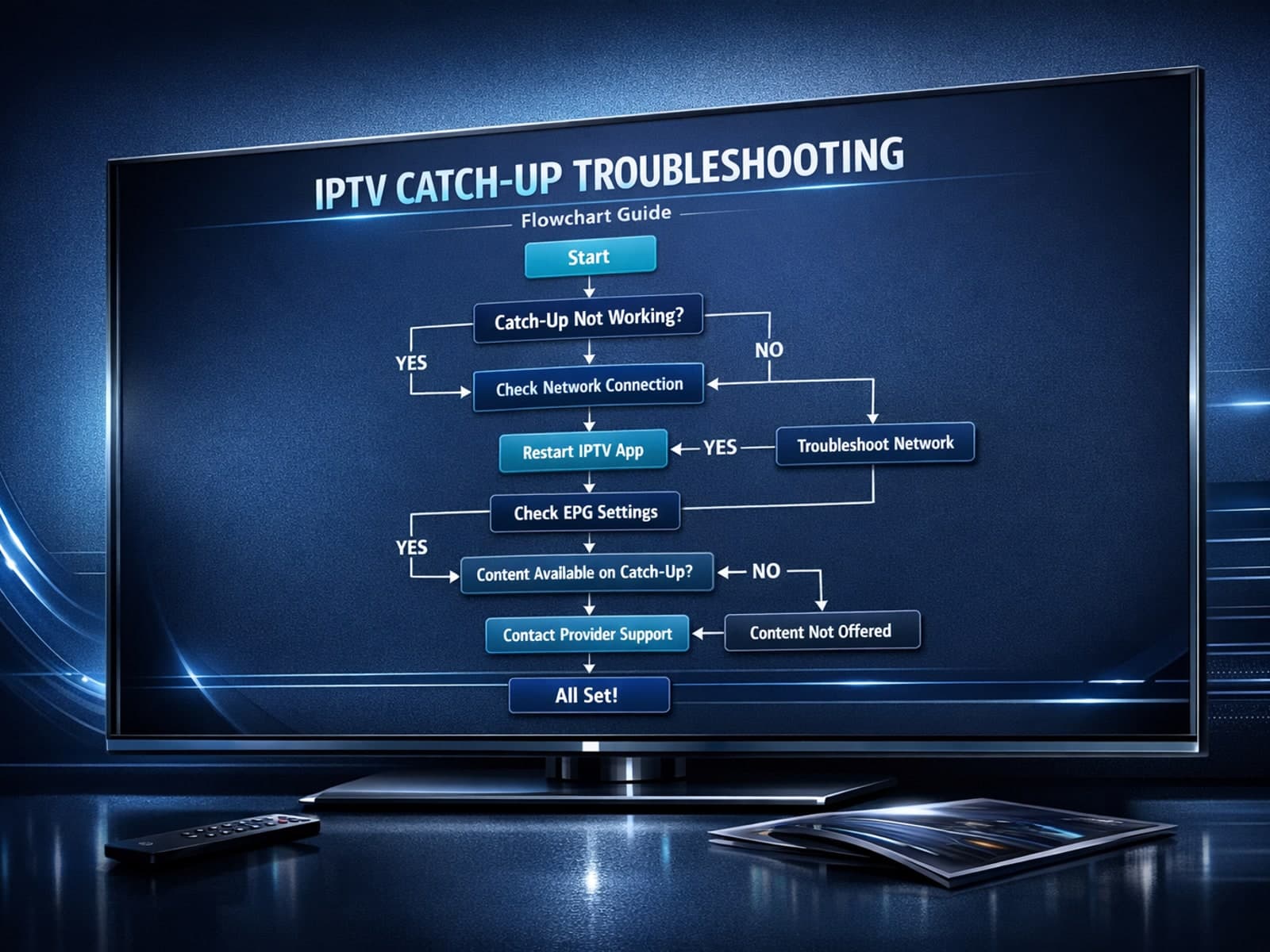
If you use the TiviMate IPTV player, you might occasionally find that the catch-up TV feature isn't working as expected. Catch-up allows you to watch previously aired content on demand, making it a valuable part of your viewing experience.

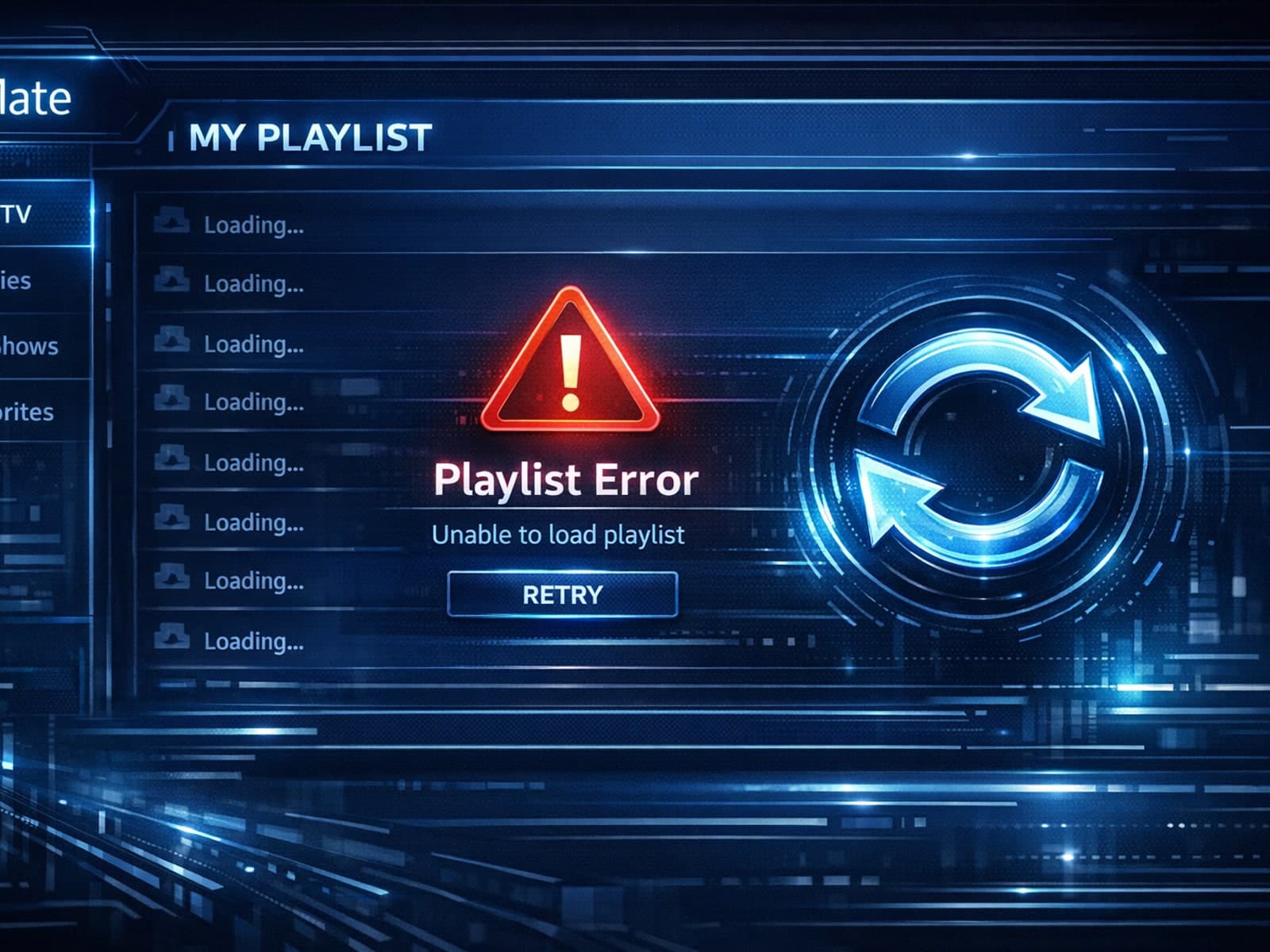
If you've hit "Refresh" in TiviMate but your IPTV playlist doesn't update, you are not alone. This is a common problem that can stem from multiple causes including network hiccups, playlist URL issues, corrupted cache, or server downtime.

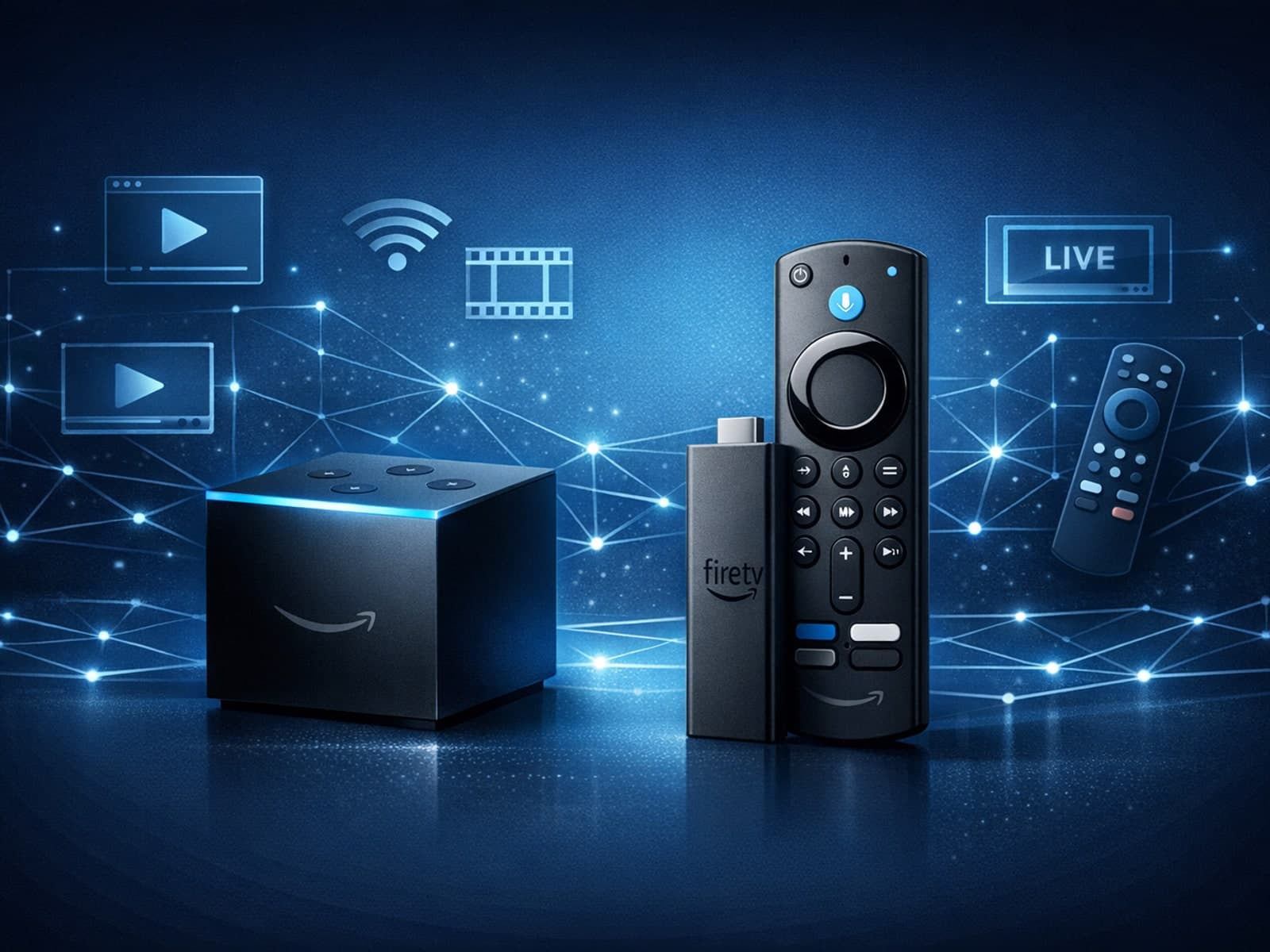
When choosing a device specifically for IPTV streaming, the Amazon Fire TV Cube and Fire TV Stick 4K Max are two popular options. Both devices support 4K streaming and run Amazon’s Fire OS with access to IPTV apps like TiviMate and IPTV.
