
How to Fix Missing Channel Logos in TiviMate

Quick answer
Missing channel logos in TiviMate is a common issue that often stems from problems with your IPTV playlist or Electronic Program Guide (EPG) data. If your channel list shows generic icons or blank spaces instead of proper logos, this guide will walk you through practical steps...
Reviewed Against
• TiviMate playlist, EPG, and player-setting workflows
• XMLTV guide imports, refresh timing, and channel-guide matching
Applies To
• TiviMate setups on Android TV, Google TV, or Fire OS style streaming devices
• Guide data issues such as missing listings, stale guide refreshes, or wrong time offsets
Does not apply when
• Your app uses a different menu layout or naming scheme than TiviMate.
• The stream itself will not play at all and you still need to verify login or playlist access.
Corroborating Resources
XMLTV file format referenceUseful when the issue comes from guide-source formatting, channel mapping, or XMLTV data freshness.
Topic Cluster
Part of the EPG cluster
Guide data problems, XMLTV and playlist matching, time-offset fixes, and TiviMate EPG recovery paths. This page sits in troubleshoot and fix for that topic path.
Start here in this topic
On this page
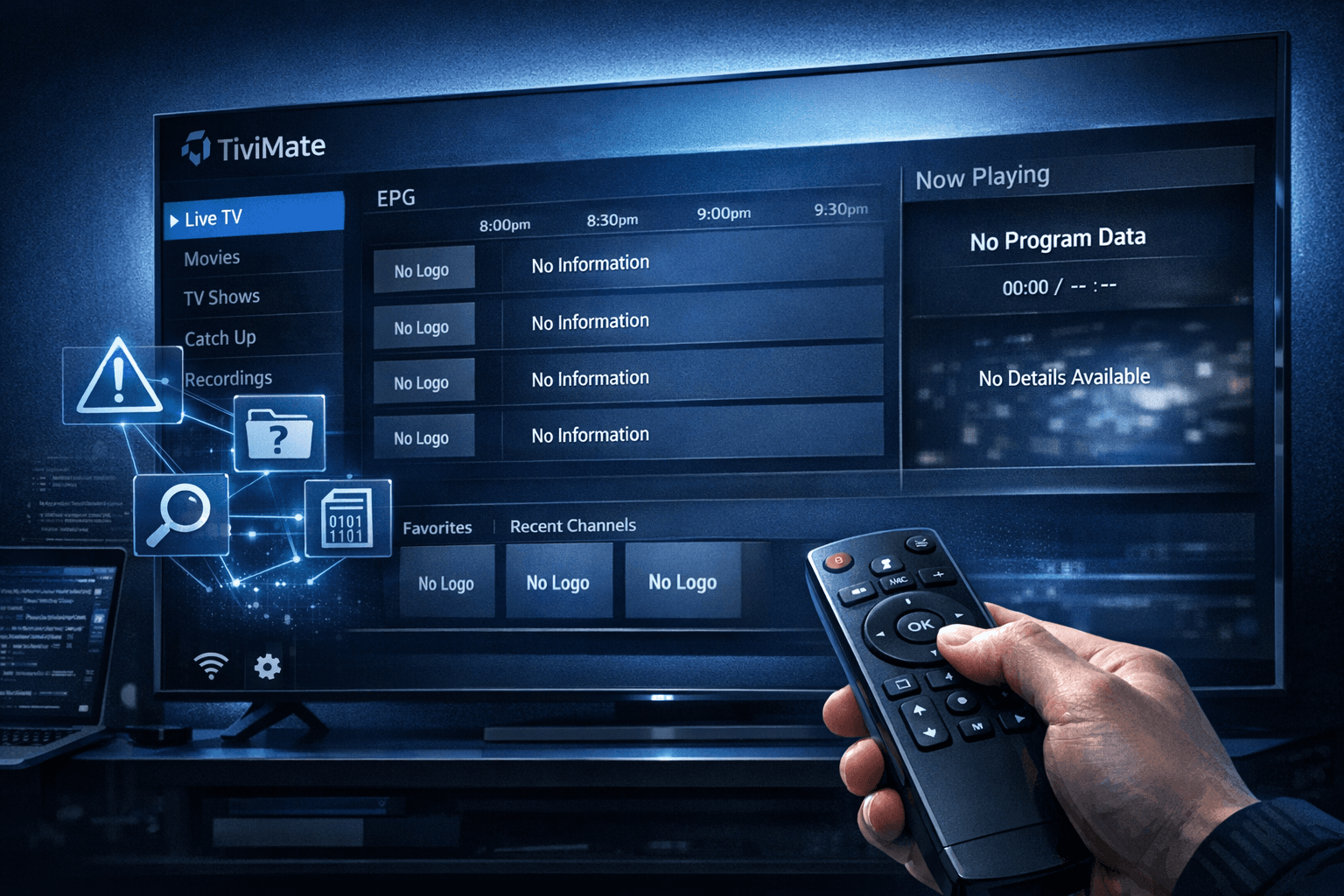
How to Fix Missing Channel Logos in TiviMate
Missing channel logos in TiviMate is a common issue that often stems from problems with your IPTV playlist or Electronic Program Guide (EPG) data. If your channel list shows generic icons or blank spaces instead of proper logos, this guide will walk you through practical steps to restore them efficiently.
What you'll learn
- Why TiviMate sometimes fails to show channel logos
- How IPTV playlists and logo URLs affect channel icons
- The role of EPG data in synchronizing channel images
- Step-by-step fixes to restore missing logos
- When to seek provider assistance or advanced troubleshooting
Why Are Channel Logos Missing in TiviMate?
Channel logos in TiviMate are linked primarily to the playlist you load and the EPG data the app uses. These logos are small images associated with each channel to help you visually identify them quickly.
The most common reasons logos are missing include:
-
Incomplete or broken logo URLs in the IPTV playlist: The playlist (usually an M3U or Xtream Codes format) includes fields that specify the URL for a logo image. If these URLs are missing, incorrect, or no longer accessible, TiviMate cannot display the logo.
-
Outdated or unsynchronized EPG data: The EPG not only provides programming schedules but can also contain logo references. If it doesn’t match your playlist or hasn't refreshed recently, logos may not appear.
-
App cache or synchronization glitches: Sometimes, TiviMate's cache may block the update of channel logos until you refresh or clear app data.
How to Check Your IPTV Playlist for Correct Logo URLs
Your playlist is the main source for channel logos, so verifying that it includes proper logo URLs is the first step.
Steps to verify playlist logo URLs:
- Access your IPTV playlist file (often an M3U) on a computer or text editor.
- Locate the channel entries, which usually start with
#EXTINF. - Look for the attribute
tvg-logo="URL"inside these entries.
Example entry:
#EXTINF:-1 tvg-id="channelID" tvg-name="ChannelName" tvg-logo="http://example.com/logo.png", ChannelName
http://stream.url/stream
- Confirm that the URL after
tvg-logois valid and accessible via a browser.
If the URLs are missing or broken, reach out to your IPTV provider for a fixed playlist or consider adding logo URLs yourself if you have the images.
Refreshing EPG Data and TiviMate Cache
EPG data refresh can often resolve missing channels logos because sometimes logos are cached or linked through EPG sources.
How to refresh EPG in TiviMate:
- Open TiviMate.
- Go to Settings > EPG Settings.
- Select Refresh EPG or use the option to re-fetch the guide.
Clearing app cache helps remove outdated data:
- On your Android device, go to Settings > Apps > TiviMate.
- Choose Storage.
- Tap Clear Cache (do NOT clear data unless you want to reset your playlist).
After clearing cache, restart TiviMate to see if logos appear.
Stabilizing Internet and Metadata Access
Because TiviMate needs to download channel logos from internet URLs, a stable internet connection is crucial.
Checklist for connectivity:
- Confirm your device is consistently connected to Wi-Fi or Ethernet.
- Test video playback to assure streams are loading well.
- Temporarily disable VPNs or firewalls that could block image URLs.
If your playlist logos load intermittently, poor connectivity may be the root cause.
Manual Logo Assignment in TiviMate
TiviMate allows you to manually assign logos when automatic detection fails. This can help when the playlist lacks logos or uses generic images.
How to assign logos manually:
- Long-press the channel name from the channel list.
- Select Edit channel.
- Tap Change logo.
- Choose an image from local storage or input a new URL.
This is a useful workaround but can be tedious for large playlists.
Common Mistakes and Troubleshooting Tips
-
Assuming all logos come from TiviMate: TiviMate displays logos based on your playlist and EPG. The app itself doesn't host logos.
-
Clearing app data instead of cache: Clearing data resets your playlist and settings, so only clear cache unless you want to re-enable your playlist from scratch.
-
Ignoring provider updates: If logos suddenly disappear, check with your IPTV provider to ensure their playlist or EPG URLs haven’t changed.
-
Using incompatible playlist formats: Some playlists designed for other players may not include proper logo tags compatible with TiviMate.
Who This Guide Is For and When to Seek Different Help
This guide is targeted at intermediate IPTV users running TiviMate on Android TV, Fire TV, or similar platforms who manage their own playlists or receive regular playlist files from IPTV providers.
If you are using custom homemade playlists without any logo data, consider building a playlist with logo URLs or switching to a provider playlist that does.
If you use advanced IPTV systems involving Xtream Codes or similar, check related troubleshooting guides for authorization or playlist format issues instead.
If you are experiencing playback issues alongside logo problems, see guides focused on IPTV streaming errors or device compatibility.
Comparison of Logo Sources in TiviMate
| Source Type | Description | Maintained By | Notes |
|---|---|---|---|
| Playlist URLs | Logo URLs embedded in playlist entries | IPTV Provider/User | Most common source; easiest update |
| EPG Data | Metadata including logos | EPG Provider/IPTV | Requires sync; complements playlist |
| Manual Assignment | User-set logos within app | User | Best for missing or custom logos |
Conclusion
Missing channel logos in TiviMate usually arise from missing or broken logo URLs in your IPTV playlist or unsynchronized EPG data. By verifying your playlist, refreshing EPG, clearing cache, and manually assigning logos if needed, you can restore channel icons effectively. Always ensure your internet connection is stable, and keep your playlist updated with your IPTV provider. If problems persist, contact your provider for optimized playlist files or metadata solutions.
FAQ
Why are my channel logos missing in TiviMate?
Channel logos may be missing if your IPTV playlist lacks logo URLs, if the URLs are broken, or if TiviMate's EPG data isn't syncing properly.
Can I add custom channel logos in TiviMate?
Yes, TiviMate allows manual assignment of custom channel logos via the channel edit options within the app.
Does the logo problem affect channel playback in TiviMate?
No, missing logos do not affect video streaming, only the visual identification of channels in the app.
How often should I refresh the EPG to keep logos updated?
Refreshing EPG data weekly or whenever you notice missing or outdated information helps keep logos current.
Is the playlist source responsible for logo availability?
Yes, the IPTV playlist must include valid logo URLs for TiviMate to display channel logos properly.
For related information, see How to Organize Favorites and Groups in TiviMate for IPTV Playlists, Why IPTV Freezes During Channel Switching and How to Fix It, How to Fix Catch-Up Not Working in TiviMate, and Xtream Codes Authorization Failed in TiviMate: Causes and Fixes.
Keep exploring
More explainers that connect naturally to this setup, workflow, or troubleshooting path.
When choosing a device specifically for IPTV streaming, the Amazon Fire TV Cube and Fire TV Stick 4K Max are two popular options. Both devices support 4K streaming and run Amazon’s Fire OS with access to IPTV apps like TiviMate and IPTV.

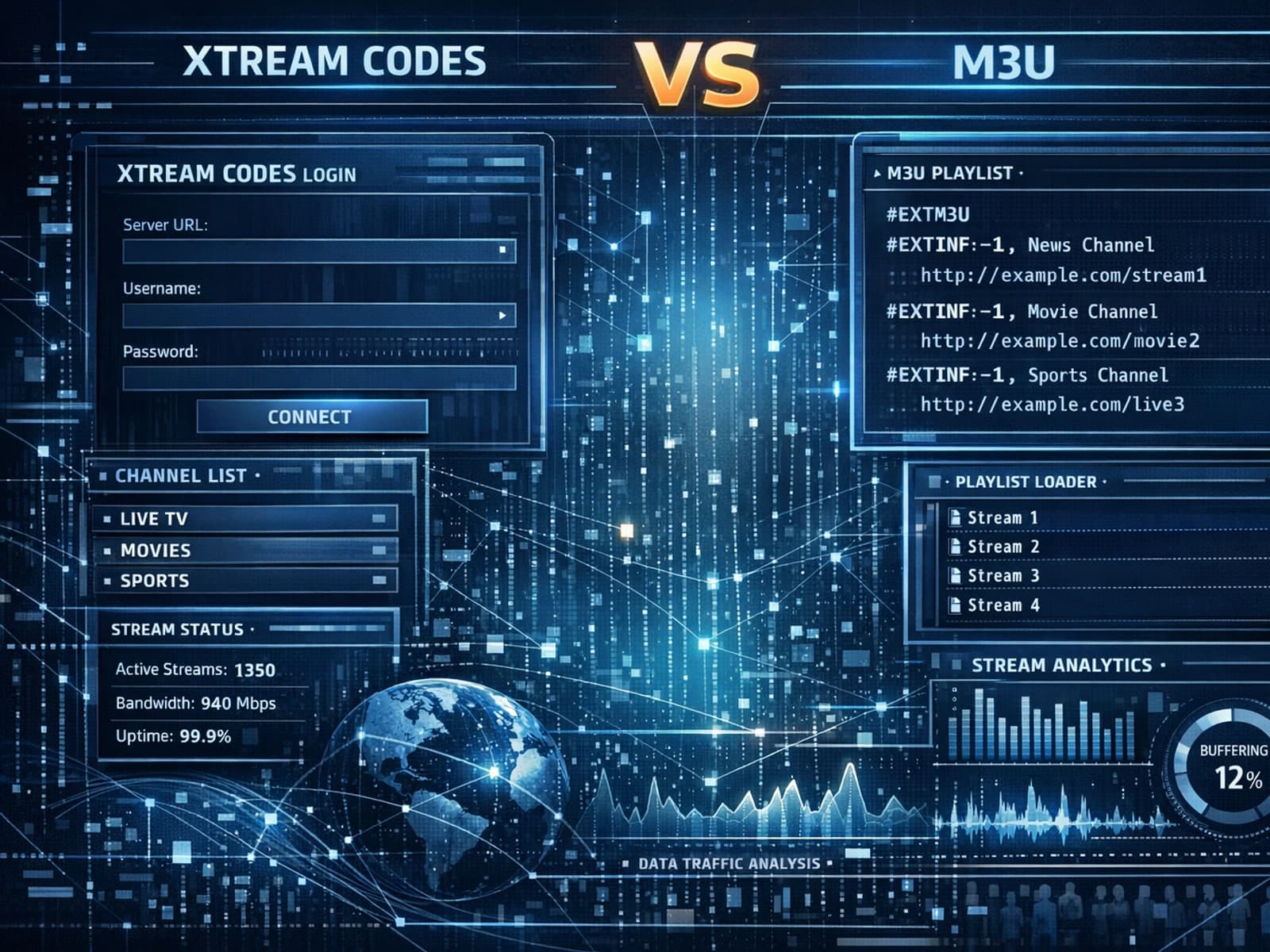
Xtream Codes often works better than M3U for IPTV users who need dynamic playlist management, faster channel updates, richer metadata integration, and controlled access to streaming content.

Organizing favorites and groups in TiviMate enables faster access to your preferred IPTV channels and a more streamlined navigation experience.
