
How to Fix Catch-Up Not Working in TiviMate

Quick answer
If you're experiencing issues with catch-up TV not working in TiviMate, the problem typically involves your playlist, the IPTV service's catch-up support, or the app's configuration. Catch-up TV lets you watch previously aired content, but this feature relies heavily on the IP...
Reviewed Against
• TiviMate playlist, EPG, and player-setting workflows
Applies To
• TiviMate setups on Android TV, Google TV, or Fire OS style streaming devices
Does not apply when
• Your app uses a different menu layout or naming scheme than TiviMate.
Topic Cluster
Part of the TiviMate cluster
TiviMate troubleshooting paths for guide loading, playlist sync issues, login failures, and setup decisions. This page sits in troubleshoot and fix for that topic path.
Start here in this topic
On this page
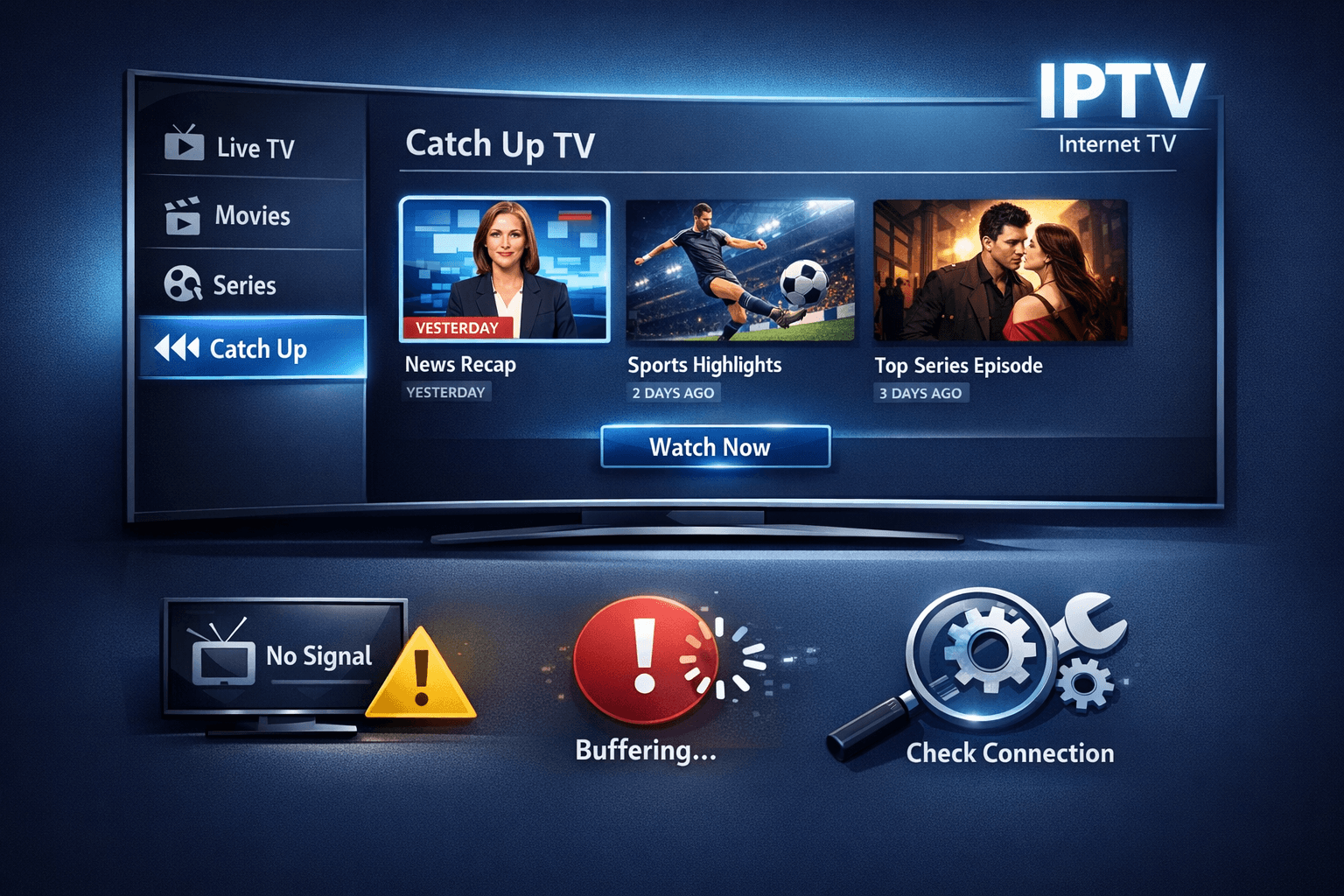
How to Fix Catch-Up Not Working in TiviMate
If you're experiencing issues with catch-up TV not working in TiviMate, the problem typically involves your playlist, the IPTV service's catch-up support, or the app's configuration. Catch-up TV lets you watch previously aired content, but this feature relies heavily on the IPTV provider and the data feed you use. By following a sequence of checks and adjustments, you can usually restore catch-up functionality quickly.
What you'll learn
- How catch-up support depends on IPTV server and playlist details
- Why keeping TiviMate updated matters for catch-up
- Basic troubleshooting steps for catch-up issues
- Specific settings in TiviMate related to catch-up
- When to contact your IPTV provider or switch troubleshooting paths
Understanding Catch-Up Support in TiviMate
Catch-up TV functionality in TiviMate depends primarily on two components:
- IPTV provider support: The IPTV service must enable catch-up on their server side and include catch-up metadata in their playlist or API.
- Playlist compatibility: The playlist URL you load into TiviMate must contain the catch-up timeshift information in a recognized format.
Without a properly structured playlist and server-side support, catch-up will not appear or function.
Why playlists matter
Many IPTV providers offer playlists in M3U or Xtream Codes formats. For catch-up, the playlist often includes specific tags or extended info entries indicating available catch-up time windows. If your playlist lacks these, TiviMate won't be able to provide catch-up options.
Updating TiviMate to the Latest Version
App version inconsistencies or bugs can cause catch-up issues. TiviMate releases updates that often fix compatibility problems and enhance features.
Steps to update TiviMate
- Open the app store on your device (Google Play Store, Amazon Appstore, etc.)
- Search for TiviMate
- If an update is available, select 'Update'
- After updating, restart the app and check catch-up again
Checking and Refreshing Your IPTV Playlist
Your playlist could have outdated or incomplete metadata affecting catch-up.
How to reload your playlist
- Open TiviMate
- Go to Settings > Playlists
- Select your playlist and choose 'Refresh'
If refreshing doesn't help, try re-adding the playlist:
- Remove the current playlist
- Add it again using the original URL or credentials
This process forces TiviMate to re-fetch all catch-up info.
Clearing TiviMate Cache to Fix Temporary Glitches
Sometimes app cache corruption can block features.
Clearing cache on Android devices
- Go to device Settings > Apps > TiviMate
- Tap 'Storage & Cache'
- Select 'Clear Cache'
- Restart TiviMate and verify catch-up functionality
Verifying TiviMate Catch-Up Settings
TiviMate has settings controlling catch-up behavior.
How to check these settings
- Open TiviMate Settings
- Navigate to 'Catch-up' or 'EPG & Catch-Up'
- Ensure catch-up is enabled for your playlists
- Check if the catch-up time window is configured correctly (some providers allow setting this)
Adjusting these can solve catch-up not showing or not working.
Troubleshooting Common Mistakes
- Using incompatible playlists: Some free or generic M3U playlists often don't include catch-up metadata.
- Not using supported playlist formats: Xtream Codes offers more robust catch-up compatibility than some M3U lists.
- Skipping app updates: Old app versions may lack fixes or improvements.
- Assuming catch-up on all channels: Catch-up typically works only on channels your provider supports.
Who Should Use This Guide?
This advice applies if:
- You use TiviMate with an IPTV service supporting catch-up
- Your catch-up functionality was working previously but stopped
- You are trying catch-up for the first time and it never appears
If you use a different IPTV app or have hardware-based catch-up (like a DVR), consult device-specific help instead.
When to Contact Your IPTV Provider
If you've confirmed:
- Your playlist is current and reloads correctly
- TiviMate is updated
- Settings are correct
And catch-up still fails, your IPTV provider may have server issues or catch-up disabled on your plan.
Request explicit confirmation that catch-up support is active and your account has permission.
Summary Table of Catch-Up Troubleshooting
| Step | Action | Purpose |
|---|---|---|
| 1 | Verify IPTV provider support | Confirm catch-up availability |
| 2 | Update TiviMate | Fix app bugs and add features |
| 3 | Refresh/reload playlist | Fetch latest catch-up metadata |
| 4 | Clear app cache | Remove corrupted data |
| 5 | Check catch-up settings | Enable feature in app |
| 6 | Restart device and app | Apply changes and clear memory |
| 7 | Contact IPTV provider | Verify server-side status |
FAQ
Why is catch-up not working for certain channels in TiviMate?
Catch-up depends on your IPTV provider supplying the necessary catch-up metadata for each channel. If some channels lack this support, catch-up won't work for them.
Does updating TiviMate help fix catch-up issues?
Yes, updating to the latest TiviMate version fixes bugs and improves feature compatibility, which can resolve catch-up problems.
Can device issues cause catch-up failures in TiviMate?
While less common, device performance problems or outdated software can interfere with catch-up playback. Restarting or updating your device may help.
Conclusion
Fixing catch-up not working in TiviMate most often involves ensuring your IPTV service supports catch-up and that your playlist contains the required metadata. Updating TiviMate, refreshing playlists, clearing cache, and checking settings will typically resolve most problems. If issues persist, contact your IPTV provider to confirm catch-up availability on their end. With these concrete steps, you can restore or enable catch-up functionality and enjoy more flexible viewing options in TiviMate.
Related resources: How to Fix Channel Logos Missing in TiviMate, Xtream Codes Authorization Failed in TiviMate: Causes and Fixes, Why IPTV Freezes During Channel Switching: Causes and Fixes
This article is tailored for users of TiviMate on Android-based IPTV devices. For issues on other platforms or with different IPTV apps, consult the relevant support resources.
© IPTV Explained
Keep exploring
More explainers that connect naturally to this setup, workflow, or troubleshooting path.
Missing channel logos in TiviMate is a common issue that often stems from problems with your IPTV playlist or Electronic Program Guide (EPG) data.

Organizing favorites and groups in TiviMate enables faster access to your preferred IPTV channels and a more streamlined navigation experience.

If you're encountering the "Xtream Codes authorization failed" error in TiviMate, it means the IPTV app cannot verify your login credentials with the IPTV server. This prevents TiviMate from accessing your IPTV lineup.