
Playlist Loads But EPG Missing in TiviMate

Quick answer
If you open TiviMate and notice that your IPTV playlist loads correctly but the Electronic Program Guide (EPG) data is missing or not showing, this indicates a disconnect between your channel list and the program guide data. TiviMate relies on EPG sources to display upcoming s...
Reviewed Against
• TiviMate playlist, EPG, and player-setting workflows
• XMLTV guide imports, refresh timing, and channel-guide matching
Applies To
• TiviMate setups on Android TV, Google TV, or Fire OS style streaming devices
• Guide data issues such as missing listings, stale guide refreshes, or wrong time offsets
Does not apply when
• Your app uses a different menu layout or naming scheme than TiviMate.
• The stream itself will not play at all and you still need to verify login or playlist access.
Corroborating Resources
XMLTV file format referenceUseful when the issue comes from guide-source formatting, channel mapping, or XMLTV data freshness.
Topic Cluster
Part of the EPG cluster
Guide data problems, XMLTV and playlist matching, time-offset fixes, and TiviMate EPG recovery paths. This page sits in start here for that topic path.
Start here in this topic
On this page
Introduction
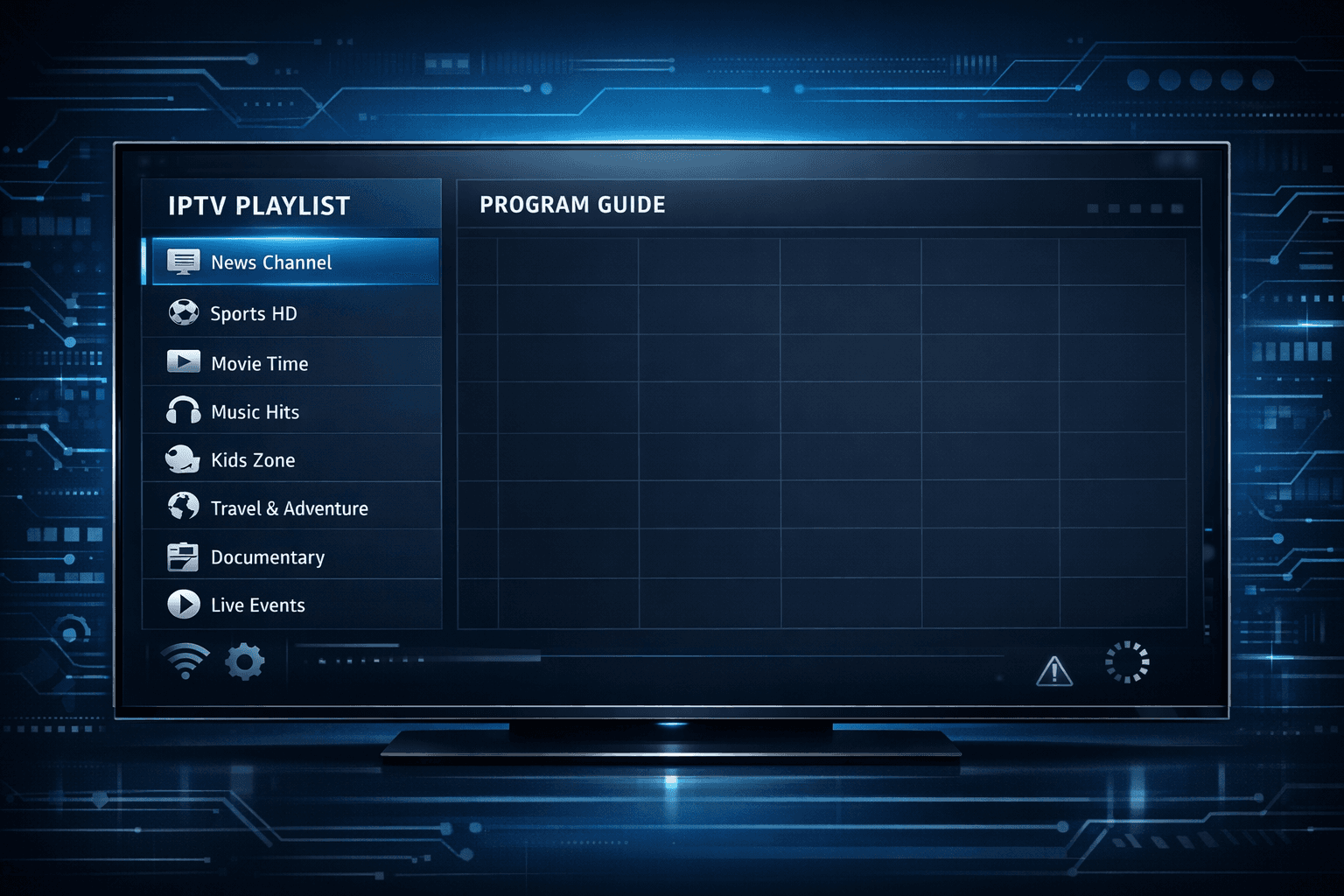
If you open TiviMate and notice that your IPTV playlist loads correctly but the Electronic Program Guide (EPG) data is missing or not showing, this indicates a disconnect between your channel list and the program guide data. TiviMate relies on EPG sources to display upcoming shows, right now's program info, and channel schedules. Without a working EPG link or proper synchronization, you'll have no program guide, even if your channels stream.
This article explains why your playlist loads but the EPG is missing in TiviMate, and the precise steps you can take to restore the full program guide.
What you'll learn
- How TiviMate uses playlists and EPG sources
- Common reasons EPG data does not appear
- How to verify and configure your EPG source in TiviMate
- Troubleshooting tips for channel ID mismatches
- How to refresh and clear caches to fix guide loading
Why Your Playlist May Load But EPG Is Missing
In TiviMate, two primary data sources affect your viewing experience:
- Playlist: Usually an M3U or Xtream Codes format containing channel URLs and basic metadata.
- EPG data: Electronic Program Guide information in XMLTV or similar format providing show schedules.
When your playlist loads but the guide is missing, the problem is almost always related to the EPG data source. Reasons include:
- No EPG URL linked in TiviMate for your playlist
- Incorrect or expired XMLTV URL
- Channel IDs in the playlist don’t match those in the EPG
- Network issues preventing EPG download
- Temporary app glitches or caching issues
Understanding this separation helps guide your troubleshooting.
How to Check and Correct Your EPG Source in TiviMate
The first step to fix missing EPG is confirming and correcting the EPG source linked to your playlist.
Verify EPG URL or Data Link
- Open TiviMate.
- Select your playlist profile from the home screen.
- Access Edit Playlist or Playlist Settings.
- Look for an entry called EPG URL, XMLTV URL, or similar.
If this field is empty, your playlist isn't connected to any program guide source. You need to get a valid URL from your IPTV provider or use a public XMLTV file matching your region and channel lineup.
Correct or Update the EPG URL
- If the URL is outdated or leads to error, update with a working EPG link.
- Test whether the URL loads outside TiviMate (in a browser or with a tool that supports XMLTV files).
Make sure the URL corresponds specifically to your playlist's channel set.
Aligning Channel IDs Between Playlist and EPG
TiviMate maps your playlist channels to EPG data through channel IDs. Even with a correct EPG link, if these IDs don't match, the guide will not appear.
How IDs Affect Mapping
- In M3U playlists, each channel has an
tvg-idattribute. - XMLTV files identify channels with
<channel id="XYZ">.
For the guide data to show, these IDs must be identical or compatible.
Fixing Channel ID Mismatches
- If you manage your own playlist, ensure each channel's
tvg-idmatches an EPG channel ID. - Many IPTV providers include matching EPG URLs; using those can simplify this.
- If you have no control over the playlist, consider asking the provider for matching EPG data.
TiviMate’s Channel Matching Options
TiviMate sometimes can use channel names for matching, but this is less reliable. Manually matching channels within the app may be possible through its settings.
Refreshing Playlist and EPG Data in TiviMate
After correcting the source URLs or channel IDs, you should force TiviMate to update the data.
Steps to Refresh EPG
- Open TiviMate.
- From the home screen, go to your Playlist Profile.
- Select Edit Playlist.
- Scroll to Reload/Refresh Data and select it.
- Wait for TiviMate to fetch the latest playlist and EPG.
Waiting some minutes after refresh allows the guide data to fully appear.
Clearing Cache and Restarting to Fix Temporary Issues
Sometimes the app cache interferes with EPG loading.
How to Clear Cache
- On Android TV or Fire TV devices:
- Go to Settings > Apps > TiviMate > Clear Cache.
After clearing:
- Restart TiviMate.
- Re-import your playlist.
- Check if EPG shows up.
This removes residual data that might block proper guide display.
Troubleshooting Network and Update Problems
Ensuring Internet Access for EPG
- Make sure your device has a stable internet connection.
- Some EPG URLs may be blocked by firewalls or DNS filtering.
- Test the EPG URL on another device or network.
Updating TiviMate
- Ensure you run the latest TiviMate version, as outdated apps may have bugs affecting EPG.
- Update from your app store or sideload the newest APK if necessary.
Common Mistakes That Cause Missing EPG in TiviMate
- Not linking any EPG URL to the playlist.
- Using an expired or incorrect XMLTV URL.
- Ignoring channel ID mismatches.
- Neglecting to refresh or reload after changes.
- Assuming playlists automatically include EPG.
Checklist for Fixing Missing EPG
| Step | Action Detail |
|---|---|
| 1. Verify playlist supports EPG | Check with provider or source documentation |
| 2. Confirm and update EPG URL | Insert correct XMLTV link in playlist settings |
| 3. Match channel IDs | Ensure tvg-id matches XMLTV channel IDs |
| 4. Refresh playlist & EPG | Use TiviMate's refresh option |
| 5. Clear cache & restart app | Remove cached data, reboot TiviMate |
| 6. Ensure network connectivity | Test internet and URL accessibility |
| 7. Update TiviMate app | Maintain latest app version |
FAQ
Q: Why does my playlist load but the EPG data remains empty in TiviMate?
A: This often happens when the EPG source URL is missing, incorrect, or does not match the channel IDs in your playlist, preventing the program guide from appearing.
Q: How can I find the correct EPG source for my IPTV playlist?
A: Typically, your IPTV provider includes the proper EPG XMLTV URL. You can check the provider's website or support resources, or manually link a compatible EPG file matching your channels.
Q: What does XMLTV mean in the context of EPG for TiviMate?
A: XMLTV is a common format for electronic program guide data, typically provided via an XML file or URL, which maps program schedules to channels in IPTV apps like TiviMate.
Q: Can mismatched channel IDs cause EPG to fail?
A: Yes. If the channel IDs in your playlist don't correspond to those in the EPG source, the guide won’t display, even if the source is correct and reachable.
Conclusion
When your playlist loads but the EPG is missing in TiviMate, the issue nearly always involves the EPG data linkage. By verifying and correctly entering your XMLTV EPG URL, ensuring channel ID alignment, refreshing the app data, and managing cache or network conditions, you can restore the full program guide. Following the outlined steps helps maintain a smooth IPTV experience with integrated scheduling details.
For additional related topics, consider reading about EPG Not Loading in TiviMate, EPG Time Offset Issues, and the differences between M3U vs Xtream Codes. For foundational knowledge, see our EPG topic overview.
Frequently Asked Questions
Why does my playlist load but the EPG data remains empty in TiviMate?
This often happens when the EPG source URL is missing, incorrect, or does not match the channel IDs in your playlist, preventing the program guide from appearing.
How can I find the correct EPG source for my IPTV playlist?
Typically, your IPTV provider includes the proper EPG XMLTV URL. You can check the provider's website or support resources, or manually link a compatible EPG file matching your channels.
What does XMLTV mean in the context of EPG for TiviMate?
XMLTV is a common format for electronic program guide data, typically provided via an XML file or URL, which maps program schedules to channels in IPTV apps like TiviMate.
Can mismatched channel IDs cause EPG to fail?
Yes. If the channel IDs in your playlist don't correspond to those in the EPG source, the guide won’t display, even if the source is correct and reachable.
Related reading
Keep exploring
More explainers that connect naturally to this setup, workflow, or troubleshooting path.
If you watch IPTV on your Fire TV Stick, having the right Wi-Fi settings can significantly improve your streaming experience by minimizing buffering and lag.


When it comes to updating IPTV playlists, two common methods are M3U Plus and the Xtream Codes API. Both serve to refresh the channel lists and program information delivered to IPTV apps, but they do so in different ways.

If your TiviMate electronic program guide (EPG) is showing program times that do not align with the actual broadcast schedules, you are encountering an "EPG time offset" issue.