
EPG Time Offset Wrong in TiviMate: How to Fix Program Guide Timing

Quick answer
If your TiviMate electronic program guide (EPG) is showing program times that do not align with the actual broadcast schedules, you are encountering an "EPG time offset" issue. This occurs when the timing data in your guide shifts by some number of hours, causing shows to appe...
Reviewed Against
• TiviMate playlist, EPG, and player-setting workflows
• XMLTV guide imports, refresh timing, and channel-guide matching
Applies To
• TiviMate setups on Android TV, Google TV, or Fire OS style streaming devices
• Guide data issues such as missing listings, stale guide refreshes, or wrong time offsets
Does not apply when
• Your app uses a different menu layout or naming scheme than TiviMate.
• The stream itself will not play at all and you still need to verify login or playlist access.
Corroborating Resources
XMLTV file format referenceUseful when the issue comes from guide-source formatting, channel mapping, or XMLTV data freshness.
Topic Cluster
Part of the EPG cluster
Guide data problems, XMLTV and playlist matching, time-offset fixes, and TiviMate EPG recovery paths. This page sits in troubleshoot and fix for that topic path.
Start here in this topic
On this page
Understanding EPG Time Offset Issues in TiviMate
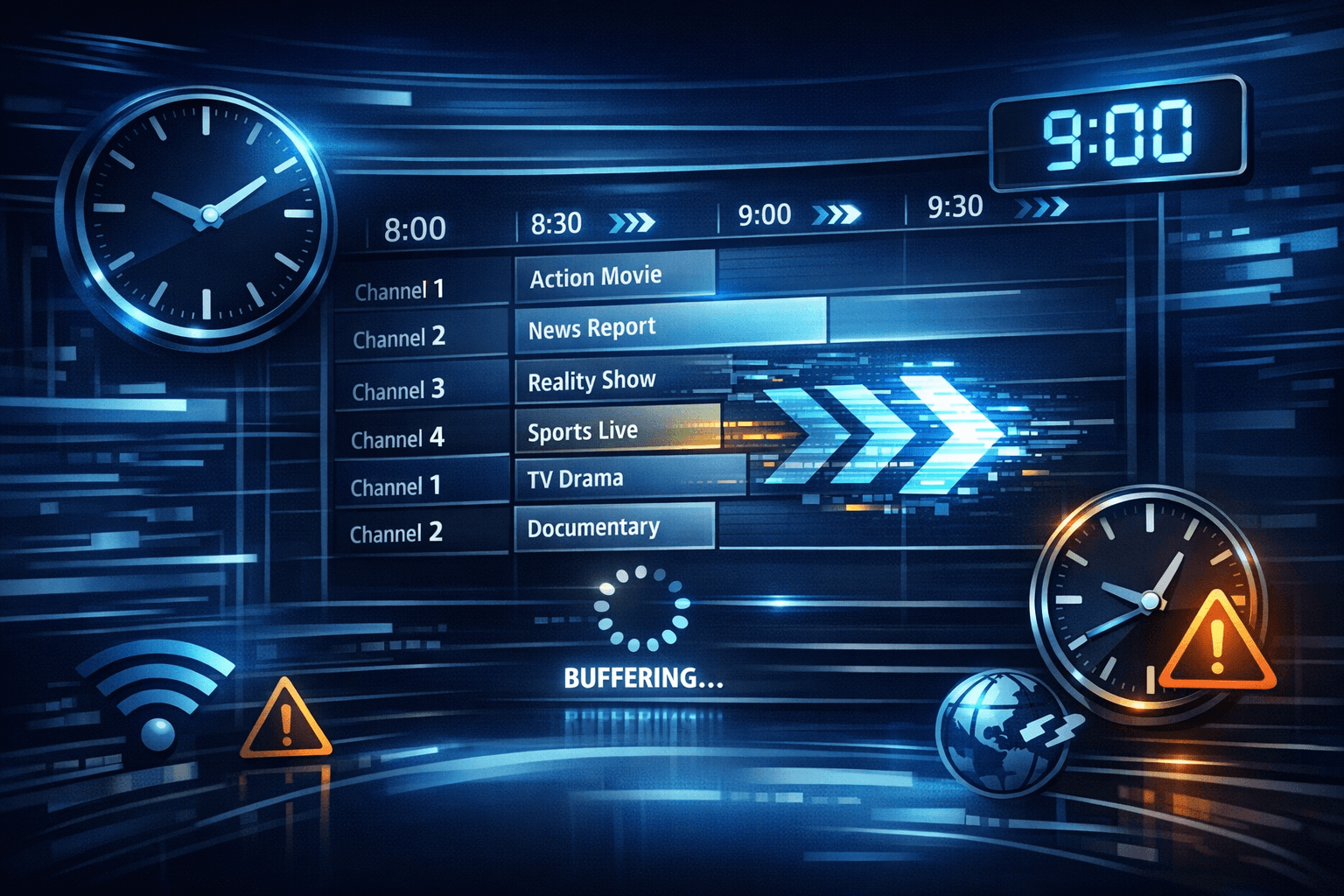
If your TiviMate electronic program guide (EPG) is showing program times that do not align with the actual broadcast schedules, you are encountering an "EPG time offset" issue. This occurs when the timing data in your guide shifts by some number of hours, causing shows to appear earlier or later than they air. Fortunately, TiviMate provides built-in ways to correct this by adjusting the EPG time offset setting.
What you'll learn:
- What causes EPG time offset problems in TiviMate
- How to identify and measure the incorrect time shift
- Step-by-step method to adjust the EPG time offset setting
- When to check your EPG data source and device timezone
- Common mistakes and troubleshooting tips specific to TiviMate
Why Does the EPG Time Offset Occur in TiviMate?
Before fixing the issue, understanding its root causes helps prevent repeats:
Role of Timezones and EPG Data
EPG data comes from a server or online source with timestamps typically given in a specific timezone (like UTC/GMT). Your device and app then adjust these times to your local timezone. If the timezone assumptions don’t match, timings shift:
- Mismatch Between Device and EPG Timezones: For example, if your device is set to EST but the EPG is in GMT without proper conversion, program times can appear off by multiple hours.
- Incorrect Timestamps in EPG Source: Some EPG XML or JSON data may be incorrectly tagged or use relative times causing shifts.
How TiviMate Handles EPG Timing
TiviMate fetches your EPG data and aligns program schedules to your device time automatically but allows manual time offset adjustments in case automatic alignment is incorrect or the source is skewed.
Other Causes
- Using outdated or incorrect EPG source URLs
- Device date/time settings being wrong
- VPN or network location affecting perceived timezone
Identifying and Measuring the EPG Time Offset
To fix the offset, first measure how many hours the guide is shifted.
Step 1: Compare Listed Start Times with Actual Broadcasts
Choose a few known channels with fixed scheduling and note the guide start times of shows.
Step 2: Check Actual Broadcast Times
Look up the official schedules from the broadcaster’s website or use live channel content to confirm real start times.
Step 3: Calculate the Difference
Subtract the official start time from the displayed EPG time to find the offset. This value is usually a whole number of hours (e.g., +2 hours or -1 hour).
How to Correct the EPG Time Offset in TiviMate
Adjusting the time offset is usually the definitive fix:
Step-by-Step Adjustment
- Open TiviMate on your device.
- Navigate to the 'Settings' menu (gear icon).
- Select 'EPG' or 'Electronic Program Guide' options.
- Find the setting named 'Time Shift', 'Offset', or similar.
- Use the controls to increment or decrement the time offset by one-hour steps until the guide's times line up correctly with programmed shows.
- Save or confirm the setting.
- Refresh or reload the EPG data if necessary (refresh option often found in EPG settings).
- Verify by checking multiple channel schedules against real broadcast times.
Most users find that offsets of +1, -1, or 0 hours resolve their issues depending on region and source.
When to Check Your Device Timezone and EPG Source
If time offset adjustments alone do not fix the problem, other factors might be at play.
Verify Device Date and Time Settings
Incorrect device date or timezone settings can cause display offsets:
- On Android devices, check Settings > Date & Time.
- Ensure "Use network-provided time" and "Use network-provided timezone" are enabled.
Evaluate Your EPG Source URL
An inaccurate or outdated EPG source often causes persistent offset or missing data:
- Check for EPG URL updates from your IPTV provider.
- Test alternative EPG URL sources compatible with your playlist.
Refer to our TiviMate EPG Source URL Not Working: Causes and Fixes article for more detail.
Common Mistakes and Troubleshooting for TiviMate Time Offset Issues
Mistake #1: Changing the Playlist Instead of Offset
Sometimes users believe the offset is a playlist problem and replace it unnecessarily. Adjust the time offset setting first.
Mistake #2: Forgetting to Refresh EPG
After changing settings, failing to refresh the EPG data will not reflect the correction.
Mistake #3: Overlooking Multiple Offsets
Some EPG data may require a partial hour offset (less common); TiviMate typically only supports integer hour adjustments.
Troubleshooting Checklist
| Issue | Check/Action |
|---|---|
| EPG times wrong | Adjust time offset settings |
| No correction | Verify device timezone and date settings |
| Still wrong | Try different EPG source URL or update playlist |
| EPG not loading | See TiviMate playlist updating troubleshooting |
Who This Guidance Applies To
These instructions apply when:
- You are using TiviMate on Android TV boxes, Fire TV, or similar devices.
- Your EPG data is loaded via external source URLs, not embedded or automatic.
- You have basic familiarity with IPTV playlists and can navigate TiviMate settings.
If you use a different IPTV app (like IPTV Smarters) or a dedicated IPTV set-top box with custom EPG handling, consult that device’s specific guides.
FAQ
Why does the EPG time offset happen in TiviMate?
It usually happens due to mismatched time zones between the EPG data source and your device's local time, or incorrect timestamp data in the EPG source itself.
Can I fix EPG offset without changing playlist or EPG URLs?
Yes, TiviMate allows manual adjustment of time offset within its settings, so you can correct guide times without modifying your source URLs.
What if adjusting time offset doesn’t fix the EPG timing?
You may need to check the EPG source URL for accuracy or try a different EPG data provider in TiviMate, as the issue could be with the metadata itself.
Is the time offset setting the same on all TiviMate versions and devices?
Generally, yes, but menu placements can vary slightly by device type or app version. Look for EPG or Guide related settings.
Conclusion
Incorrect EPG time offset in TiviMate is a common, solvable issue caused primarily by timezone mismatches between the guide data and your device’s local time. By measuring the offset and adjusting the app’s EPG time shift setting, you can align program listings perfectly with actual broadcast times. Always verify your device’s clock and consider your EPG source quality if problems persist. Following these focused steps will restore accurate show schedules, making your IPTV experience much smoother.
Related IPTV Explained Resources
Keep exploring
More explainers that connect naturally to this setup, workflow, or troubleshooting path.
If you're deciding between the Fire TV Cube and the Fire TV Stick 4K Max for watching IPTV (Internet Protocol Television), this comparison breaks down how each device matches IPTV demands.

If you notice that channel logos are missing in TiviMate, the most common causes include outdated or incompatible playlists, cached data corruption, or insufficient metadata from your IPTV provider.
For IPTV users deciding between Xtream Codes format and M3U playlists, understanding when Xtream Codes works better is key. Simply put, Xtream Codes works better than M3U playlists when your IPTV service offers secure login credentials.
