
TiviMate Playlist Not Updating After Refresh: Causes and Solutions

Quick answer
If your TiviMate playlist is not updating after hitting the refresh button, it means the app is unable to download or load the latest channel list from the playlist source. This issue can prevent new channels or changes from showing up and cause frustration when using the app....
Reviewed Against
• TiviMate playlist, EPG, and player-setting workflows
• M3U and M3U Plus playlist URLs, refreshes, and import behavior
• Server-URL formatting, HTTP response handling, and account-entry failure patterns
Applies To
• TiviMate setups on Android TV, Google TV, or Fire OS style streaming devices
• Playlist-based IPTV setups that rely on M3U or M3U Plus links for channel data
• Errors caused by malformed URLs, wrong credentials, expired tokens, or unreachable playlist endpoints
Does not apply when
• Your app uses a different menu layout or naming scheme than TiviMate.
• Your app is using a portal or stalker-style workflow instead of a playlist URL.
• The provider confirms the service is down or the account has been deliberately blocked upstream.
Corroborating Resources
HTTP response status codesUseful when an IPTV app surfaces 401, 403, 404, or 5xx style errors during login or playlist refreshes.
URL structure referenceHelpful for checking server URLs, source links, and path/query mistakes in portal or playlist setups.
Topic Cluster
Part of the Xtream Codes cluster
Login errors, URL format confusion, authorization failures, and when Xtream Codes makes more sense than M3U. This page sits in more in this topic for that topic path.
Start here in this topic
On this page
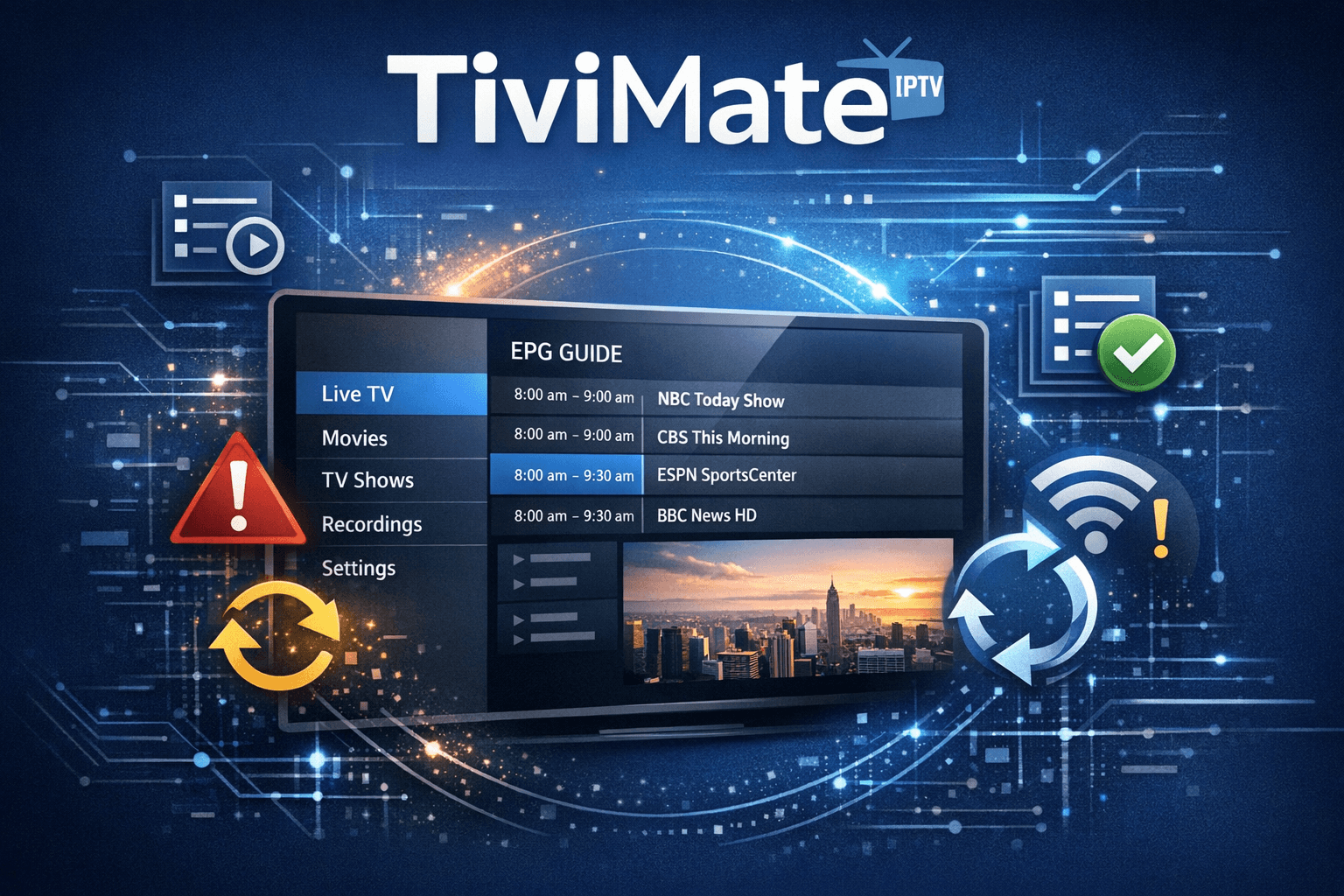
Why TiviMate Playlist Is Not Updating After Refresh
If your TiviMate playlist is not updating after hitting the refresh button, it means the app is unable to download or load the latest channel list from the playlist source. This issue can prevent new channels or changes from showing up and cause frustration when using the app. Common causes include network connectivity issues, an invalid or expired playlist URL, caching problems within the app, or server-side delays in playlist updates.
This article helps intermediate users diagnose why TiviMate fails to update the playlist after refresh and provides clear, actionable steps to restore playlist updates successfully.
What you'll learn
- How TiviMate refreshes playlists and common failure points
- Diagnosing network and playlist source issues
- Clearing cache and app data to fix stale information
- Importance of playlist format and login credentials
- When to seek device-specific troubleshooting
How TiviMate Refreshes Playlists
TiviMate supports IPTV playlist loading primarily via two methods: M3U URLs and Xtream Codes API logins.
Playlist Updating Process
When you refresh your playlist in TiviMate, it attempts to connect to the IPTV playlist source using the saved URL or login data. It then downloads the updated channel list and associated metadata, replacing the previous list within the app.
If this process fails, the app will keep displaying the old channels without any changes, although pressing refresh gives the impression an update should happen.
Failure can happen during:
- Network access (e.g., no internet, VPN/firewall blocks)
- Invalid or expired playlist URL or login credentials
- App-level cache corruption preventing update loading
- Server-side delay or failure in updating playlist content
Understanding these points directs troubleshooting efficiently.
Diagnosing Network and Playlist Source Issues
Step 1: Confirm Internet Access
Ensure the device running TiviMate is connected to a stable internet connection. Without internet, playlist refresh will fail outright.
- Try loading a webpage or streaming another app to verify connectivity.
- If using Wi-Fi, consider toggling it off and on or switching to a wired connection if possible.
Step 2: Verify Playlist URL or Login Data
If you use an M3U URL for your playlist:
- Copy the URL and open it in a web browser on another device. A working URL generally downloads a list file or displays channel info.
- If you see an error or no file, the URL may be wrong, expired, or blocked.
If you use Xtream Codes API login:
- Check with your IPTV provider to confirm the username, password, and server URL are correct and active.
- Some providers change credentials periodically.
Step 3: Check for VPN, Firewall, or Router Blocks
Network features like VPNs and firewalls may block connections to IPTV servers.
- Temporarily disable VPN or firewall to see if playlist updates.
- Ensure your router is not blocking UDP or TCP ports required by IPTV services.
Clearing Cache and App Data in TiviMate
Sometimes, corrupted temporary files or outdated metadata stored by TiviMate cause refresh problems.
Clearing Cache
Clearing the cache removes temporary files but keeps your settings intact.
Clearing App Data
Deleting app data resets TiviMate to default, deleting all playlists and settings.
How to Clear Cache/Data on Android Devices
- Go to Settings > Apps or Applications.
- Find TiviMate in the list.
- Select Storage.
- Tap Clear Cache.
- If refresh still fails, select Clear Data (you will need to re-add your playlists).
Afterward, restart the app and add your playlist again.
Using the Correct Playlist Format and Source
Playlist Formats
- M3U URL: Text-based playlist file containing channel stream URLs.
- Xtream Codes API: Login method providing dynamic playlist updates and EPG data.
Xtream Codes API is more reliable for updates as it dynamically fetches data, while M3U URLs depend on manual file refreshing at the server.
Re-importing or Updating Playlists
If your playlist does not update, consider:
- Getting the latest M3U URL from your IPTV provider.
- Switching from M3U to Xtream Codes API if supported.
- Manually deleting and re-adding the playlist to force an update.
Always verify new playlist URLs or login details are valid before importing.
When to Use Device-Specific Troubleshooting
Who This Guide Applies To
- Users running TiviMate on Android TV boxes, Fire TV devices, or Android phones/tablets.
- Playlist update problems after manual refresh that worked previously.
When to Look Elsewhere
-
If using TiviMate on a non-Android OS device (e.g., iOS or Smart TVs with limited support), troubleshooting steps differ.
-
Device-specific problems like Firestick storage limits or VPN conflicts may require tailored solutions (see our guides on Fire TV Stick Storage Issues Causing IPTV Lag and Firestick VPN Causing IPTV Buffering).
-
If issues are related to EPG (Electronic Program Guide), review guides on TiviMate EPG Source URL Not Working.
Troubleshooting Common Mistakes and Pitfalls
| Common Mistake | Why It Occurs | How to Fix |
|---|---|---|
| Using expired or incorrect playlist URLs | Playlist sources change or expire | Verify and update playlist URLs regularly |
| Not checking network connectivity | Device offline or unstable connection | Test internet connection; fix or switch Wi-Fi/ethernet |
| Ignoring app cache/data corruption | Old or corrupted cache blocks updates | Clear TiviMate app cache and data |
| Relying solely on manual refresh | Server-side playlist updates delayed or failed | Contact IPTV provider or switch to Xtream Codes API |
| Using unsupported devices or versions | Older TiviMate versions or unsupported OS | Update app and device firmware |
Summary: How to Fix TiviMate Playlist Not Updating After Refresh
- Confirm your internet connection works on the device running TiviMate.
- Validate your playlist source URL or Xtream Codes login credentials.
- Clear the TiviMate app cache to remove any stale local data.
- If needed, clear app data and re-import the updated playlist.
- Restart your device and app to apply changes.
- Switch to Xtream Codes API playlists if using M3U URLs and updates remain inconsistent.
- Consult device-specific guides if problems persist.
FAQ
Why won't TiviMate update my playlist even after refreshing?
Refresh failures often stem from network issues, invalid URLs, expired credentials, or corrupted app cache blocking update retrieval.
How can I check if my playlist URL is still working?
Open the playlist URL in a browser or test it on another IPTV app. If it fails to load, the URL may be invalid or blocked.
Does clearing TiviMate cache delete my playlists or settings?
No. Clearing the cache removes only temporary files. Clearing app data will erase playlists and settings.
Which playlist format updates more reliably in TiviMate?
Xtream Codes API playlists generally update more smoothly than static M3U URL playlists.
When should I seek device-specific IPTV troubleshooting?
If you use Fire TV, older Android devices, or face storage/compatibility issues, consult device-targeted guides for best results.
For related topics, see our articles on TiviMate EPG Source URL Not Working and the comparison between M3U Plus vs Xtream Codes API for Playlist Updates.
This focused approach will help you restore TiviMate playlist updates and enjoy your IPTV service without interruption.
Keep exploring
More explainers that connect naturally to this setup, workflow, or troubleshooting path.
TiviMate is a popular IPTV player app for Android TV and similar devices, known for its advanced channel management options. Organizing favorites and groups in TiviMate lets you customize your IPTV watching experience by categorizing.

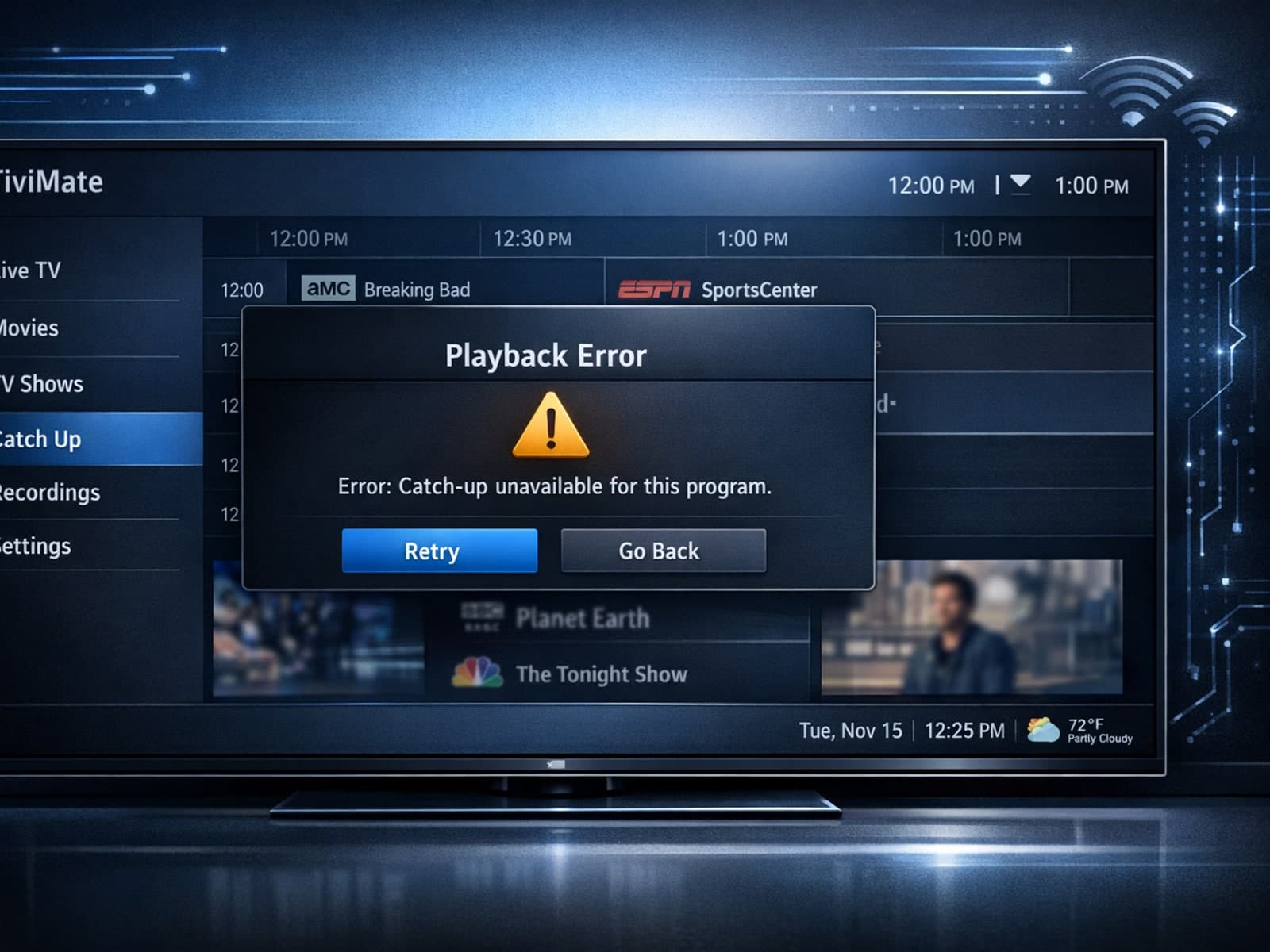
If your catch-up feature in TiviMate isn’t working, the fundamental reasons often lie in your IPTV playlist source or server configuration rather than the app itself.

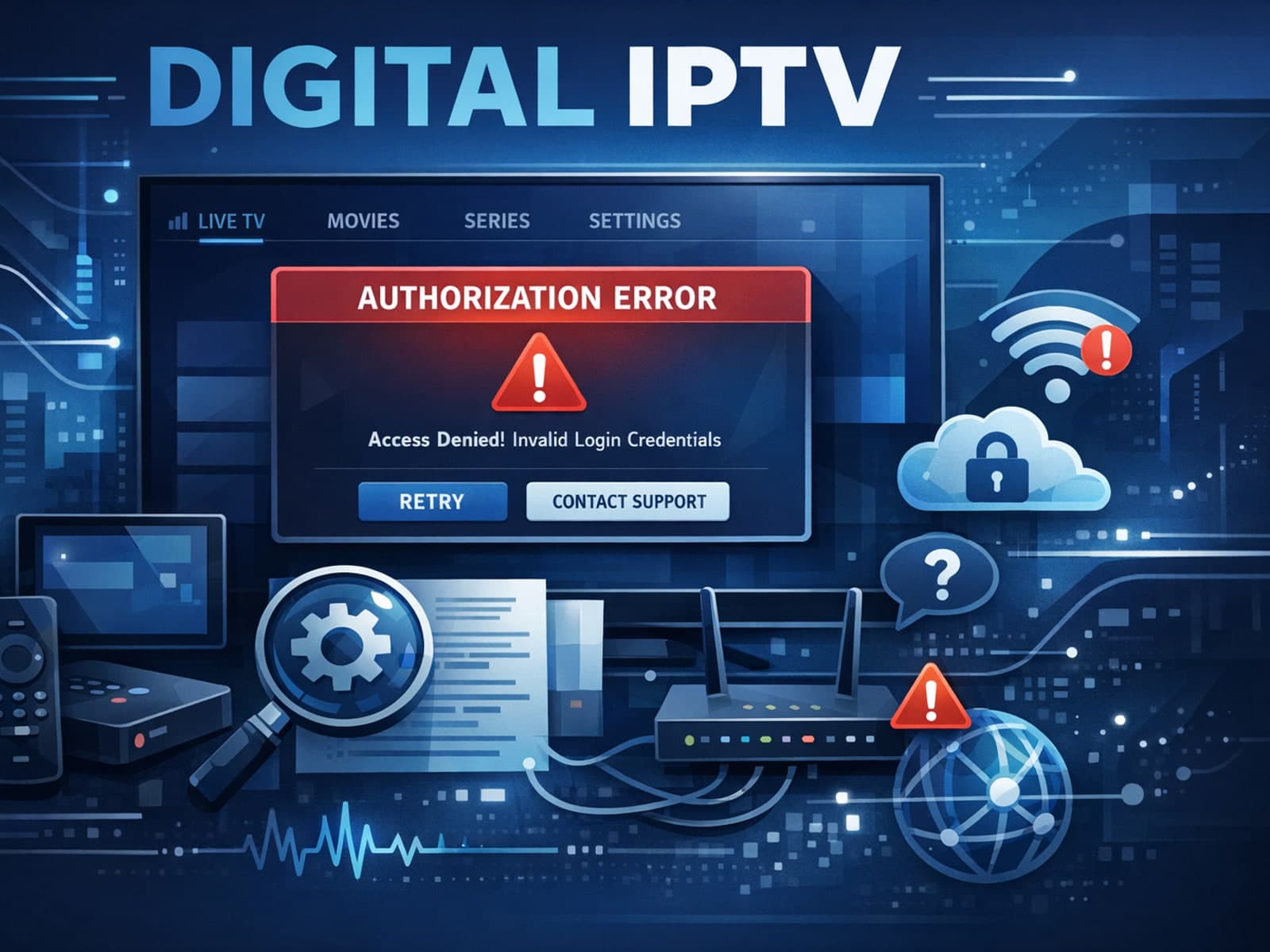
When you see the "Xtream Codes authorization failed" message on TiviMate, it means the app currently cannot verify your IPTV login credentials with the IPTV provider’s server. This prevents access to the channel list or streaming content.