
Xtream Codes Login Failed: Causes and Fixes

Quick answer
When you encounter "Xtream Codes login failed" errors, it means your IPTV client cannot successfully authenticate your credentials with the Xtream Codes server. This is a common issue experienced by IPTV users that can stem from various causes including incorrect login details...
Reviewed Against
• Xtream Codes username, password, and server-URL login flows
• Home-network checks such as Wi-Fi strength, Ethernet fallback, DNS changes, congestion, and local storage pressure
• Server-URL formatting, HTTP response handling, and account-entry failure patterns
Applies To
• Portal-style logins that need a server URL plus account credentials
• Playback problems that change with connection quality, device load, app cache state, or time of day
• Errors caused by malformed URLs, wrong credentials, expired tokens, or unreachable playlist endpoints
Does not apply when
• You are using only an M3U playlist URL with no Xtream-style portal login at all.
• Only one channel, event, or provider-side endpoint is failing while the rest of the service stays stable.
• The provider confirms the service is down or the account has been deliberately blocked upstream.
Corroborating Resources
Android TV video and game troubleshootingUseful for Wi-Fi, updates, app cache, and playback troubleshooting steps that also mirror IPTV failure paths.
Android TV storage helpHelpful when playback issues point to low storage, cache pressure, or app-data cleanup decisions.
HTTP response status codesUseful when an IPTV app surfaces 401, 403, 404, or 5xx style errors during login or playlist refreshes.
URL structure referenceHelpful for checking server URLs, source links, and path/query mistakes in portal or playlist setups.
Topic Cluster
Part of the Xtream Codes cluster
Login errors, URL format confusion, authorization failures, and when Xtream Codes makes more sense than M3U. This page sits in start here for that topic path.
Start here in this topic
On this page
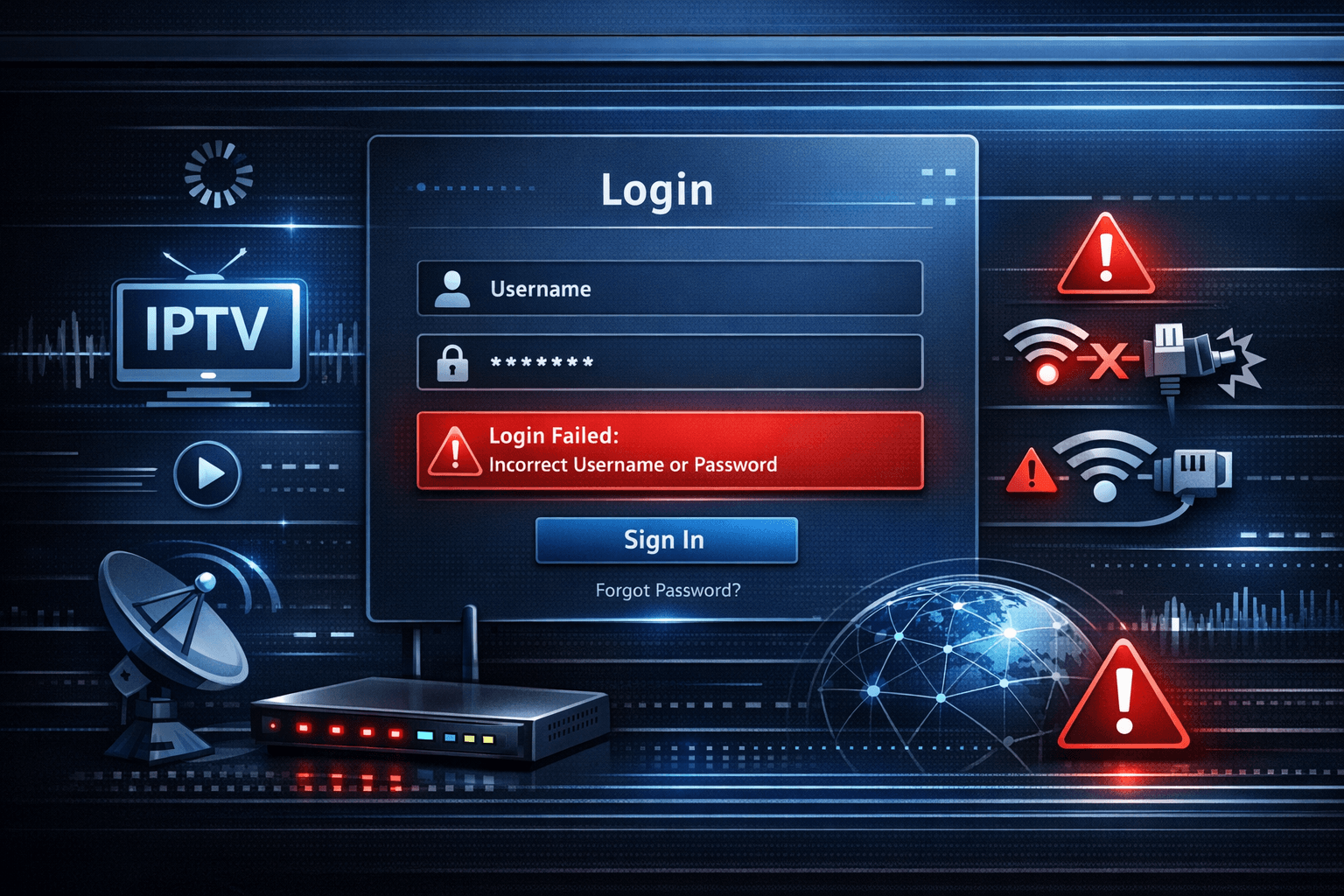
Xtream Codes Login Failed: Effective Troubleshooting and Solutions
When you encounter "Xtream Codes login failed" errors, it means your IPTV client cannot successfully authenticate your credentials with the Xtream Codes server. This is a common issue experienced by IPTV users that can stem from various causes including incorrect login details, server issues, or network problems. Fortunately, most login difficulties can be resolved by following a systematic troubleshooting approach.
What you'll learn
- How to verify and correct your Xtream Codes login credentials
- Ways to check and ensure your network connection supports login
- How to diagnose server status issues affecting login
- Steps to troubleshoot app or device-related login causes
- Common mistakes and their fixes to prevent repeated login failures
Understanding the Xtream Codes Login Process
Xtream Codes is a middleware platform used by many IPTV providers to manage their users and stream access. When you input your username, password, and server URL in an IPTV player that supports Xtream Codes, the app sends this information to the server to verify your subscription status before granting access to channels and content.
A "login failed" message indicates this verification step did not complete successfully. The failure could be due to:
- Incorrect credentials (username, password, server URL)
- The IPTV server being offline or unreachable
- Network connectivity issues
- Expired subscriptions or blocked accounts
- Device or app misconfiguration
Identifying the exact cause will guide your corrective action.
1. Verify Xtream Codes Login Credentials Carefully
Your username, password, and server URL must be accurate. These three elements form the access key to your IPTV service.
How to check credentials:
- Copy and paste credentials: If provided in a text format or email by your IPTV provider, carefully copy and paste them to avoid typos.
- Double-check server URL: The URL is sometimes case-sensitive or needs the correct protocol prefix (http vs https).
- Avoid extra spaces: Leading or trailing spaces can cause authentication to fail.
- Reset password if unsure: Some providers allow password reset or confirmation if credentials are forgotten.
Even a minor deviation in any credential can prevent login.
2. Ensure Stable Network Connectivity
A reliable internet connection is essential for the login verification process.
How to check your network:
- Run a speed test: Use internet speed testing websites or apps to confirm at least a basic broadband speed (ideally above 5Mbps) is available.
- Check for Wi-Fi interruptions: Unstable Wi-Fi can drop requests leading to login failures — consider wired Ethernet if possible.
- Restart router/modem: Sometimes rebooting network hardware can resolve transient issues.
- Test other apps or websites: Confirm if other internet services work correctly on the same device.
Network problems might not always show as connection loss but can obstruct the server authentication process.
3. Confirm Xtream Codes Server Status
The IPTV server handling your login could be down or undergoing maintenance.
How to verify server status:
- Contact your IPTV provider: Official channels or customer support often announce outages.
- Try alternative device or app: Logging in via another IPTV client or device helps isolate the problem.
- Check provider's social media or forums: Many IPTV providers post status updates publicly.
If the server is offline, login failures will occur despite correct credentials and good network.
4. Troubleshoot Your IPTV Player App and Device
Misconfigured or outdated apps can cause login errors even with valid data.
Steps to troubleshoot app and device:
- Clear app cache/data: Cached corrupted files or settings can interfere with logins. Go to device settings, find the app, and clear cache.
- Update the IPTV app/version: Developers release fixes for bugs and compatibility improvements regularly.
- Restart your device: A simple reboot can resolve temporary glitches.
- Check device date/time: Incorrect system clock settings may cause authentication conflicts.
- Reinstall the app: Removing and reinstalling can reset corrupt app states.
These measures eliminate local device or software causes of login problems.
5. Understand Common Mistakes Leading to Xtream Codes Login Failed
Being aware of typical errors can accelerate resolution.
| Common Mistake | Why It Causes Login Failure | How to Fix |
|---|---|---|
| Entering wrong username/password | Authentication fails if credentials don’t match | Verify and carefully re-enter credentials |
| Using wrong or outdated server URL | App cannot reach the correct server | Confirm correct URL format and update if changed |
| Network instability | Interrupts login request mid-process | Stabilize network connection, restart router |
| Ignoring app updates | Old apps may have bugs with login processes | Update app regularly through official channels |
| Incorrect system date/time | Causes token or certificate mismatches | Set device clock to automatic or correct value |
Step-by-Step: Fix Xtream Codes Login Failed
- Carefully re-enter your Xtream Codes username, password, and server URL exactly as provided.
- Test your internet connection with other services and restart your modem/router if unstable.
- Check for any IPTV provider notices about server maintenance or outages.
- Clear your IPTV app cache or reinstall the app to ensure it is fresh and updated.
- Verify your device date and time are set to automatic and reflect the correct timezone.
- Attempt login again and observe if the error persists.
- If none of the above works, contact your IPTV provider for account status or server issues.
Frequently Asked Questions
What does 'Xtream Codes login failed' mean?
It indicates that the IPTV app could not authenticate your credentials with the Xtream Codes server, often due to incorrect login details, server downtime, or network issues.
Can incorrect device time cause login failures?
Yes, if your device's date and time are inaccurate, it can disrupt authentication protocols and lead to login failures.
How do I know if the Xtream Codes server is down?
You can check provider announcements, test login with another app or device, or use online status checkers if available.
Is it necessary to update the IPTV player app when facing login issues?
Updating can fix bugs and improve compatibility with Xtream Codes servers, so it is recommended to keep the app current.
What should I do if my credentials are correct but login still fails?
Check for network connectivity, server status, app cache issues, or contact your IPTV provider to ensure there are no account suspensions or technical problems.
Conclusion
Experiencing "Xtream Codes login failed" errors can be frustrating, but understanding the underlying causes helps you take quick and effective action. Always verify your login details, ensure a stable network, confirm server availability, and maintain your IPTV app and device properly. By following the step-by-step troubleshooting process, most login issues can be resolved without delay. If problems persist, your IPTV provider’s support channel is your next best resource.
For further practical insights, consider exploring guides on Differences Between Xtream Codes, M3U, and Stalker Portal, Choosing an IPTV Player for Android TV and Firestick, and network-related tips in the Network Optimization topic.
Keep exploring
More explainers that connect naturally to this setup, workflow, or troubleshooting path.

When it comes to updating IPTV playlists, two common methods are M3U Plus and the Xtream Codes API. Both serve to refresh the channel lists and program information delivered to IPTV apps, but they do so in different ways.

If your TiviMate electronic program guide (EPG) is showing program times that do not align with the actual broadcast schedules, you are encountering an "EPG time offset" issue.
If your TiviMate playlist is not updating after hitting the refresh button, it means the app is unable to download or load the latest channel list from the playlist source.