
Why IPTV Freezes During Channel Switching and How to Fix It

Quick answer
When you're watching IPTV (Internet Protocol Television), a common annoyance is the video freezing or stalling right when you switch from one channel to another. This happens because the device, app, or network struggles to load the new video stream smoothly in real time. Usua...
Reviewed Against
• Home-network checks such as Wi-Fi strength, Ethernet fallback, DNS changes, congestion, and local storage pressure
Applies To
• Playback problems that change with connection quality, device load, app cache state, or time of day
Does not apply when
• Only one channel, event, or provider-side endpoint is failing while the rest of the service stays stable.
Corroborating Resources
Android TV video and game troubleshootingUseful for Wi-Fi, updates, app cache, and playback troubleshooting steps that also mirror IPTV failure paths.
Android TV storage helpHelpful when playback issues point to low storage, cache pressure, or app-data cleanup decisions.
Topic Cluster
Part of the Buffering cluster
Buffering fixes, network bottlenecks, device slowdowns, and the fastest checks to stabilize IPTV playback. This page sits in more in this topic for that topic path.
Start here in this topic
On this page
Why IPTV Freezes During Channel Switching and How to Fix It
When you're watching IPTV (Internet Protocol Television), a common annoyance is the video freezing or stalling right when you switch from one channel to another. This happens because the device, app, or network struggles to load the new video stream smoothly in real time. Usually, the problem is rooted in buffering delays, slow or unstable internet connections, or limitations of the streaming device.
Understanding why IPTV freezes during channel switching helps you diagnose and fix it through targeted steps. This article zooms in on that exact issue and guides you through what causes the freezing and practical things you can do to reduce or eliminate it.
What you'll learn
- The main technical reasons IPTV freezes specifically during channel changes
- How buffering and network speed impact IPTV channel switching
- Device-related factors including app performance and hardware
- Step-by-step troubleshooting and optimization techniques
- When to consider alternative apps or hardware
How IPTV Channel Switching Works and Why Freezing Occurs
IPTV delivers TV content over the internet as data streams instead of traditional broadcast signals. When you switch channels, the IPTV app stops streaming the current channel and requests a new video stream URL corresponding to the selected channel.
This transition involves:
- Stopping your current video stream session.
- Sending a new stream request to the IPTV server.
- Downloading initial video buffering data to fill the playback buffer.
- Decoding and rendering the new video stream.
Buffering Causes Temporary Freezing
Buffering means the app is downloading chunks of the new stream into memory before playback can start. If the network speed or device processing is too slow, this causes visible freezing or stalling during channel switching.
Because IPTV delivery depends on continuous, real-time internet data flow, any interruption, delay, or slower processing causes freezing during channel load.
Common Causes of Freezing During Channel Switching
1. Network Speed and Stability Issues
Your internet connection speed and stability strongly affect IPTV responsiveness. Low bandwidth or fluctuating signals cause the new stream to buffer longer or fail to load promptly.
- Recommended speeds: At least 10 Mbps for HD IPTV; 20 Mbps+ for 4K.
- Wi-Fi interference or weak signals on 2.4 GHz band worsen delays.
2. Device Performance Limitations
Older or lower-end devices can struggle to process high-bitrate IPTV streams fast enough. CPU bottlenecks or low memory cause delays in decoding and rendering.
3. IPTV App and Server Response
The IPTV app’s efficiency and how quickly the IPTV server responds to new channel requests impact switching time. Some apps have better buffering strategies or caching.
Slower app updates or overloaded IPTV servers cause longer buffering.
Troubleshooting IPTV Freezing on Channel Switch
Follow these steps to identify and fix freezing during channel changes.
Step 1: Restart Your IPTV App and Device
Restarting clears temporary glitches and frees device resources.
Step 2: Check Internet Connection Speed
Run a speed test. Ensure your internet speed meets minimum IPTV requirements.
Step 3: Optimize Wi-Fi or Use Ethernet
- If on Wi-Fi, switch to 5 GHz band or move closer to router.
- Using a wired Ethernet connection significantly stabilizes throughput.
Step 4: Clear IPTV App Cache and Update
An overloaded cache or outdated app can cause performance issues.
Step 5: Adjust Buffering Settings
Some IPTV apps allow buffer size adjustment. Increasing buffer lets the app preload more data, reducing freezing at the cost of longer delays when switching.
Step 6: Close Background Apps
Free up device resources by closing other apps running in background.
Step 7: Try Another IPTV App
If freezing persists, test a different known IPTV player app to isolate if the problem is app-specific.
Who This Guidance Applies To
This advice is intended for users watching IPTV on generic Android TV boxes, Fire TV devices, or smart TVs using common IPTV apps with M3U playlists or Xtream Codes API.
If you use highly specialized hardware, provider-specific apps, or proprietary IPTV platforms, you may need device-specific troubleshooting.
Users experiencing freezing unrelated to channel switching (e.g., during normal playback) should consider other troubleshooting paths focused on buffering and general streaming issues.
Common Mistakes That Make Freezing Worse
- Using congested or weak 2.4 GHz Wi-Fi instead of 5 GHz or ethernet.
- Ignoring app updates or continuing with outdated IPTV apps.
- Overloading the device by multitasking during IPTV viewing.
- Setting too low or too high buffering that doesn't match your network speed.
Comparison of Connection Types for IPTV Stability
| Connection Type | Stability | Latency | Ease of Setup | Recommended for IPTV? |
|---|---|---|---|---|
| Ethernet (Wired) | High | Low | Moderate | Yes (preferred) |
| Wi-Fi 5 GHz | Medium | Medium | Easy | Yes (if strong signal) |
| Wi-Fi 2.4 GHz | Low | Higher | Easy | Less ideal |
| Mobile Data | Variable | High | Easy | Not recommended |
FAQ
What causes IPTV to freeze specifically during channel switching?
The main cause is the buffering delay while the device stops one stream and buffers the next. Network speed, app efficiency, and device processing speed also impact this.
Can upgrading my internet plan reduce IPTV freezing?
Yes, higher internet speeds and a more stable connection reduce buffering delays and help smoother channel transitions.
Does using Wi-Fi instead of Ethernet make IPTV freezing worse?
Often yes, especially if your Wi-Fi signal is weak or crowded. Ethernet provides more reliable throughput.
Are IPTV app settings important for freezing problems?
Yes, buffering settings can be adjusted in some IPTV apps to improve loading times and reduce freezes.
When should I try a different IPTV app?
If you've ruled out network and device issues and still get freezing, testing an alternative IPTV app helps determine if the original app caused the problem.
Conclusion
IPTV freezing during channel switching is primarily a buffering and network speed issue compounded by device performance and app efficiency. By ensuring a stable, fast connection, optimizing your device environment, adjusting buffering settings, and keeping apps up to date, you can significantly reduce or eliminate freezing. If problems persist, consider switching IPTV apps or hardware to better handle real-time stream switching. This focused troubleshooting approach targets the typical causes and provides realistic fixes for smoother IPTV viewing.
Step-by-step process
- Restart your IPTV app and device to clear any temporary glitches.
- Check your internet connection speed, ideally above 10 Mbps for IPTV streaming.
- Reduce network congestion by limiting other heavy internet usage or switch to a 5 GHz Wi-Fi band.
- Clear your IPTV app cache or update the app to the latest version.
- Adjust the IPTV app’s buffering or cache settings if available.
- Close background apps on your streaming device to improve performance.
- Switch to a wired Ethernet connection if possible for more stable network throughput.
- If issues persist, consult your IPTV provider’s support or try a different IPTV app to isolate the problem.
Related guides on IPTV Explained
Keep exploring
More explainers that connect naturally to this setup, workflow, or troubleshooting path.
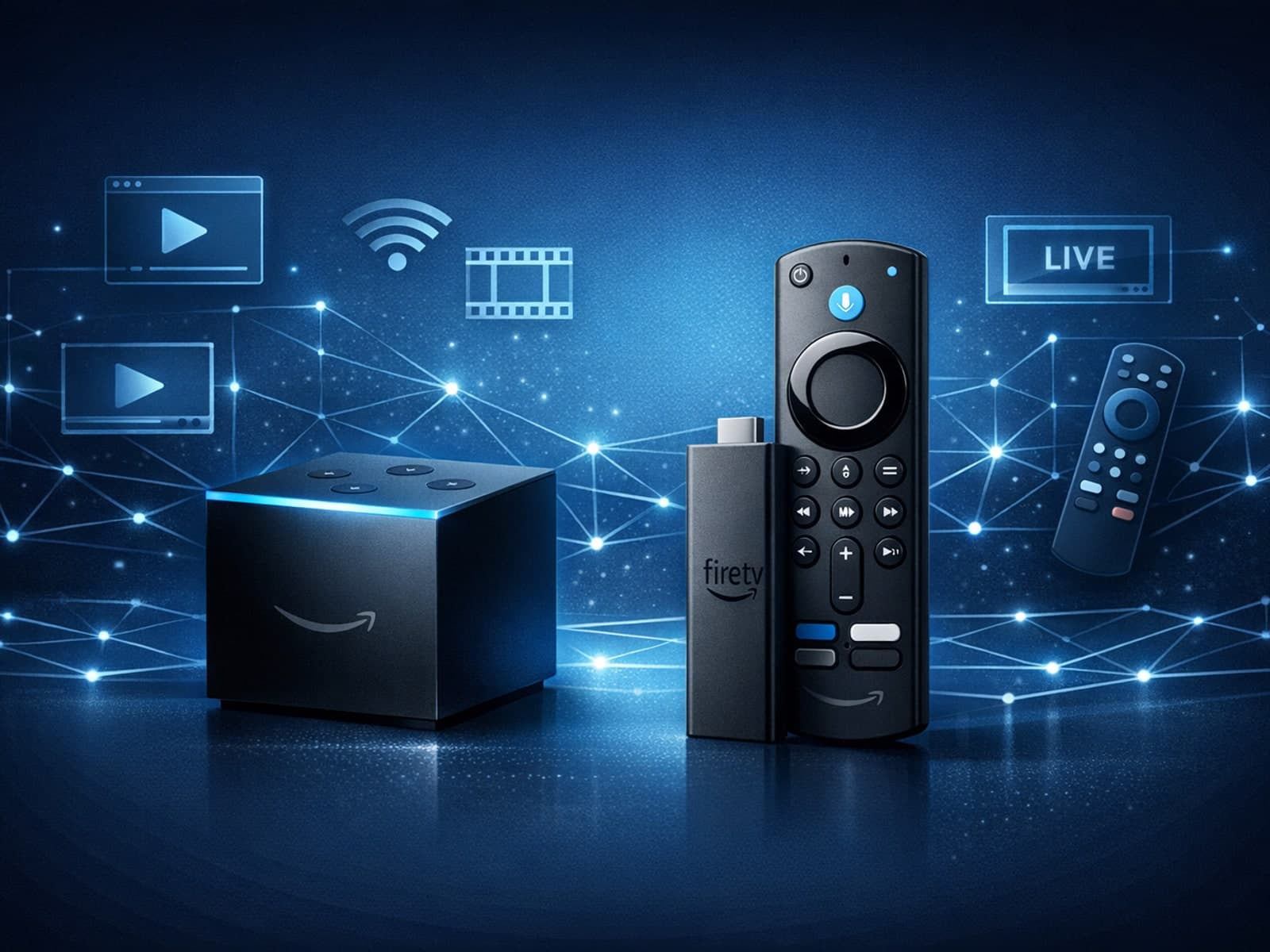
When choosing a device specifically for IPTV streaming, the Amazon Fire TV Cube and Fire TV Stick 4K Max are two popular options. Both devices support 4K streaming and run Amazon’s Fire OS with access to IPTV apps like TiviMate and IPTV.

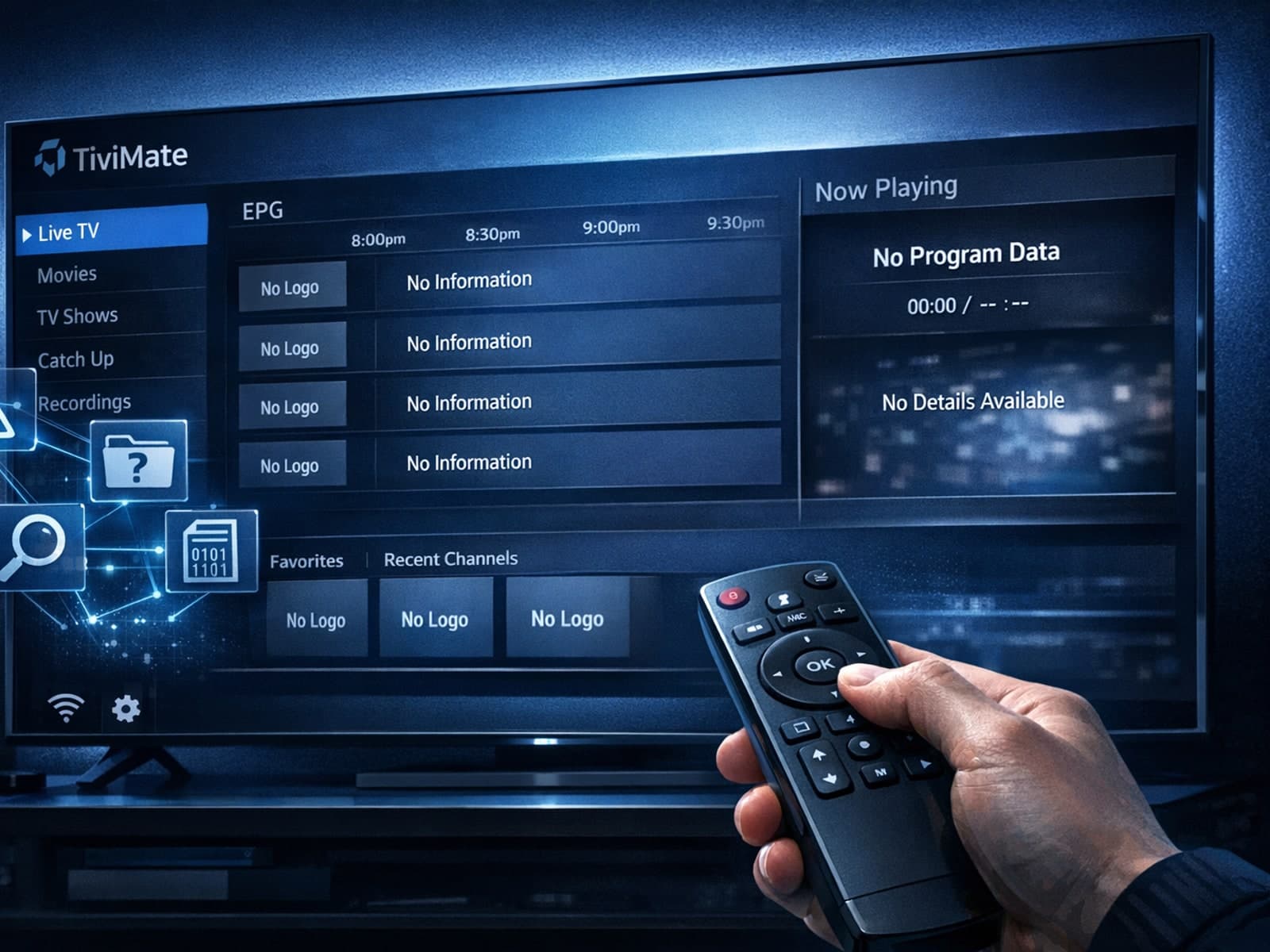
Missing channel logos in TiviMate is a common issue that often stems from problems with your IPTV playlist or Electronic Program Guide (EPG) data.
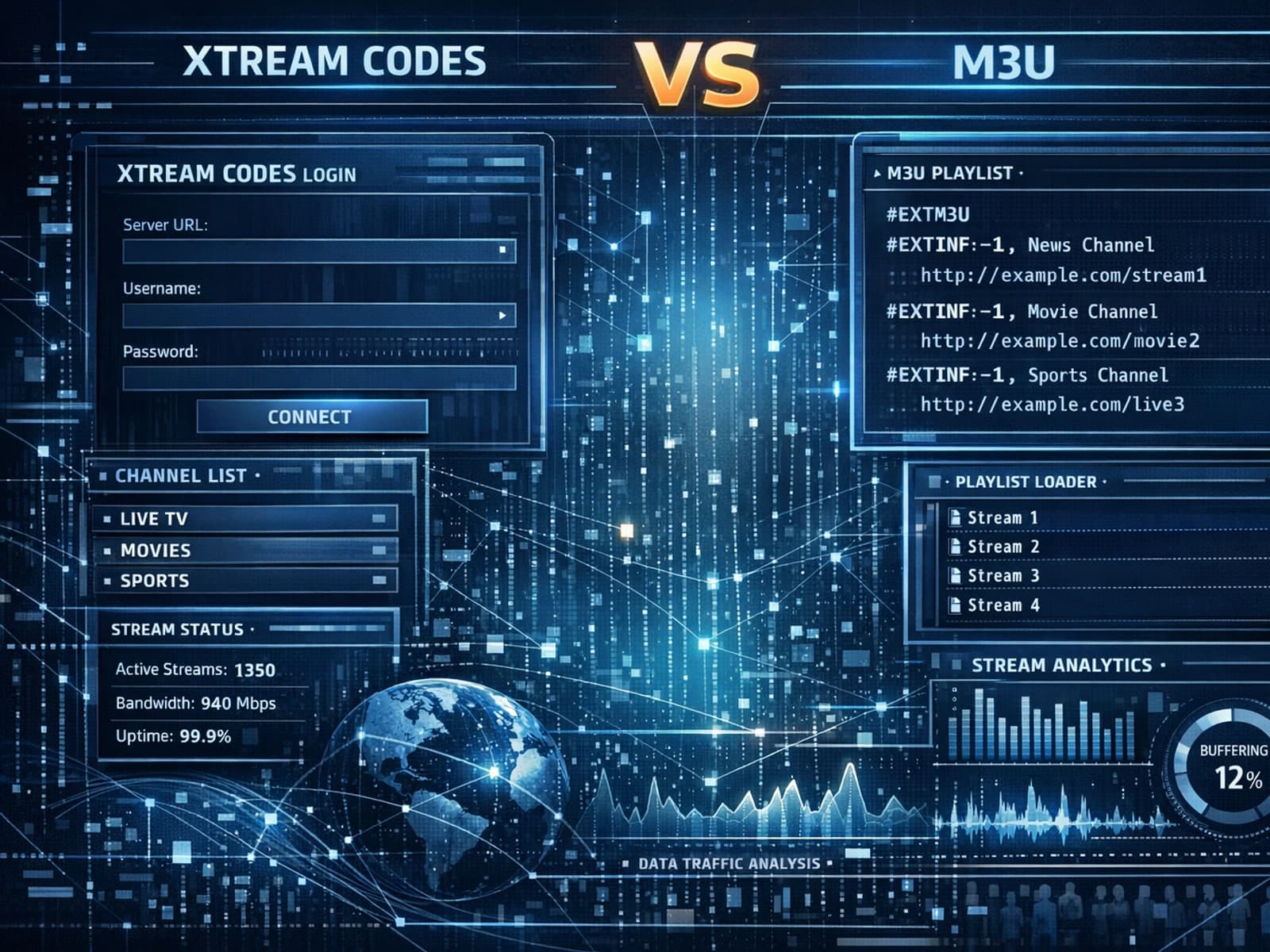
Xtream Codes often works better than M3U for IPTV users who need dynamic playlist management, faster channel updates, richer metadata integration, and controlled access to streaming content.
