
How to Fix or Prevent Buffering with IPTV

Quick answer
Buffering interrupting your IPTV (Internet Protocol Television) viewing is frustrating. Simply put, buffering is when playback pauses to load more video data, causing annoying delays. Fortunately, buffering can often be fixed or greatly reduced through some straightforward cha...
Reviewed Against
• Home-network checks such as Wi-Fi strength, Ethernet fallback, DNS changes, congestion, and local storage pressure
Applies To
• Playback problems that change with connection quality, device load, app cache state, or time of day
Does not apply when
• Only one channel, event, or provider-side endpoint is failing while the rest of the service stays stable.
Corroborating Resources
Android TV video and game troubleshootingUseful for Wi-Fi, updates, app cache, and playback troubleshooting steps that also mirror IPTV failure paths.
Android TV storage helpHelpful when playback issues point to low storage, cache pressure, or app-data cleanup decisions.
Topic Cluster
Part of the Buffering cluster
Buffering fixes, network bottlenecks, device slowdowns, and the fastest checks to stabilize IPTV playback. This page sits in start here for that topic path.
Start here in this topic
On this page
Introduction
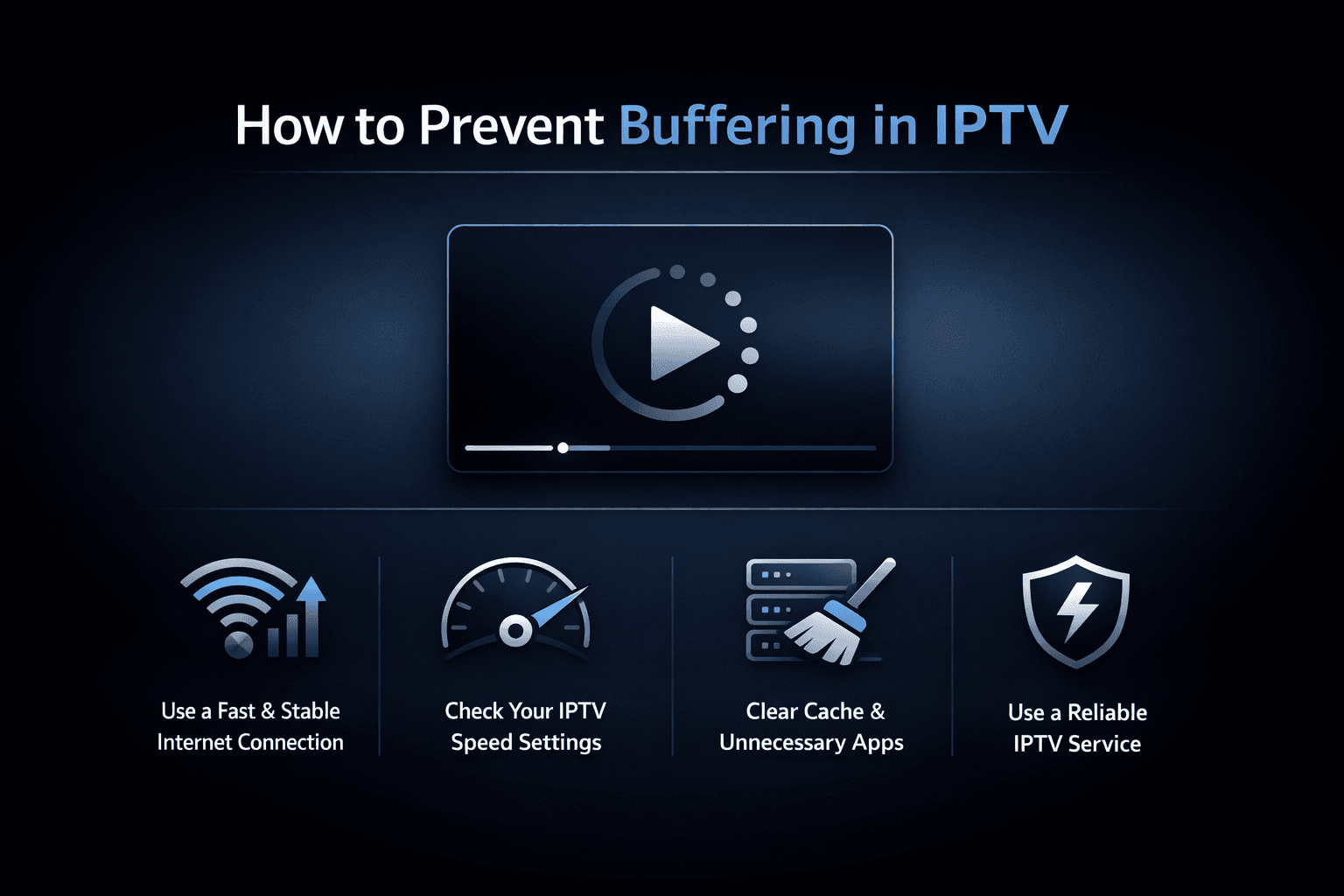
Buffering interrupting your IPTV (Internet Protocol Television) viewing is frustrating. Simply put, buffering is when playback pauses to load more video data, causing annoying delays. Fortunately, buffering can often be fixed or greatly reduced through some straightforward changes. Whether you’re new or have some experience with IPTV, this guide shows clear, actionable steps to minimize buffering so you can enjoy smooth TV streaming.
What you’ll learn
- Why buffering happens in IPTV streams
- How your internet connection affects buffering
- Device and app settings that impact playback
- Network optimization techniques
- Common mistakes to avoid
- How to troubleshoot persistent buffering
Step-by-step IPTV buffering fix process
- Run a speed test on the same network and device you use for IPTV so you can compare actual performance with the stream quality you want to watch.
- Restart your modem, router, IPTV app, and playback device to clear temporary network and cache issues before changing deeper settings.
- Switch from Wi-Fi to Ethernet, or move closer to the router, to rule out weak signal strength and wireless interference.
- Lower the stream quality, increase the app buffer if available, and close background downloads or updates that compete for bandwidth.
- Test the stream again at a different time of day or in another IPTV app so you can spot peak-hour congestion or app-specific problems.
- Contact your ISP or review the provider status if buffering continues after these steps, especially when packet loss or latency stays high.
Understanding Buffering and IPTV Streaming
What is buffering?
Buffering happens when the device playing the video temporarily pauses because it hasn't downloaded enough data to continue smoothly. IPTV streams video over the internet, so data packets need to arrive in time for continuous playback.
Why IPTV can buffer more than traditional TV
Unlike traditional broadcast or cable TV, IPTV uses your internet connection, which can vary in speed and stability. Network congestion, weak Wi-Fi signals, or overloaded servers can all cause buffering.
How Your Internet Connection Affects IPTV Buffering
Bandwidth: The biggest factor
Bandwidth refers to the maximum amount of data your internet can transfer in a given time, typically measured in Mbps (megabits per second). IPTV streams often require 5-25 Mbps or more depending on resolution and compression.
- Check your internet speed: Use free speed tests to evaluate download speed.
- Minimum recommended speeds:
- SD (480p): ~3-5 Mbps
- HD (720p/1080p): ~8-12 Mbps
- 4K UHD: 20+ Mbps
If your speed falls below these, buffering is likely.
Latency and packet loss
Latency is the delay data experiences traveling across the network, measured in milliseconds (ms). High latency can cause interruptions.
Packet loss means some data packets fail to reach your device, leading to playback hiccups.
Both can be checked with network diagnostic tools and can cause buffering even if bandwidth seems sufficient.
Wired vs Wireless connections
A wired Ethernet connection is typically more stable and faster than Wi-Fi, reducing buffering risk.
Wi-Fi can be affected by:
- Distance from router
- Interference from other devices or walls
- Router quality and settings
Optimizing or switching to wired connections helps minimize buffering.
Device and IPTV App Settings That Impact Buffering
Choosing optimal video quality
Many IPTV apps let users manually select the streaming quality. Selecting too high a resolution for your bandwidth causes buffering.
- Lower video quality settings can result in smoother playback.
- Some apps have adaptive streaming that automatically adjusts quality based on network conditions.
Adjusting buffer size and cache
Buffer size refers to how much video data the app preloads before playing. Increasing buffer size can reduce buffering but introduces delay before playback starts.
Not all apps allow this option, but if available, a larger buffer helps.
Closing background apps and updates
Running multiple apps consuming bandwidth or CPU can affect IPTV performance.
Before streaming:
- Close unnecessary apps
- Pause any large downloads or updates
Network Optimization Techniques
Restart your modem and router
Power cycling these devices can clear glitches causing reduced speeds.
- Turn off modem and router
- Wait 30 seconds
- Turn on modem first, wait for full startup
- Turn on router
Use Quality of Service (QoS) settings
Modern routers sometimes include QoS features to prioritize IPTV traffic over other network use.
Check your router’s manual to enable QoS if supported.
Update firmware and apps
Outdated router firmware or IPTV app versions can cause compatibility and performance issues.
Limit connected devices
Too many devices sharing the network diminishes available bandwidth.
Prioritize IPTV device or reduce other users during streaming.
Common Mistakes When Trying to Fix Buffering
- Ignoring internet speed: Buffering often relates directly to insufficient bandwidth.
- Only restarting IPTV app: Sometimes the issue is in the network or device.
- Using unreliable IPTV sources: Low-quality streams inherently buffer more.
- Overlooking modem/router placement: Placement can affect Wi-Fi signal strength.
Troubleshooting Persistent Buffering
If buffering continues despite the above steps:
- Run internet speed tests at various times to identify congestion periods.
- Connect device with an Ethernet cable to rule out Wi-Fi issues.
- Try another IPTV app to check if the problem is app-specific.
- Contact your ISP to check for network problems.
- Check IPTV provider server status and feedback.
Quick checklist for troubleshooting
| Step | Action |
|---|---|
| Verify internet speed | Use speedtest.net or similar |
| Test wired vs wireless | Connect via Ethernet if possible |
| Lower streaming quality | Adjust IPTV app settings |
| Restart network devices | Power cycle modem/router |
| Close background programs | Free up system resources and bandwidth |
| Enable router QoS | Prioritize IPTV traffic if supported |
| Update software/firmware | Keep devices current |
Frequently Asked Questions (FAQ)
Q: Why does IPTV buffering happen even with good internet speed?
A: Other factors like high latency, packet loss, Wi-Fi interference, or server overload can cause buffering despite adequate bandwidth.
Q: Can VPN use cause buffering?
A: Yes, VPNs can add latency and reduce speeds, resulting in buffering unless the VPN service and server are fast.
Q: Does IPTV buffering differ by time of day?
A: Yes, peak internet usage times (evenings) may slow down networks causing buffering.
Q: How much buffering is normal?
A: Occasional, brief buffering when a stream starts or during quality changes is typical. Frequent or long buffering indicates problems.
Conclusion
Buffering with IPTV is a common but usually solvable problem. By understanding how streaming and networks work, checking your internet speed, optimizing your home network, adjusting app settings, and troubleshooting methodically, you can greatly reduce buffering and enjoy smoother IPTV streaming. Start simple with speed tests and device restarts, then explore settings and hardware changes as needed. Reliable streaming is within reach with a bit of informed effort.
Frequently Asked Questions
Why does IPTV buffer even if my internet speed is good?
Buffering can still occur with good internet speeds due to factors like high network latency, packet loss, weak Wi-Fi signals, or overloaded IPTV servers.
Can using a VPN cause IPTV buffering?
Yes. VPNs can increase latency and reduce your effective internet speed, potentially causing buffering during IPTV streams unless using a high-quality VPN server.
Does IPTV buffering change throughout the day?
Yes, buffering is often worse during peak internet usage times when networks experience congestion, typically in the evenings.
What steps can I take to reduce IPTV buffering?
Key steps include checking your internet speed, using a wired connection if possible, adjusting streaming quality in your IPTV app, restarting your network devices, and limiting background internet use.
Next articles worth reading
If the main buffering checklist narrowed the issue down, these deeper guides help you isolate the specific cause:
Keep exploring
More explainers that connect naturally to this setup, workflow, or troubleshooting path.
For IPTV users deciding between Xtream Codes format and M3U playlists, understanding when Xtream Codes works better is key. Simply put, Xtream Codes works better than M3U playlists when your IPTV service offers secure login credentials.

TiviMate is a popular IPTV player app for Android TV and similar devices, known for its advanced channel management options. Organizing favorites and groups in TiviMate lets you customize your IPTV watching experience by categorizing.

When you switch channels on your IPTV service and the screen freezes or lags, it’s frustrating and disrupts your viewing experience. IPTV freezing during channel switching is most often caused by network delays, buffering, or the IPTV.
