
TiviMate Playlist Not Updating After Refresh: Causes and Fixes

Quick answer
If you've hit "Refresh" in TiviMate but your IPTV playlist doesn't update, you are not alone. This is a common problem that can stem from multiple causes including network hiccups, playlist URL issues, corrupted cache, or server downtime. This article dives straight into why t...
Reviewed Against
• TiviMate playlist, EPG, and player-setting workflows
• Home-network checks such as Wi-Fi strength, Ethernet fallback, DNS changes, congestion, and local storage pressure
Applies To
• TiviMate setups on Android TV, Google TV, or Fire OS style streaming devices
• Playback problems that change with connection quality, device load, app cache state, or time of day
Does not apply when
• Your app uses a different menu layout or naming scheme than TiviMate.
• Only one channel, event, or provider-side endpoint is failing while the rest of the service stays stable.
Corroborating Resources
Android TV video and game troubleshootingUseful for Wi-Fi, updates, app cache, and playback troubleshooting steps that also mirror IPTV failure paths.
Android TV storage helpHelpful when playback issues point to low storage, cache pressure, or app-data cleanup decisions.
Topic Cluster
Part of the IPTV cluster
Browse practical IPTV articles about IPTV, including setup choices, troubleshooting paths, and follow-on guides. This page sits in more in this topic for that topic path.
On this page
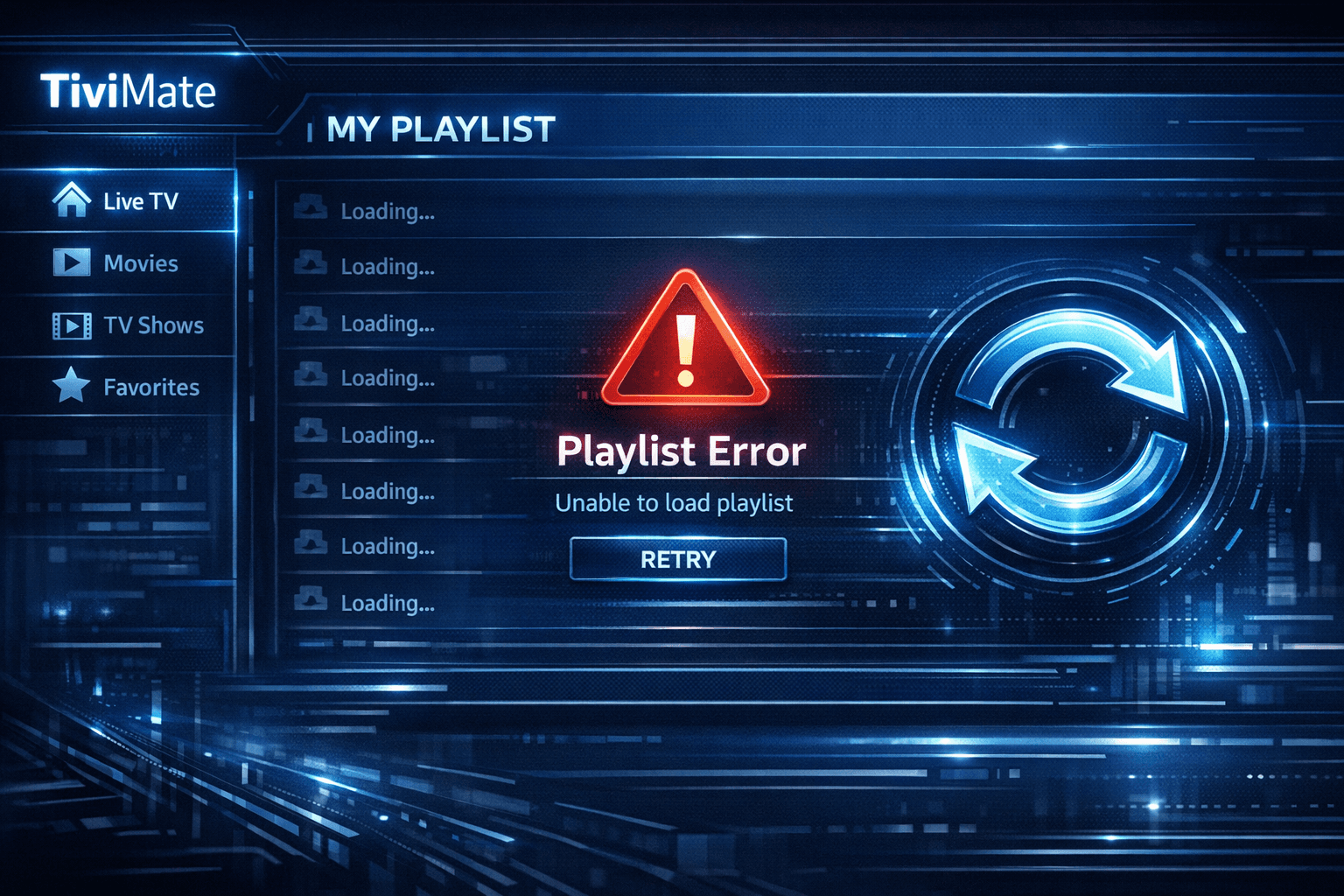
Why Your TiviMate Playlist Is Not Updating After Refresh and How to Fix It
If you've hit "Refresh" in TiviMate but your IPTV playlist doesn't update, you are not alone. This is a common problem that can stem from multiple causes including network hiccups, playlist URL issues, corrupted cache, or server downtime. This article dives straight into why this happens and what you can do to solve it effectively.
What you'll learn
- The main reasons why TiviMate playlists may not update after refreshing
- How to verify and fix playlist URL and source problems
- Clearing cache to remove update blockers
- Steps to troubleshoot network or app issues
- When to consider device-specific problems or different troubleshooting avenues
Understanding the Playlist Refresh Process in TiviMate
TiviMate loads IPTV content via playlist URLs, typically M3U or Xtream Codes formats. When you tap "Refresh," the app requests the latest channel list and metadata from that URL. If this process is interrupted or if data is unchanged, the playlist won't show new updates.
Network Connection Importance
An unstable or slow internet connection can prevent TiviMate from reaching the playlist server. This is the most common overlooked reason for non-updating playlists.
Common Causes of Playlist Not Updating Post-Refresh
1. Incorrect or Expired Playlist URL
If the playlist URL you entered is wrong, expired, or changed, TiviMate can't access new data. Check for small errors like missing characters or outdated URLs.
2. Cached Data Interfering
TiviMate caches playlist data to speed up loading. Sometimes, cached data conflicts with new updates and causes refresh commands to fail.
3. Server or Provider Issues
Your IPTV playlist's source server might be down, under maintenance, or slow to respond, preventing updates.
4. App Glitches or Outdated Version
Older or corrupted TiviMate app installations might not handle refresh requests well.
Step-by-Step Guide to Fixing Playlist Not Updating After Refresh
Follow these steps systematically to diagnose and correct the problem.
- Test your internet connection: Use another app or device to verify the connection is stable and fast enough.
- Check your playlist URL: Reconfirm the URL in the playlist settings, ensure there are no typos or outdated sections.
- Clear TiviMate cache: On your streaming device, navigate to Settings > Apps > TiviMate > Clear Cache.
- Verify playlist source status: If possible, check with your IPTV provider or test the URL in another IPTV app.
- Restart TiviMate and your device: Sometimes a simple reboot resolves software glitches.
- Update the TiviMate app: Install the latest version from Google Play Store or Amazon App Store.
- Remove and re-add the playlist: Delete the playlist profile in TiviMate, then re-add it anew to reset settings.
Troubleshooting Cache Problems More Deeply
If clearing cache once doesn’t work, consider clearing app data (note this resets all playlists and preferences). This can fix stubborn data corruption but requires re-entry of all playlist information.
Who Should Use This Guide and When to Look Elsewhere
This guidance suits users running TiviMate on common Android devices or Amazon Fire TV with M3U or Xtream Codes playlists. If you’re on a niche device or using a highly customized setup (e.g., third-party IPTV scripts or APIs), device-specific or provider-specific issues may predominate, requiring tailored support.
If errors persist despite these steps, consider contacting IPTV service support or reviewing device logs via developer tools for advanced troubleshooting.
Comparison Table: Causes vs. Solutions
| Cause | Common Symptoms | Suggested Fix | Notes |
|---|---|---|---|
| Network Issues | Slow loading, timeout errors | Check ISP connection, reset router | Use speed test apps |
| Bad Playlist URL | Error message, no channels load | Re-enter URL, confirm provider link | Verify via web browser |
| Cached Data | Old channel list showing | Clear app cache and data | Data reset required |
| Server Outage | No data, errors on refresh | Wait or contact provider | Out of user control |
| App Bugs | Unexpected crashes or freezes | Update or reinstall TiviMate | Keep app current |
FAQ
Why does my TiviMate playlist not update even after refreshing?
Common reasons include an unstable internet connection, incorrect playlist URL, server-side problems, or app cache issues preventing new data from loading.
How can I clear cache in TiviMate to fix playlist update problems?
You can clear cache by going to your device's settings, selecting the TiviMate app, and choosing "Clear Cache" or "Clear Data" depending on your device options.
Is it necessary to update TiviMate to fix playlist refresh problems?
Yes, updating can fix bugs related to playlist refreshing and improve app compatibility with streaming sources.
When should I seek a different troubleshooting approach for TiviMate playlist issues?
If problems persist after following typical fixes, or if errors occur only on specific devices, consult device-specific support or consider playlist source issues.
Conclusion
When TiviMate playlists fail to update after refresh, the issue typically lies in connectivity, playlist URL accuracy, cache, or source server availability. Systematic troubleshooting—checking connections, verifying URLs, clearing cache, updating apps, and resetting playlists—resolves most problems. Stick to this guide for clear steps before exploring device-specific or provider-related support.
For related information, check out How to Fix Missing Channel Logos in TiviMate, How to Organize Favorites and Groups in TiviMate, and How to Fix Catch-Up Not Working in TiviMate.
Keep exploring
More explainers that connect naturally to this setup, workflow, or troubleshooting path.
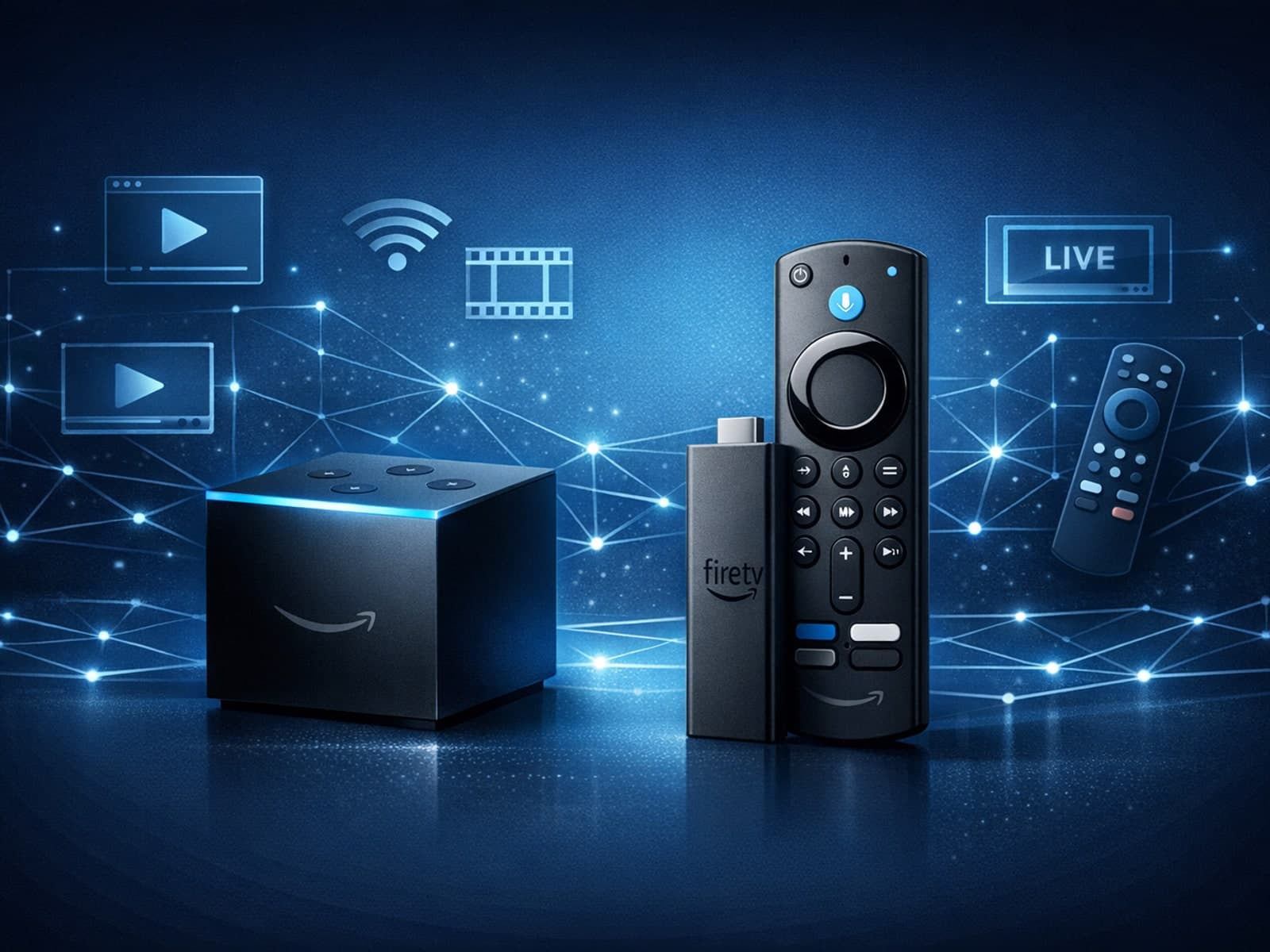
When choosing a device specifically for IPTV streaming, the Amazon Fire TV Cube and Fire TV Stick 4K Max are two popular options. Both devices support 4K streaming and run Amazon’s Fire OS with access to IPTV apps like TiviMate and IPTV.

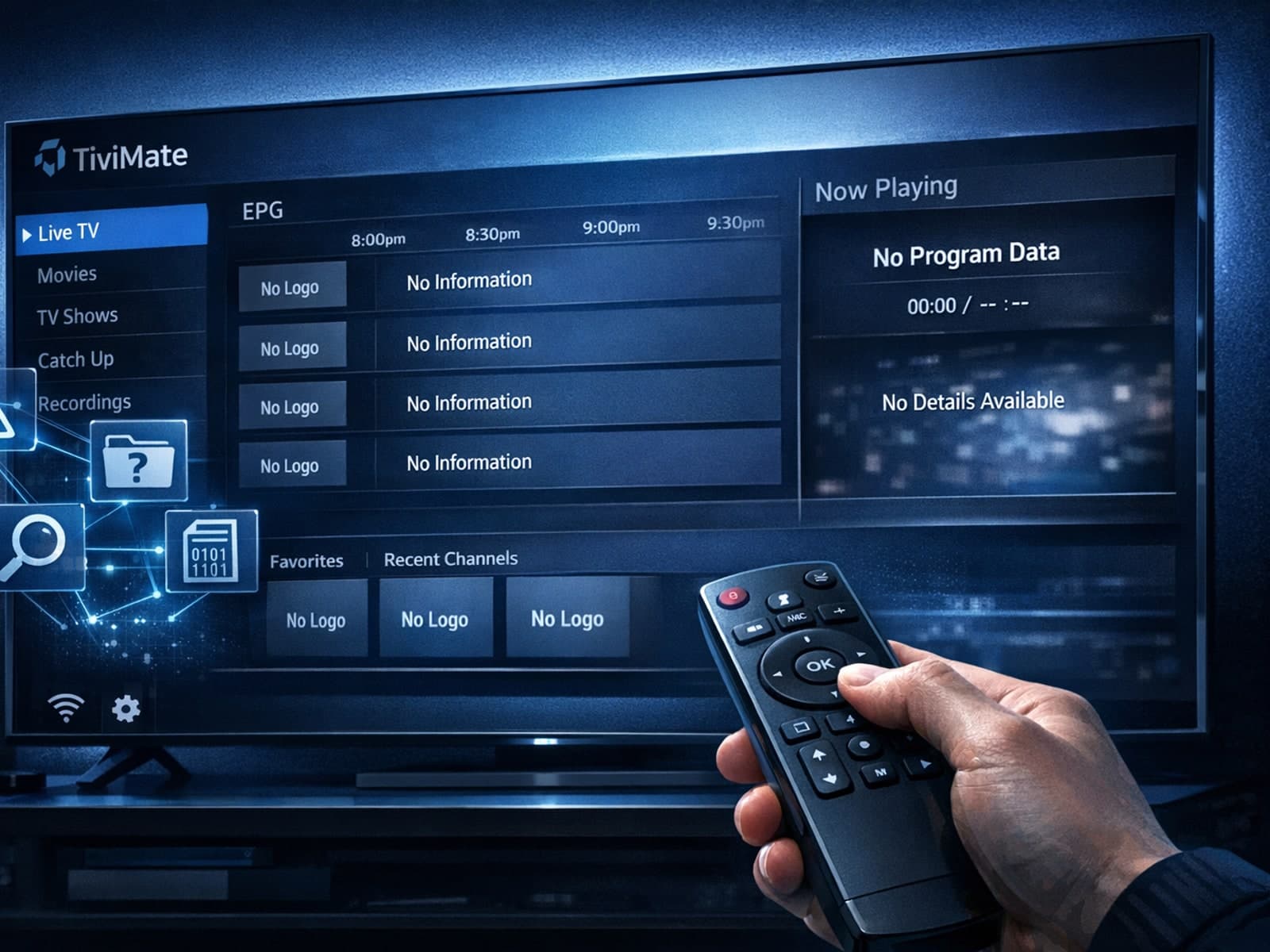
Missing channel logos in TiviMate is a common issue that often stems from problems with your IPTV playlist or Electronic Program Guide (EPG) data.
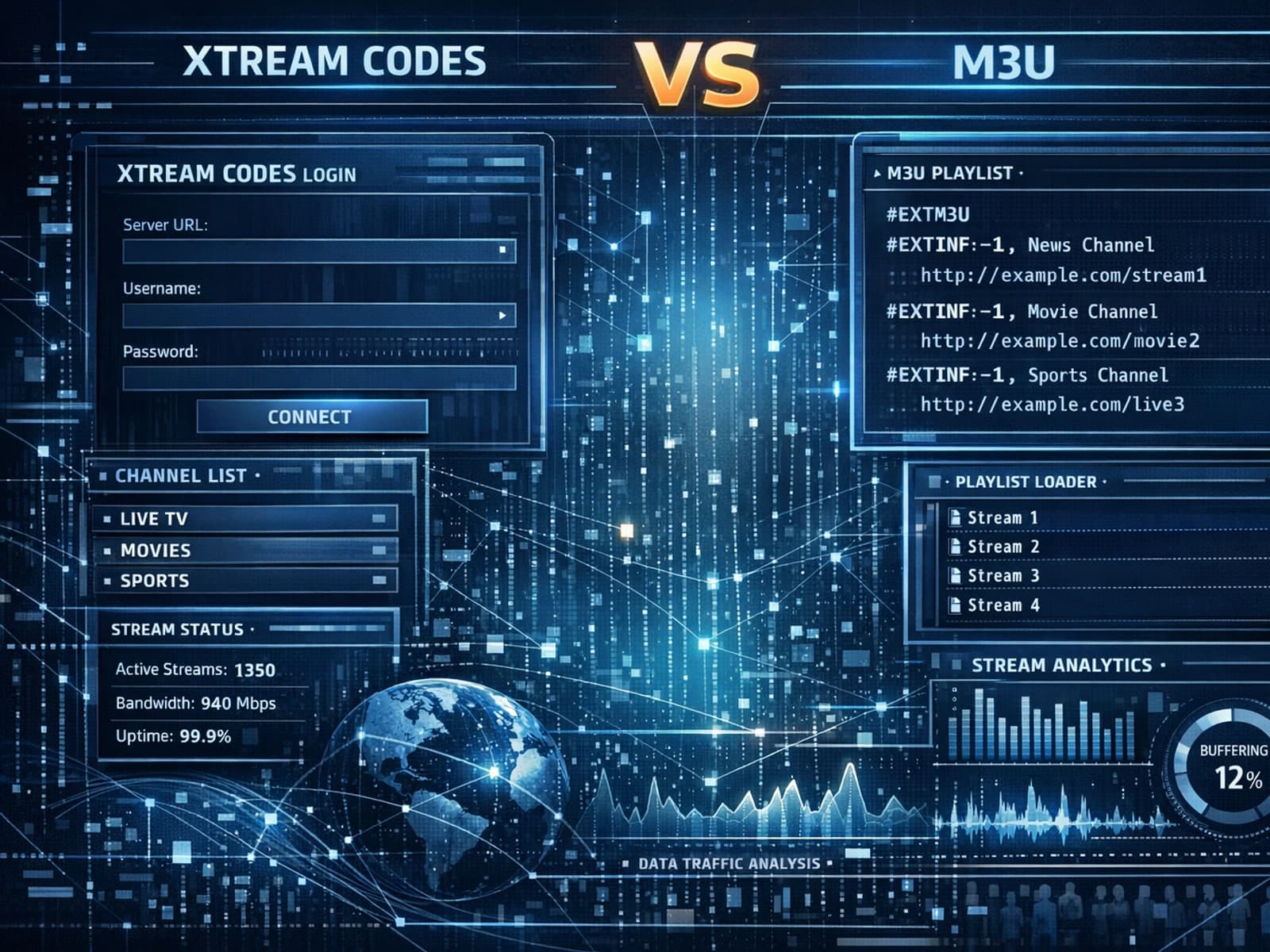
Xtream Codes often works better than M3U for IPTV users who need dynamic playlist management, faster channel updates, richer metadata integration, and controlled access to streaming content.
