
Fix EPG Time Offset Wrong in TiviMate

Quick answer
If the electronic program guide (EPG) in your TiviMate app shows the wrong time for TV programs, it means the EPG time offset is set incorrectly. This causes program start and end times to appear shifted, making it confusing to watch or record shows on schedule. Correcting the...
Reviewed Against
• TiviMate playlist, EPG, and player-setting workflows
• XMLTV guide imports, refresh timing, and channel-guide matching
Applies To
• TiviMate setups on Android TV, Google TV, or Fire OS style streaming devices
• Guide data issues such as missing listings, stale guide refreshes, or wrong time offsets
Does not apply when
• Your app uses a different menu layout or naming scheme than TiviMate.
• The stream itself will not play at all and you still need to verify login or playlist access.
Corroborating Resources
XMLTV file format referenceUseful when the issue comes from guide-source formatting, channel mapping, or XMLTV data freshness.
Topic Cluster
Part of the EPG cluster
Guide data problems, XMLTV and playlist matching, time-offset fixes, and TiviMate EPG recovery paths. This page sits in troubleshoot and fix for that topic path.
Start here in this topic
On this page
Fix EPG Time Offset Wrong in TiviMate
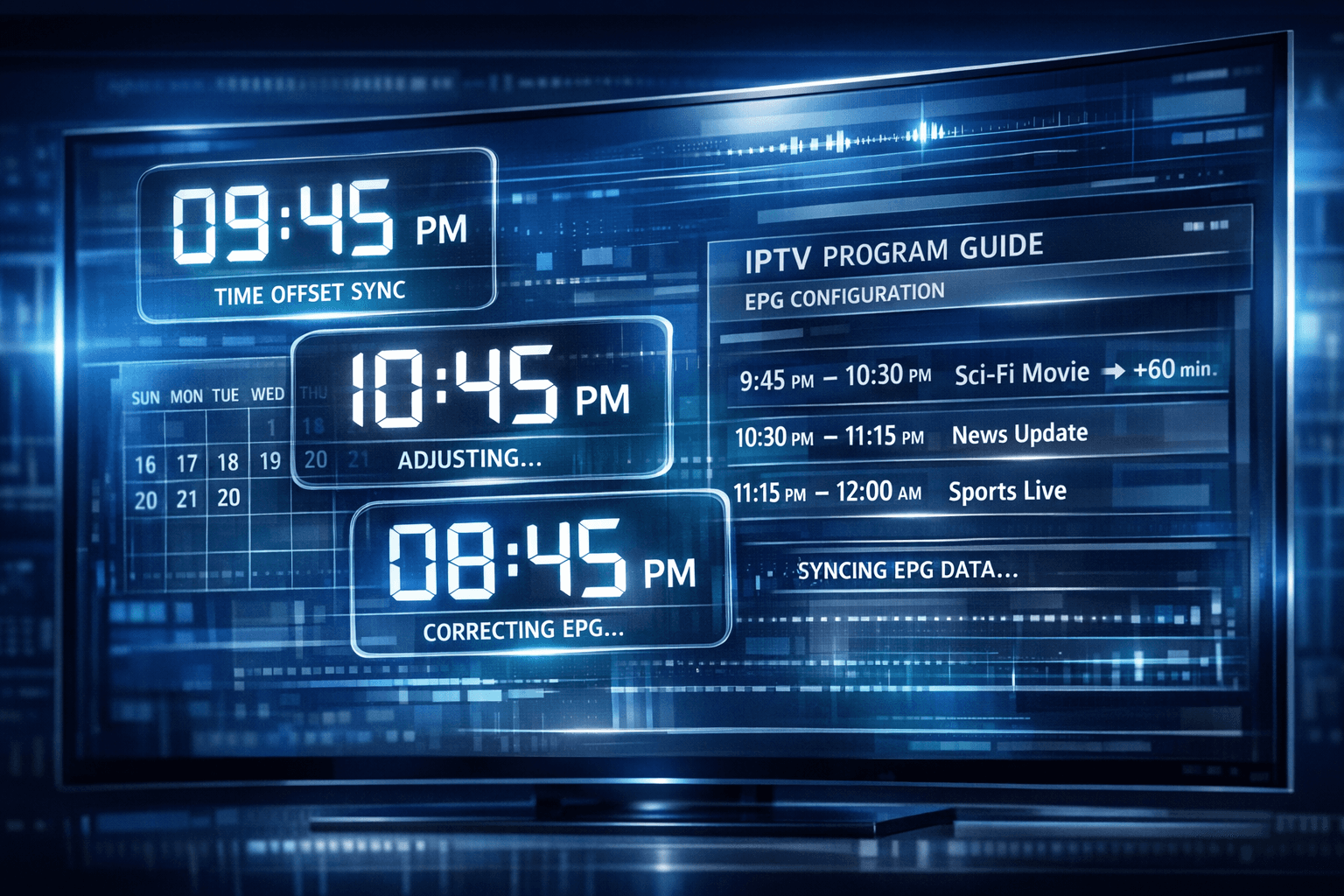
If the electronic program guide (EPG) in your TiviMate app shows the wrong time for TV programs, it means the EPG time offset is set incorrectly. This causes program start and end times to appear shifted, making it confusing to watch or record shows on schedule. Correcting the EPG time offset realigns the guide to your local time zone so program information displays accurately.
What you'll learn
- What EPG time offset means in TiviMate
- How to identify if EPG times are wrong
- Step-by-step process to adjust EPG offset in the app
- Common reasons why the guide time is incorrect
- When to seek IPTV provider help or try alternative solutions
Understanding EPG Time Offset in TiviMate
The EPG is the on-screen program schedule that shows the start and end times of channels' TV shows. These times come from data supplied by the IPTV service provider through an XMLTV or similar feed.
Because IPTV servers and EPG data can originate from different regions or time zones, the times shown in TiviMate sometimes don't match your local time. The "time offset" setting lets you add or subtract hours to shift the guide times appropriately.
How Time Offset Works
Time offset is measured in hours, including fractions for 30-minute increments. For example, if your local time zone is GMT+2 but the EPG is aligned to GMT, setting a +2 hours offset shifts all guide times two hours forward.
This corrects the schedule on your device without altering the source EPG data. It’s important the offset matches the difference between the EPG time zone and your actual time zone.
Signs That EPG Time Offset Is Incorrect
Some common symptoms include:
- Program start times too early or too late compared to actual broadcast
- Shows listed under incorrect days due to time rollovers
- Overlaps or gaps between scheduled program blocks
- Difficulty finding currently airing shows because guide times don’t match TV time
Check the system clock on your device first to ensure it's set correctly. If your device time is accurate but the EPG guide is off, the offset setting likely needs adjustment.
How to Adjust EPG Time Offset in TiviMate
Follow these steps to fix incorrect times in the guide:
-
Open TiviMate and go to the settings menu.
-
Select the IPTV playlist you want to fix (if you have multiple).
-
Navigate to "EPG Settings."
-
Find the "Time Offset" or "Time Shift" option. It may be under "Advanced" or "EPG Data."
-
Calculate your offset:
- Determine the time zone difference between your location and the EPG data’s source.
- For example, if the EPG is GMT and you are GMT+3, enter +3:00.
-
Enter the time offset value. Use positive or negative numbers as needed.
-
Save your changes.
-
Refresh the EPG data by pulling down on the guide or using the refresh option.
-
Check the guide times against your local clock to confirm accuracy.
If initial adjustments don’t fix the problem, try adding or subtracting partial hours (e.g., 0.5 hours) to fine-tune.
Common Reasons for Persistent EPG Time Offset Issues
Even after adjusting time offset, some users might still see wrong times due to:
- The IPTV provider’s EPG feed uses a time zone that doesn’t match their physical location.
- The EPG XML file is outdated or poorly maintained.
- The playlist or EPG URL is linked to a wrong regional version.
- Device system time settings are incorrect, confusing TiviMate.
- Cached data requires app restart or device reboot.
Tips to Avoid These Pitfalls
- Verify your device’s system time and time zone settings before adjusting TiviMate.
- Check with your IPTV provider to confirm the EPG time zone target. Sometimes they provide multiple EPG URLs for different regions.
- Clear TiviMate cache or reinstall the app if updating settings has no effect.
When This Guide Applies and When to Use Other Troubleshooting Paths
This article’s guidance fits if:
- You use TiviMate on Android TV, Fire TV, or similar platforms.
- Your IPTV provider supplies an external EPG or allows you to specify an EPG URL.
- Your problem is that all EPG times are uniformly shifted by a consistent number of hours.
This guide may not fit when:
- You use TiviMate in auto-EPG mode with no manual time offset options.
- The EPG times fluctuate randomly or are incomplete.
- Your issue involves missing channels, logos, or playlist refresh errors (see related articles).
In those cases, consider these alternative guides:
| Issue Type | Suggested Resource |
|---|---|
| Missing EPG or channel logos | Fix Missing Channel Logos in TiviMate |
| Playlist not updating | TiviMate Playlist Not Updating After Refresh |
| Provider login or authorization problems | IPTV Smarters Invalid Details Error Explained and Fixed |
FAQ
What exactly is EPG time offset?
It is a setting in TiviMate that shifts the displayed program times by a set number of hours to match the EPG data timezone with the user’s local time.
Can TiviMate automatically detect and fix time offset?
No, TiviMate generally requires manual adjustment for time offset because it can’t detect the EPG feed’s original time zone.
What if no time offset fixes the problem?
Check with your IPTV provider for a different or updated EPG URL or feed. Sometimes the problem is in the data source.
Does time offset affect recording or reminders?
Yes, incorrect offset may cause scheduled recordings or reminders to happen at the wrong times.
Conclusion
Incorrect EPG time offset in TiviMate can be confusing but is usually easy to fix by manually adjusting the time offset setting in the app’s EPG options. Knowing your correct time zone and the EPG feed’s base time will help you set the right offset. If persistent issues remain, contact your IPTV provider or try different EPG sources. Regularly refreshing your guide and checking device clocks prevents most timing troubles.
Properly fixing EPG time displays ensures your viewing experience remains smooth, with accurate schedules for all channels.
Related articles
- Fix Missing Channel Logos in TiviMate
- TiviMate Playlist Not Updating After Refresh
- When Xtream Codes Works Better Than M3U for IPTV Streaming
Related topics
Step-by-step process
- Open TiviMate app and navigate to the playlist settings.
- Locate the EPG time offset or time zone adjustment option.
- Adjust the time offset value incrementally to match your local time zone.
- Save the changes and refresh the EPG guide data to verify correct timing.
- If issues persist, check your IPTV provider's EPG time zone and update the source URL if needed.
- Restart the app and device to apply changes effectively.
Keep exploring
More explainers that connect naturally to this setup, workflow, or troubleshooting path.
If you watch IPTV on your Fire TV Stick, having the right Wi-Fi settings can significantly improve your streaming experience by minimizing buffering and lag.


When it comes to updating IPTV playlists, two common methods are M3U Plus and the Xtream Codes API. Both serve to refresh the channel lists and program information delivered to IPTV apps, but they do so in different ways.

If your TiviMate electronic program guide (EPG) is showing program times that do not align with the actual broadcast schedules, you are encountering an "EPG time offset" issue.