
Fix Missing Channel Logos in TiviMate

Quick answer
If you notice that channel logos are missing in your TiviMate app, the first step is to check whether your playlist supports logos and if TiviMate has loaded them correctly. Missing channel logos often result from the playlist format, outdated or absent logo URLs, or missed sy...
Reviewed Against
• TiviMate playlist, EPG, and player-setting workflows
• XMLTV guide imports, refresh timing, and channel-guide matching
Applies To
• TiviMate setups on Android TV, Google TV, or Fire OS style streaming devices
• Guide data issues such as missing listings, stale guide refreshes, or wrong time offsets
Does not apply when
• Your app uses a different menu layout or naming scheme than TiviMate.
• The stream itself will not play at all and you still need to verify login or playlist access.
Corroborating Resources
XMLTV file format referenceUseful when the issue comes from guide-source formatting, channel mapping, or XMLTV data freshness.
Topic Cluster
Part of the EPG cluster
Guide data problems, XMLTV and playlist matching, time-offset fixes, and TiviMate EPG recovery paths. This page sits in troubleshoot and fix for that topic path.
Start here in this topic
On this page
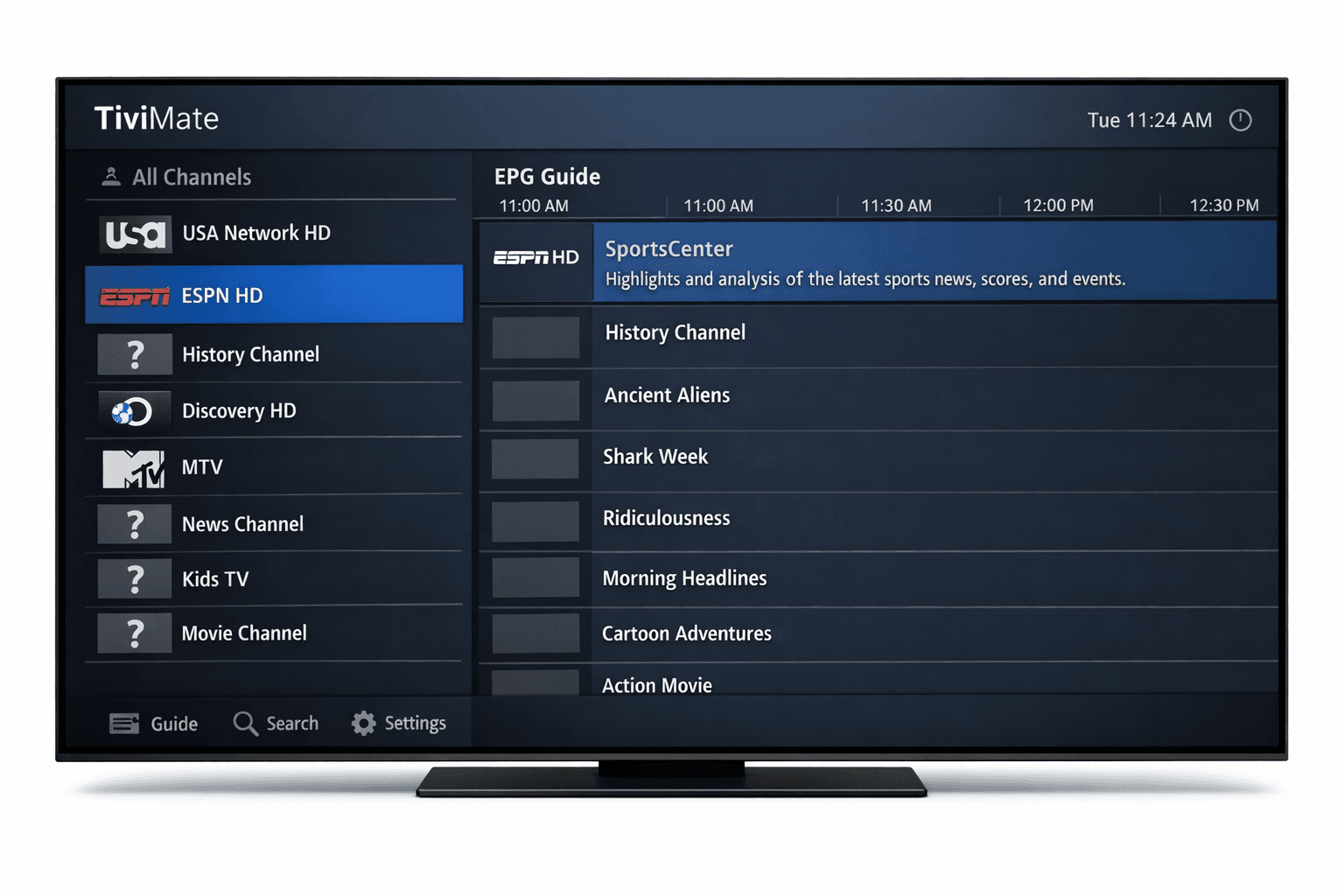
Fix Missing Channel Logos in TiviMate
If you notice that channel logos are missing in your TiviMate app, the first step is to check whether your playlist supports logos and if TiviMate has loaded them correctly. Missing channel logos often result from the playlist format, outdated or absent logo URLs, or missed synchronization between TiviMate and your IPTV source. This article walks you through practical, step-by-step troubleshooting to restore channel logos efficiently.
What you'll learn
- How to verify if your playlist supports channel logos
- Steps to refresh and reload channel logos in TiviMate
- How to manually assign channel logos when needed
- The role of EPG in logo display and its syncing process
- App-specific fixes like clearing cache when logos fail to load
Understanding Why Channel Logos May Be Missing
Before diving into fixes, it helps to understand why channel logos might not appear. TiviMate depends on your IPTV playlist and EPG (Electronic Program Guide) data for logos.
Playlist Format and Logo Support
Your IPTV playlist (often M3U or Xtream Codes format) must include references to logo URLs or have compatible metadata for TiviMate to download and display logos.
- M3U Playlists: Logos appear if the playlist includes
tvg-logotags with valid URLs. - Xtream Codes API: Generally, the provider's API supplies logo info automatically.
If your playlist lacks these elements, logos won't show.
EPG and Logo Matching
TiviMate can use EPG metadata to match channel names with logos. If your EPG source is outdated or misaligned, logos may not sync correctly.
Step 1: Verify Your Playlist Source and Format
The first practical step is to confirm that your playlist supports channel logos.
- Open your IPTV provider's playlist file or URL.
- Check if
tvg-logotags or logo fields are present (for M3U files, look for entries liketvg-logo="http://..."). - If using Xtream Codes API, confirm with your provider whether logos are included.
If the playlist lacks logos, consider requesting an updated playlist or switching to one with logo support.
Step 2: Refresh or Reload the Playlist in TiviMate
Sometimes TiviMate needs a manual refresh to load logos properly.
How to Refresh:
- Open TiviMate on your device.
- Navigate to Settings > Playlist settings.
- Select your current playlist.
- Choose Refresh playlist to reload data.
This forces TiviMate to fetch updated channel information and logos from your source.
Step 3: Manually Assign Missing Channel Logos
If auto-assignment fails, TiviMate allows you to add logos manually.
Steps to Manually Add Logos:
- In TiviMate, go to the channel list.
- Long-press the channel missing a logo.
- Select Edit channel.
- Choose Set channel logo.
- Enter the logo URL or select an image from your device.
- Save your changes.
Manual assignment helps with specific channels that have problematic metadata.
Step 4: Verify Your EPG Source and Sync
Since EPG data can help match logos, ensure your EPG is correctly configured and syncing.
- Go to Settings > EPG settings in TiviMate.
- Confirm your EPG source URL is correct.
- Choose Refresh EPG Data.
If the EPG is out of date or mismatched, logos may not align with channel names, causing them not to show.
Step 5: Clear the TiviMate Cache or Reinstall the App
Corrupted app data can cause interface issues.
Clearing Cache:
- On Android TV or Fire TV:
- Go to Settings > Apps > TiviMate.
- Select Clear cache.
- Restart the app and check logos.
If issues persist, uninstall and reinstall TiviMate to ensure a fresh start.
Common Mistakes That Prevent Channel Logos From Displaying
- Using playlists without logo URLs or outdated playlists.
- Not refreshing playlists or EPG after updates.
- Relying on generic playlists known to exclude logos.
- Forgetting to clear app cache when problems persist.
Avoid these mistakes to keep channel logos visible.
Who Should Use This Guide and When to Seek Alternatives
Applies to:
- TiviMate users with standard IPTV M3U or Xtream Codes playlists.
- Devices running Android TV, Fire TV, or similar platforms supported by TiviMate.
When to try a different approach:
- If using IPTV apps other than TiviMate, this guide may not fit.
- If your provider uses unusual playlist formats or proprietary apps.
- For device-specific issues (e.g., Chromecast streaming), consult a dedicated guide.
Summary Table: Quick Fix Checklist for Missing Logos in TiviMate
| Step | Action | Purpose |
|---|---|---|
| 1. Verify Playlist | Check for logo support in your playlist | Confirm source supports logos |
| 2. Refresh Playlist | Reload playlist in TiviMate | Force logo data to update |
| 3. Manual Logo Assignment | Assign logos to individual channels | Fix specific missing logos |
| 4. Check EPG Sync | Refresh/update EPG data | Ensure metadata matches channel info |
| 5. Clear Cache/Reinstall | Remove corrupted app data | Resolve app-side display problems |
Frequently Asked Questions
Why are some channel logos missing in TiviMate?
Channel logos may be missing due to unsupported playlist formats, missing or outdated logo data in your playlist, or synchronization issues between TiviMate and the playlist source.
Can I add channel logos manually in TiviMate?
Yes, TiviMate allows manual assignment of channel logos to channels that do not automatically display them.
Does every IPTV playlist support channel logos?
No, not all IPTV playlists include channel logo URLs or support them; the playlist format and provider determine logo availability.
Will clearing the app cache fix channel logo display issues?
Clearing the TiviMate cache can resolve corrupted data issues that prevent logos from displaying, so it is a useful troubleshooting step.
Conclusion
Fixing missing channel logos in TiviMate is often straightforward when you follow the steps in this guide. Start by confirming your playlist includes logos, refresh your playlist and EPG data, and manually assign logos if needed. Should issues persist, clearing cache or reinstalling the app can resolve stubborn display problems. These focused steps will help you restore full channel branding for a polished viewing experience.
For more IPTV tips, see our resources on Fix Missing Channel Logos in TiviMate, Channel Logos, EPG, and M3U Plus vs Xtream Codes API for Playlist Updates.
Keep exploring
More explainers that connect naturally to this setup, workflow, or troubleshooting path.

When it comes to updating IPTV playlists, two common methods are M3U Plus and the Xtream Codes API. Both serve to refresh the channel lists and program information delivered to IPTV apps, but they do so in different ways.

If your TiviMate electronic program guide (EPG) is showing program times that do not align with the actual broadcast schedules, you are encountering an "EPG time offset" issue.
If your TiviMate playlist does not update after hitting the refresh button, it's usually due to issues like playlist URL problems, app cache conflicts, or network connectivity failures.
