
Fix Missing Channel Logos in TiviMate

Quick answer
If you're noticing that the channel logos are missing or not displaying correctly in your TiviMate app, you're not alone. This commonly occurs due to issues with the playlist sources, app settings, or cached data. Fortunately, there are systematic steps you can follow to resto...
Reviewed Against
• TiviMate playlist, EPG, and player-setting workflows
Applies To
• TiviMate setups on Android TV, Google TV, or Fire OS style streaming devices
Does not apply when
• Your app uses a different menu layout or naming scheme than TiviMate.
Topic Cluster
Part of the TiviMate cluster
TiviMate troubleshooting paths for guide loading, playlist sync issues, login failures, and setup decisions. This page sits in troubleshoot and fix for that topic path.
Start here in this topic
On this page
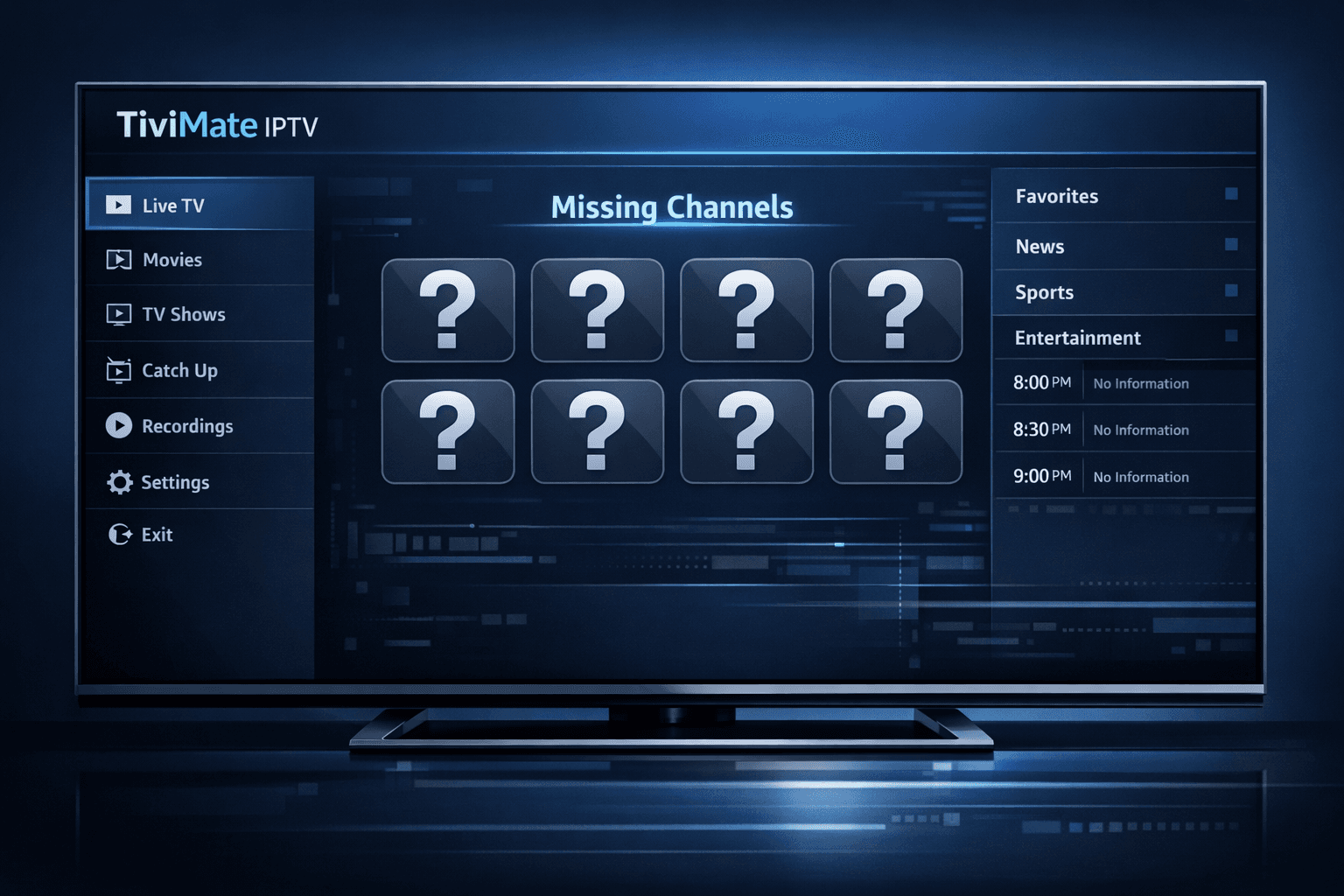
Fix Missing Channel Logos in TiviMate
If you're noticing that the channel logos are missing or not displaying correctly in your TiviMate app, you're not alone. This commonly occurs due to issues with the playlist sources, app settings, or cached data. Fortunately, there are systematic steps you can follow to restore channel logos and improve your viewing experience.
What you'll learn:
- How to refresh channel data to reload logos
- Where TiviMate stores and sources channel logos
- How to verify your IPTV provider includes logo metadata
- Methods to clear cache and update the app for fixes
- When and how to add manual logos
- Troubleshooting specific causes for missing logos
Why Channel Logos Might Be Missing in TiviMate
TiviMate displays channel logos based on metadata included in your IPTV playlist or from a dedicated logo source URL configured in the app. Logos can be missing if:
- Your playlist file (often M3U or Xtream Codes API) lacks logo URLs.
- The logo source setting in TiviMate is empty or incorrect.
- Corrupted or stale cache in the app prevents new data from loading.
- An outdated app version is causing display bugs.
Understanding this helps narrow down your troubleshooting.
Step 1: Refresh Your Playlist in TiviMate
When you refresh your playlist, TiviMate reloads the channel list and associated metadata, which often restores missing logos if they exist in the source.
How to refresh your playlist:
- Open TiviMate on your device.
- Navigate to the main menu and select your playlist.
- Choose the 'Refresh' or 'Update' option.
- Wait a few moments for the data to update.
If logos appear after this, the issue was temporary or cache-related.
Step 2: Check and Configure Logo Source Settings
TiviMate lets you specify a logo source URL separate from the playlist. This external URL points to a directory or service providing channel logo images.
How to check and update logo source:
- Open TiviMate and go to Settings > Playlist Settings.
- Look for the Logo Source URL field.
- If it's empty, try adding a reliable URL provided by your IPTV provider or a public IPTV logo source.
- If you don't know a URL, contact your IPTV provider or search IPTV forums for recommended logo sources.
Properly configured logo sources will load channel icons independently of the playlist.
Step 3: Verify Your IPTV Provider Supplies Logos
Not all IPTV providers include logos in their playlists or logo services. Before further troubleshooting, confirm with your provider whether channel logos should be included.
- Check your provider’s documentation or support pages for playlist metadata details.
- Test your playlist in another IPTV player that shows logos.
- If logos are missing across players, the playlist itself lacks them.
In such cases, consider manual logo addition or switching providers for more polished metadata.
Step 4: Clear Cache and Restart TiviMate
Stale or corrupted cache data can cause display issues including missing logos.
To clear cache:
- On Android TV or Fire TV devices: Go to Settings > Apps > TiviMate > Clear Cache.
- Alternatively, uninstall and reinstall TiviMate to refresh all app data.
After clearing cache, restart the app and refresh your playlist.
Step 5: Add Channel Logos Manually (Optional)
If your provider doesn’t supply logos and automatic methods fail, you can add custom logos manually:
- Gather logo images for your commonly watched channels.
- Upload them to a URL-accessible location (e.g., your own web server).
- Configure the Logo Source URL in TiviMate to point to this location.
- Map channel IDs or names to logos as per TiviMate instructions.
This process requires more technical effort but improves channel navigation.
Step 6: Keep Your TiviMate App Updated
Bugs affecting channel logo display can be fixed in newer releases of the app.
- Regularly check for app updates in the Google Play Store or Amazon Appstore.
- Update TiviMate to the latest version.
- Restart the app after updating.
Updated apps ensure compatibility with current IPTV standards and metadata formats.
Common Mistakes and Troubleshooting Tips
- Using outdated playlists: Make sure your playlist URL is current; expired or obsolete URLs may omit logos.
- Ignoring logo source configuration: Remember to check this setting if logos don’t show after a refresh.
- Confusing avatars with missing logos: If logos appear as generic placeholders, the app is defaulting when no custom logos are found.
- Not clearing cache regularly: Old cache data can interfere with metadata updates.
Who This Guide Applies To
- TiviMate users on Android TV, Amazon Fire TV devices, or Android smartphones/tablets.
- Users using M3U playlists or Xtream Codes API with direct links.
- IPTV users whose providers supply or can supply channel logos.
When to look elsewhere:
- If you're using different IPTV apps (e.g., IPTV Smarters) or hardware-specific apps, follow device-specific guides.
- For logo issues related to EPG data timing, consult guides on EPG time offset problems.
Quick Troubleshooting Checklist
| Step | Action | Purpose |
|---|---|---|
| 1 | Refresh playlist | Reload channel data and logos |
| 2 | Check & set logo source URL | Enable loading logos externally |
| 3 | Verify IPTV provider metadata | Confirm logos exist in source |
| 4 | Clear TiviMate cache and restart | Remove corrupted cached data |
| 5 | Update TiviMate app | Fix bugs affecting logo display |
| 6 (Optional) | Add logos manually | Provide custom logos if missing |
FAQ
Q: Why are my channel logos missing in TiviMate?
A: Missing logos are often due to playlist metadata lacking logo URLs, an empty or incorrect logo source URL, or app cache issues.
Q: Can I add channel logos manually in TiviMate?
A: Yes, TiviMate supports manual logo addition through its settings if your provider doesn’t supply them.
Q: Does refreshing the playlist fix channel logo issues?
A: Yes, refreshing forces the app to reload channel info, restoring logos if included in your playlist.
Q: Do all IPTV providers supply channel logos?
A: No, some do not include logos. Verify this with your provider or consider manual logo solutions.
Q: Is updating TiviMate important for fixing logo display problems?
A: Updating ensures you have fixes and improved support for metadata display.
Conclusion
Missing channel logos in TiviMate are usually caused by metadata or app settings issues. By refreshing your playlist, checking the logo source URL, verifying your IPTV provider's data, clearing cache, and updating TiviMate, you can restore the visual channel guide. For persistent problems, manual logo addition is a powerful alternative. Following these steps will ensure a smoother, more informative IPTV experience.
Frequently Asked Questions
Why are my channel logos missing in TiviMate?
Channel logos can be missing if your playlist lacks logo URLs, the logo source URL is incorrect, or there is an app caching issue.
Can I add channel logos manually in TiviMate?
Yes, TiviMate allows manual addition of custom logos through its settings if your IPTV provider does not supply them.
Does refreshing the playlist fix channel logo issues?
Refreshing the playlist forces TiviMate to reload channel data, often restoring missing logos if they are included in the playlist source.
Do all IPTV providers supply channel logos?
Not all providers include logo metadata in their playlists; check with your provider if logos are missing consistently.
Is updating TiviMate important for fixing logo display problems?
Yes, updating the app ensures you have the latest bug fixes and improvements that might address logo display issues.
Related guides on IPTV Explained
Keep exploring
More explainers that connect naturally to this setup, workflow, or troubleshooting path.
TiviMate is a popular IPTV player app for Android TV and similar devices, known for its advanced channel management options. Organizing favorites and groups in TiviMate lets you customize your IPTV watching experience by categorizing.

When you switch channels on your IPTV service and the screen freezes or lags, it’s frustrating and disrupts your viewing experience. IPTV freezing during channel switching is most often caused by network delays, buffering, or the IPTV.

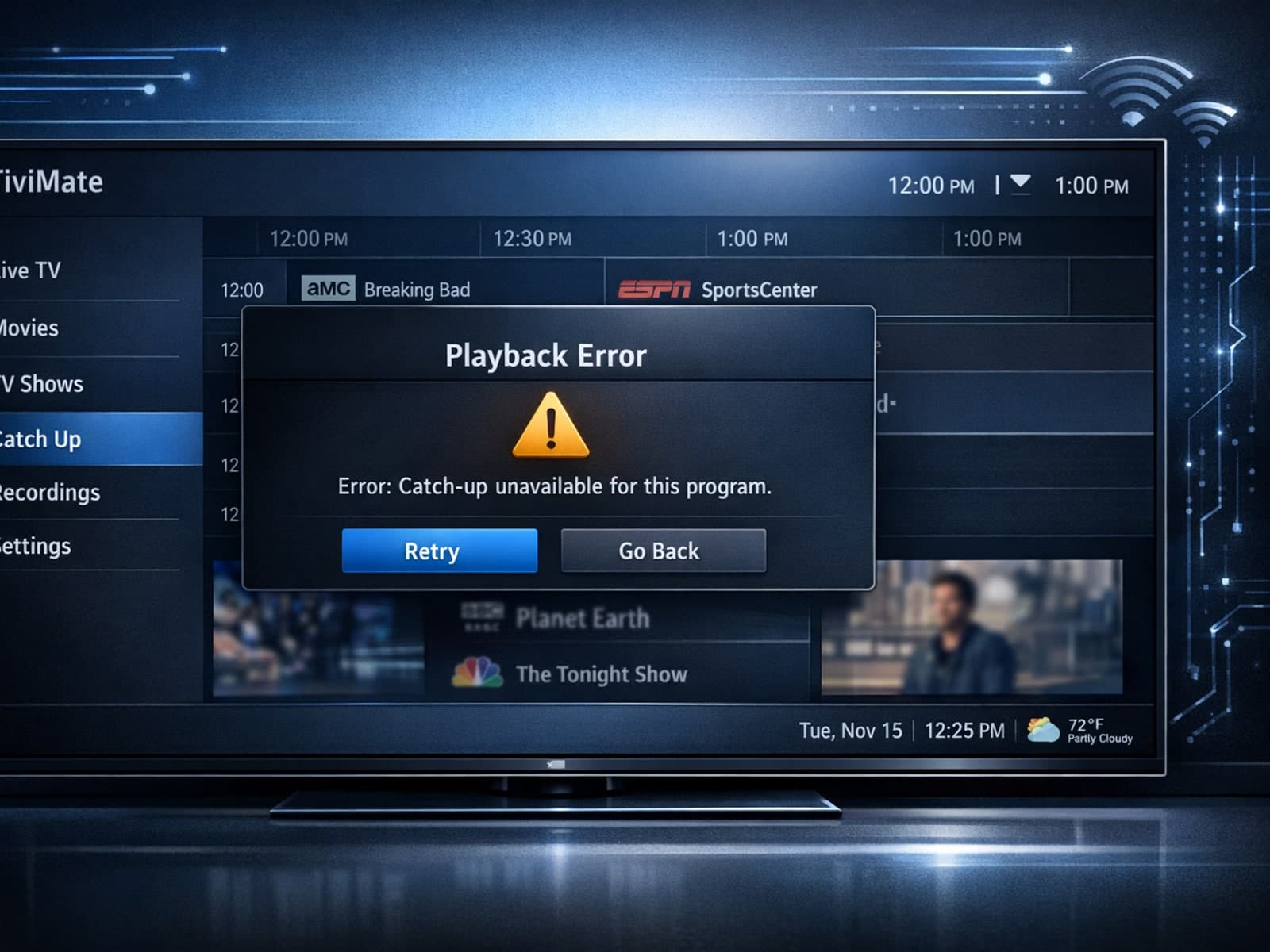
If your catch-up feature in TiviMate isn’t working, the fundamental reasons often lie in your IPTV playlist source or server configuration rather than the app itself.
