
TiviMate Playlist Not Updating After Refresh: Causes and Fixes

Quick answer
If your TiviMate playlist is not updating after you try to refresh it, you’re encountering a common but fixable problem in IPTV streaming. This issue can arise from a variety of reasons including connectivity glitches, expired or invalid playlist URLs, or caching problems with...
Reviewed Against
• TiviMate playlist, EPG, and player-setting workflows
Applies To
• TiviMate setups on Android TV, Google TV, or Fire OS style streaming devices
Does not apply when
• Your app uses a different menu layout or naming scheme than TiviMate.
Topic Cluster
Part of the IPTV cluster
Browse practical IPTV articles about IPTV, including setup choices, troubleshooting paths, and follow-on guides. This page sits in more in this topic for that topic path.
On this page
TiviMate Playlist Not Updating After Refresh: Causes and Fixes
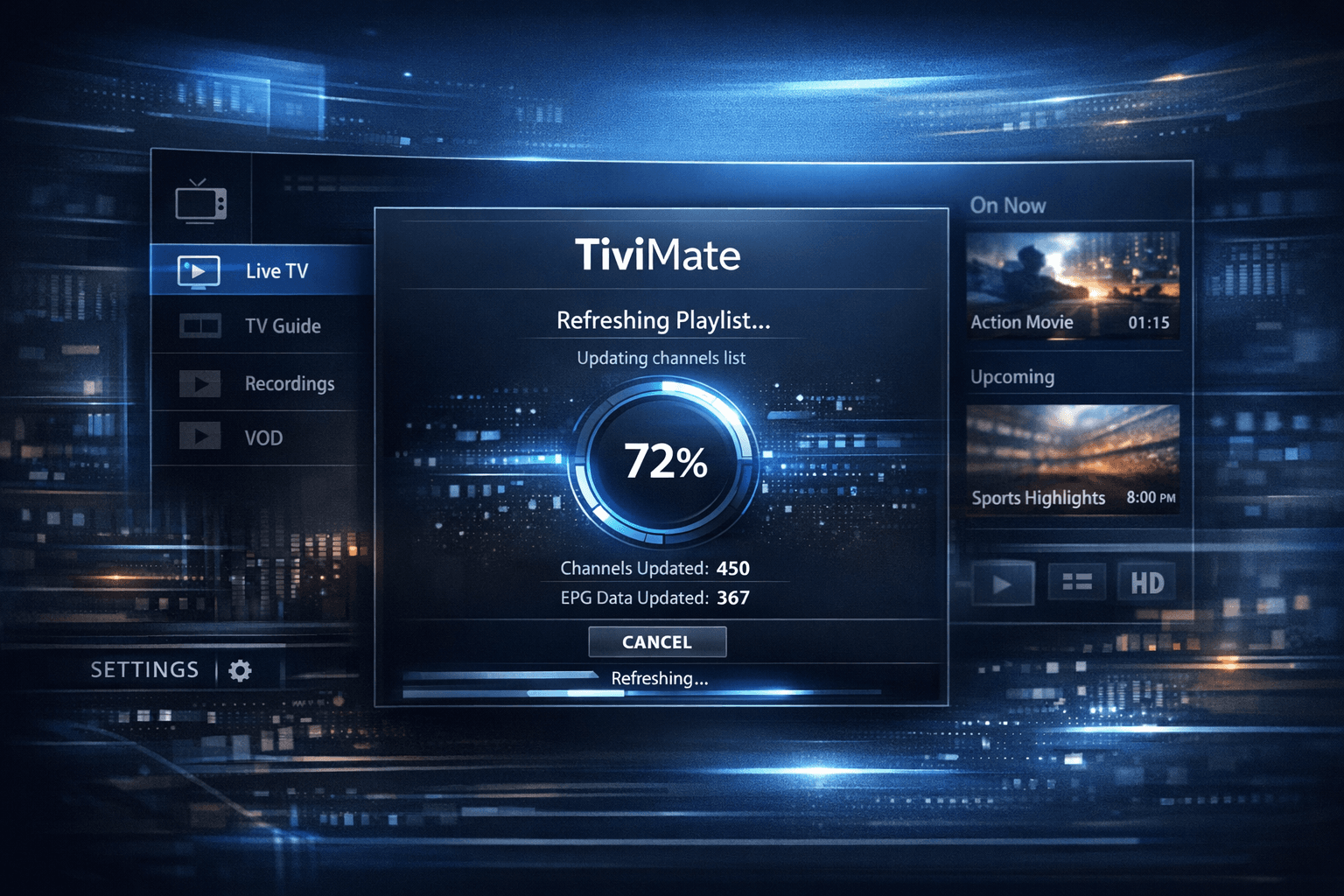
If your TiviMate playlist is not updating after you try to refresh it, you’re encountering a common but fixable problem in IPTV streaming. This issue can arise from a variety of reasons including connectivity glitches, expired or invalid playlist URLs, or caching problems within the app itself. This article walks you through understanding why playlist updates fail and provides actionable steps to restore fresh content updates.
What you'll learn
- Why the TiviMate playlist might not update after refresh
- How to check and fix your playlist URL
- The role of app cache and how to clear it
- How IPTV source status affects updates
- When to remove and re-add playlists
- Device and subscription considerations for troubleshooting
Understanding the TiviMate Playlist Refresh Process
TiviMate uses playlist URLs—often M3U or via Xtream Codes API—that point to IPTV streams and their metadata. Refreshing the playlist means requesting the app to fetch the latest channel list and electronic program guide (EPG) data from the URL source. If the update doesn’t appear, it means the new data isn’t reaching the app correctly.
Why Your Playlist URL Matters
Each playlist URL has an expiration or is specifically authorized to access certain content. If it’s mistyped, outdated, or revoked by the IPTV provider, updates won’t come through. Similarly, if the server hosting the playlist is down, the refresh request fails silently.
How to Check and Fix Your TiviMate Playlist URL
- Open TiviMate and navigate to Settings > Playlists.
- Select the playlist showing update issues.
- Verify the playlist URL matches the one provided by your IPTV source exactly.
- Paste the URL into a text editor for checking hidden spaces or invalid characters.
- Open the URL in a web browser on a PC; if it downloads or displays a file, it's likely valid.
If invalid or expired, contact your IPTV provider or update with a new playlist URL.
Clearing App Cache to Ensure Fresh Data
Caching allows the app to store data locally for faster loading, but it can cause stale playlist data to show instead of updates.
Steps to Clear Cache:
- Exit TiviMate.
- Open your device's Settings app.
- Go to Apps or Applications and locate TiviMate.
- Select Storage & Cache (wording varies).
- Tap Clear Cache (do not select 'Clear Data' unless you want to reset).
- Restart TiviMate and refresh your playlist again.
Note: Clearing cache differs slightly across Android TV, Fire TV, and other devices but generally follows these steps.
Verifying IPTV Server Status and Your Subscription
Sometimes, the problem lies beyond your device or app:
- IPTV service providers may experience server downtime.
- Your subscription might have expired, restricting playlist access.
How to Confirm
- Check your IPTV provider’s website or social media for outage notices.
- Contact customer support or verify account status via their portal.
- Try accessing the playlist from a different device or IPTV app to see if updates work there.
If the source is down, you must wait or get a new subscription.
Removing and Re-adding Playlists in TiviMate
If refreshing or cache clearing doesn’t work, fully removing the affected playlist and re-adding it can reset the update mechanism.
How to do this:
- Open TiviMate and go to Settings > Playlists.
- Select the playlist and choose Remove.
- Return to Settings > Add Playlist.
- Enter the valid playlist URL and a name.
- Complete the setup and let the app fetch the content anew.
This often resolves hidden playlist corruption or authorization flags.
Troubleshooting and Common Mistakes
- Typing errors: Extra spaces or missing characters in the playlist URL cause refresh failures.
- Using unsupported URLs: Only M3U or Xtream Codes API URLs compatible with TiviMate should be used.
- Assuming app updates mean playlist updates: An app update won’t affect your playlist data without refreshing.
- Ignoring device connectivity: Poor internet or DNS issues can block playlist fetching.
Who Should Follow This Guide
- Users with standard IPTV subscription playlists using URL input in TiviMate.
- Those on Android TV, Fire TV, or similar devices running the official TiviMate app.
When to Switch Troubleshooting Path
- If you use custom TiviMate builds, or nonstandard playlist formats, consult provider-specific support.
- Device-specific network issues like firewall or router configuration require separate network troubleshooting.
FAQ
Why does my TiviMate playlist not update even after refreshing?
Common reasons include an invalid or expired playlist URL, app caching old data, or IPTV source server problems.
How can I clear cache in TiviMate to fix update problems?
Clear the cache via your device's app settings for TiviMate, then reopen the app and refresh.
Can subscription expiration cause the playlist not to refresh?
Yes, expired subscriptions invalidate access, preventing playlist updates.
Should I remove and re-add my playlist to fix updating issues?
Yes, this often resets playlist data when refresh does not work.
Do these solutions apply to all devices running TiviMate?
Generally yes, but device-specific variations could require customized steps.
Conclusion
When your TiviMate playlist does not update after a refresh, the most likely culprits include playlist URL issues, app cache holding old data, or IPTV source problems. Confirm your URL validity, clear the app cache, verify service status, and if needed, remove and re-add the playlist. These targeted steps usually restore seamless playlist updating, allowing you to enjoy fresh IPTV content.
Troubleshooting Checklist
| Step | Description | Outcome |
|---|---|---|
| Verify Playlist URL | Check accuracy and test URL | Ensure valid and active link |
| Clear App Cache | Remove stored data | Eliminate stale cache |
| Restart App & Device | Reboot for fresh start | Resolve temporary glitches |
| Check IPTV Source Status | Confirm server uptime and subscription | Rule out provider issues |
| Remove & Re-Add Playlist | Reset playlist entry | Fix playlist corruption |
For further technical details on playlist types, metadata, and related app features, see related guides like M3U Plus vs Xtream Codes API for IPTV Playlist Updates and How to Organize Favorites and Groups in TiviMate for IPTV. Also consider reading How to Fix Channel Logos Missing in TiviMate for related UI troubleshooting.
Tags: TiviMate, IPTV, Playlist Update, M3U, Xtream Codes, Cache Clearing, Streaming Troubleshooting, IPTV Subscription
Keep exploring
More explainers that connect naturally to this setup, workflow, or troubleshooting path.
TiviMate is a popular IPTV player app for Android TV and similar devices, known for its advanced channel management options. Organizing favorites and groups in TiviMate lets you customize your IPTV watching experience by categorizing.

When you switch channels on your IPTV service and the screen freezes or lags, it’s frustrating and disrupts your viewing experience. IPTV freezing during channel switching is most often caused by network delays, buffering, or the IPTV.

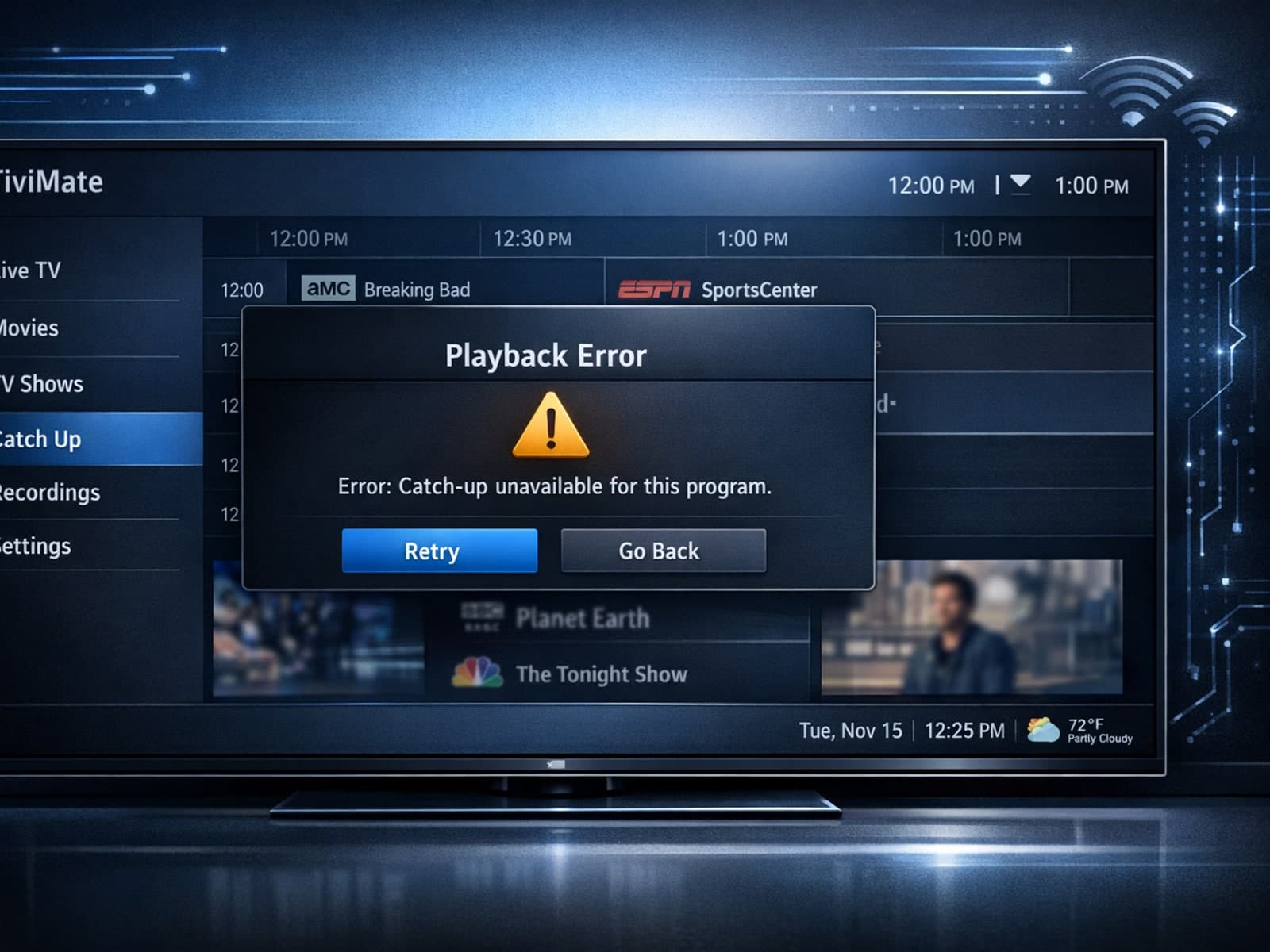
If your catch-up feature in TiviMate isn’t working, the fundamental reasons often lie in your IPTV playlist source or server configuration rather than the app itself.
