
How to Fix Channel Logos Missing in TiviMate

Quick answer
If you notice that channel logos are missing in your TiviMate IPTV app, the issue usually stems from how your playlist or Electronic Program Guide (EPG) handles logo metadata. This is a common problem that can often be fixed by refreshing your playlist, ensuring your EPG sourc...
Reviewed Against
• TiviMate playlist, EPG, and player-setting workflows
• XMLTV guide imports, refresh timing, and channel-guide matching
Applies To
• TiviMate setups on Android TV, Google TV, or Fire OS style streaming devices
• Guide data issues such as missing listings, stale guide refreshes, or wrong time offsets
Does not apply when
• Your app uses a different menu layout or naming scheme than TiviMate.
• The stream itself will not play at all and you still need to verify login or playlist access.
Corroborating Resources
XMLTV file format referenceUseful when the issue comes from guide-source formatting, channel mapping, or XMLTV data freshness.
Topic Cluster
Part of the EPG cluster
Guide data problems, XMLTV and playlist matching, time-offset fixes, and TiviMate EPG recovery paths. This page sits in troubleshoot and fix for that topic path.
Start here in this topic
On this page
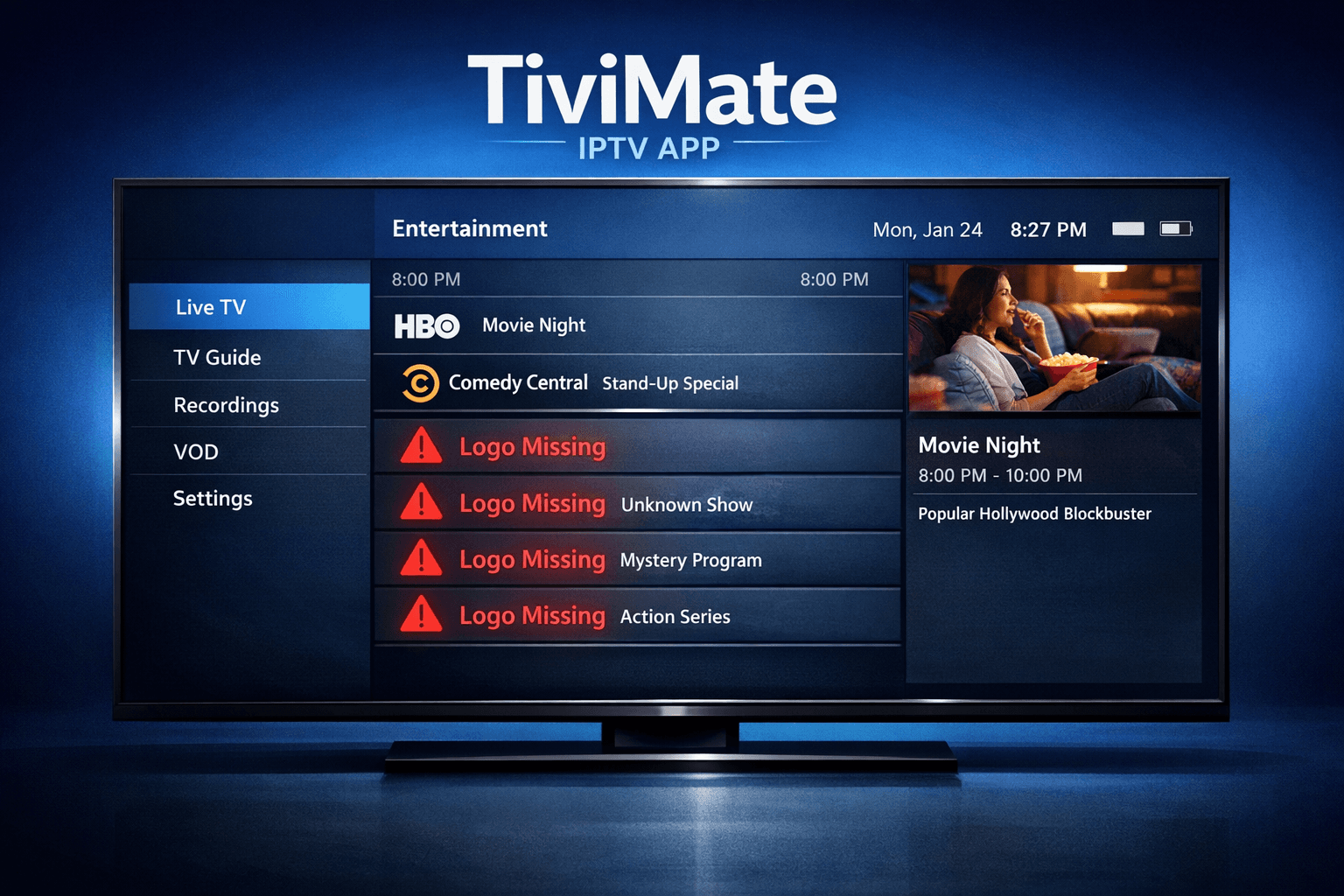
How to Fix Channel Logos Missing in TiviMate
If you notice that channel logos are missing in your TiviMate IPTV app, the issue usually stems from how your playlist or Electronic Program Guide (EPG) handles logo metadata. This is a common problem that can often be fixed by refreshing your playlist, ensuring your EPG source supports logos, or adjusting settings in TiviMate to properly display channel images. This guide walks you through practical steps to restore missing channel logos effectively.
What you'll learn
- Common reasons why channel logos fail to show in TiviMate
- How to refresh and update playlists to retrieve logos
- Checking and configuring EPG sources for logo compatibility
- Adjusting TiviMate settings to enable channel logos
- When to assign custom logos manually
Understanding Why Channel Logos Go Missing in TiviMate
Channel logos are small images that visually identify channels in your IPTV app. TiviMate uses metadata embedded in your IPTV playlist or fetched from the EPG source to display these images alongside channel names.
Playlist and EPG Metadata Role
- Playlist (M3U or Xtream Codes API): The playlist may include direct URLs to channel logos.
- EPG (Electronic Program Guide): Provides program schedules and can include channel logos.
When a playlist lacks logo URLs or if the EPG source doesn't provide them, TiviMate won't display any logo.
Common Causes of Missing Logos
- Playlist does not embed logo URLs.
- EPG source lacks channel logo information or is incompatible.
- Settings in TiviMate are set to hide logos.
- Cache or app glitches causing metadata not to load correctly.
Step 1: Refresh Your Playlist in TiviMate
Refreshing your playlist is the fastest way to attempt fixing missing logos because it prompts TiviMate to re-fetch the latest metadata.
How to Refresh:
- Open the TiviMate app.
- From the main screen, go to your playlist manager.
- Select your current playlist.
- Choose the Refresh or Update Playlist option.
- Wait a few moments for the data to reload.
Refreshing helps especially if your IPTV provider has updated logos or playlist metadata recently.
Step 2: Verify EPG Source and Compatibility
Since EPG metadata often includes channel logos, confirming your EPG source is correct and compatible is vital.
What to Check:
- Is your EPG source correctly linked to your playlist?
- Does the EPG provider supply logos?
- Is the EPG format supported by TiviMate?
How to Confirm in TiviMate:
- Go to Settings > EPG Settings.
- Check the URL or credentials used for the EPG feed.
- If possible, verify with your IPTV provider whether the EPG contains logo data.
Switching to an EPG source known to include logo information can resolve missing logos.
Step 3: Adjust TiviMate Settings to Display Channel Logos
Sometimes logos are present but simply not visible due to app settings.
To Enable Channel Logos Display:
- In TiviMate, navigate to Settings > Appearance.
- Locate the option Show Channel Logos.
- Ensure it is toggled On.
- Optionally toggle Match Logos To EPG to improve logo matching.
Apply changes and revisit your channel list to see if logos now appear.
Step 4: Clear Cache or Reinstall TiviMate if Necessary
If playlists are refreshed, EPG is correct, and settings are enabled, yet logos don’t appear, the issue could be cached data or app glitches.
Cache Clearing:
- Navigate to your device's app settings.
- Find TiviMate in the installed apps list.
- Select Clear Cache (avoid clearing data initially to preserve settings).
If cache clearing does not help, consider uninstalling and reinstalling TiviMate to reset corrupted data.
Step 5: Manually Assign Missing Channel Logos
When automatic methods fail, you can manually assign a logo to a channel. This approach is helpful if your playlist or EPG doesn't provide logos but you have access to them.
How to Manually Assign:
- In TiviMate, go to the channel list.
- Select the channel missing a logo.
- Choose Edit Channel Details.
- Upload or specify a URL for the channel logo image.
Choose images ideally in .png or .jpg format with transparency if possible for best visual quality.
Troubleshooting: Common Mistakes and Tips
- Assuming playlists always contain logos: Many playlists simply do not embed any logo URLs.
- Using incompatible EPG feeds: Not all EPG sources support logos; verify compatibility before relying on them.
- Overlooking settings toggles: Sometimes logos won't display because the app's display settings are off.
- Neglecting playlist refresh: Cached old data can mask newly added logos.
Who Should Use This Guide?
- Users of TiviMate IPTV app on Android TV, Fire TV, or Android devices looking to fix missing logos in their current IPTV setup.
- IPTV customers using M3U or Xtream Codes API playlists with EPG integration.
When to Look Elsewhere
- If you are facing missing logos on a different IPTV app, this guide’s steps won't fully apply.
- Device-specific issues (e.g., Fire TV Stick quirks) might require hardware-specific guides.
- Major IPTV playlist or provider outages affecting logos may need contacting your provider directly.
FAQ
Why are channel logos missing after adding a new playlist?
New playlists may lack embedded logo URLs or use incompatible EPG sources; refreshing the playlist and verifying EPG compatibility often resolves this.
Can I add custom channel logos in TiviMate?
Yes, TiviMate allows manual assignment of custom logos through channel settings for any channels missing logos.
Does refreshing the playlist always fix missing logos?
Refreshing typically updates metadata, but if the source lacks logos or EPG info, logos might remain missing and require manual fixes.
Conclusion
Missing channel logos in TiviMate usually stem from playlist or EPG data issues, not the app itself. Start by refreshing your playlist and checking that EPG sources include logo information. Make sure TiviMate's settings permit logo display, and if problems persist, clear caches or assign logos manually. By following these targeted steps, you can restore channel logos and improve your viewing experience with clear visual cues.
Channel Logos Troubleshooting Checklist
| Step | Action | Purpose |
|---|---|---|
| 1. Refresh Playlist | Update current playlist data | Fetch latest logos and metadata |
| 2. Verify EPG Source | Confirm EPG provides logos | Ensure logos available via metadata |
| 3. Check TiviMate Settings | Enable 'Show Channel Logos' | Allow logos to display |
| 4. Clear Cache or Reinstall | Remove corrupted cached data | Fix app display glitches |
| 5. Manual Logo Assignment | Upload or link missing channel logos | Complete channel set visually |
References
Keep exploring
More explainers that connect naturally to this setup, workflow, or troubleshooting path.
TiviMate is a popular IPTV player app for Android TV and similar devices, known for its advanced channel management options. Organizing favorites and groups in TiviMate lets you customize your IPTV watching experience by categorizing.

When you switch channels on your IPTV service and the screen freezes or lags, it’s frustrating and disrupts your viewing experience. IPTV freezing during channel switching is most often caused by network delays, buffering, or the IPTV.

If your catch-up feature in TiviMate isn’t working, the fundamental reasons often lie in your IPTV playlist source or server configuration rather than the app itself.
