
TiviMate Playlist Not Updating After Refresh: Causes and Fixes

Quick answer
If your TiviMate playlist does not update after hitting the refresh button, it can be frustrating and disruptive to your viewing experience. This issue generally stems from connection problems, invalid or expired playlist sources, or local app glitches like caching. Fortunatel...
Reviewed Against
• TiviMate playlist, EPG, and player-setting workflows
Applies To
• TiviMate setups on Android TV, Google TV, or Fire OS style streaming devices
Does not apply when
• Your app uses a different menu layout or naming scheme than TiviMate.
Topic Cluster
Part of the IPTV cluster
Browse practical IPTV articles about IPTV, including setup choices, troubleshooting paths, and follow-on guides. This page sits in more in this topic for that topic path.
On this page
TiviMate Playlist Not Updating After Refresh: Causes and Fixes
If your TiviMate playlist does not update after hitting the refresh button, it can be frustrating and disruptive to your viewing experience. This issue generally stems from connection problems, invalid or expired playlist sources, or local app glitches like caching. Fortunately, there are specific steps you can take to diagnose and fix the problem efficiently.
What you'll learn
- Why TiviMate playlists might not update even after a manual refresh
- How to verify your internet and playlist URL
- How to clear app cache and re-add playlists
- When IPTV provider issues are likely the cause
- Which troubleshooting steps apply best depending on your device and playlist type
Understanding Why TiviMate Playlists Fail to Update
TiviMate relies on playlist URLs, usually pointing to M3U files or Xtream Codes APIs that deliver channel listings and metadata. When you refresh a playlist, the app requests new data from that URL. If no new data arrives or the process fails, the playlist won't update.
Common technical reasons include:
- Internet connection interruptions: Without a stable connection, refresh requests cannot reach the server.
- Playlist URL problems: URLs can expire, be mistyped, or be moved by IPTV providers.
- Caching inside TiviMate: Stored data can prevent fetching fresh content.
- Server-side issues: If your IPTV service is down or modifying playlists, updates may fail.
Understanding these reasons helps you target the right fix instead of random troubleshooting.
Verifying Your Internet Connection and URL
Check Your Network
Your first priority should be confirming your device's internet connection is active and stable:
- Open other apps or use a browser to visit websites.
- Run a speed test to check bandwidth.
- Reboot your router or reconnect Wi-Fi if you detect issues.
Even brief outages can interfere with playlist refresh.
Confirm the Playlist URL
An invalid or outdated playlist URL will prevent updates:
- Navigate to the playlist settings in TiviMate.
- Copy the URL and test it on another device or IPTV client.
- Contact your IPTV provider to confirm the URL is current.
If the URL returns errors or no data, get the updated link from your provider.
Managing Playlist Refresh and Cache Clearing in TiviMate
How to Refresh Correctly
Refreshing a playlist in TiviMate is simple but requires these steps:
- Open the app and go to Playlists.
- Select the playlist causing issues.
- Tap the three-dot menu, then choose Refresh playlist.
If this does not update the list, proceed to clear cache and reload.
Clear Cache and Data
TiviMate stores some data locally to improve performance. Corrupted or stale cache can block updates.
To clear the cache:
- Exit TiviMate completely.
- Go to your device's Settings > Apps > TiviMate.
- Select Storage & cache.
- Tap Clear cache.
If issues persist, clear Clear storage/data (note: this removes all app data, requiring re-adding your playlists).
After clearing, reopen TiviMate and refresh the playlist.
Re-adding the Playlist
In some cases, removing and then re-adding the playlist helps reset the data link:
- In TiviMate, go to Playlists.
- Long-press or use options to Remove the problematic playlist.
- Add it again via the original URL or credentials.
- Refresh once added.
IPTV Provider and Playlist Format Considerations
Check with Your IPTV Provider
Sometimes the problem is outside your device:
- Providers may update or change playlist URLs.
- Service outages can temporarily block playlist access.
- Some providers limit refresh frequency or require re-authentication.
Always confirm with your provider if you experience persistent issues.
M3U vs Xtream Codes API
Playlist format influences update reliability:
| Feature | M3U Playlist | Xtream Codes API |
|---|---|---|
| Format Type | Text-based URL list | API with structured responses |
| Update Speed | Slower, requires full reload | Faster, supports live updates |
| Provider Support | Wide | Requires provider setup |
| Stability | Variable | Generally better |
If your provider supports Xtream Codes API, using it instead of M3U can make updates smoother and reduce update failures.
Troubleshooting Common Mistakes and When to Seek Specific Guidance
Common Mistakes
- Skipping connection checks before troubleshooting playlists.
- Forgetting to update the TiviMate app itself.
- Not clearing cache before assuming the playlist URL is faulty.
- Ignoring provider notifications about service changes.
Who This Guide Applies To
- Users of TiviMate on Android TV devices, Fire TV, or Android smartphones.
- IPTV viewers using M3U or Xtream Codes playlist formats.
When to Consult Other Resources
- If the playlist updates but channel logos are missing, refer to guides on channel logo fixes.
- Device-specific issues on Fire TV Cube or Stick may require device-focused comparisons or troubleshooting.
- Complex errors like authorization failures need different troubleshooting related to login.
FAQ
Why does my TiviMate playlist not update after refreshing?
That can happen because of unstable internet, outdated or invalid playlist URLs, or cache preventing new data retrieval.
How do I clear the cache in TiviMate?
Go to your device's app settings for TiviMate, select storage, then clear cache, and restart the app.
Can the IPTV provider affect playlist updates in TiviMate?
Yes. Provider server status, playlist URL validity, or service changes affect your ability to refresh playlists.
Is M3U or Xtream Codes API better for playlist updates?
Xtream Codes API usually provides faster and more reliable updates due to its structured data and live refresh capabilities.
Conclusion
When your TiviMate playlist won't update after a refresh, carefully check your internet connection and playlist URL first. Clearing cache and re-adding the playlist often resolves stale data issues. Don't overlook potential IPTV provider changes or service interruptions. Using the right playlist format and maintaining the latest TiviMate app version can also improve update success. Following these steps will help maintain a smooth streaming experience without guesswork.
For related topics, see How to Fix Channel Logos Missing in TiviMate, M3U Plus vs Xtream Codes API for IPTV Playlist Updates Compared, and check tips on Cache Clearing and EPG.
Keep exploring
More explainers that connect naturally to this setup, workflow, or troubleshooting path.
TiviMate is a popular IPTV player app for Android TV and similar devices, known for its advanced channel management options. Organizing favorites and groups in TiviMate lets you customize your IPTV watching experience by categorizing.

When you switch channels on your IPTV service and the screen freezes or lags, it’s frustrating and disrupts your viewing experience. IPTV freezing during channel switching is most often caused by network delays, buffering, or the IPTV.

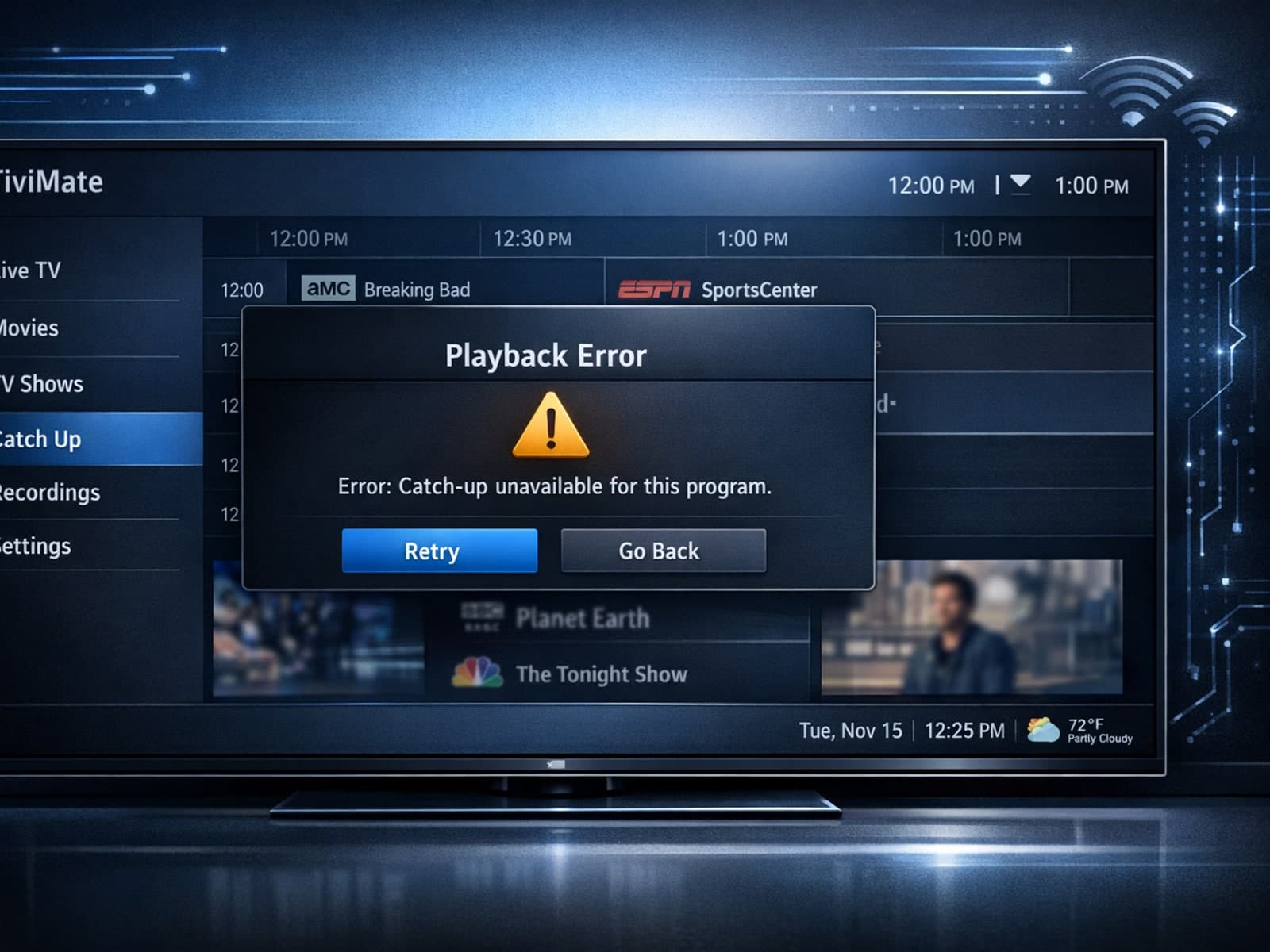
If your catch-up feature in TiviMate isn’t working, the fundamental reasons often lie in your IPTV playlist source or server configuration rather than the app itself.
