
Fire TV Cube vs Fire TV Stick 4K Max for IPTV

Quick answer
If you are considering streaming IPTV content through Amazon's Fire TV lineup, the two standout candidates are the Fire TV Cube and the Fire TV Stick 4K Max. Both devices support IPTV apps and can deliver 4K video, but they differ in power, connectivity, and features that impa...
Reviewed Against
• Fire TV and Fire OS device capabilities, networking, and storage limits
Applies To
• Fire TV Stick, Fire TV Cube, and Fire OS playback or networking questions
Does not apply when
• You are troubleshooting a smart-TV app or set-top box with a different hardware and settings path.
Corroborating Resources
Fire TV device specifications overviewHelpful for checking Fire TV hardware families, platform differences, and device-level constraints.
Fire TV streaming media player specsUseful for codec, storage, Wi-Fi, and Ethernet-adapter expectations on Fire TV sticks and boxes.
Topic Cluster
Part of the Fire TV cluster
Browse practical IPTV articles about Fire TV, including setup choices, troubleshooting paths, and follow-on guides. This page sits in compare options for that topic path.
On this page
Fire TV Cube vs Fire TV Stick 4K Max for IPTV
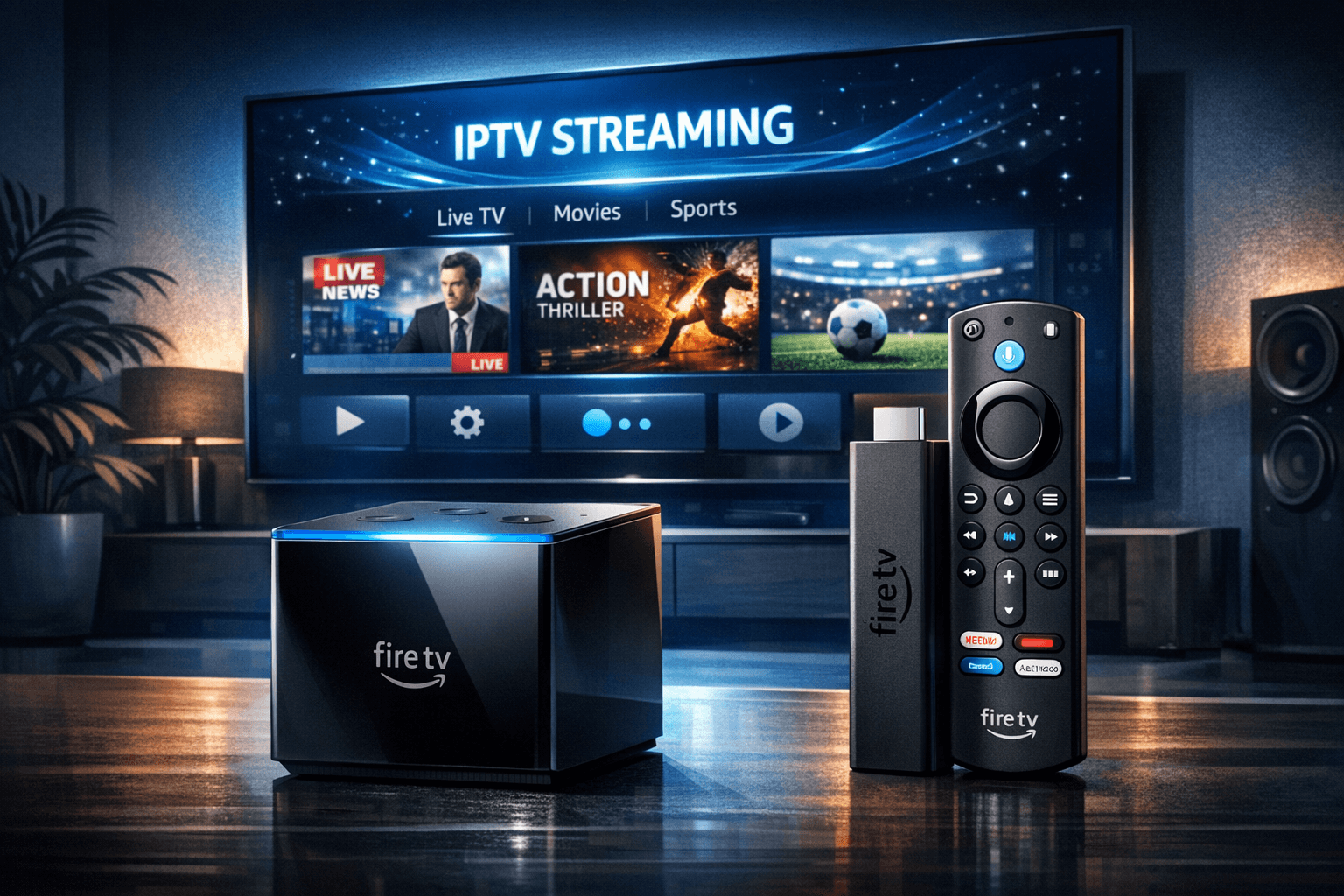
If you are considering streaming IPTV content through Amazon's Fire TV lineup, the two standout candidates are the Fire TV Cube and the Fire TV Stick 4K Max. Both devices support IPTV apps and can deliver 4K video, but they differ in power, connectivity, and features that impact IPTV streaming performance and setup.
In plain terms: The Fire TV Cube is more powerful and versatile, especially if you want the smoothest experience and easier Ethernet support for IPTV. The Fire TV Stick 4K Max is a solid, cost-effective choice that handles IPTV well but may require workarounds for wired connections and offers slightly less processing power.
What you'll learn
- Key hardware differences affecting IPTV streaming
- How network connections influence IPTV on each device
- Setup considerations for IPTV apps on Fire TV devices
- Common IPTV streaming issues and troubleshooting tips
- Which device is better matched to specific IPTV user needs
Hardware Differences and Impact on IPTV Performance
The Fire TV Cube and Fire TV Stick 4K Max both run Amazon's Fire OS but have different internal components affecting IPTV.
Processor and RAM
- Fire TV Cube: Equipped with a Hexa-core processor and 2 GB RAM, the Cube handles multitasking and high-bitrate streams more smoothly.
- Fire TV Stick 4K Max: Has a Quad-core processor with 2 GB RAM, sufficient for most IPTV use but might be challenged by multiple simultaneous apps or very high bitrate streams.
For IPTV, higher specs improve buffering, channel switching speed, and app responsiveness.
Connectivity Options
- Fire TV Cube: Includes a built-in micro-USB port capable of supporting Ethernet adapters directly, plus dual-band WiFi and Bluetooth.
- Fire TV Stick 4K Max: Primarily uses WiFi; Ethernet connectivity requires purchasing compatible USB-C to Ethernet adapters.
Stable internet is critical for IPTV; Ethernet offers more reliability and lower latency compared to WiFi.
Network Setup for IPTV Streaming
IPTV relies heavily on network stability and bandwidth. Both devices support 802.11ax WiFi (WiFi 6), but Ethernet connections on the Cube offer potential advantages.
WiFi Considerations
- Use a 5 GHz network band for better speed and reduced interference.
- Position your router near the Fire TV device to maximize signal strength.
- Refer to Best WiFi Settings for IPTV on Fire TV Stick to Improve Streaming for detailed optimization.
Ethernet Advantages
- The Fire TV Cube supports direct Ethernet adapters via micro-USB, providing a consistent connection that reduces buffering.
- The Fire TV Stick 4K Max requires third-party adapters that may introduce complexity and sometimes require separate power sources.
Installing and Configuring IPTV Apps
Both devices access the Amazon Appstore, which includes popular IPTV apps like TiviMate and IPTV Smarters.
Step-by-Step Setup
- Connect your Fire TV device to your TV and power source.
- Connect to a stable WiFi or Ethernet network.
- Open the Amazon Appstore and search for your IPTV app.
- Install the app and launch it.
- Enter your IPTV service credentials or load your playlist as required.
- Adjust app settings for EPG (Electronic Program Guide), buffering, and playback quality.
App Performance
- The Cube’s stronger CPU benefits apps that handle EPG data parsing and channel switching more efficiently.
- Both devices support app features like favorites, multiple playlists, and IPTV API integration.
Common IPTV Streaming Issues and Fixes
Despite the hardware, IPTV streaming can experience glitches. Here are common issues specific to Fire TV Cube and Stick 4K Max.
Buffering and Lag
- Buffering often arises from unstable or low bandwidth connections. Switch to Ethernet on the Cube or improve WiFi signal strength.
- Reduce video quality settings in the IPTV app to lower bitrate if network limitations persist.
App Crashes or Login Failures
- Ensure your IPTV app and Fire OS are updated.
- Clear app cache or reinstall the IPTV app.
- Confirm your IPTV service credentials are accurate (see IPTV Smarters Invalid Details Error Explained and Fixed).
Channel Logos or EPG Not Displaying
- Refresh the playlist or EPG data within the IPTV app.
- Check for EPG time offset issues (Fix EPG Time Offset Wrong in TiviMate).
When to Follow Device-Specific Guides
- If you face persistent network issues on the Fire TV Stick 4K Max, review WiFi optimization guides or consider a dedicated Ethernet solution.
- For app-specific errors, refer to IPTV app troubleshooting articles.
Decision Checklist: Fire TV Cube vs Fire TV Stick 4K Max for IPTV
| Feature | Fire TV Cube | Fire TV Stick 4K Max | When to Choose Which |
|---|---|---|---|
| Processor & RAM | Hexa-core CPU, 2 GB RAM | Quad-core CPU, 2 GB RAM | Choose Cube for smoother multitasking/4K IPTV |
| Ethernet Support | Native micro-USB Ethernet adapter | Requires third-party adapter | Cube for easy wired connection |
| WiFi Connectivity | Dual-band WiFi 6 | Dual-band WiFi 6 | Both equal; Cube benefits from Ethernet |
| Price | Higher cost | More affordable | Stick 4K Max if budget is tight |
| Voice Controls | Built-in Alexa with far-field mics | Alexa Remote | Cube for hands-free voice control |
Conclusion
For IPTV users, the Fire TV Cube generally offers superior performance, easier wired network options, and enhanced features that benefit streaming stability and responsiveness. The Fire TV Stick 4K Max remains a capable and budget-friendly option capable of handling IPTV streaming well, especially if WiFi is strong and consistent.
Choosing between them depends on your IPTV usage intensity, network preferences, and budget. If your IPTV setup demands minimal buffering and you have Ethernet or desire voice commands, the Cube is the safer choice. Otherwise, the Stick 4K Max delivers solid IPTV performance with some setup trade-offs.
Frequently Asked Questions
Which device offers better performance for IPTV streaming?
The Fire TV Cube has a more powerful processor and supports Ethernet via adapter, offering smoother IPTV streaming especially in high-traffic or 4K scenarios.
Is Ethernet connection possible on the Fire TV Stick 4K Max?
The Fire TV Stick 4K Max does not have a built-in Ethernet port but can support Ethernet through third-party adapters, though this is less straightforward than on the Fire TV Cube.
Can both devices run popular IPTV apps?
Yes, both devices support installation of common IPTV apps like TiviMate and IPTV Smarters from the Amazon Appstore.
Keep exploring
More explainers that connect naturally to this setup, workflow, or troubleshooting path.
If your TiviMate EPG (Electronic Program Guide) source URL is not working, it means the app cannot load or update the programming guide data for your IPTV channels. Without this data, you lose TV schedules and show information.

If your IPTV streams on Fire TV Stick are lagging or buffering unexpectedly, one often overlooked cause is storage constraints on the device.

If you're using a Fire TV Stick to stream IPTV and experiencing buffering or poor stream quality, your WiFi setup could be a key factor.