
Fire TV Stick Storage Issues Causing IPTV Lag

Quick answer
If you are experiencing lag or buffering while watching IPTV on your Fire TV Stick, one common culprit is limited device storage. When the Fire TV Stick's internal memory fills up or gets fragmented, the IPTV app performance can degrade, leading to slow channel loading, interr...
Reviewed Against
• Fire TV and Fire OS device capabilities, networking, and storage limits
• Home-network checks such as Wi-Fi strength, Ethernet fallback, DNS changes, congestion, and local storage pressure
Applies To
• Fire TV Stick, Fire TV Cube, and Fire OS playback or networking questions
• Playback problems that change with connection quality, device load, app cache state, or time of day
Does not apply when
• You are troubleshooting a smart-TV app or set-top box with a different hardware and settings path.
• Only one channel, event, or provider-side endpoint is failing while the rest of the service stays stable.
Corroborating Resources
Fire TV device specifications overviewHelpful for checking Fire TV hardware families, platform differences, and device-level constraints.
Fire TV streaming media player specsUseful for codec, storage, Wi-Fi, and Ethernet-adapter expectations on Fire TV sticks and boxes.
Android TV video and game troubleshootingUseful for Wi-Fi, updates, app cache, and playback troubleshooting steps that also mirror IPTV failure paths.
Android TV storage helpHelpful when playback issues point to low storage, cache pressure, or app-data cleanup decisions.
Topic Cluster
Part of the Buffering cluster
Buffering fixes, network bottlenecks, device slowdowns, and the fastest checks to stabilize IPTV playback. This page sits in troubleshoot and fix for that topic path.
Start here in this topic
On this page
Fire TV Stick Storage Issues Causing IPTV Lag
If you are experiencing lag or buffering while watching IPTV on your Fire TV Stick, one common culprit is limited device storage. When the Fire TV Stick's internal memory fills up or gets fragmented, the IPTV app performance can degrade, leading to slow channel loading, interrupted playback, and buffering. Understanding how storage constraints affect your Fire TV Stick's IPTV playback can help you fix and prevent lag.
What you'll learn
- How Fire TV Stick storage impacts IPTV app performance
- How to check storage availability on your Fire TV Stick
- The most effective ways to clear storage space safely
- Why cache buildup contributes to lag and how to clear it
- When to consider uninstalling apps or resetting the device
How Fire TV Stick Storage Affects IPTV Performance
Your Fire TV Stick uses internal flash memory both for its operating system and to store app data, including temporary files. IPTV apps like TiviMate, IPTV Smarters, or native IPTV apps rely on this storage to cache streaming data and application resources. When free storage space is low, your Fire TV Stick may struggle to manage these resources efficiently, causing sluggish app response or lag during playback.
Why IPTV streaming lags with low storage
- Cache overflow: IPTV apps store buffering data locally. Limited space reduces buffer effectiveness, causing frequent interruptions.
- Fragmented memory: As storage fills, files get scattered, slowing access speeds.
- Background system strain: With little free space, the Fire OS cannot perform optimization tasks effectively.
Checking Available Storage on Fire TV Stick
Knowing your storage status is the first step. The Fire TV Stick’s interface lets you see how much internal storage is left.
- From the Fire TV home screen, select Settings (gear icon).
- Go to My Fire TV > About > Storage.
- View the total and available storage reported.
If available storage is below 1GB, that likely contributes to IPTV lag and warrants freeing up space.
Clearing Cache and Data to Free Storage Safely
IPTV apps accumulate cache files that can build up in size over time. Clearing these files often improves app responsiveness without affecting your IPTV account or playlists.
Steps to clear cache and data:
- Open Settings on your Fire TV Stick.
- Navigate to Applications > Manage Installed Applications.
- Select the IPTV app causing issues (e.g., TiviMate, IPTV Smarters).
- Choose Clear Cache to remove temporary files.
- If problems persist, select Clear Data to reset the app completely (note: this deletes local settings and cached playlists).
Clearing data is more disruptive; use it only if clearing cache and restarting the app does not resolve lag.
Managing Installed Apps to Maximize Storage
Unused or rarely used apps consume valuable storage space. Removing these can free up storage to improve IPTV app performance.
How to uninstall unused apps:
- Go to Settings > Applications > Manage Installed Applications.
- Scroll through and identify apps you no longer use.
- Select an app and choose Uninstall.
Be cautious not to remove system-critical apps. Focus on large games, media apps, or utilities you do not need.
Restarting and Factory Reset Options
Sometimes system memory fragmentation or stalled processes cause performance issues unrelated to actual storage size.
Restart your Fire TV Stick:
- Hold down the Select and Play/Pause buttons on your remote simultaneously for 5 seconds.
- The device will restart and clear temporary memory.
If problems persist, a factory reset can restore the Fire TV Stick to its original state but erase all data and apps.
Factory reset steps:
- Go to Settings > My Fire TV > Reset to Factory Defaults.
- Confirm and follow on-screen instructions.
Use factory reset as a last resort after backing up important settings.
Common Storage-Related IPTV Lag Mistakes
- Ignoring storage warnings: Fire TV Stick alerts when storage is low; ignoring these delays fixing the root problem.
- Only rebooting without clearing cache: Restarting alone won’t clear storage-related cache bloat.
- Clearing data without backup: Leads to loss of IPTV app credentials and playlists.
- Trying to use USB storage improperly: Most Fire TV Sticks cannot extend internal storage functionality well.
Who Should Use This Guidance?
This advice applies mainly to IPTV users running apps on standard Fire TV Stick models where internal storage limitations commonly cause lag. If you use Fire TV Cube or Fire TV Stick 4K Max, which have better hardware and storage, lag issues may be more related to network or app-specific problems rather than storage.
If you experience lag with IPTV on a Smart TV app or Android TV box, refer to device-specific storage management guides as those platforms differ significantly.
IPTV App Storage Management Comparison
| Feature | Clearing Cache | Clearing Data | Uninstalling App | Restart Device | Factory Reset |
|---|---|---|---|---|---|
| Frees temporary files | Yes | Yes | Yes | No | Yes |
| Deletes user settings | No | Yes | Yes | No | Yes |
| Can recover storage fast | Moderate | High | High | Temporary | Highest |
| Risk of data loss | Low | Medium | High | None | Very High |
FAQs
Why does low storage on Fire TV Stick cause IPTV lag?
Low storage reduces system performance, causing IPTV apps to load slowly or buffer frequently, resulting in lag during streaming.
How do I check available storage on my Fire TV Stick?
Go to Settings > My Fire TV > About > Storage to view how much free space is left on your device.
Will clearing cache delete my IPTV settings?
Clearing cache only removes temporary files, but clearing data may reset app settings, so proceed accordingly.
Can adding external storage improve IPTV performance on Fire TV Stick?
Most Fire TV Sticks have limited support for external storage and it may not improve IPTV app performance significantly.
Conclusion
Fire TV Stick storage limitations are a frequent cause of IPTV lag, especially on models with 8GB or 16GB internal memory. By regularly monitoring storage, clearing cache, uninstalling unused apps, and restarting your device, you can significantly improve IPTV streaming smoothness. For persistent issues beyond storage, exploring network settings or app-specific fixes may be necessary.
Focusing on storage management offers a clear, effective pathway to reduce IPTV lag on your Fire TV Stick and enjoy uninterrupted streaming.
For more detailed network tips, see our article Best WiFi Settings for IPTV on Fire TV Stick to Reduce Buffering.
If you want to compare devices, check Fire TV Cube vs Fire TV Stick 4K Max for IPTV: Differences and Best Use.
Learn more about buffering causes in our Buffering topic.
Explore the entire Amazon Fire TV topic for related guides and troubleshooting.
Frequently Asked Questions
Why does low storage on Fire TV Stick cause IPTV lag?
Low storage reduces system performance, causing IPTV apps to load slowly or buffer frequently, resulting in lag during streaming.
How do I check available storage on my Fire TV Stick?
Go to Settings > My Fire TV > About > Storage to view how much free space is left on your device.
Will clearing cache delete my IPTV settings?
Clearing cache only removes temporary files, but clearing data may reset app settings, so proceed accordingly.
Can adding external storage improve IPTV performance on Fire TV Stick?
Most Fire TV Sticks have limited support for external storage and it may not improve IPTV app performance significantly.
Keep exploring
More explainers that connect naturally to this setup, workflow, or troubleshooting path.
When choosing a device specifically for IPTV streaming, the Amazon Fire TV Cube and Fire TV Stick 4K Max are two popular options. Both devices support 4K streaming and run Amazon’s Fire OS with access to IPTV apps like TiviMate and IPTV.

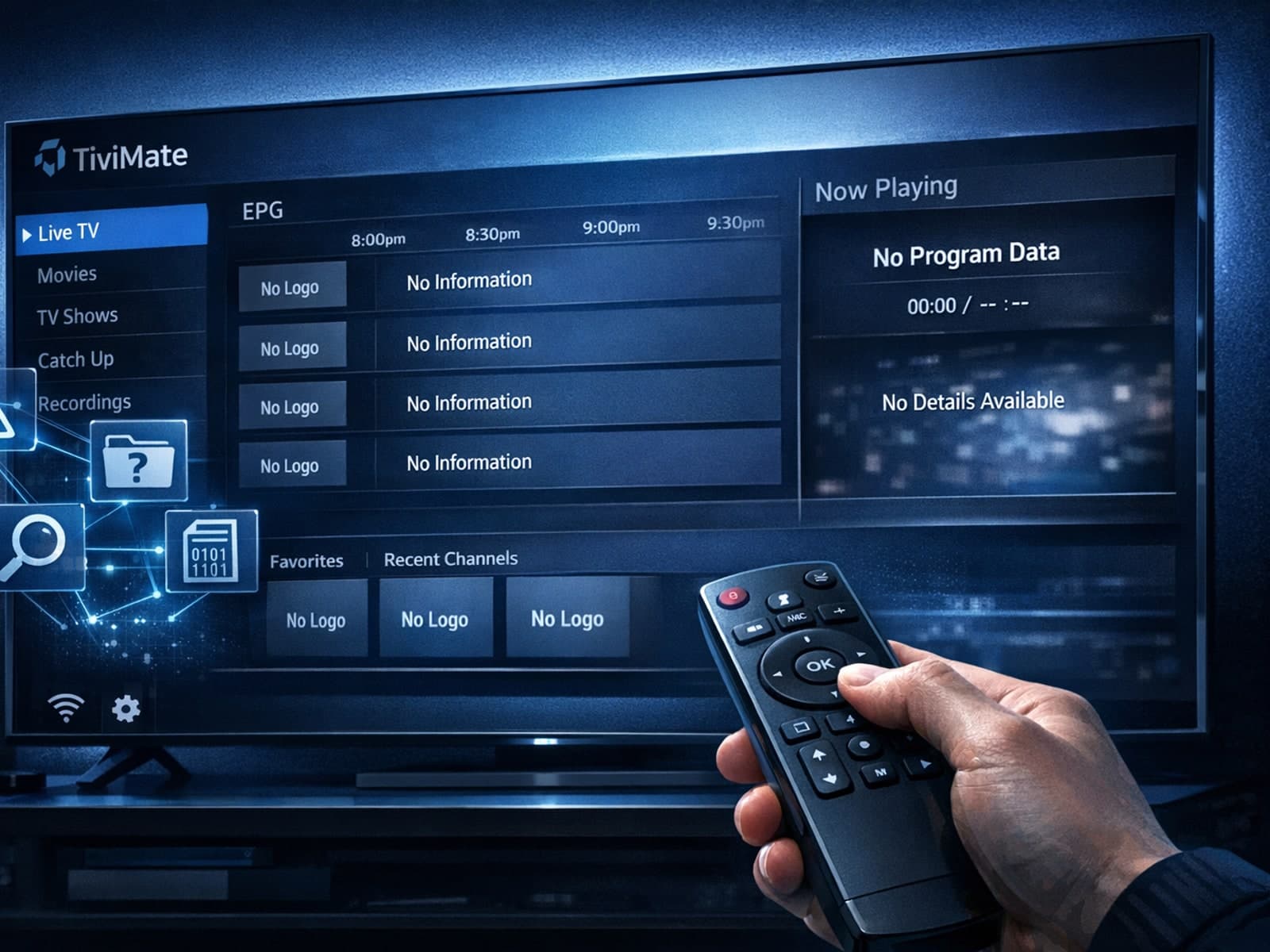
Missing channel logos in TiviMate is a common issue that often stems from problems with your IPTV playlist or Electronic Program Guide (EPG) data.
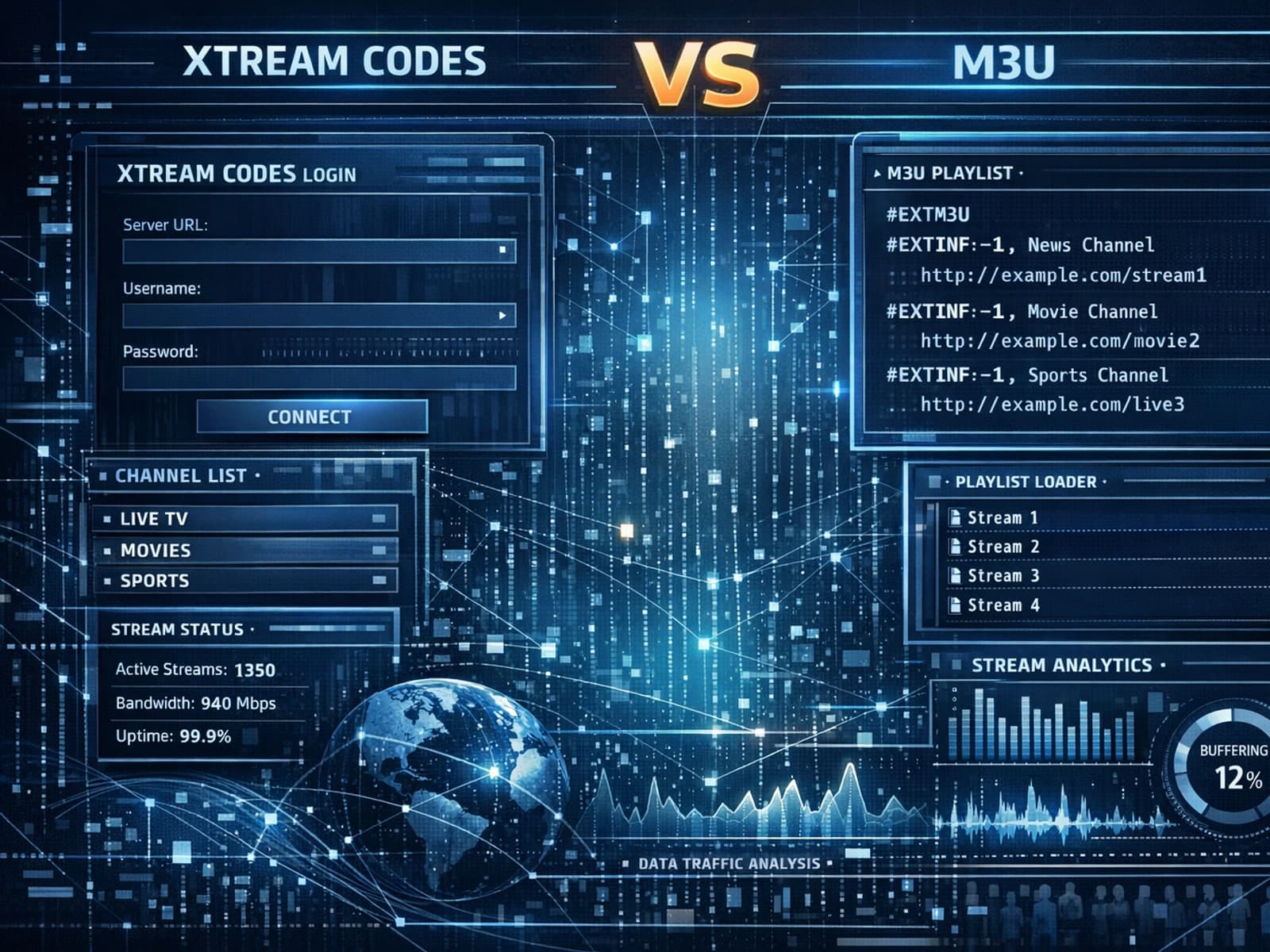
Xtream Codes often works better than M3U for IPTV users who need dynamic playlist management, faster channel updates, richer metadata integration, and controlled access to streaming content.
