
Fire TV Cube vs Fire TV Stick 4K Max for IPTV: Differences and Best Use

Quick answer
If you're choosing between the Fire TV Cube and Fire TV Stick 4K Max specifically for IPTV streaming, you need to understand how these devices handle IPTV apps, network connections, voice control, and overall performance. Both support 4K streaming and can run popular IPTV apps...
Reviewed Against
• Fire TV and Fire OS device capabilities, networking, and storage limits
• Home-network checks such as Wi-Fi strength, Ethernet fallback, DNS changes, congestion, and local storage pressure
Applies To
• Fire TV Stick, Fire TV Cube, and Fire OS playback or networking questions
• Playback problems that change with connection quality, device load, app cache state, or time of day
Does not apply when
• You are troubleshooting a smart-TV app or set-top box with a different hardware and settings path.
• Only one channel, event, or provider-side endpoint is failing while the rest of the service stays stable.
Corroborating Resources
Fire TV device specifications overviewHelpful for checking Fire TV hardware families, platform differences, and device-level constraints.
Fire TV streaming media player specsUseful for codec, storage, Wi-Fi, and Ethernet-adapter expectations on Fire TV sticks and boxes.
Android TV video and game troubleshootingUseful for Wi-Fi, updates, app cache, and playback troubleshooting steps that also mirror IPTV failure paths.
Android TV storage helpHelpful when playback issues point to low storage, cache pressure, or app-data cleanup decisions.
Topic Cluster
Part of the Amazon Fire TV cluster
Browse practical IPTV articles about Amazon Fire TV, including setup choices, troubleshooting paths, and follow-on guides. This page sits in compare options for that topic path.
On this page
Fire TV Cube vs Fire TV Stick 4K Max for IPTV: Differences and Best Use
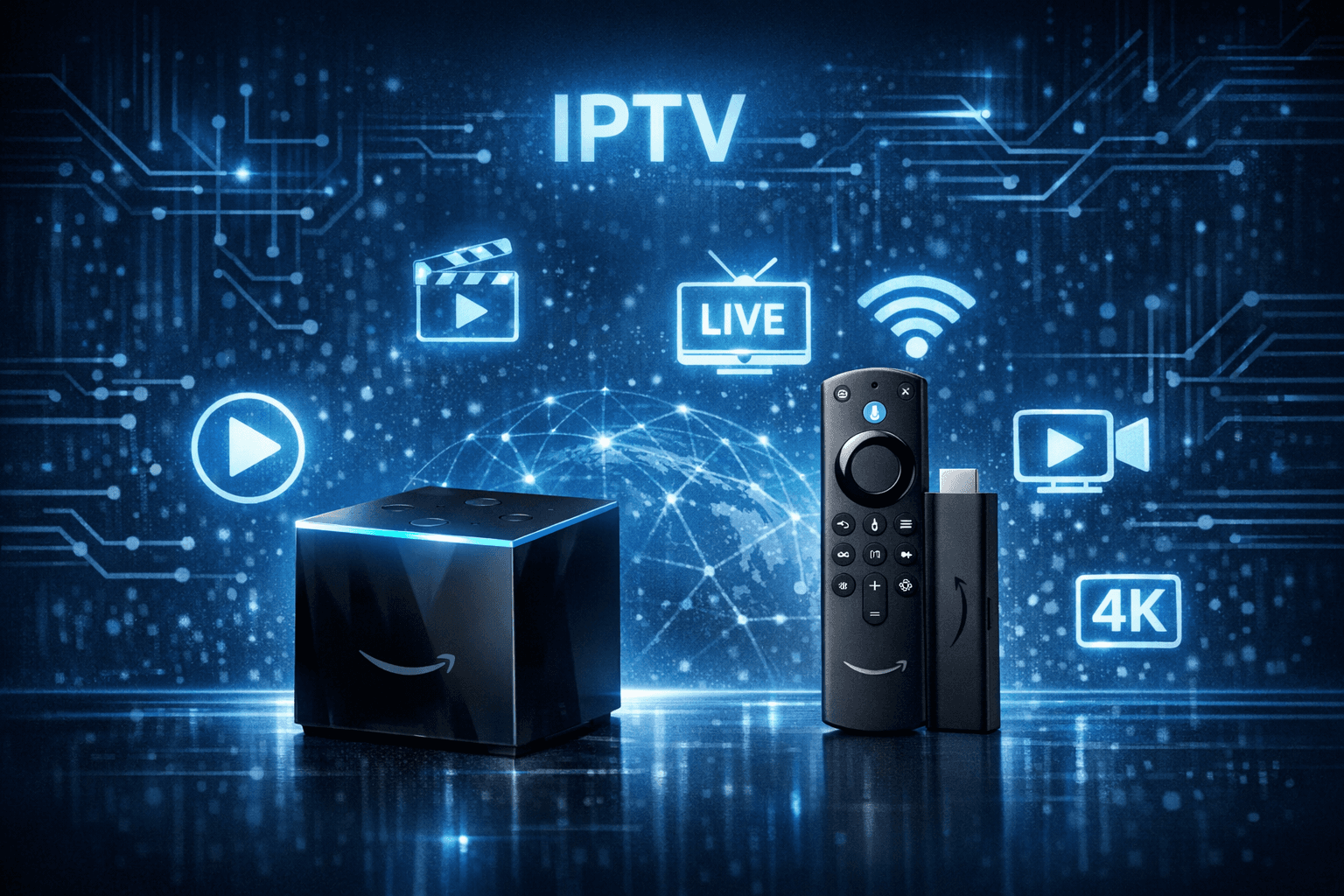
If you're choosing between the Fire TV Cube and Fire TV Stick 4K Max specifically for IPTV streaming, you need to understand how these devices handle IPTV apps, network connections, voice control, and overall performance. Both support 4K streaming and can run popular IPTV apps, but the Cube’s hands-free Alexa, built-in Ethernet adapter, and stronger hardware can provide smoother IPTV usage in some setups. This comparison focuses on the concrete differences that matter when streaming IPTV, helping you pick the best device for your situation.
What you'll learn
- Key hardware and connectivity differences affecting IPTV
- How voice control options impact IPTV navigation
- Setup comparisons relevant to IPTV apps and login
- Performance factors like buffering and app responsiveness
- Troubleshooting common IPTV streaming issues on both devices
IPTV Streaming: Core Hardware and Connectivity
Fire TV Cube
The Fire TV Cube is a 4K-capable streaming media player with a built-in speaker, microphones for hands-free Alexa voice control, and an Ethernet port integrated into the power adapter. This allows for stable wired internet connections, critical for buffering-free IPTV streaming. Its processor (Octa-core 2.2 GHz) is more powerful than the Stick 4K Max, helping it handle multiple tasks like IPTV app navigation and background updates smoothly.
Fire TV Stick 4K Max
The Fire TV Stick 4K Max also supports 4K streaming with a quad-core 1.8 GHz processor and Wi-Fi 6 support, enhancing wireless performance. However, it lacks a built-in Ethernet adapter, requiring a separate USB-to-Ethernet adapter if wired connectivity is preferred. It uses a remote with Alexa that requires button activation for voice commands.
| Feature | Fire TV Cube | Fire TV Stick 4K Max |
|---|---|---|
| Processor | Octa-core 2.2 GHz | Quad-core 1.8 GHz |
| Network Connection | Wi-Fi 5 + Built-in Ethernet | Wi-Fi 6; No Ethernet out-of-box |
| Voice Control | Hands-free Alexa (always on) | Alexa via remote button press |
| Built-in Speaker | Yes | No |
| Price Point | Higher | More Affordable |
—
IPTV App Experience and User Control
Voice Navigation and IPTV
Hands-free Alexa on the Fire TV Cube means you can use voice commands without touching the remote, simplifying channel changes, searching shows, or controlling playback while IPTV apps run. This can be a convenience for IPTV use, where browsing hundreds of channels and content can be cumbersome.
The Stick 4K Max remote requires pressing the Alexa button to talk, which is less seamless but still effective. Both devices support the same IPTV apps from the Amazon App Store.
Setup and Login
Both devices follow the same Amazon Fire OS setup process:
- Connect to your network
- Sign in with Amazon account (or create one)
- Download IPTV apps
- Enter IPTV login info or import M3U playlists
The Cube's Ethernet port can simplify and stabilize initial IPTV app login and loading by providing consistent speed, important if network quality impacts login or streaming reliability.
—
Performance and IPTV-Specific Streaming Considerations
Buffering and Network Stability
IPTV streams benefit from steady throughput. The Cube's wired option via its power adapter reduces many Wi-Fi related buffering issues. The Stick 4K Max's Wi-Fi 6 provides improved wireless speeds and less interference on compatible routers, but it's still subject to Wi-Fi fluctuations.
If your IPTV experience suffers from buffering, the Cube typically handles it better by eliminating Wi-Fi-related variables. For the Stick 4K Max, optimizing Wi-Fi settings (see Best WiFi Settings for IPTV on Fire TV Stick) is crucial.
Storage and App Responsiveness
Both devices have 8GB storage; with pre-installed system software, only around 5-6GB is usable. That limits the number of IPTV apps you can install simultaneously. The Cube's superior CPU can make apps more responsive and allow smoother channel zapping.
—
Troubleshooting and Common IPTV Mistakes on Fire TV Devices
Even with quality hardware, IPTV streaming may face issues. Focus on these common problems:
- Buffering caused by network fluctuations: Use wired connection on Cube or optimize Wi-Fi on Stick 4K Max.
- Incorrect IPTV login details: Double-check username, password, and server URLs to prevent invalid login errors (see IPTV Smarters Invalid Details Error).
- App crashing or not loading: Clear cache, uninstall and reinstall IPTV apps.
- Storage full issues: Manage apps to free space (see Fire TV Stick Storage Issues Causing IPTV Lag).
Who This Guide Applies To
This comparison and advice targets IPTV users choosing between these two Fire TV devices for streaming IPTV apps installed directly from Amazon’s app store or sideloaded. It does not cover IPTV using external set-top boxes or unrelated streaming platforms.
For troubleshooting IPTV apps with unique login systems (e.g., Xtream Codes or M3U playlists), refer to device-specific guides or general IPTV user account troubleshooting.
—
Installation and Setup Steps for IPTV on Fire TV Cube or Stick 4K Max
- Power on your Fire TV device and connect it to your TV.
- Connect to your Wi-Fi network or Ethernet (Cube only).
- Sign in with your Amazon account.
- Search for your IPTV app in the Amazon App Store; install it.
- Launch the IPTV app and enter your IPTV service login credentials.
- Import playlists or log in with Xtream Codes if supported.
- Test streaming channels to verify playback smoothness.
- Use Alexa voice commands (Cube) or remote button (Stick) for navigation.
Compact Comparison Checklist
| Aspect | Fire TV Cube | Fire TV Stick 4K Max |
|---|---|---|
| Network | Wired Ethernet + Wi-Fi 5 | Wi-Fi 6 only (Ethernet via adapter) |
| Voice Control | Hands-free Alexa (always listening) | Alexa via remote button press |
| Performance | Higher CPU, better multitasking | Moderate CPU, good 4K playback |
| Setup Complexity | Ethernet makes stable setup easy | Wi-Fi setup, Ethernet add-on needed |
| Price | Premium price | Budget-friendly |
| Best for | Users needing best network stability and voice control | Users wanting value 4K streaming with good Wi-Fi |
—
Frequently Asked Questions
Can I connect the Fire TV Stick 4K Max to Ethernet for IPTV?
You can, but it requires a compatible USB Ethernet adapter since no built-in port exists. The Fire TV Cube's adapter simplifies this.
Is the Fire TV Cube louder because it has a speaker?
The Cube’s built-in speaker is low volume and meant mainly for Alexa responses; it does not affect IPTV audio, which comes through your TV or external speakers.
Will the Fire TV Cube work better with multiple IPTV apps?
Yes, its stronger processor helps run apps and background tasks simultaneously without slowing down.
Is the Fire TV Stick 4K Max’s Wi-Fi 6 support important for IPTV?
Yes, Wi-Fi 6 can improve streaming stability if your router supports it and you have a wireless connection.
What is the biggest advantage of the Fire TV Cube for IPTV?
Its built-in Ethernet adapter and hands-free Alexa voice control improve network reliability and ease of navigation.
Conclusion
Choosing between the Fire TV Cube and Fire TV Stick 4K Max for IPTV depends on your priorities. The Cube offers more stable wired network support and hands-free voice commands ideal for power users who want minimal buffering and easy control. The Stick 4K Max, with Wi-Fi 6 and lower price, suits users comfortable with wireless setups or adding their own Ethernet adapter. Both devices support the same IPTV apps, so performance and connectivity shape the decision. Use this guide to match your IPTV setup needs with the device best equipped for your streaming experience.
If you want to dive deeper into Fire TV IPTV performance and connectivity fine-tuning, see our articles on Firestick VPN Causing IPTV Buffering and Best WiFi Settings for IPTV on Fire TV Stick.
Keep exploring
More explainers that connect naturally to this setup, workflow, or troubleshooting path.
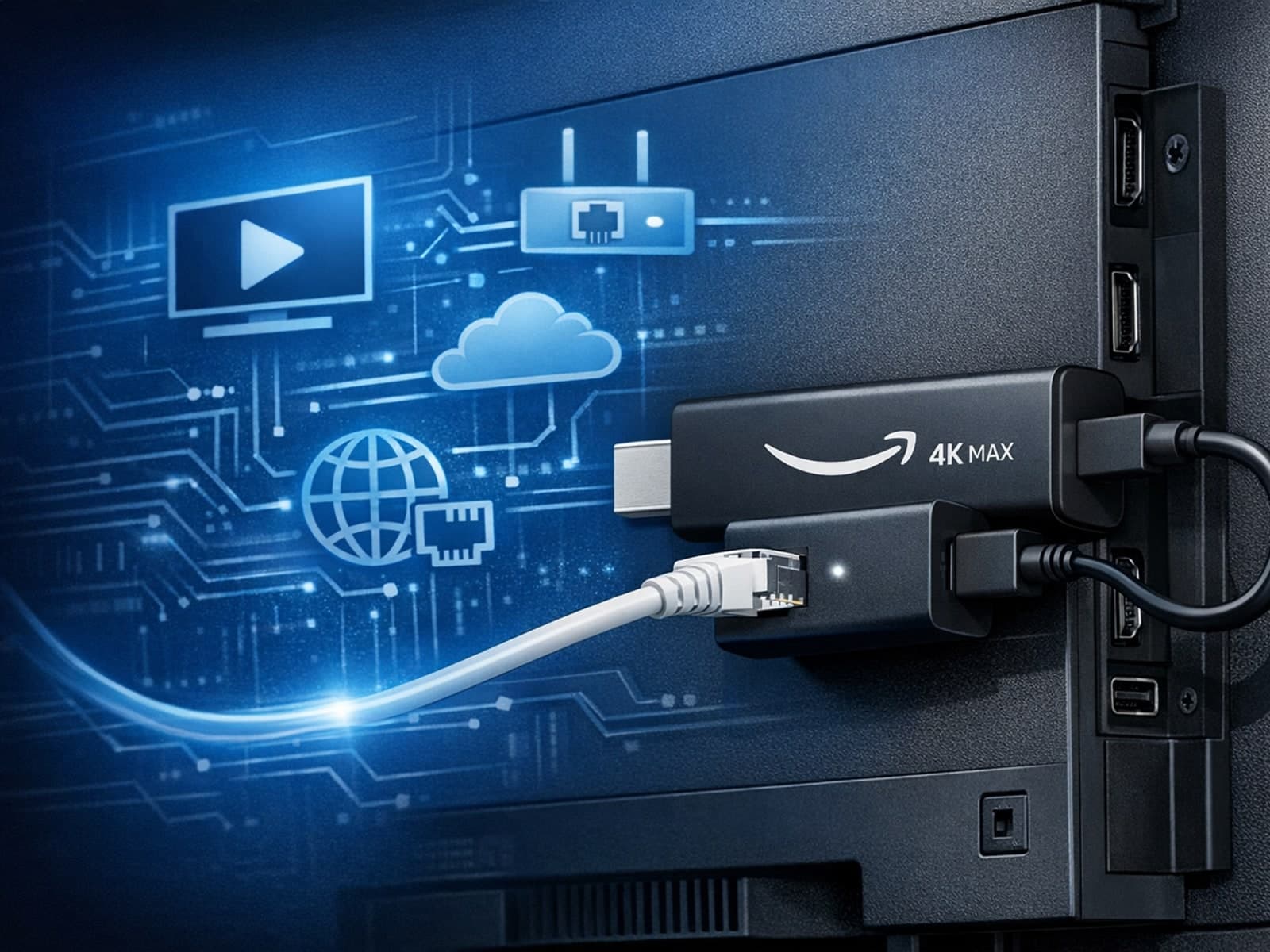
The Amazon Fire TV Stick 4K Max offers a powerful streaming experience with improved hardware and faster Wi-Fi connectivity. However, some users prefer the stability and reliability of a wired Ethernet connection over Wi-Fi.

When you see the "Xtream Codes authorization failed" message on TiviMate, it means the app currently cannot verify your IPTV login credentials with the IPTV provider’s server. This prevents access to the channel list or streaming content.

When your M3U playlist fails to load in IPTV Smarters, it usually means the app cannot retrieve or read the playlist file correctly. This stops your channels from appearing and prevents streaming.
