
M3U Playlist Not Loading in IPTV Smarters: Common Fixes and Checks

Quick answer
When your M3U playlist fails to load in IPTV Smarters, it usually means the app cannot retrieve or read the playlist file correctly. This stops your channels from appearing and prevents streaming. The cause is typically a problem with the playlist URL, internet connection, fil...
Reviewed Against
• IPTV Smarters login, playlist, and account-entry screens
• M3U and M3U Plus playlist URLs, refreshes, and import behavior
• Server-URL formatting, HTTP response handling, and account-entry failure patterns
Applies To
• IPTV Smarters sign-in, playlist import, or account-detail errors
• Playlist-based IPTV setups that rely on M3U or M3U Plus links for channel data
• Errors caused by malformed URLs, wrong credentials, expired tokens, or unreachable playlist endpoints
Does not apply when
• The account itself is disabled or expired on the provider side.
• Your app is using a portal or stalker-style workflow instead of a playlist URL.
• The provider confirms the service is down or the account has been deliberately blocked upstream.
Corroborating Resources
HTTP response status codesUseful when an IPTV app surfaces 401, 403, 404, or 5xx style errors during login or playlist refreshes.
URL structure referenceHelpful for checking server URLs, source links, and path/query mistakes in portal or playlist setups.
Topic Cluster
Part of the IPTV Smarters cluster
Browse practical IPTV articles about IPTV Smarters, including setup choices, troubleshooting paths, and follow-on guides. This page sits in troubleshoot and fix for that topic path.
On this page

M3U Playlist Not Loading in IPTV Smarters: Common Fixes and Checks
When your M3U playlist fails to load in IPTV Smarters, it usually means the app cannot retrieve or read the playlist file correctly. This stops your channels from appearing and prevents streaming. The cause is typically a problem with the playlist URL, internet connection, file format, or app bugs. Fortunately, straightforward steps exist to diagnose and resolve this issue.
What you'll learn
- How to quickly verify and correct your M3U playlist URL
- Network troubleshooting relevant to playlist loading
- Playlist format requirements for IPTV Smarters
- The importance of app updates and how to re-add playlists
- When to contact your IPTV provider or seek app-specific help
Understanding Why M3U Playlists Don't Load
What is an M3U Playlist?
An M3U playlist is a plain text file that lists multimedia streams by URL or file path, used to stream IPTV channels. IPTV Smarters loads this list to display channel options.
If IPTV Smarters says the playlist cannot load, the app tried but failed to fetch or parse the M3U file.
Common Reasons for Failure
- Incorrect or expired playlist URL: The URL typed or provided is wrong or no longer active.
- Network connectivity issues: Your device can't reach the server due to Wi-Fi or ISP problems.
- Playlist format errors: The playlist syntax doesn't conform to standards IPTV Smarters expects.
- App bugs or outdated versions: Older app versions might not handle playlists correctly.
Step 1: Verify Your M3U Playlist URL
The URL you use to load your M3U playlist must be accurate and active.
- Check for typos or missing characters. Even a small mistake causes failure.
- Test URL accessibility: Open the M3U URL in a web browser or a text editor. You should see a text file listing IPTV channels, not an error page.
- Confirm playlist validity: Ask your IPTV provider whether the URL is still valid and hasn't expired.
Step 2: Ensure Stable Network Connectivity
An unstable or slow internet connection can stop IPTV Smarters from loading playlists.
- Test your internet speed via a speed test website.
- Switch between Wi-Fi and mobile data to isolate network issues.
- Restart your modem/router to refresh connections.
- Avoid VPN or proxy interference which may block access to playlist servers.
Step 3: Check M3U Playlist Format Compatibility
IPTV Smarters expects M3U playlists to follow standard formatting:
- UTF-8 encoding: The file should be saved in suitable text encoding.
- EXTM3U Header: The playlist should start with
#EXTM3U. - Correct channel entries: Lines beginning with
#EXTINFfollowed by URL lines.
Non-standard variations, or corrupted files, may fail to load. If you can open the M3U file in a text editor, verify these elements are present.
Step 4: Update IPTV Smarters and Re-add the Playlist
App bugs sometimes prevent proper playlist parsing.
- Navigate to your device's app store.
- Check for updates to IPTV Smarters and install if available.
- Remove the existing M3U playlist from IPTV Smarters:
- Open IPTV Smarters.
- Go to the playlists section.
- Delete the problematic M3U playlist.
- Add the playlist again using the verified URL.
Step 5: Restart Your Device and the IPTV Smarters App
Sometimes, simple restart procedures clear temporary glitches affecting the app's ability to load playlists.
- Close IPTV Smarters completely.
- Power off your device.
- Wait a minute, then power it back on.
- Launch IPTV Smarters and try loading the M3U playlist again.
Common Mistakes When Loading M3U Playlists
- Using expired or provider-disabled URLs.
- Copy-pasting the wrong or truncated URLs.
- Attempting to load playlists without internet access.
- Ignoring app updates which fix parsing or network bugs.
Who Should Use This Guide and When to Seek Other Help
This troubleshooting applies specifically to users of IPTV Smarters loading M3U playlists directly via URL or file import.
- If you use Xtream Codes or API login methods, this guide may not apply; see the When Xtream Codes Works Better Than M3U for IPTV Playback article.
- If loading issues occur with channel logos or catch-up features, consider relevant fixes:
- For authorization errors, check Authorization Error topic.
Summary Checklist: Quick Troubleshooting for M3U Playlist Not Loading
| Checkpoint | Action | Expected Outcome |
|---|---|---|
| M3U URL accuracy | Verify and test in browser | Playlist file visible as text |
| Internet connection | Speed test and switch networks | Stable connection and bandwidth |
| Playlist format | Open and verify M3U text format | Proper #EXTM3U header and entries |
| IPTV Smarters app status | Check for updates and reinstall | Latest version with bug fixes |
| Playlist reload | Remove and re-add playlist URL | Application successfully loads list |
| Device/app restart | Reboot everything | Clear any temporary caching issues |
FAQ
Why does IPTV Smarters say the M3U playlist could not be loaded?
This indicates the app could not download or parse the playlist, often caused by an invalid URL, network issues, or format errors.
Can I fix M3U playlist loading issues by updating IPTV Smarters?
Yes. Updates can resolve bugs and improve compatibility with playlist formats and network protocols.
Is my internet connection causing M3U playlist loading failures?
An unstable or slow connection can prevent the M3U file from being downloaded properly, causing load errors.
What if my M3U playlist loads but channels don't play?
This may involve different issues like stream URL problems, authorization errors, or device limitations and requires other troubleshooting steps.
Conclusion
If your M3U playlist is not loading in IPTV Smarters, start by verifying the playlist URL, checking your internet connection, verifying playlist formatting, and updating your app. Removing and re-adding the playlist often resolves loading hiccups. If these steps fail, contacting your IPTV provider or consulting device-specific support is recommended. Following this methodical approach helps you swiftly restore access to your IPTV channels.
Related IPTV Explained Resources
Keep exploring
More explainers that connect naturally to this setup, workflow, or troubleshooting path.
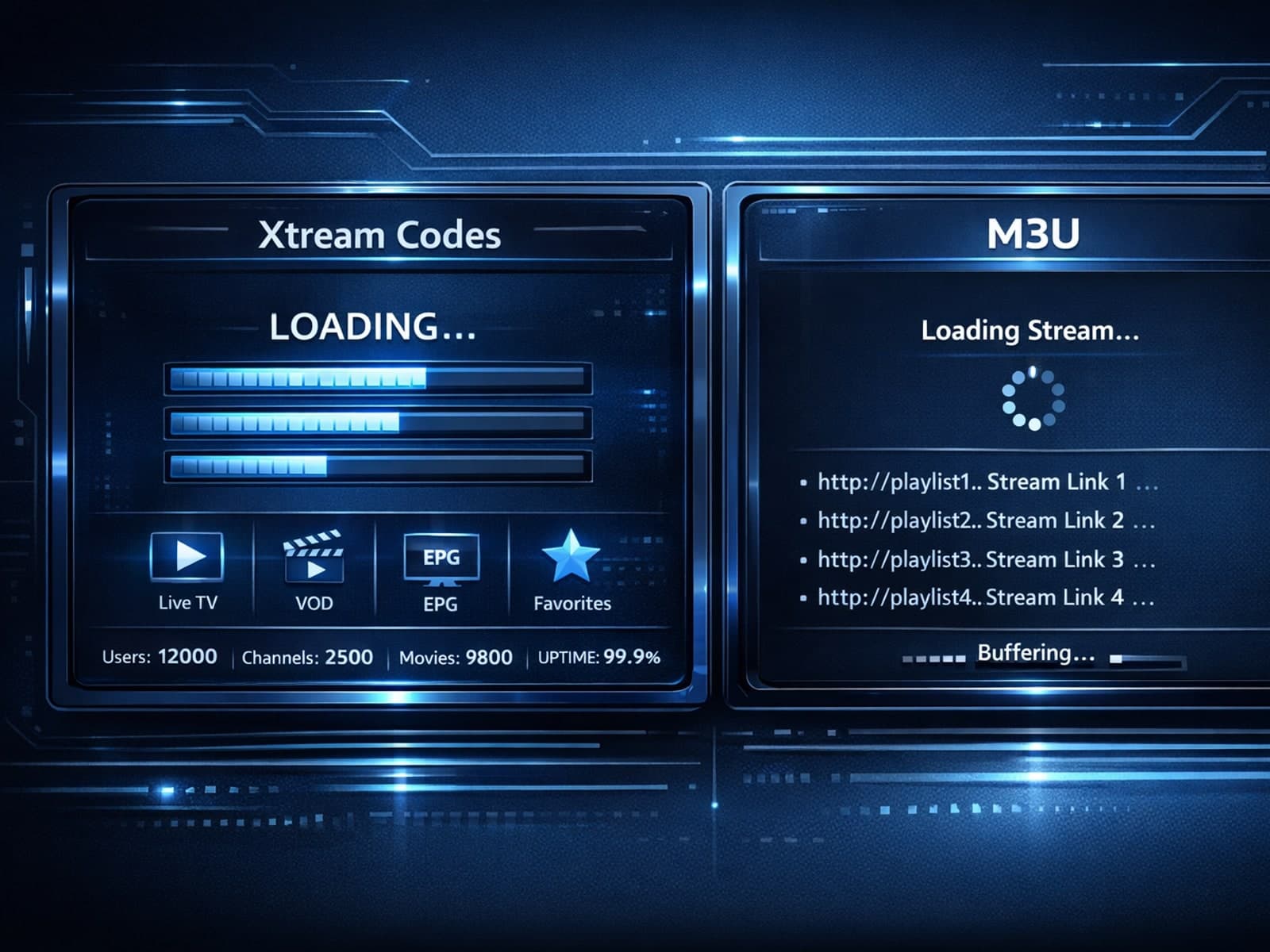
Xtream Codes login can outperform M3U playlists by providing faster channel loading, better playlist management, and improved metadata support in IPTV apps.

If the catch-up feature in your TiviMate IPTV player is not working, the cause usually lies in playlist compatibility, EPG (Electronic Program Guide) data issues, or app configuration problems.

When you see "Xtream Codes authorization failed" in TiviMate, it means the IPTV app cannot verify your login credentials with the IPTV server. This blocks access to your channels and streams, stopping playback.
