
IPTV Smarters Invalid Details Error and How to Fix It

Quick answer
When you see the Invalid Details error on IPTV Smarters, it means the app cannot verify your login information. This usually happens if your username, password, or playlist URL is incorrect or outdated. By confirming your credentials and following a few troubleshooting steps,...
Reviewed Against
• IPTV Smarters login, playlist, and account-entry screens
• Server-URL formatting, HTTP response handling, and account-entry failure patterns
Applies To
• IPTV Smarters sign-in, playlist import, or account-detail errors
• Errors caused by malformed URLs, wrong credentials, expired tokens, or unreachable playlist endpoints
Does not apply when
• The account itself is disabled or expired on the provider side.
• The provider confirms the service is down or the account has been deliberately blocked upstream.
Corroborating Resources
HTTP response status codesUseful when an IPTV app surfaces 401, 403, 404, or 5xx style errors during login or playlist refreshes.
URL structure referenceHelpful for checking server URLs, source links, and path/query mistakes in portal or playlist setups.
Topic Cluster
Part of the Xtream Codes cluster
Login errors, URL format confusion, authorization failures, and when Xtream Codes makes more sense than M3U. This page sits in troubleshoot and fix for that topic path.
Start here in this topic
On this page

IPTV Smarters Invalid Details Error and How to Fix It
When you see the Invalid Details error on IPTV Smarters, it means the app cannot verify your login information. This usually happens if your username, password, or playlist URL is incorrect or outdated. By confirming your credentials and following a few troubleshooting steps, you can resolve this error and regain access to your IPTV playlist.
What you'll learn
- Why IPTV Smarters shows the Invalid Details error
- How to verify and correct your login credentials
- The importance of playlist URL formats and subscription status
- Common mistakes that trigger this error
- Step-by-step troubleshooting to restore access
Understanding the Invalid Details Error
The Invalid Details message in IPTV Smarters typically indicates a problem with the authentication data you’ve entered. IPTV Smarters supports multiple login methods, including:
- Direct username and password associated with your IPTV subscription
- M3U playlist URL
- Xtream Codes API (portal URL, username, and password)
Incorrect input in any of these fields, or an expired subscription, will prevent the app from connecting to your IPTV provider's servers.
Why does this error appear?
- Typos in username, password, or URL
- Using an expired or inactive IPTV subscription
- Using an outdated or broken playlist URL
- Provider-side restrictions or changes to login format
- App glitches or outdated versions causing login failures
How to Verify IPTV Smarters Login Credentials
First, confirm your IPTV service account details:
- Username and Password: Check your IPTV provider’s customer portal or emails for the exact username and password. Credentials are case-sensitive.
- Playlist URL: If using an M3U URL, copy it carefully; partial or expired URLs will cause errors.
- Xtream Codes API details: If you connect by entering portal URL, username, and password, verify each field exactly.
Step-by-step credential verification
- Reopen the welcome email or account dashboard from your IPTV provider.
- Copy and paste credentials carefully to avoid typos.
- Avoid extra spaces when copying URLs or passwords.
Playlist URL Formats and Subscription Status
Your subscription’s status directly affects login success:
- An expired or suspended account will generate invalid login errors.
- IPTV providers may update URLs or revert credentials, requiring new info.
If you're unsure, check your subscription status by logging into the IPTV website or contacting customer support.
Validating playlist URL
- Confirm that the M3U playlist URL starts with
http://orhttps://and matches your provider's format. - Test the URL by opening it in a browser. Sometimes it will download a playlist file or show XML data. If the URL is broken or expired, the link won't open.
Common Mistakes Causing Invalid Details in IPTV Smarters
- Entering incomplete usernames or passwords
- Copy-pasting extra spaces or line breaks
- Attempting login after subscription expiration
- Confusing M3U URL login with Xtream Codes login methods
- Using old playlist links after provider updates
Troubleshooting the Invalid Details Error
Follow these concrete steps from easiest to more involved:
- Double-check your username and password for typos. Retype manually if doubt exists.
- Confirm you are entering credentials in the correct IPTV Smarters login screen: M3U URL or Xtream Codes API.
- Copy and paste your playlist URL exactly. Avoid cutting it short or adding spaces.
- Log out and fully close the IPTV Smarters app, then restart it. This refreshes app data.
- Verify your IPTV subscription is active. Check your provider’s user area or contact support.
- Update IPTV Smarters app from your device’s app store to avoid outdated bugs.
- Test the playlist URL in another IPTV app or browser to confirm it is valid.
- If issues persist, reach out to your IPTV provider for updated login details.
Who Should Use This Guide?
- Users logging into IPTV Smarters on Android, iOS, or Fire TV devices.
- Those using username/password or playlist URL-based IPTV accounts.
Not applicable for:
- Users on IPTV apps with different login workflows like TiviMate or Kodi.
- Cases involving network or device hardware issues instead of login errors.
If you use different apps or experience unrelated errors, consult device-specific troubleshooting guides.
Summary Checklist for Fixing Invalid Details Error
| Step | Action | Purpose |
|---|---|---|
| 1 | Re-check username/password | Rule out typos |
| 2 | Verify playlist URL format and link | Confirm URL validity |
| 3 | Confirm active IPTV subscription | Ensure account not expired |
| 4 | Restart IPTV Smarters app | Refresh login session |
| 5 | Update IPTV Smarters to latest version | Avoid compatibility issues |
| 6 | Contact IPTV provider if problem persists | Obtain correct, current credentials |
FAQ
What does the IPTV Smarters "Invalid Details" error mean?
It means your login credentials—username, password, or playlist URL—are incorrect, expired, or not accepted by the app.
Can reinstalling IPTV Smarters fix this error?
Reinstalling may resolve some issues, but usually invalid details errors stem from wrong login info, so verify credentials first.
How do I know if my IPTV subscription has expired?
Check your account on your IPTV provider's website or contact their support team for status confirmation.
Should I use M3U URL or Xtream Codes API for IPTV Smarters?
Use the method your IPTV provider supports; avoid mixing login methods as this can lead to errors.
Can network problems cause invalid details errors?
Network disruptions typically cause connection timeouts, not invalid login errors; focus on verifying login info first.
Conclusion
The Invalid Details error in IPTV Smarters is a clear sign that one or more login fields are incorrect or your subscription is inactive. By methodically verifying your username, password, and playlist URL, ensuring your subscription is current, and following the step-by-step troubleshooting above, you can fix the issue and restore normal IPTV access. When in doubt, contacting your IPTV provider for the latest credentials is the best option.
Related IPTV Explained articles:
Keep exploring
More explainers that connect naturally to this setup, workflow, or troubleshooting path.
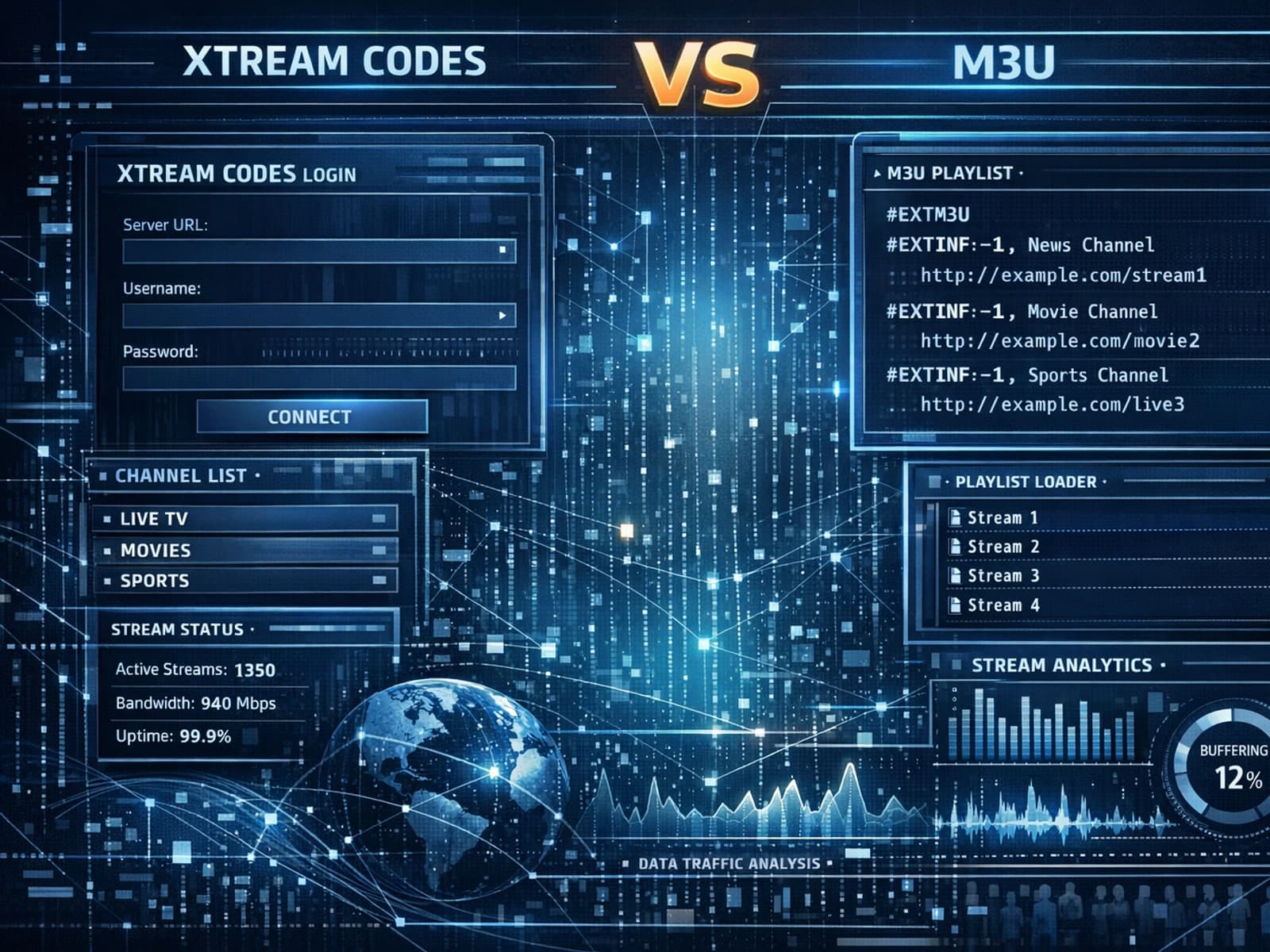
Xtream Codes often works better than M3U for IPTV users who need dynamic playlist management, faster channel updates, richer metadata integration, and controlled access to streaming content.

If you're encountering the "Xtream Codes authorization failed" error in TiviMate, it means the IPTV app cannot verify your login credentials with the IPTV server. This prevents TiviMate from accessing your IPTV lineup.

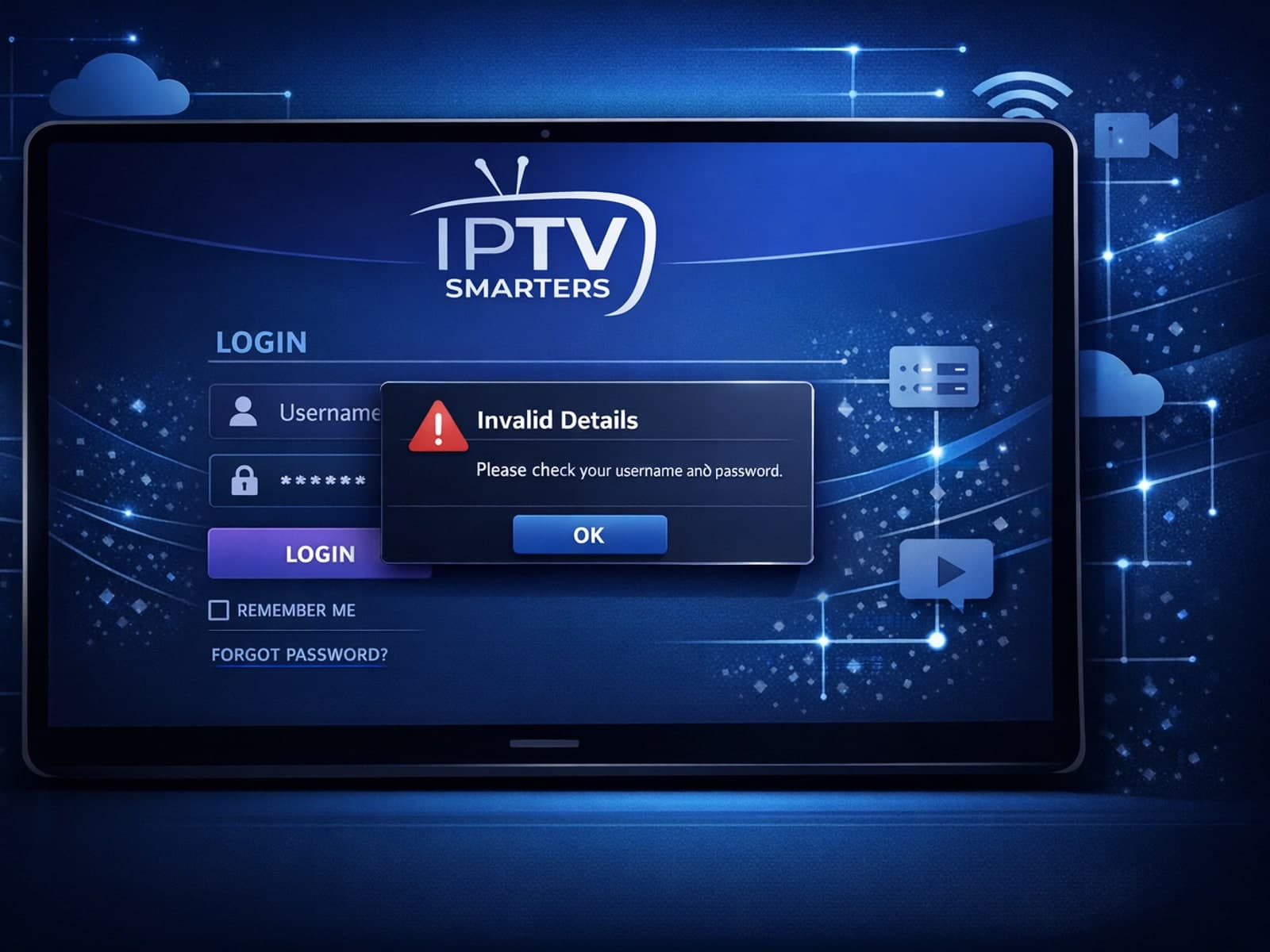
When you see the "Invalid Details" error in IPTV Smarters, it means the app has rejected your login credentials — your username, password, or server URL don't match what the IPTV service requires.