
How to Fix Channel Logos Missing in TiviMate

Quick answer
Missing channel logos in TiviMate can be frustrating because they make channel navigation less intuitive and reduce the overall viewing experience. Generally, missing logos stem from issues with your IPTV playlist, the source of your logos, or TiviMate app settings. This artic...
Reviewed Against
• TiviMate playlist, EPG, and player-setting workflows
Applies To
• TiviMate setups on Android TV, Google TV, or Fire OS style streaming devices
Does not apply when
• Your app uses a different menu layout or naming scheme than TiviMate.
Topic Cluster
Part of the Channel Logos cluster
Browse practical IPTV articles about Channel Logos, including setup choices, troubleshooting paths, and follow-on guides. This page sits in troubleshoot and fix for that topic path.
On this page
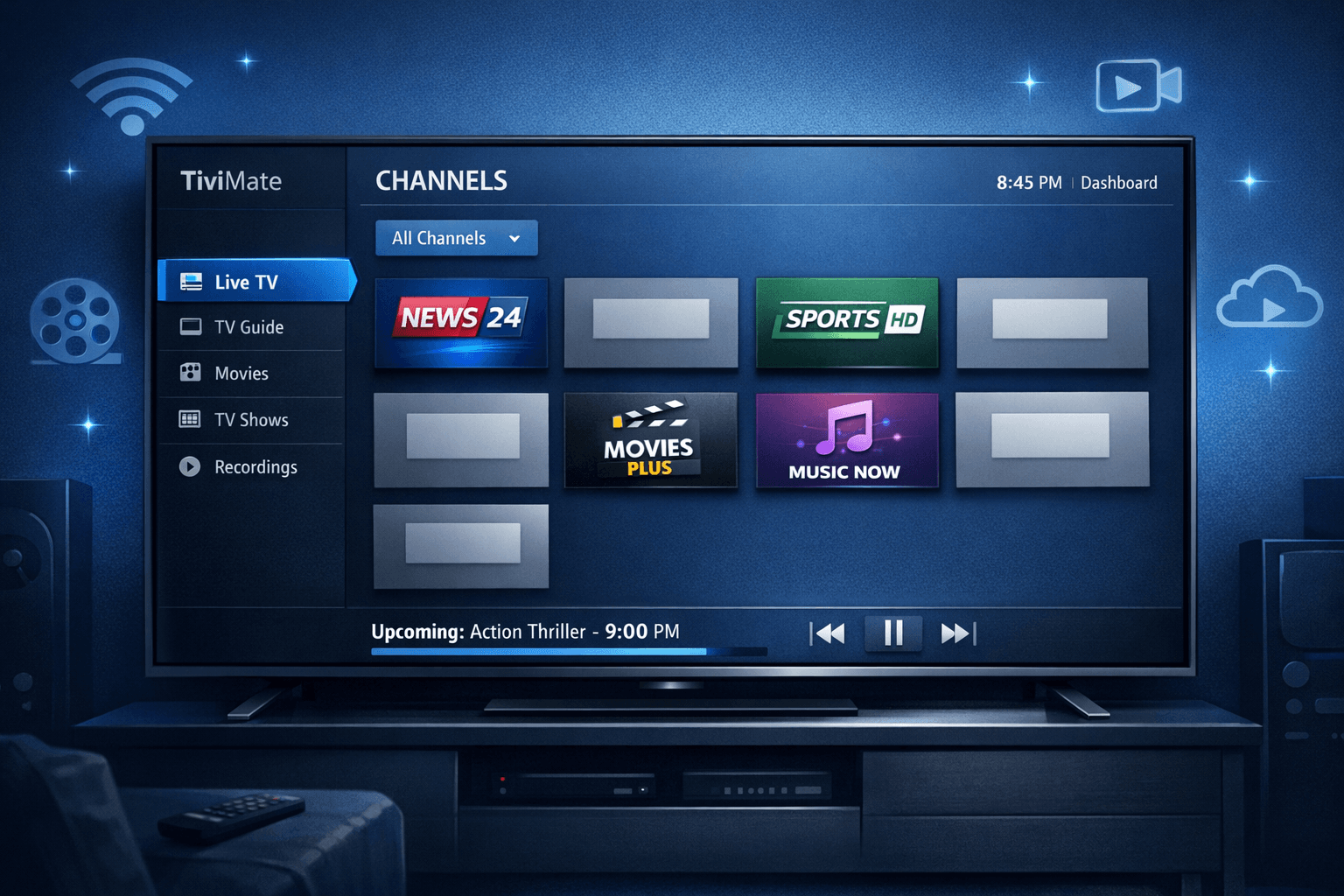
How to Fix Channel Logos Missing in TiviMate
Missing channel logos in TiviMate can be frustrating because they make channel navigation less intuitive and reduce the overall viewing experience. Generally, missing logos stem from issues with your IPTV playlist, the source of your logos, or TiviMate app settings. This article explains concrete steps to identify and fix these issues quickly.
What you'll learn
- How to refresh and verify your IPTV playlist for logos
- Adjusting TiviMate settings that affect logo display
- Checking and correcting logo URLs in your playlist or EPG
- Clearing app cache and updating TiviMate
- When to consult your IPTV provider or change your source
Why Are Channel Logos Missing in TiviMate?
Channel logos are images linked to each channel in your IPTV playlist or electronic program guide (EPG). TiviMate uses these images to present easy-to-recognize channel tiles. Missing logos usually mean:
- The playlist or EPG lacks proper logo URLs or embedded images.
- TiviMate’s settings block logos from showing.
- Temporary app cache or loading errors.
- Network problems that prevent fetching logo images online.
Understanding the cause helps you apply the right fix.
Refresh Your IPTV Playlist to Load Logos
TiviMate relies on your IPTV playlist to provide channel information and logo image URLs. Sometimes, the playlist does not update automatically, especially if your playlist provider changes logo URLs or adds logos.
How to refresh your playlist:
- Open the TiviMate app.
- Go to Settings > Playlist settings.
- Select Refresh playlist or Update all data.
- Wait a few seconds for the update to finish.
Refreshing forces TiviMate to reload channel details and logos if available. If logos remain missing, the problem may be with the playlist content itself.
Verify IPTV Playlist or Provider Has Logo URLs
An IPTV playlist is a text file (usually M3U or Xtream Codes format) that lists your channels and metadata. A typical entry may include a tvg-logo tag pointing to the URL of the channel's logo.
Example snippet:
#EXTINF:-1 tvg-logo="http://example.com/logos/channel1.png",Channel 1
http://stream.example.com/channel1
Steps to check your playlist logos:
- Open your playlist file with a text editor or a playlist editor.
- Search for
tvg-logoorlogotags. - Verify the URLs link to image files and are accessible.
- If your provider does not include logos, request them or switch to one with logo support.
Sometimes, logos depend on an attached XML TV EPG guide (an external data source with program info and logos). Make sure your EPG source includes logos as well.
Adjust TiviMate Settings to Show Channel Logos
Even with a proper playlist, TiviMate’s internal settings control whether logos display.
How to ensure logos are enabled:
- Open TiviMate.
- Navigate to Settings > Appearance or Channel Logos (location may vary by version).
- Confirm that Show channel logos or a similar option is turned on.
- Check if there's an option to use local or external logo sources and choose appropriately.
If logos are disabled, no images will display regardless of playlist content.
Clear App Cache and Update TiviMate
Corrupt cache files or outdated app versions can cause UI issues including missing logos.
To clear cache:
- On Android TV or Fire TV:
- Go to Settings > Apps > TiviMate.
- Select Clear Cache (do not clear data unless you want to reset).
- Restart TiviMate and check for logos.
To update the app:
- Visit your device’s app store.
- Check if an update for TiviMate is available.
- Install it and relaunch the app.
Keeping the app current ensures you get bug fixes that may resolve logo loading problems.
Troubleshooting and Common Mistakes
Common issues:
- Using playlists without logos: Not all IPTV playlists include logos in their metadata.
- Incorrect playlist format: Some playlists miss proper XML tags or have syntax errors.
- Confusing logo sources: If you use an EPG guide separately, it must be linked and include logos.
- Network restrictions: If your firewall or DNS does not allow access to logo URLs, images won’t load.
Tips:
- Always test your playlist in another IPTV player (like IPTV Smarters) to confirm logos exist.
- Switch between playlist types (M3U vs. Xtream) if logos are consistently missing.
- If logos show for some channels but not others, verify URL correctness per channel.
When This Guide Applies—and When to Use Different Help
This guidance is specific to:
- TiviMate users on Android TV, Fire TV, or compatible Android devices
- Users with IPTV playlists in M3U or Xtream Codes format
- Situations where channel logos are missing from an otherwise functional channel list
Do not use this guide if:
- You do not use TiviMate
- Your entire playlist or EPG fails to load
- You experience authorization errors or playback failures unrelated to logos (see our guide on Xtream Codes Authorization Failed)
In these cases, follow device- or error-specific troubleshooting paths.
FAQ
Why do some channels have logos but others do not?
This usually means the playlist or EPG only provides logo URLs for some channels. Providers may not have official logos for every channel.
Can I download and use custom logos?
Yes, you can edit your playlist to reference custom logo URLs or place logos locally if TiviMate supports local logo paths.
Does TiviMate support dynamic logo fetching?
TiviMate downloads logos from URLs provided in your playlist or EPG. It does not create logos dynamically.
How can I know if my IPTV provider supports logos?
Ask your provider if their playlist includes tvg-logo or equivalent metadata tags; check a sample playlist manually.
Conclusion
Missing channel logos in TiviMate often result from missing or invalid logo URLs in your IPTV playlist or disabled settings in the app. The fastest fixes involve refreshing your playlist, verifying that logo URLs exist and are accessible, enabling logos in app settings, and clearing cache if needed. If problems persist, confirm your playlist provider supports logos or consider alternative playlist and EPG sources. Following these steps helps restore a visually complete TiviMate experience.
| Step | Reason | Result |
|---|---|---|
| Refresh Playlist | Update channel data | Fetch new logos |
| Check Logo URLs | Confirm logos exist | Identify missing logos |
| Enable Channel Logos | Turn on display | Show logos in the app |
| Clear Cache & Update App | Remove corrupted data | Fix interface glitches |
| Contact Provider | Verify playlist contents | Gain or request logo data |
For deeper customization and playlist organization, see How to Organize Favorites and Groups in TiviMate for Efficient IPTV.
Related issues like catching up problems or playlist refresh errors can be found in our articles How to Fix Catch-Up Not Working in TiviMate and TiviMate Playlist Not Updating After Refresh: Causes and Fixes.
Keep exploring
More explainers that connect naturally to this setup, workflow, or troubleshooting path.
Xtream Codes login can outperform M3U playlists by providing faster channel loading, better playlist management, and improved metadata support in IPTV apps.

Organizing favorites and groups in TiviMate makes navigating large IPTV channel lists more intuitive and personalized. TiviMate, a popular IPTV player app for Android TV and Fire TV devices, provides features that let you categorize.

When you switch channels on your IPTV service, the stream sometimes freezes or stalls. This interruption usually happens because your device or app needs to buffer the new channel stream, but something delays or disrupts that process.
