
How to Organize Favorites and Groups in TiviMate for Efficient IPTV

Quick answer
Organizing favorites and groups in TiviMate makes navigating large IPTV channel lists more intuitive and personalized. TiviMate, a popular IPTV player app for Android TV and Fire TV devices, provides features that let you categorize channels into groups and mark favorites for...
Reviewed Against
• TiviMate playlist, EPG, and player-setting workflows
• Fire TV and Fire OS device capabilities, networking, and storage limits
• Android TV and Google TV troubleshooting paths and settings flows
Applies To
• TiviMate setups on Android TV, Google TV, or Fire OS style streaming devices
• Fire TV Stick, Fire TV Cube, and Fire OS playback or networking questions
• Android TV and Google TV devices where app storage, system updates, and playback settings affect IPTV behavior
Does not apply when
• Your app uses a different menu layout or naming scheme than TiviMate.
• You are troubleshooting a smart-TV app or set-top box with a different hardware and settings path.
• The device is not Android TV based and the settings menus do not match these steps.
Corroborating Resources
Fire TV device specifications overviewHelpful for checking Fire TV hardware families, platform differences, and device-level constraints.
Fire TV streaming media player specsUseful for codec, storage, Wi-Fi, and Ethernet-adapter expectations on Fire TV sticks and boxes.
Android TV overviewA good reference for how Android TV is structured and where TV-specific app behavior comes from.
Google TV troubleshooting helpUseful for device-level playback, Wi-Fi, and settings checks when video behavior looks platform-wide.
Topic Cluster
Part of the TiviMate cluster
TiviMate troubleshooting paths for guide loading, playlist sync issues, login failures, and setup decisions. This page sits in more in this topic for that topic path.
Start here in this topic
On this page
Introduction
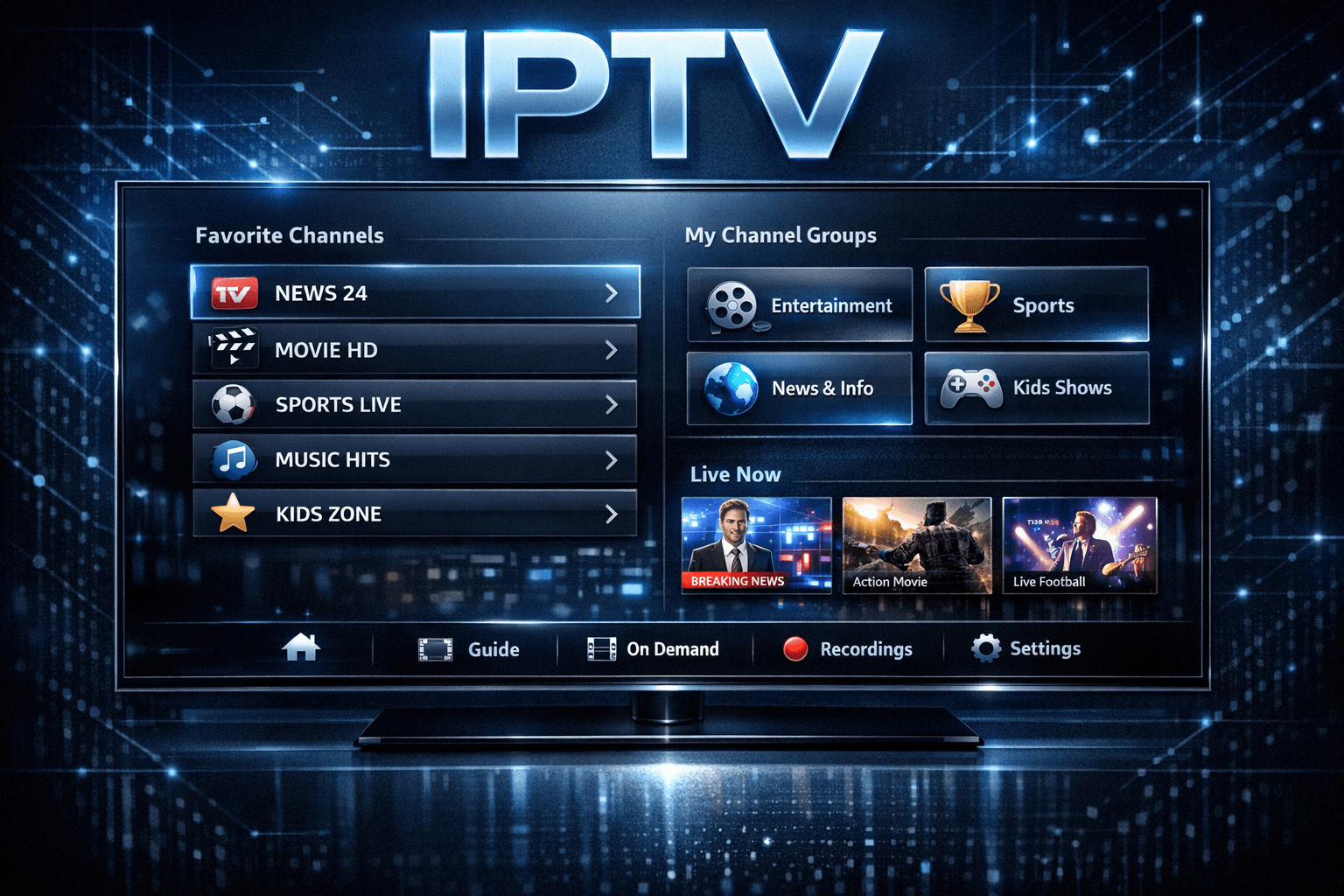
Organizing favorites and groups in TiviMate makes navigating large IPTV channel lists more intuitive and personalized. TiviMate, a popular IPTV player app for Android TV and Fire TV devices, provides features that let you categorize channels into groups and mark favorites for quick access. This article explains step-by-step how to efficiently manage your favorites and groups in TiviMate to enhance your viewing experience.
What you'll learn
- How to access and edit groups in TiviMate
- Methods to assign channels to groups and create new groups
- How to create and manage favorites
- Practical tips for keeping your channel list organized
- Troubleshooting common issues related to favorites and groups
Understanding Groups and Favorites in TiviMate
Groups are collections of channels that can be custom-named and formed to segment your IPTV playlist into manageable categories (e.g., Sports, News, Movies). Favorites are a subset of channels you mark for immediate access under a special favorites group.
These organization features help reduce scrolling time and make navigation faster, especially with large playlists containing hundreds of channels.
How to Organize Groups in TiviMate
Step 1: Access Groups Editing
- Open the TiviMate app on your device.
- From the main screen, press the menu button or navigate to the hamburger menu (usually top left).
- Select Edit groups — this option lets you modify existing groups or create new ones.
Step 2: Creating and Renaming Groups
- To create a new group, select the option Add Group and type a descriptive name (e.g., "Kids", "News Channels").
- Rename existing groups by selecting the group and choosing the rename option.
Step 3: Assigning Channels to Groups
- In the Edit groups screen, select the group you want to modify.
- Browse the list of channels currently in the playlist.
- Mark or unmark channels to belong to this group.
- Save changes when finished.
This way, channels can be moved between groups, allowing for tailored categorization.
How to Create and Manage Favorites
Step 1: Adding Channels to Favorites
- Navigate to the channel list.
- Highlight the desired channel and press the options/menu button on your remote.
- Select Add to favorites.
Marked channels automatically appear in the Favorites group, accessible quickly from the main menu.
Step 2: Removing Channels from Favorites
- Repeat the above process but select Remove from favorites instead.
Step 3: Viewing Favorites
From the TiviMate main menu, select the Favorites group to view or manage the list.
Tips for Maintaining an Organized Channel List
- Regularly update groups: Add new channels or remove defunct ones to keep groups relevant.
- Use meaningful group names: Clear titles like "Local News" or "Live Sports" help quicker navigation.
- Limit favorites: Only mark frequently watched channels to avoid clutter in the favorites group.
- Sync playlist updates: After updating your IPTV playlist, review and reassign groups if your channel lineup changes.
Troubleshooting and Common Mistakes
Common Issue: Groups or Favorites Not Saving
- Cause: Changes weren’t saved properly due to app closure or playlist refresh.
- Fix: Ensure to save after edits. Avoid refreshing the playlist immediately after changes without saving.
Problem: Playlist Updates Erase Group Assignments
TiviMate ties group settings to channel IDs. If your playlist channel IDs change, groups may reset.
- Solution: Minimize playlist changes or use Xtream Codes or M3U playlists where channel IDs persist.
- Reference: TiviMate Playlist Not Updating After Refresh: Causes and Fixes
Favorites Missing After Update
- Re-add favorite channels after playlist refresh if their IDs have changed.
Who this Guide is For and When to Seek Other Resources
This guide assumes you are using the TiviMate app on Android TV devices or Amazon Fire TV sticks with a standard M3U or Xtream Codes IPTV playlist. If your device uses a different IPTV app or custom interface, this guide might not apply.
For device-specific problems or errors, consult related TiviMate articles or your IPTV provider's instructions. For example:
- Use guides on fixing catch-up service issues if that is your concern (How to Fix Catch-Up Not Working in TiviMate).
- For authorization or playlist loading problems, explore troubleshooting articles on Xtream Codes errors or M3U playlist issues.
FAQ
Can I create multiple favorite lists in TiviMate?
No. TiviMate supports a single favorites list, though multiple groups can organize other channels.
Will organizing favorites and groups affect live TV playback?
No, organizing these only changes how channels are displayed, not streaming quality or availability.
Can I sync my favorites and groups across different devices?
TiviMate doesn't have built-in synchronization for favorites or groups; setup is device-specific.
What if the groups or favorites disappear after updating the playlist?
Refresh playlist cautiously; check that channel IDs remain consistent. If problems persist, consult support or reinstall the playlist carefully.
Conclusion
Organizing favorites and groups in TiviMate empowers you to tailor your IPTV channel navigation for faster, easier access. By creating meaningful groups and carefully managing favorites, you streamline your viewing experience, especially with large playlists. Follow the steps carefully and keep your playlist stable for best results. This approach helps maintain an orderly and enjoyable IPTV setup on your TiviMate app.
| Step | Action | Notes |
|---|---|---|
| 1 | Open TiviMate and access groups | Use the Edit Groups function |
| 2 | Create or rename groups | Use meaningful names |
| 3 | Assign channels to groups | Carefully select relevant channels |
| 4 | Add channels to favorites | Mark frequently watched channels |
| 5 | Maintain and update groups | Review after playlist changes |
Frequently Asked Questions
Can I create multiple favorite lists in TiviMate?
No, TiviMate supports a single favorites list, but you can organize channels into multiple groups for better categorization.
Will organizing favorites and groups affect live TV playback?
No, organizing favorites and groups only changes how channels are displayed and accessed, not how they stream.
Can I sync my favorites and groups across different devices?
TiviMate does not offer built-in sync for favorites and groups; you need to configure them separately on each device.
What if the groups or favorites don't show after playlist update?
Try refreshing your playlist and restarting the app. If issues persist, check for app updates or consult TiviMate support.
Keep exploring
More explainers that connect naturally to this setup, workflow, or troubleshooting path.

When you switch channels on your IPTV service, the stream sometimes freezes or stalls. This interruption usually happens because your device or app needs to buffer the new channel stream, but something delays or disrupts that process.


If the catch-up feature in your TiviMate IPTV player is not working, the cause usually lies in playlist compatibility, EPG (Electronic Program Guide) data issues, or app configuration problems.

When you see "Xtream Codes authorization failed" in TiviMate, it means the IPTV app cannot verify your login credentials with the IPTV server. This blocks access to your channels and streams, stopping playback.
