
Ethernet Adapter Compatibility for Fire TV Stick 4K Max

Quick answer
The Amazon Fire TV Stick 4K Max offers a powerful streaming experience with improved hardware and faster Wi-Fi connectivity. However, some users prefer the stability and reliability of a wired Ethernet connection over Wi-Fi. The Fire TV Stick 4K Max supports Ethernet adapters...
Reviewed Against
• Fire TV and Fire OS device capabilities, networking, and storage limits
• Home-network checks such as Wi-Fi strength, Ethernet fallback, DNS changes, congestion, and local storage pressure
Applies To
• Fire TV Stick, Fire TV Cube, and Fire OS playback or networking questions
• Playback problems that change with connection quality, device load, app cache state, or time of day
Does not apply when
• You are troubleshooting a smart-TV app or set-top box with a different hardware and settings path.
• Only one channel, event, or provider-side endpoint is failing while the rest of the service stays stable.
Corroborating Resources
Fire TV device specifications overviewHelpful for checking Fire TV hardware families, platform differences, and device-level constraints.
Fire TV streaming media player specsUseful for codec, storage, Wi-Fi, and Ethernet-adapter expectations on Fire TV sticks and boxes.
Android TV video and game troubleshootingUseful for Wi-Fi, updates, app cache, and playback troubleshooting steps that also mirror IPTV failure paths.
Android TV storage helpHelpful when playback issues point to low storage, cache pressure, or app-data cleanup decisions.
Topic Cluster
Part of the Ethernet Adapter cluster
Browse practical IPTV articles about ethernet adapter, including setup choices, troubleshooting paths, and follow-on guides. This page sits in setup and decisions for that topic path.
Next guides in this cluster
On this page
Ethernet Adapter Compatibility for Fire TV Stick 4K Max
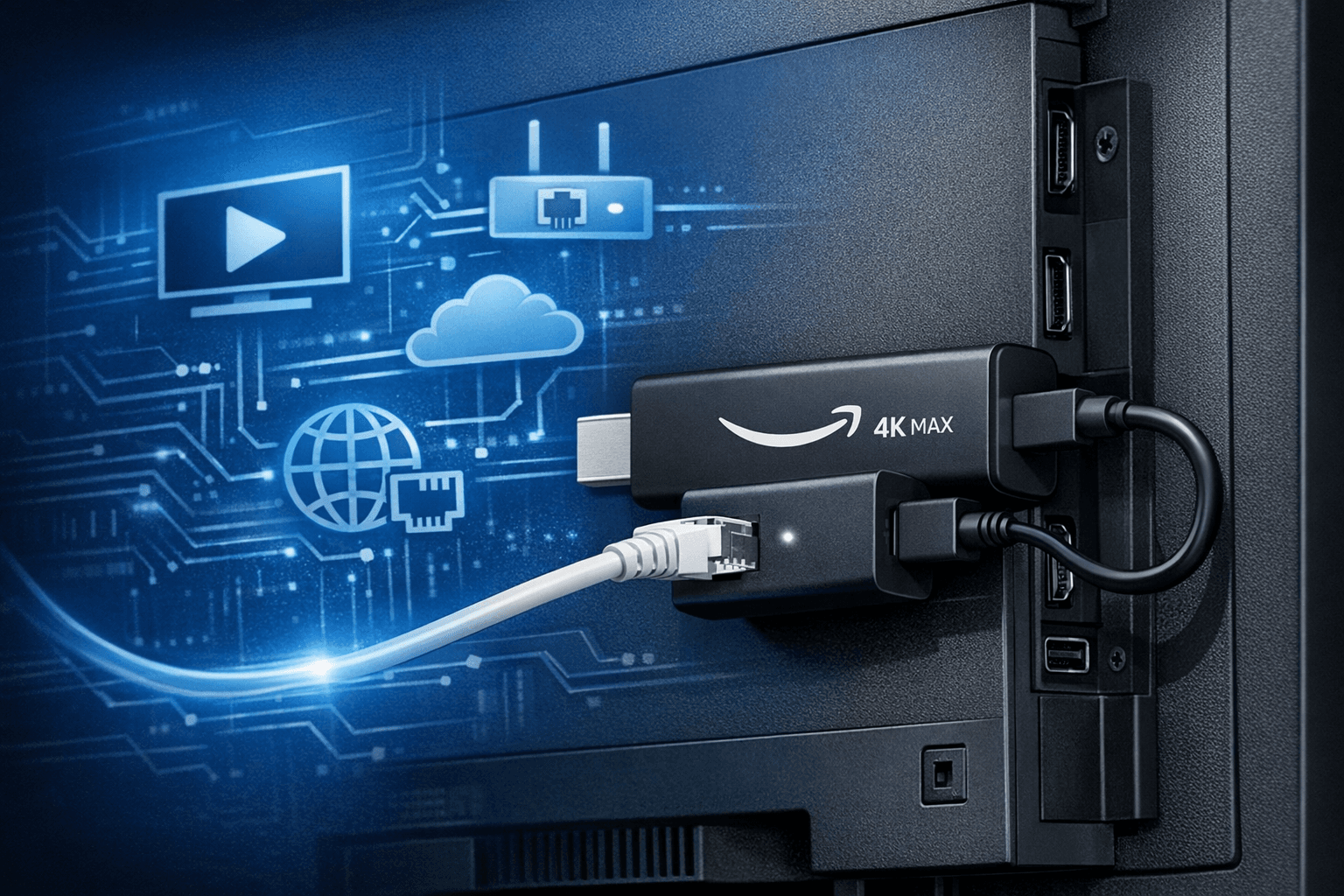
The Amazon Fire TV Stick 4K Max offers a powerful streaming experience with improved hardware and faster Wi-Fi connectivity. However, some users prefer the stability and reliability of a wired Ethernet connection over Wi-Fi. The Fire TV Stick 4K Max supports Ethernet adapters via its USB-C port, but not all adapters are compatible. This article explains which Ethernet adapters work with the Fire TV Stick 4K Max, how to set them up, common pitfalls, and troubleshooting tips for a wired connection.
What you'll learn
- How the Fire TV Stick 4K Max supports Ethernet adapters
- Which USB-to-Ethernet adapters are compatible
- Step-by-step setup instructions
- Common mistakes and troubleshooting
- When wired Ethernet is beneficial over Wi-Fi
Understanding Fire TV Stick 4K Max Ethernet Adapter Compatibility
Unlike some other streaming devices, the Fire TV Stick 4K Max does not have a built-in Ethernet port. Instead, it supports USB Ethernet adapters connected through its USB-C port. This port primarily provides power and data connectivity but allows for OTG (On-The-Go) devices, like Ethernet adapters, to work if compatible.
USB-C Port and Power Considerations
The Fire TV Stick 4K Max features a USB-C power port that can also accommodate USB peripherals in OTG mode. However, because the device requires constant power, the Ethernet adapter usually connects via a USB-C Ethernet adapter with power passthrough or a USB-C hub with Ethernet and power input.
Some USB-A Ethernet adapters can work if you use a USB-C OTG adapter to connect them, but compatibility varies.
Compatible Ethernet Adapters for Fire TV Stick 4K Max
Amazon has indicated specific models of USB Ethernet adapters that are confirmed to work. Key compatibility points include chipset support, power draw limits, and correct port type.
| Adapter Type | Compatibility | Notes |
|---|---|---|
| Official Amazon USB-C Ethernet Adapter | Compatible | Designed for Fire TV devices, includes power passthrough |
| USB-C Ethernet adapters (like Anker) | Usually compatible | Verify support for power passthrough and OTG |
| USB-A Ethernet adapters + USB-C OTG adapter | Sometimes compatible | Some models work; testing recommended |
| Unsupported adapters | Not compatible | Many generic adapters lacking power passthrough will not work |
Recommended Specifications
- USB 3.0 support for best speeds
- Chipsets like ASIX AX88179 and Realtek RTL8153 tend to be compatible
- Power passthrough to keep the Fire TV Stick powered
Setting Up an Ethernet Adapter with Fire TV Stick 4K Max
Required items
- Fire TV Stick 4K Max
- Compatible USB-C Ethernet adapter or USB-A Ethernet adapter with USB-C OTG adapter
- Active Ethernet cable connected to your router
Step-by-step setup
- Confirm your adapter compatibility: Purchase or verify you have a compatible adapter as per the list above.
- Connect the Ethernet adapter: Plug the USB-C Ethernet adapter directly into the USB-C power port on the Fire TV Stick 4K Max. If using a USB-A adapter, connect it via a USB-C OTG adapter.
- Provide power: Use the original power adapter for the Fire TV Stick. Some adapters include a pass-through charging port; use this to ensure the device stays powered.
- Connect Ethernet cable: Plug your router's Ethernet cable into the Ethernet port of the adapter.
- Power on Fire TV Stick: Connect the Fire TV Stick to your TV and power it on.
- Check network connection: In the Fire TV's settings, navigate to Network settings. It should show an Ethernet connection as active instead of Wi-Fi.
- Test streaming: Open any streaming app to confirm stability and streaming quality.
Troubleshooting Common Ethernet Adapter Issues
Even with compatible adapters, users may face connectivity or performance problems. Here are common pitfalls and fixes.
No Ethernet Connection Found
- Confirm power supply: Insufficient power causes the adapter not to initialize. Always use the Fire TV's original power adapter.
- Adapter incompatibility: Try a different adapter model verified to work.
- Firmware update: Ensure your Fire TV Stick 4K Max firmware is up to date.
Intermittent or Slow Connection
- Try a different Ethernet cable to rule out cable issues.
- Restart the Fire TV Stick and router.
- Disable Wi-Fi in Fire TV network settings to force Ethernet use.
Ethernet and Power Conflicts
- Use an adapter that supports power passthrough to prevent power failures.
- Avoid connecting Ethernet adapters that draw more power than the device can supply.
When to Use Ethernet Instead of Wi-Fi on Fire TV Stick 4K Max
Benefits
- Lower latency and jitter, important for live streaming
- More consistent speeds, especially in congested Wi-Fi environments
- Less interference and dropouts
Considerations
- Requires Ethernet cable and compatible adapter
- Less portable than Wi-Fi
- Setup is more complex
Who Should Follow This Guide
- Owners of Fire TV Stick 4K Max wanting a wired internet connection for better streaming stability
- Users experiencing Wi-Fi instability or bandwidth limitations
When to Consider Other Guides
- If you have an older Fire TV Stick model without a USB-C port, this guide does not apply
- Use device-specific setup guides for Fire TV Cube or Fire TV devices with built-in Ethernet
- For Wi-Fi connection issues, see Wi-Fi troubleshooting resources
Summary Table: Adapter Compatibility Checklist
| Feature | Requirement |
|---|---|
| USB Port Type | USB-C port on Fire TV Stick 4K Max |
| Adapter Type | USB-C Ethernet adapter or USB-A + OTG |
| Power Passthrough Support | Required to power Fire TV Stick |
| Chipset Compatibility | ASIX AX88179 or RTL8153 preferred |
| Firmware | Latest Fire TV OS recommended |
Conclusion
To ensure reliable wired internet on the Fire TV Stick 4K Max, using a compatible USB-C Ethernet adapter with power passthrough is essential. Testing compatibility, verifying power delivery, and following correct setup steps will help you achieve a stable, high-performance streaming experience. While Wi-Fi is convenient, Ethernet is invaluable for users seeking consistency and reduced buffering.
For further issues related to IPTV performance on Fire TV devices, refer to resources comparing Fire TV models and fixing playback issues.
Frequently Asked Questions
Can I use any USB Ethernet adapter with Fire TV Stick 4K Max? No, only certain USB Ethernet adapters designed for USB-C OTG and power passthrough are compatible.
Does the Fire TV Stick 4K Max support USB-A Ethernet adapters? Yes, but they require a USB-C OTG adapter and may not be compatible or powered properly.
Will Ethernet improve streaming quality? Often yes, especially if your Wi-Fi is unstable or crowded.
How do I verify Ethernet connection? Check the network section in Fire TV settings; it should list Ethernet connectivity.
What if my Ethernet adapter isn't detected? Confirm power, adapter compatibility, and update your Fire TV OS. Try another adapter if issues persist.
Suggested Internal Link Targets
Frequently Asked Questions
Can I use any USB Ethernet adapter with Fire TV Stick 4K Max?
No. The Fire TV Stick 4K Max supports only certain USB Ethernet adapters. It's essential to use compatible adapters that work with its USB-C port and power setup.
Does the Fire TV Stick 4K Max support USB-A Ethernet adapters?
Yes, but you'll need a USB-C OTG adapter to connect a USB-A Ethernet adapter since the Fire TV Stick 4K Max has a USB-C port.
Will using an Ethernet adapter improve streaming quality compared to Wi-Fi?
Wired Ethernet connections often provide more stable and consistent internet speeds, potentially reducing buffering and improving streaming quality.
How do I know if my Ethernet adapter is working with the Fire TV Stick?
Once connected and the device is powered, check the Fire TV's network settings. It should show an active Ethernet connection instead of Wi-Fi.
What should I do if my Ethernet adapter isn't recognized?
Try restarting your Fire TV Stick, ensure the adapter is compatible, verify power supply, or try a different adapter known to work with the device.
Keep exploring
More explainers that connect naturally to this setup, workflow, or troubleshooting path.
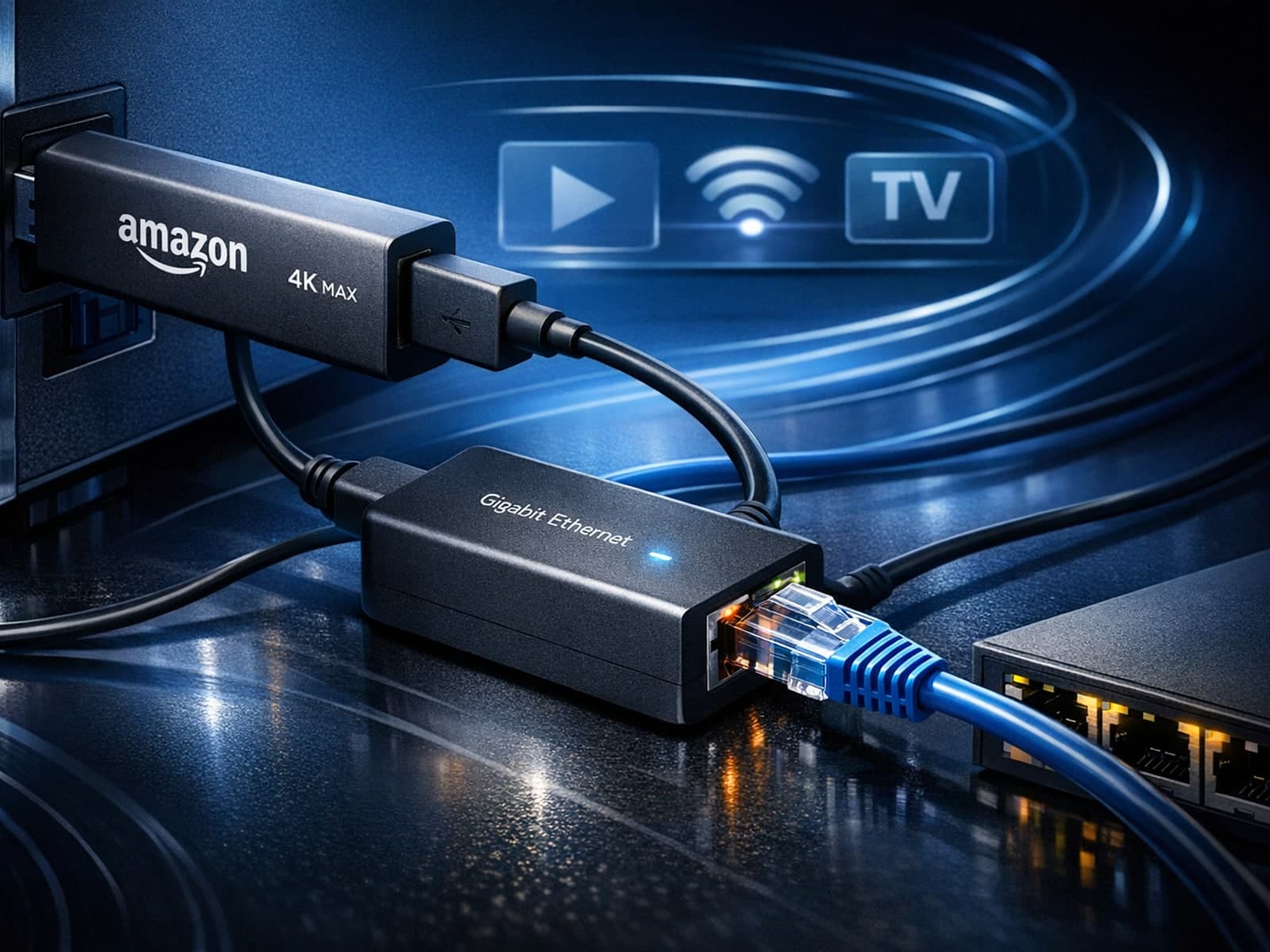
Using a wired Ethernet connection with your Fire TV Stick 4K Max can improve streaming stability and speed, reducing buffering and lag. However, not all Ethernet adapters are compatible with this device.

If your IPTV streams on a Fire TV Stick frequently buffer, stutter, or lag, one common but often overlooked cause is insufficient device storage. The Fire TV Stick uses its internal storage to cache streaming data and run apps smoothly.

To get the best IPTV experience on your Fire TV Stick, careful Wi-Fi setup is key. IPTV streams rely heavily on a steady internet connection, and Wi-Fi settings influence stability, buffering, and image quality.
