
Fire TV Cube vs Fire TV Stick 4K Max for IPTV

Quick answer
When choosing between the Amazon Fire TV Cube and the Fire TV Stick 4K Max specifically for IPTV streaming, both devices can deliver smooth playback of IPTV content. The Cube offers a more powerful processor and hands-free Alexa capabilities, potentially improving performance...
Reviewed Against
• Fire TV and Fire OS device capabilities, networking, and storage limits
Applies To
• Fire TV Stick, Fire TV Cube, and Fire OS playback or networking questions
Does not apply when
• You are troubleshooting a smart-TV app or set-top box with a different hardware and settings path.
Corroborating Resources
Fire TV device specifications overviewHelpful for checking Fire TV hardware families, platform differences, and device-level constraints.
Fire TV streaming media player specsUseful for codec, storage, Wi-Fi, and Ethernet-adapter expectations on Fire TV sticks and boxes.
Topic Cluster
Part of the Fire TV Cube cluster
Browse practical IPTV articles about Fire TV Cube, including setup choices, troubleshooting paths, and follow-on guides. This page sits in compare options for that topic path.
On this page
Fire TV Cube vs Fire TV Stick 4K Max for IPTV
Introduction
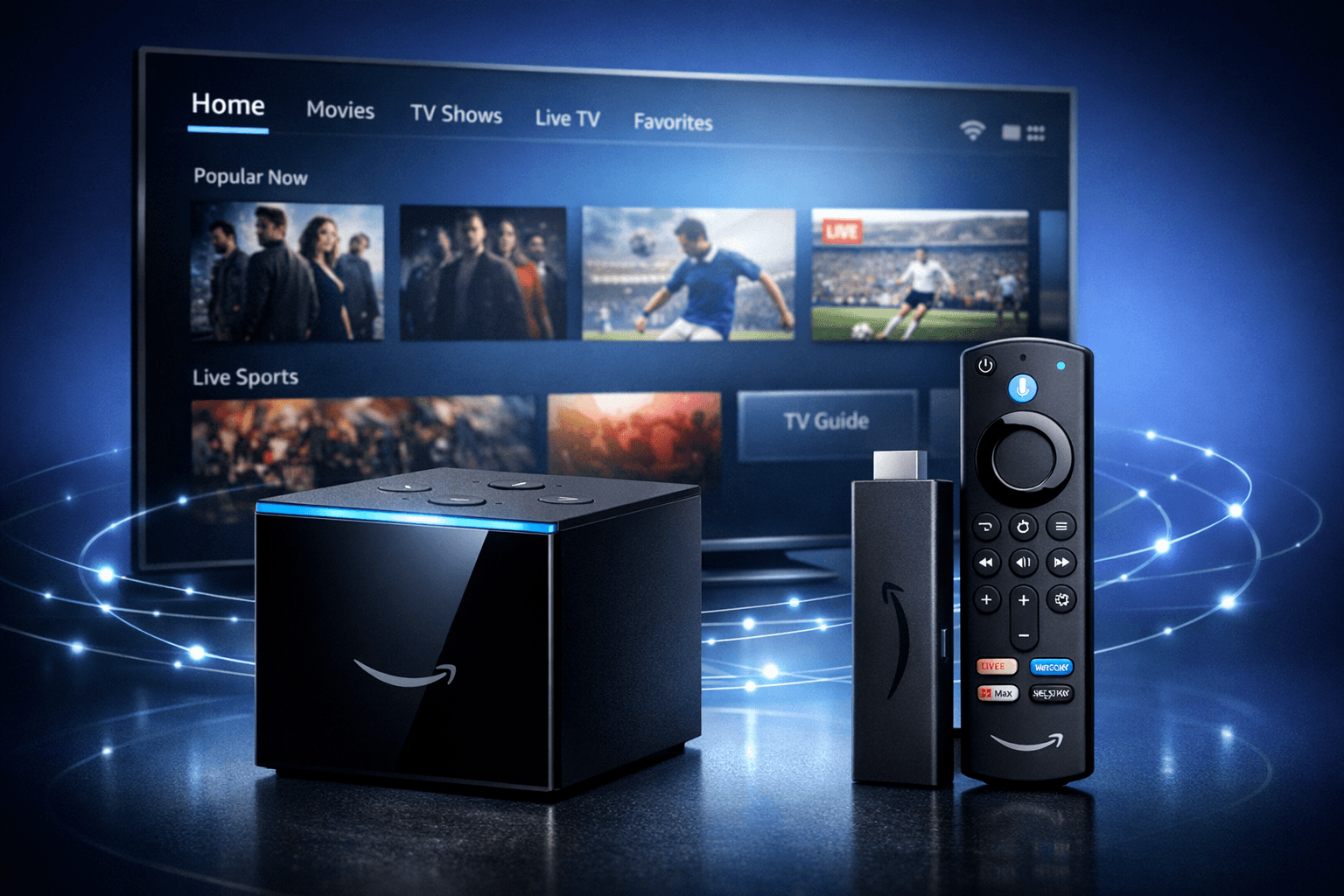
When choosing between the Amazon Fire TV Cube and the Fire TV Stick 4K Max specifically for IPTV streaming, both devices can deliver smooth playback of IPTV content. The Cube offers a more powerful processor and hands-free Alexa capabilities, potentially improving performance and convenience. Meanwhile, the Stick 4K Max is a compact, budget-friendlier device that supports all major IPTV apps with nearly identical app compatibility. This article breaks down key differences to help informed beginners or intermediate users decide which fits their IPTV setup best.
What you'll learn
- Key hardware differences impacting IPTV streaming
- Practical setup and connectivity options
- Strengths and limitations for IPTV use
- Troubleshooting tips unique to each device
- Which device suits different IPTV user needs
Hardware and Performance Differences Relevant to IPTV
Both devices run Amazon’s Fire OS and support IPTV apps from the Appstore, but there are important internal differences:
Processor and Memory
- Fire TV Cube: Equipped with a hexa-core processor (4x Cortex-A73 + 2x Cortex-A53) and 2 GB RAM.
- Fire TV Stick 4K Max: Features a quad-core 1.8 GHz CPU and 2 GB RAM.
The Cube's newer hexa-core CPU can handle high bitrate IPTV streams more smoothly and better multitask with background processes. This is particularly useful if you run multiple IPTV apps or use features like picture-in-picture.
Network Connectivity
- Both devices support dual-band (2.4 GHz and 5 GHz) WiFi with Wi-Fi 6 on the Stick 4K Max and Wi-Fi 5 on the Cube.
- Ethernet: The Cube includes an Ethernet port built into its power adapter for stable wired connections.
- The Stick 4K Max lacks a native Ethernet port but supports adapters via USB-C.
For IPTV users sensitive to buffering, the Cube’s built-in wired Ethernet is a notable advantage to ensure steady internet.
Voice Control and Alexa
- Cube has hands-free Alexa with far-field microphones built in, allowing voice commands anywhere in the room.
- Stick 4K Max supports Alexa only via the remote control.
Hands-free Alexa can improve user experience for IPTV by quickly launching apps or controlling playback without the remote.
Physical Size and Ports
- Cube is a larger, more visible device needing its own space on or near the TV.
- Stick 4K Max is a small dongle that plugs directly into the HDMI port.
This may influence placement and aesthetics for certain IPTV setups.
Practical Setup for IPTV on Fire TV Cube vs Stick 4K Max
Despite different hardware, setup steps for IPTV apps are very similar:
- Connect your Fire TV device to the TV and power.
- Connect to your WiFi network or Ethernet (Cube only).
- Open the Amazon Appstore.
- Download your IPTV app (e.g., TiviMate, IPTV Smarters, Perfect Player).
- Enter your IPTV subscription details or load your M3U/Xtream codes playlist.
- Adjust player settings within the app as needed.
Because the Cube’s Ethernet adapter is native and the Stick 4K Max requires a separate purchase for Ethernet, many IPTV users rely on WiFi for the Stick. Ensure your WiFi is robust, as described in Best WiFi Settings for IPTV on Fire TV Stick to Reduce Buffering.
Strengths and Limitations for IPTV Streaming
| Feature | Fire TV Cube | Fire TV Stick 4K Max |
|---|---|---|
| CPU and Multitasking | More powerful hexa-core CPU | Quad-core CPU |
| RAM | 2 GB | 2 GB |
| Native Ethernet Port | Yes, via power adapter | No (requires USB adapter) |
| WiFi Support | Dual-band Wi-Fi 5 | Dual-band Wi-Fi 6 (faster WiFi) |
| Alexa Alexa Hands-Free | Yes | No, remote only |
| Device Size | Larger, standalone box | Compact stick dongle |
| Price | Higher cost | Lower cost |
The Cube benefits IPTV users who want:
- More stable wired networking
- Hands-free voice control
- Better performance for high-bitrate streams
The Stick 4K Max suits users who:
- Need a low-profile, affordable device
- Are happy with WiFi connections
- Use voice commands mainly via remote
Common Troubleshooting and Mistakes with IPTV on These Devices
Troubleshooting Buffering or Quality Drops
- Confirm your internet speed matches IPTV stream requirements
- Use wired Ethernet on Cube for most stable connection
- For Stick 4K Max users on WiFi, optimize your router settings (see linked WiFi article above)
- Restart the Fire TV device regularly to clear processes
- Check IPTV app for recent updates
Common Setup Errors
- Not installing IPTV app from Amazon Appstore (trying side-loading apps can cause usability issues).
- Forgetting to enter correct IPTV login credentials or playlist URLs.
- Attempting to use Ethernet on Stick 4K Max without proper adapter.
When Different Guides Are Needed
- If using other Amazon Fire TV models, refer to device-specific IPTV setup guides.
- For IPTV apps with unique login or streaming methods, consult app-specific tutorials.
- For network or buffering issues, a network troubleshooting guide focused on your router and WiFi is recommended.
Who This Comparison Applies To
This article is intended for users who:
- Want to compare Fire TV Cube and Fire TV Stick 4K Max solely for IPTV streaming
- Already own or plan to buy one of these devices for IPTV
- Use IPTV apps available on Amazon Fire OS
It does not cover:
- IPTV use on other Fire TV models or third-party Android TV devices
- Deep IPTV app configuration or third-party playlist troubleshooting
- Legal or service subscription advice
FAQ
Can both devices run the same IPTV apps?
Yes, all major IPTV apps compatible with Fire OS run on both devices without restriction.
Why might the Cube stream IPTV content smoother?
Its more powerful CPU and native Ethernet port offer stronger performance for high-bitrate streams and better network stability.
Does the Stick 4K Max’s Wi-Fi 6 support help IPTV streaming?
Yes, Wi-Fi 6 can offer faster speeds and better congestion handling, but actual IPTV quality depends largely on your home network.
Is hands-free Alexa on the Cube a useful IPTV feature?
It allows launching IPTV apps or controlling playback by voice without touching the remote, which some users find convenient.
What if I experience IPTV buffering on either device?
Try restarting your device, using wired connection (Cube), optimizing WiFi (Stick), and checking IPTV app settings.
Conclusion
For IPTV streaming, both Fire TV Cube and Fire TV Stick 4K Max offer excellent app compatibility and clear 4K playback. The Cube shines with more raw processing power, built-in Ethernet, and hands-free Alexa, supporting users who prioritize performance and network stability. The Stick 4K Max is a cost-effective, compact alternative with modern Wi-Fi 6 and simple remote Alexa control. Choose the Cube if you want wired networking and small performance headroom; go with the Stick 4K Max if you prefer lower price and a smaller footprint with mostly WiFi connectivity. Both will meet the needs of most IPTV users effectively when properly set up.
For detailed IPTV app troubleshooting, see How to Fix Channel Logos Missing in TiviMate IPTV Player.
If network buffering occurs on your Fire TV, consult Firestick VPN Causing IPTV Buffering: How to Diagnose and Fix Delays.
For storage-related IPTV lag on Fire TV devices, see Fire TV Stick Storage Issues Causing IPTV Lag: Fixes and Tips.
Comparison Checklist
| Feature | Fire TV Cube | Fire TV Stick 4K Max |
|---|---|---|
| CPU | Hexa-core 2.2 GHz | Quad-core 1.8 GHz |
| RAM | 2 GB | 2 GB |
| Ethernet Port | Yes, via power adapter | USB adapter needed |
| WiFi Version | WiFi 5 | WiFi 6 |
| Alexa Voice Control | Hands-free microphone array | Remote microphone only |
| Device Size | Larger box | Compact dongle |
| Price | Higher | Lower |
Related guides on IPTV Explained
Keep exploring
More explainers that connect naturally to this setup, workflow, or troubleshooting path.
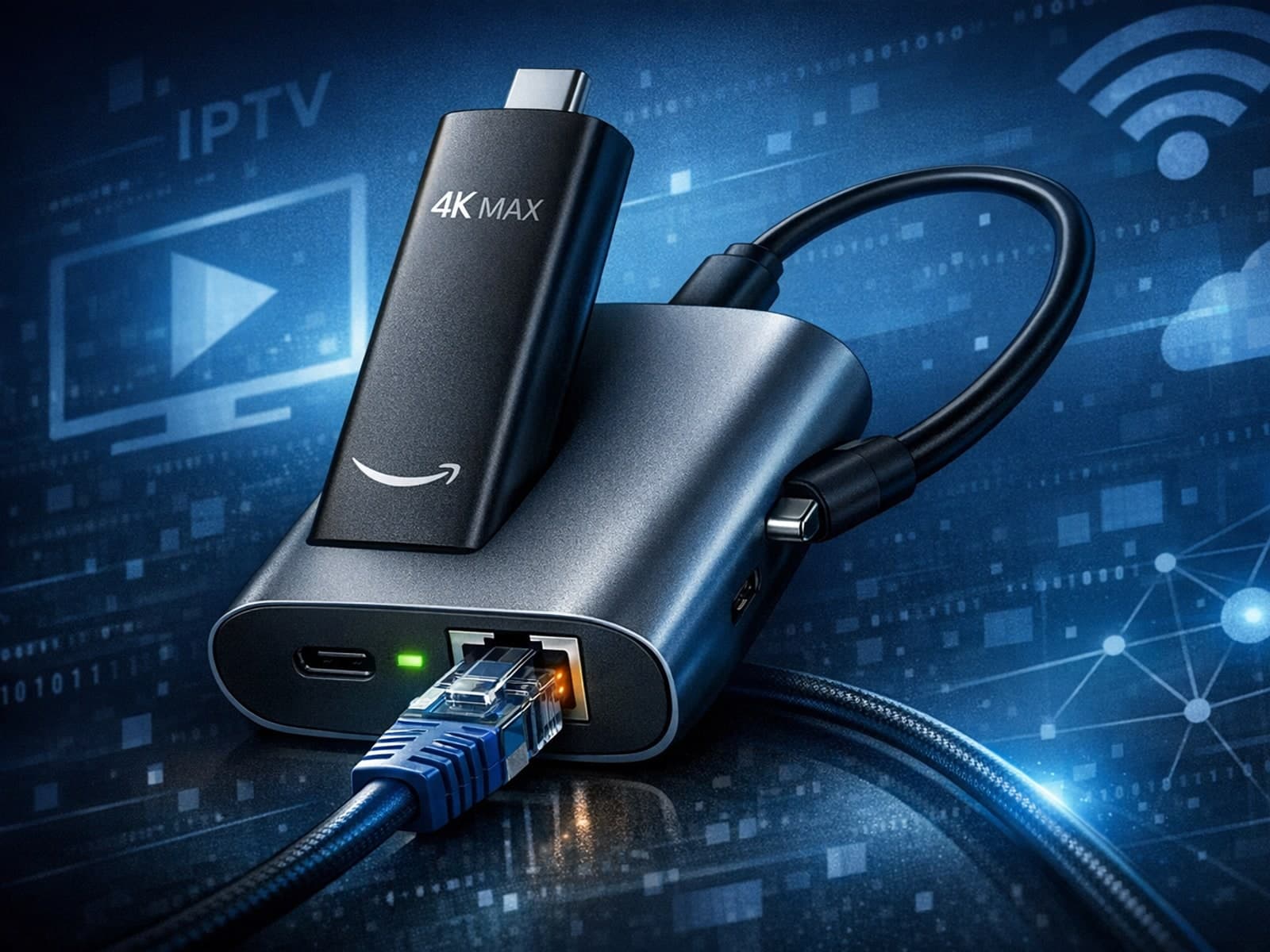
The Fire TV Stick 4K Max supports wired Ethernet connections only through specific USB-C Ethernet adapters. Unlike typical devices with USB-A ports, the 4K Max uses a USB-C port designed primarily for power but also compatible with certain.

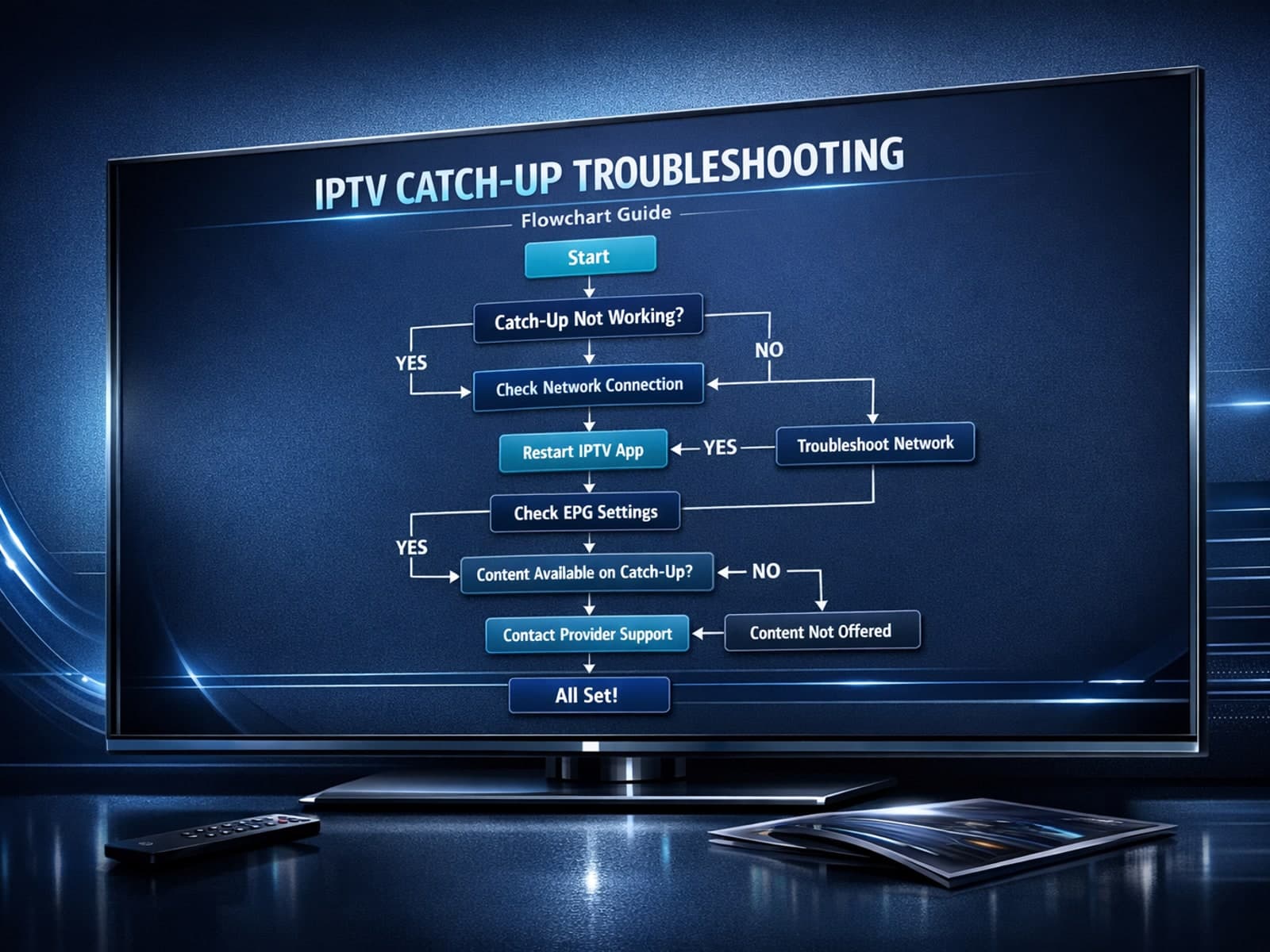
If you use the TiviMate IPTV player, you might occasionally find that the catch-up TV feature isn't working as expected. Catch-up allows you to watch previously aired content on demand, making it a valuable part of your viewing experience.
If you've hit "Refresh" in TiviMate but your IPTV playlist doesn't update, you are not alone. This is a common problem that can stem from multiple causes including network hiccups, playlist URL issues, corrupted cache, or server downtime.
