
Best WiFi Settings for IPTV on Fire TV Stick

Quick answer
Optimizing WiFi settings on your Fire TV Stick is crucial for a stable and high-quality IPTV streaming experience. IPTV (Internet Protocol Television) requires consistent network speeds, minimal latency, and low interference to stream live TV channels smoothly. This article de...
Reviewed Against
• Fire TV and Fire OS device capabilities, networking, and storage limits
• Home-network checks such as Wi-Fi strength, Ethernet fallback, DNS changes, congestion, and local storage pressure
Applies To
• Fire TV Stick, Fire TV Cube, and Fire OS playback or networking questions
• Playback problems that change with connection quality, device load, app cache state, or time of day
Does not apply when
• You are troubleshooting a smart-TV app or set-top box with a different hardware and settings path.
• Only one channel, event, or provider-side endpoint is failing while the rest of the service stays stable.
Corroborating Resources
Fire TV device specifications overviewHelpful for checking Fire TV hardware families, platform differences, and device-level constraints.
Fire TV streaming media player specsUseful for codec, storage, Wi-Fi, and Ethernet-adapter expectations on Fire TV sticks and boxes.
Android TV video and game troubleshootingUseful for Wi-Fi, updates, app cache, and playback troubleshooting steps that also mirror IPTV failure paths.
Android TV storage helpHelpful when playback issues point to low storage, cache pressure, or app-data cleanup decisions.
Topic Cluster
Part of the Network Optimization cluster
Practical network changes that improve IPTV stability, from Ethernet choices to Wi-Fi tradeoffs and local congestion fixes. This page sits in devices and network gear for that topic path.
Start here in this topic
On this page
Best WiFi Settings for IPTV on Fire TV Stick
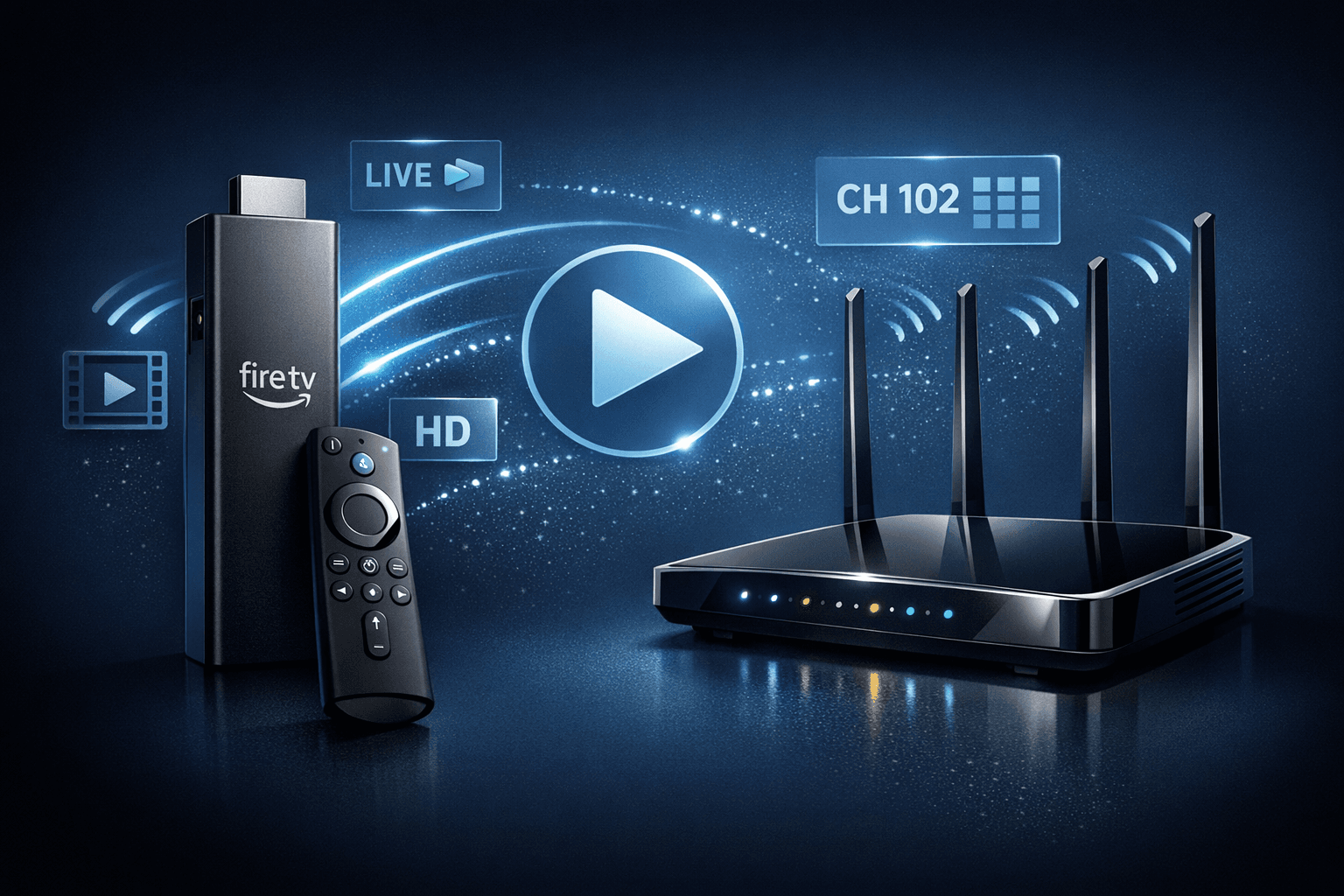
Optimizing WiFi settings on your Fire TV Stick is crucial for a stable and high-quality IPTV streaming experience. IPTV (Internet Protocol Television) requires consistent network speeds, minimal latency, and low interference to stream live TV channels smoothly. This article details the best WiFi configurations, router adjustments, and device placement strategies to enhance IPTV streaming specifically on the Fire TV Stick.
What you'll learn
- How WiFi frequency bands affect IPTV streaming quality.
- Choosing the optimal WiFi channel to reduce interference.
- Recommended WiFi security settings for stable connectivity.
- Practical router placement and connection tips for Fire TV Stick.
- Troubleshooting common WiFi-related IPTV streaming issues.
Understanding WiFi Frequency Bands for IPTV
Why 5 GHz is Usually Better
WiFi networks generally operate on two frequency bands: 2.4 GHz and 5 GHz. The 2.4 GHz band offers longer range but is more prone to interference from household devices like microwaves and wireless phones. The 5 GHz band provides faster data transfer with less interference but shorter range.
For IPTV streaming on Fire TV Stick, 5 GHz is recommended because:
- It provides higher throughput necessary for high-definition IPTV channels.
- It's less crowded, reducing packet loss and buffering.
- It lowers latency, improving channel change response times.
When to Consider 2.4 GHz Instead
If your Fire TV Stick is far from the router or separated by multiple walls, 2.4 GHz may offer more reliable coverage despite slower speeds. To check your Fire TV Stick's WiFi band:
- Go to Settings > Network on the Fire TV Stick.
- Check the connected network's frequency information.
Switch to 5 GHz if supported and reachable; otherwise, 2.4 GHz may be your fallback.
Choosing the Best WiFi Channel for IPTV
WiFi signals can interfere when multiple routers use the same or overlapping channels nearby. This interference causes packet loss, increasing buffering during IPTV streaming.
How to Identify WiFi Channel Congestion
Use a WiFi analyzer app on a smartphone to scan nearby networks and their channels. Look for channels with the least traffic.
How to Change Your Router's WiFi Channel
- Log in to your router's web interface (usually at 192.168.1.1 or 192.168.0.1).
- Locate the wireless settings or WiFi channel selection section.
- Set the 5 GHz band to a less congested channel (for example, channels 36, 40, 44, or 48).
- Save settings and restart the router.
Recommended Channels
- For 2.4 GHz, channels 1, 6, or 11 are best because they don't overlap.
- For 5 GHz, select any non-overlapping channel with minimal nearby usage.
WiFi Security Settings That Help IPTV Stability
Choosing the Right Security Protocol
Use WPA2 or WPA3 Personal encryption on your router. Open or WEP security is outdated and insecure, allowing unauthorized access that can consume bandwidth and degrade your IPTV streaming.
Setting a Strong Password
A strong, unique password prevents neighbors or unknown devices from connecting to your network and consuming bandwidth.
Avoiding MAC Filtering Pitfalls
MAC filtering restricts devices by physical address, but it can be cumbersome and cause connection issues if not configured properly. Generally, stick to WPA2/WPA3 with a strong password.
Router and Fire TV Stick Placement for Best WiFi Signal
Router Placement Tips
- Place the router in a central location in your home.
- Avoid obstacles like thick walls, metal objects, or large appliances.
- Elevate the router rather than placing it on the floor.
Fire TV Stick Positioning
If your Fire TV Stick is plugged into the back of your TV, it might face interference. Use a USB extension cable to reposition the Fire TV Stick for improved line-of-sight to the router.
Ethernet as an Alternative
For the most stable IPTV streaming:
- Use a Fire TV Ethernet adapter to connect directly to your router.
- This reduces latency and buffering caused by WiFi interference.
Troubleshooting Common IPTV WiFi Issues on Fire TV Stick
Frequent Buffering or Freezing
- Verify you are connected to 5 GHz WiFi or Ethernet.
- Restart both your router and Fire TV Stick.
- Check for firmware updates on your Fire TV Stick and router.
- Reduce the number of devices connected to the network.
Dropped Connections
- Confirm WiFi password and security settings.
- Use a WiFi analyzer to check for interference.
- Change WiFi channels to a less crowded one.
IPTV App-Specific Problems
If general network optimization does not help:
- Clear cache of your IPTV app.
- Check IPTV service status and credentials.
When to Use a Different Troubleshooting Path
- If issues persist with Ethernet connected Fire TV Stick, focus on IPTV app or account troubleshooting (refer to guides like IPTV Smarters Invalid Details Error).
- For problems specific to TiviMate IPTV player, consult specialized articles.
Summary Comparison of Key WiFi Settings
| Setting | Recommendation | Notes |
|---|---|---|
| WiFi Band | 5 GHz | Use 2.4 GHz only if range insufficient |
| WiFi Channel | Least congested (channels 36-48 for 5 GHz) | Use WiFi analyzer tools |
| Security Protocol | WPA2-Personal or WPA3 | Avoid WEP or open networks |
| Password | Strong and unique | Prevent unauthorized access |
| Router Placement | Central, elevated, obstacle-free | Improves signal strength |
| Connection Type | Ethernet preferred over WiFi | Most stable connection |
Frequently Asked Questions
Why is 5 GHz Wi-Fi recommended for IPTV on Fire TV Stick?
5 GHz Wi-Fi offers higher bandwidth and typically less interference than 2.4 GHz, leading to smoother IPTV streaming and reduced buffering.
Can using Ethernet improve IPTV streaming on Fire TV Stick?
Yes, connecting via Ethernet usually provides a more stable and faster connection compared to Wi-Fi, improving IPTV streaming performance if feasible.
How do WiFi security settings affect IPTV streaming?
Secure WiFi settings prevent unauthorized usage that might siphon bandwidth, thus helping maintain stable speeds needed for IPTV.
What if IPTV streaming still buffers after optimizing WiFi?
You should then check IPTV app settings, your internet speed, or contact the IPTV provider. Device-specific issues may require different troubleshooting.
Conclusion
Optimizing your Fire TV Stick's WiFi settings is vital for smooth IPTV streaming. Prioritize connecting to a 5 GHz network with a clean channel, secure your WiFi with WPA2 or WPA3, and place your router and Fire TV Stick to maximize signal strength. If WiFi challenges persist, consider switching to wired Ethernet. Following these steps ensures higher streaming quality with fewer interruptions, enhancing your IPTV viewing experience on the Fire TV Stick.
Keep exploring
More explainers that connect naturally to this setup, workflow, or troubleshooting path.
For IPTV users deciding between Xtream Codes format and M3U playlists, understanding when Xtream Codes works better is key. Simply put, Xtream Codes works better than M3U playlists when your IPTV service offers secure login credentials.

TiviMate is a popular IPTV player app for Android TV and similar devices, known for its advanced channel management options. Organizing favorites and groups in TiviMate lets you customize your IPTV watching experience by categorizing.

When you switch channels on your IPTV service and the screen freezes or lags, it’s frustrating and disrupts your viewing experience. IPTV freezing during channel switching is most often caused by network delays, buffering, or the IPTV.
