
Best WiFi Settings for IPTV on Fire TV Stick
Quick answer
To achieve smooth IPTV streaming on your Fire TV Stick, optimizing your WiFi settings is essential. The Fire TV Stick relies heavily on a stable and fast WiFi connection because IPTV streams live video data continuously. Using the right WiFi frequency band, placing your router...
Reviewed Against
• Fire TV and Fire OS device capabilities, networking, and storage limits
• Home-network checks such as Wi-Fi strength, Ethernet fallback, DNS changes, congestion, and local storage pressure
Applies To
• Fire TV Stick, Fire TV Cube, and Fire OS playback or networking questions
• Playback problems that change with connection quality, device load, app cache state, or time of day
Does not apply when
• You are troubleshooting a smart-TV app or set-top box with a different hardware and settings path.
• Only one channel, event, or provider-side endpoint is failing while the rest of the service stays stable.
Corroborating Resources
Fire TV device specifications overviewHelpful for checking Fire TV hardware families, platform differences, and device-level constraints.
Fire TV streaming media player specsUseful for codec, storage, Wi-Fi, and Ethernet-adapter expectations on Fire TV sticks and boxes.
Android TV video and game troubleshootingUseful for Wi-Fi, updates, app cache, and playback troubleshooting steps that also mirror IPTV failure paths.
Android TV storage helpHelpful when playback issues point to low storage, cache pressure, or app-data cleanup decisions.
Topic Cluster
Part of the Network Optimization cluster
Practical network changes that improve IPTV stability, from Ethernet choices to Wi-Fi tradeoffs and local congestion fixes. This page sits in devices and network gear for that topic path.
On this page
Best WiFi Settings for IPTV on Fire TV Stick
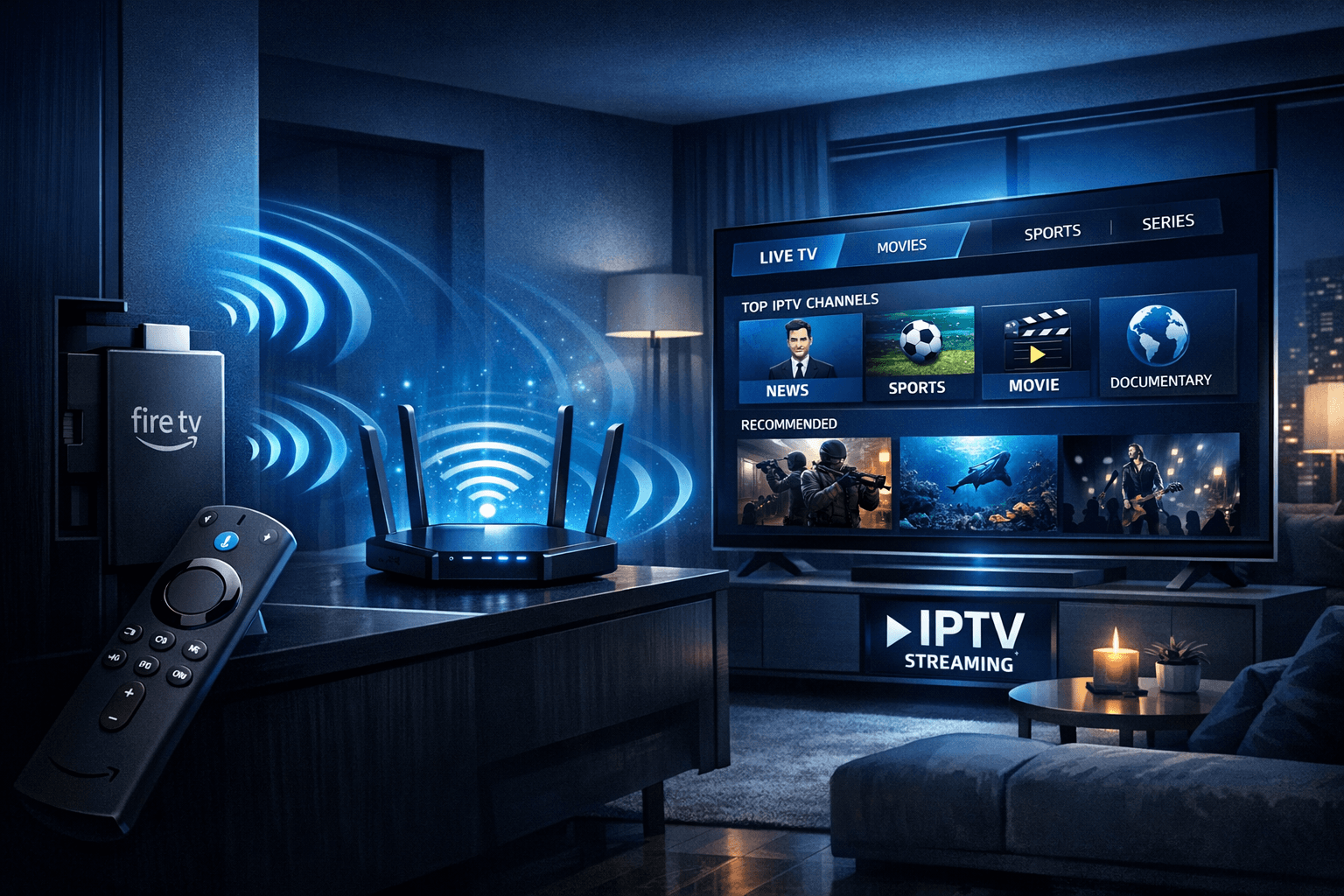
To achieve smooth IPTV streaming on your Fire TV Stick, optimizing your WiFi settings is essential. The Fire TV Stick relies heavily on a stable and fast WiFi connection because IPTV streams live video data continuously. Using the right WiFi frequency band, placing your router properly, and configuring network parameters can drastically reduce buffering, video freezes, and dropped streams.
What you'll learn:
- Why the 5 GHz WiFi band is preferable for IPTV streaming on Fire TV Stick
- How to position your router for optimal signal strength
- Important router settings like channel selection and QoS for IPTV
- Steps to assign static IP and ensure secure WiFi connections
- Troubleshooting common WiFi-related IPTV buffering issues
Why Choose the 5 GHz WiFi Band for IPTV on Fire TV Stick
Fire TV Stick supports both 2.4 GHz and 5 GHz WiFi bands. While 2.4 GHz offers longer range, it is often crowded and prone to interference from other devices like microwaves and Bluetooth gadgets.
The 5 GHz band:
- Provides higher data throughput, which IPTV streaming demands
- Experiences less interference and congestion
- Has a shorter effective range, which means it works best when your Fire TV Stick is near the router
Recommendation: If your Fire TV Stick is in the same room or close to your WiFi router, select 5 GHz for the best streaming experience.
How to confirm 5 GHz use
- On your Fire TV Stick, go to Settings > Network.
- Look for your connected WiFi network and check its band frequency.
- If connected to 2.4 GHz, consider switching to the 5 GHz network if available.
Router Placement and Signal Strength
Even the best WiFi settings can't compensate for poor signal strength. A weak signal causes IPTV buffering and disconnects.
Best Practices for Router Placement
- Place the router in the same room or as close as possible to your Fire TV Stick.
- Avoid physical obstructions like walls, metal furniture, and appliances between router and Fire TV Stick.
- Keep the router elevated, such as on a shelf or mounted on the wall.
- Avoid placing the router near devices that emit electromagnetic interference (e.g., microwaves).
Use a WiFi Analyzer
Apps like WiFi Analyzer (available on smartphones) can identify signal strength and interference hotspots, helping you refine router positioning.
Router Configuration for IPTV Streaming
Optimizing your router’s settings can prioritize IPTV streams and reduce interference.
1. Channel Selection
WiFi channels are subdivisions of the frequency bands. Channels getting crowded by neighbors’ networks cause interference.
- Use a WiFi analyzer to find the least congested channel in your area.
- Manually set your router to that channel for 2.4 GHz and 5 GHz bands.
2. Security Protocol
Ensure your WiFi uses WPA2 or WPA3 security protocols. These provide strong encryption and stable connections without slowing throughput.
3. Quality of Service (QoS)
QoS lets your router prioritize IPTV streaming traffic over less time-sensitive data.
- Access your router’s admin panel.
- Locate QoS settings.
- Select your Fire TV Stick device or IPTV traffic type and assign high priority.
This reduces buffering when multiple devices use your network simultaneously.
Assigning Static IP or DHCP Reservation
Fire TV Stick usually gets a dynamic IP from your router that may change periodically, causing streaming disruptions or issues with port forwarding.
Why Use Static IP?
- Ensures consistent network identification of your Fire TV Stick.
- Simplifies QoS rules and troubleshooting.
How to Set Static IP or DHCP Reservation
- Log into your router’s admin panel.
- Find the DHCP reservation section.
- Locate your Fire TV Stick MAC address (Settings > Device > About > Network on the Fire TV Stick).
- Reserve an IP address for that MAC.
This maintains consistent network settings while still using DHCP.
Troubleshooting Common WiFi Settings Issues for IPTV on Fire TV Stick
Symptoms
- Frequent buffering or freezing during IPTV playback
- IPTV app fails to load or loses connection
- Fire TV Stick unable to connect to WiFi
Step-by-step Troubleshooting
- Check Signal Strength: Go to Fire TV Stick Settings > Network and verify signal bars.
- Switch to 5 GHz: If currently on 2.4 GHz, switch to 5 GHz if range permits.
- Restart Router and Fire TV Stick: Power cycle devices to clear temporary glitches.
- Change WiFi Channel: Use WiFi analyzer app to pick a less crowded channel.
- Verify QoS Settings: Ensure IPTV or Fire TV Stick traffic is prioritized.
- Check Security Protocol: Confirm router uses WPA2/WPA3.
- Assign Static IP: Reserve DHCP IP for Fire TV Stick.
- Update Router Firmware: Ensure router has latest updates improving stability.
Common Mistakes to Avoid
- Using 2.4 GHz WiFi when 5 GHz is available and close
- Placing router behind thick walls or inside cabinets
- Neglecting to restart router after configuration changes
- Ignoring router firmware updates
Who Should Use This Guide and When to Choose Different Troubleshooting
Who this guide applies to:
- Users streaming IPTV primarily on Amazon Fire TV Stick devices
- Users connecting via home WiFi without Ethernet (wired)
- People with intermediate understanding of home networking
When to try other solutions or guides:
- If you use a Fire TV Cube or Fire TV Stick 4K Max, additional ethernet or device-specific tips may provide better results. See Fire TV Cube vs Fire TV Stick 4K Max for IPTV.
- For issues with IPTV app playlists or EPG data, check IPTV app-specific guides.
- For network security or privacy concerns, consult VPN-related settings at Best VPN Providers for IPTV.
FAQ
Why is 5 GHz WiFi better for IPTV on Fire TV Stick?
5 GHz WiFi has higher speeds and less interference compared to 2.4 GHz, which reduces buffering and lag during IPTV streaming.
Can I use Ethernet instead of WiFi for IPTV on Fire TV Stick?
Yes, using an Ethernet adapter provides a stable and fast connection, reducing potential WiFi-related interruptions.
What router settings help reduce IPTV buffering?
Settings like QoS to prioritize IPTV traffic, choosing less congested WiFi channels, and ensuring strong WPA2/WPA3 security help minimize buffering.
How often should I restart my router for IPTV streaming?
Restarting once a week or when experiencing issues can clear temporary glitches and improve streaming quality.
Conclusion
Optimizing WiFi for IPTV on your Fire TV Stick improves your streaming experience by reducing buffering, lag, and disconnects. Prioritize using the 5 GHz band, position the router for strong signal, configure channels and QoS, and assign a stable IP to your Fire TV Stick. Following these best practices and troubleshooting tips will help you enjoy seamless IPTV streaming on your Fire TV Stick.
| Setting | Why It Matters | Recommendation |
|---|---|---|
| WiFi Band | Speeds and interference | Use 5 GHz |
| Router Placement | Signal strength | Close, unobstructed |
| Channel | Reduce interference | Select least crowded |
| WiFi Security | Connection reliability and speed | Use WPA2 or WPA3 |
| QoS | Prioritize IPTV traffic | Enable and prioritize |
| Static IP / DHCP Reservation | Network consistency | Assign static or reserved |
Suggested Internal Links
Keep exploring
More explainers that connect naturally to this setup, workflow, or troubleshooting path.
If your TiviMate EPG (Electronic Program Guide) source URL is not working, it means the app cannot load or update the programming guide data for your IPTV channels. Without this data, you lose TV schedules and show information.

If your IPTV streams on Fire TV Stick are lagging or buffering unexpectedly, one often overlooked cause is storage constraints on the device.

If you're using a Fire TV Stick to stream IPTV and experiencing buffering or poor stream quality, your WiFi setup could be a key factor.