
Fire TV Cube vs Fire TV Stick 4K Max for IPTV

Quick answer
When deciding between the Fire TV Cube and the Fire TV Stick 4K Max for IPTV streaming, understanding their differences in hardware and network capabilities is crucial. Both devices can stream IPTV effectively, but their unique features influence performance, setup convenience...
Reviewed Against
• Fire TV and Fire OS device capabilities, networking, and storage limits
• Home-network checks such as Wi-Fi strength, Ethernet fallback, DNS changes, congestion, and local storage pressure
Applies To
• Fire TV Stick, Fire TV Cube, and Fire OS playback or networking questions
• Playback problems that change with connection quality, device load, app cache state, or time of day
Does not apply when
• You are troubleshooting a smart-TV app or set-top box with a different hardware and settings path.
• Only one channel, event, or provider-side endpoint is failing while the rest of the service stays stable.
Corroborating Resources
Fire TV device specifications overviewHelpful for checking Fire TV hardware families, platform differences, and device-level constraints.
Fire TV streaming media player specsUseful for codec, storage, Wi-Fi, and Ethernet-adapter expectations on Fire TV sticks and boxes.
Android TV video and game troubleshootingUseful for Wi-Fi, updates, app cache, and playback troubleshooting steps that also mirror IPTV failure paths.
Android TV storage helpHelpful when playback issues point to low storage, cache pressure, or app-data cleanup decisions.
Topic Cluster
Part of the Fire TV Cube cluster
Browse practical IPTV articles about Fire TV Cube, including setup choices, troubleshooting paths, and follow-on guides. This page sits in compare options for that topic path.
On this page
Fire TV Cube vs Fire TV Stick 4K Max for IPTV
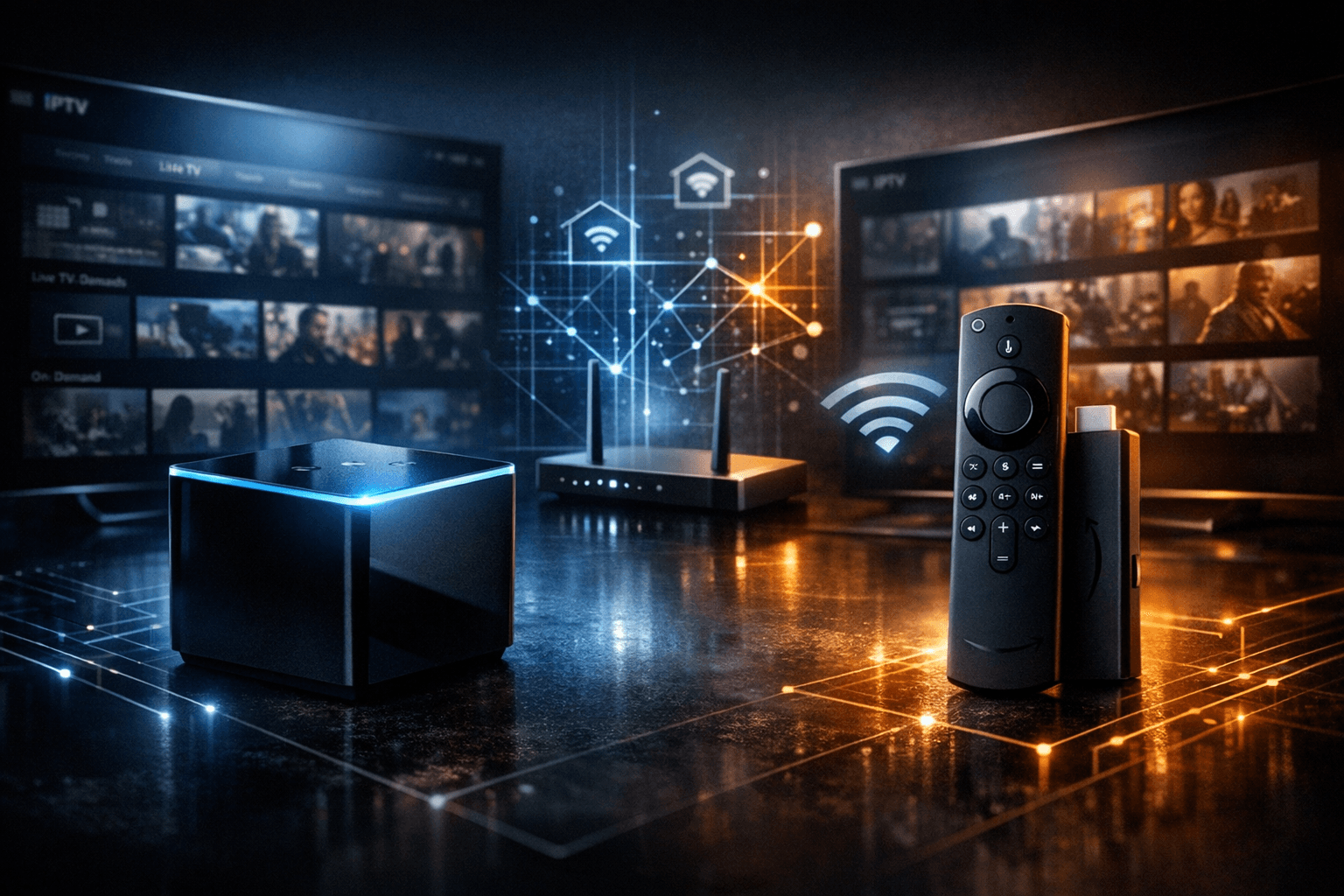
When deciding between the Fire TV Cube and the Fire TV Stick 4K Max for IPTV streaming, understanding their differences in hardware and network capabilities is crucial. Both devices can stream IPTV effectively, but their unique features influence performance, setup convenience, and user experience.
What you'll learn
- Core hardware differences affecting IPTV
- Network connectivity options and their impact
- Setup steps specific to IPTV on each device
- Troubleshooting common IPTV streaming issues
- Which device is a better fit based on IPTV usage scenarios
Hardware Comparison and IPTV Streaming Performance
Processor and Memory
The Fire TV Cube is powered by a Hexa-core processor, generally faster than the Fire TV Stick 4K Max's Quad-core chipset. This extra processing power can help with smoother IPTV app performance, particularly when decoding high bit-rate 4K streams or using demanding IPTV clients like TiviMate.
Both devices commonly include 2 GB of RAM, sufficient for most IPTV apps. However, the Cube's processor advantage reduces the likelihood of stutters or slowdowns during intensive multitasking or guide loading.
Storage
Internal storage is similar (around 16 GB), mainly used for apps and temporary cache. IPTV playlists and EPG data are typically lightweight, so storage is not a significant differentiator.
Network Connectivity and IPTV Reliability
Ethernet Support
A major distinction is the built-in Gigabit Ethernet port on the Fire TV Cube, enabling a stable wired network connection. IPTV streaming benefits greatly from a wired connection as it avoids Wi-Fi signal interference, lowering latency and buffering.
The Fire TV Stick 4K Max lacks an Ethernet port but supports Wi-Fi 6 (802.11ax), offering the latest Wi-Fi advances. While Wi-Fi 6 improves wireless IPTV performance, it can still be subject to network congestion and signal drops, particularly if the device is far from the router.
Wi-Fi Performance
Both devices support 2.4 GHz and 5 GHz bands; however, the Stick’s Wi-Fi 6 support theoretically enables higher bandwidth and lower interference. In practice, your home Wi-Fi environment and router capabilities largely determine IPTV streaming quality.
Using Ethernet with Fire TV Stick 4K Max
Though the Stick lacks a built-in Ethernet jack, users can employ USB-to-Ethernet adapters compatible with the device. This requires extra hardware and sometimes power adapters, making the Cube more turnkey for wired IPTV setups.
IPTV App Compatibility and Remote Control Features
Software Environment
Both the Fire TV Cube and Stick 4K Max run Amazon's Fire OS, a fork of Android optimized for streaming devices. IPTV apps available via the Amazon Appstore, such as TiviMate, IPTV Smarters, and native apps from IPTV providers, run identically on both devices.
Voice and Remote Controls
The Fire TV Cube includes hands-free Alexa voice control thanks to its built-in microphones, enabling commands without the remote. For IPTV users, this can mean voice channel switching or searching.
The Fire TV Stick 4K Max comes with the Alexa Voice Remote, requiring the remote to be used for voice commands, which is less convenient but functionally the same.
Setting Up IPTV on Fire TV Cube vs Fire TV Stick 4K Max
Step-by-Step Setup
- Connect the device to your TV's HDMI port and power it on.
- Establish network connectivity:
- For Cube: connect Ethernet cable or join Wi-Fi network.
- For Stick: connect to Wi-Fi network (or Ethernet via adapter, if available).
- Access the Amazon Appstore and search for your IPTV app, such as TiviMate.
- Install and launch the IPTV app.
- Input your IPTV playlist URL, login, or Xtream Codes API details as required.
- Configure EPG (Electronic Program Guide) settings if needed for channel guides.
- Adjust video streaming quality or buffering settings in the IPTV app if available.
These steps are consistent across both devices; however, the Cube’s wired connection provides a more stable base from the start.
Troubleshooting IPTV Streaming on Fire TV Devices
Common Issues
- Buffering or freezing: May be due to unstable Wi-Fi, signal interference, or ISP issues.
- Playlist or EPG loading errors: Check network connectivity and IPTV source validity.
- Remote control lag or unresponsiveness: May relate to device processing bottlenecks or software bugs.
Troubleshooting Tips
- Use Ethernet on the Fire TV Cube for consistent network performance.
- For the Stick 4K Max, move closer to the router or upgrade your Wi-Fi router to Wi-Fi 6.
- Restart your IPTV app and device to clear temporary glitches.
- Update your IPTV app and Fire OS to the latest versions.
- Check provider-side issues or playlist URL correctness.
For detailed guides on fixing freezing or playlist errors, see Why IPTV Freezes During Channel Switching and How to Fix It and Fixing Playlist Import Errors (404, 512) When Using a VPN with IPTV.
When to Choose Fire TV Cube or Fire TV Stick 4K Max for IPTV
| Feature | Fire TV Cube | Fire TV Stick 4K Max |
|---|---|---|
| Network Connection | Built-in Gigabit Ethernet + Wi-Fi | Wi-Fi 6 only, Ethernet via USB adapter only |
| Processor | Faster Hexa-core for smoother playback | Quad-core, still capable for IPTV |
| Voice Control | Hands-free Alexa, remote optional | Alexa via remote only |
| Setup Convenience | Ready for wired connections out of the box | Wireless-focused, Ethernet setup complex |
| Best For | IPTV users wanting the most stable playback | IPTV users with good Wi-Fi and budget conscious |
Conclusion
Both the Fire TV Cube and Fire TV Stick 4K Max can serve IPTV streaming well. If your priority is a reliable, wired connection and hands-free voice control, the Fire TV Cube stands out. For users with excellent Wi-Fi, a tighter budget, or who prefer a smaller device, the Fire TV Stick 4K Max offers excellent 4K IPTV streaming with modern Wi-Fi features.
Evaluate your home network environment, need for voice control, and setup preferences to choose the device that fits your IPTV viewing habits best.
For further optimization of IPTV on Fire TV devices, consult relevant guides on DNS configuration, EPG management, and playlist troubleshooting available on IPTV Explained.
Frequently Asked Questions
Is the Fire TV Cube better than the Fire TV Stick 4K Max for IPTV streaming?
The Fire TV Cube offers additional hardware features like Ethernet support and a faster processor, which can improve IPTV streaming stability and performance, especially on wired networks. The Fire TV Stick 4K Max is very capable but relies solely on Wi-Fi, which may affect streaming on congested or weaker networks.
Can I connect the Fire TV Stick 4K Max to Ethernet?
Out of the box, the Fire TV Stick 4K Max does not have an Ethernet port but can support Ethernet via compatible USB Ethernet adapters, though this is less straightforward than the Fire TV Cube's built-in gigabit Ethernet port.
Does the Fire TV Cube support hands-free voice control?
Yes, the Fire TV Cube includes built-in microphones for hands-free Alexa voice control, allowing you to control IPTV playback and other functions without using the remote.
Will both devices support 4K IPTV streams?
Yes, both devices support 4K HDR video output, so they can handle high-resolution IPTV streams if the IPTV provider and your TV support it.
Are there differences in setup complexity between the two devices for IPTV use?
Setup complexity is similar since both run Fire OS and install IPTV apps the same way. However, the Fire TV Cube’s Ethernet support can simplify network configuration for IPTV users requiring stable wired connections.
Keep exploring
More explainers that connect naturally to this setup, workflow, or troubleshooting path.
If you are experiencing lag or buffering while watching IPTV on your Fire TV Stick, one common culprit is limited device storage. When the Fire TV Stick's internal memory fills up or gets fragmented, the IPTV app performance can degrade.

If you watch IPTV on your Fire TV Stick, having the right Wi-Fi settings can significantly improve your streaming experience by minimizing buffering and lag.


When it comes to updating IPTV playlists, two common methods are M3U Plus and the Xtream Codes API. Both serve to refresh the channel lists and program information delivered to IPTV apps, but they do so in different ways.
